
1. Gabatarwa
The D-Link Wireless N300 Dual Band PCI Express Desktop Adapter (DWA-566) provides high-speed wireless connectivity for your desktop computer. Utilizing Wireless N technology, it maximizes the speed and range of your wireless signal, offering superior performance compared to Wireless G devices. The dual-band capability supports both 2.4GHz and 5GHz wireless signals, allowing for flexible network usage, such as browsing on 2.4GHz and HD streaming or gaming on the clearer 5GHz band.
This adapter is designed to fit into any standard PCI Express slot, offering a higher performance interface than legacy PCI. It supports secure wireless networks with WPA or WPA2 encryption.

Figure 1.1: D-Link DWA-566 Wireless N300 Dual Band PCI Express Desktop Adapter with antennas.
2. Features
The DWA-566 adapter includes the following key features:
- IEEE 802.11n, 802.11g, and 802.11a Compliant
- Dual Band Technology for Superior Wireless Performance (2.4GHz or 5GHz)
- Access secure wireless networks using advanced WPA or WPA2 encryption
- Fits into any standard PCI Express slot
- PCI Express Interface provides higher performance than a legacy PCI interface
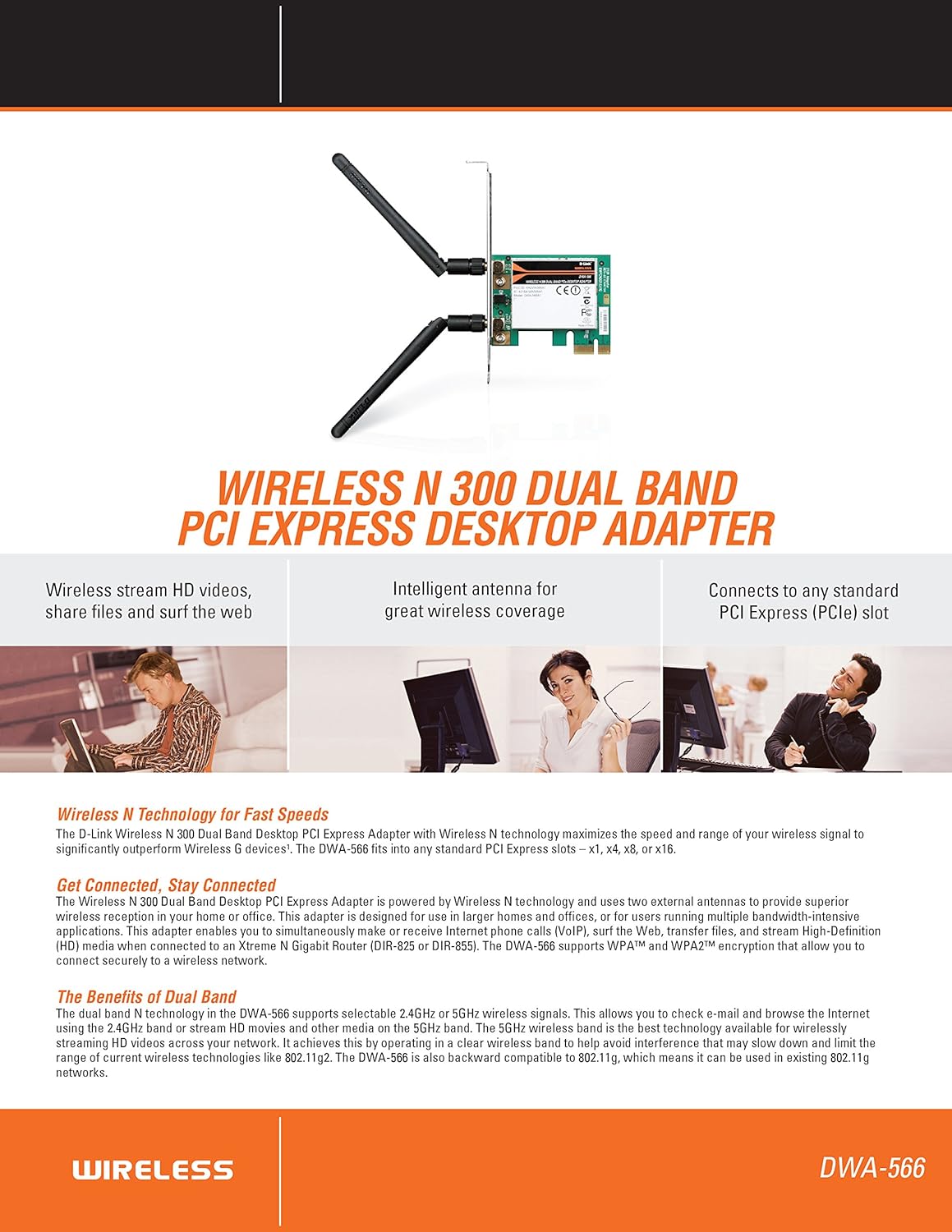
Hoto 2.1: Samaview of DWA-566 features and benefits.
3. Abubuwan Kunshin
Tabbatar cewa kunshin ku ya ƙunshi abubuwa masu zuwa:
- Wireless N 300 Dual Band PCI Express Adapter (DWA-566)
- Two detachable antennas
- Low-profile madaurin hawa
- Jagoran Shigar da sauri
- CD-ROM with:
- Manajan Haɗin Wireless Wireless D-Link
- Direbobi
- Takardun Samfura
4. Tsarin Bukatun
Before installing the DWA-566, ensure your system meets the following minimum requirements:
- Computer with an available PCI Express slot
- Windows operating system (Windows XP, Vista, 7, 8, 10)
- CD-ROM drive (for driver installation from included CD)
- Internet Explorer 7 or Firefox 3.0 and above (for viewing documentation)
- Biyan kuɗi tare da Mai Ba da Sabis na Intanet (ISP)
For optimal performance, a D-Link Wireless N router (DIR-655 or DIR-825) is recommended.

Figure 4.1: Detailed technical specifications, minimum requirements, and network diagram.
5. Saita da Shigarwa
5.1 Shigar da Hardware
- Power Off Computer: Kashe kwamfutarka kuma cire igiyar wutar lantarki.
- Bude Cajin Kwamfuta: Remove the computer case cover.
- Gano wurin PCI Express Ramin: Find an available PCI Express slot on your motherboard.
- Saka Adafta: Carefully insert the DWA-566 adapter into the PCI Express slot, ensuring it is seated firmly.
- Amintaccen Adafta: Secure the adapter with a screw to the computer chassis.
- Haɗa Eriya: Screw the two included antennas onto the connectors on the adapter.
- Rufe Harka da Wuta A Kunna: Replace the computer case cover, plug in the power cord, and power on your computer.

Figure 5.1: DWA-566 adapter with antennas attached, ready for installation.
5.2 Shigar da Software
After hardware installation, proceed with driver and utility installation:
- Insert Installation CD: Insert the DWA-566 installation CD into your computer's CD-ROM drive. The setup wizard should launch automatically. If not, navigate to the CD drive and run the 'Setup.exe' file.
- Bi Umarnin Kan-Allon: Follow the prompts of the D-Link setup wizard to install the drivers and the D-Link Wireless Connection Manager utility.
- Sake kunna Kwamfuta: After the installation is complete, restart your computer when prompted.
Lura: For Windows 7/8 64-bit systems, ensure you are using the latest drivers available from the official D-Link support website to avoid potential compatibility issues.
6. Umarnin Aiki
Once the drivers are installed, you can connect to a wireless network:
- Launch Connection Manager: Open the D-Link Wireless Connection Manager utility or use the built-in Windows wireless network utility.
- Duba hanyoyin sadarwa: The utility will scan for available wireless networks in your area.
- Zaɓi hanyar sadarwa: Choose your desired wireless network (SSID) from the list.
- Enter Security Key: If the network is secured, enter the correct WPA/WPA2 security key or passphrase.
- Haɗa: Danna 'Connect' don ƙirƙirar haɗin mara waya.
A successful connection will be indicated by a strong signal strength and internet access.
7. Kulawa
To ensure optimal performance and longevity of your DWA-566 adapter:
- Ci gaba da sabunta direbobi: Lokaci-lokaci duba tallafin D-Link website for the latest drivers and firmware updates.
- Tabbatar da iska mai kyau: Make sure your computer case has adequate airflow to prevent overheating of internal components, including the wireless adapter.
- Matsayin Antenna: Adjust the antennas for the best possible signal reception.
- Abubuwan Muhalli: Avoid placing your computer near large metal objects or other devices that may cause wireless interference.
8. Shirya matsala
If you encounter issues with your DWA-566 adapter, consider the following:
8.1 No Wireless Connection
- Verify Hardware Installation: Ensure the adapter is correctly seated in the PCI Express slot and antennas are securely attached.
- Check Drivers: Confirm that the drivers are installed correctly. Check Device Manager for any error symbols next to the network adapter. Reinstall drivers if necessary.
- Matsayin na'ura mai ba da hanya tsakanin hanyoyin sadarwa: Ensure your wireless router is powered on and broadcasting a signal.
- Makullin Tsaro: Double-check that the correct wireless security key (WPA/WPA2 passphrase) is entered.
- Saitunan Wuta: Temporarily disable your computer's firewall to see if it is blocking the connection. If it resolves the issue, configure your firewall to allow the D-Link utility.
8.2 Slow Connection Speed or Frequent Disconnections
- Gyaran Eriya: Try repositioning the antennas for better signal reception.
- Tsangwama: Move the computer away from potential sources of interference (e.g., cordless phones, microwaves, Bluetooth devices).
- Kusa da na'ura mai ba da hanya tsakanin hanyoyin sadarwa: Ensure the computer is within the effective range of your wireless router.
- Dual Band Usage: If your router supports it, try connecting to the 5GHz band for less interference and potentially higher speeds, especially for streaming or gaming.
- Sabunta Direba: Update the adapter drivers to the latest version from the D-Link website.
9. Ƙayyadaddun bayanai
| Siffar | Ƙayyadaddun bayanai |
|---|---|
| Alamar | D-Link |
| Lambar Samfura | DWA-566 |
| Interirƙirar Abun Taɗi | PCI Express |
| Data Link Protocol | IEEE 802.11n, 802.11g, 802.11a |
| Yawan Canja wurin Bayanai | Har zuwa Megabits 300 a cikin Dakika guda |
| Ƙwaƙwalwar Mita | 2.4 GHz / 5 GHz (Dual Band) |
| Tsaro | WPA, WPA2 |
| Na'urori masu jituwa | Kwamfutocin Desktop |
| Nauyin Abu | 0.4 Fam (kimanin. 181 grams) |
| Takaddar Gwajin Waje | FCC B, IC B, CE, C-Tick |
10. Garanti da Tallafawa
The D-Link Wireless N300 Dual Band PCI Express Desktop Adapter (DWA-566) comes with a Garanti mai iyaka na shekara 1. For specific terms and conditions, please refer to the warranty documentation included with your product or visit the official D-Link website.
D-Link provides 24/7 Basic Installation Support to assist with initial setup and configuration. For technical assistance, driver downloads, and further product information, please visit the D-Link support website ko tuntuɓi sabis na abokin ciniki.
Tallafin D-Link Website: https://support.dlink.com/