
1. Gabatarwa
The SteelSeries Kana Optical Gaming Mouse is engineered for precision and versatility, designed to accommodate all three primary grip styles: palm, claw, and fingertip. This ambidextrous mouse features an ergonomic button layout and size, developed in collaboration with professional gaming teams to ensure consistent performance and accuracy in competitive environments. This manual provides comprehensive instructions for setup, operation, maintenance, and troubleshooting to help you maximize your gaming experience.
2. Abubuwan Kunshin
- SteelSeries Kana Optical Gaming Mouse (White)
- Quick Start Guide (integrated into this manual)
3. Samfurin Ya Ƙareview
Familiarize yourself with the key components of your SteelSeries Kana mouse:
- Maɓallin Dannawa na Hagu: Maɓallin aiki na farko.
- Maɓallin Dannawa Dama: Secondary action button.
- Gungurawa Dabarar: For scrolling and a clickable middle button. The scroll wheel is illuminated.
- CPI Toggle Button: Located centrally, allows quick switching between sensitivity settings.
- Side Buttons (x2): One on each side, large and easily accessible for rapid-fire actions. These can be customized or disabled via software.
- Sensor na gani: Located on the underside, provides precise tracking.
- Kebul Connector: For connecting the mouse to your computer.
- Kebul Na Layi: Durable, tangle-free nylon cord.
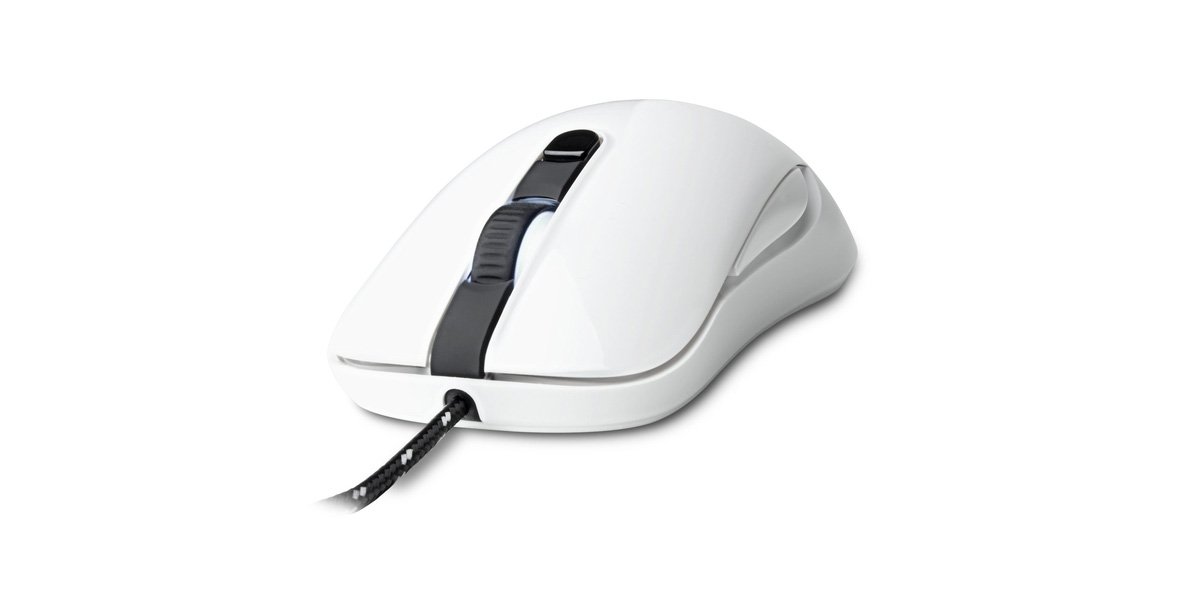
Image of the SteelSeries Kana Optical Gaming Mouse in white, showcasing its ambidextrous design, illuminated scroll wheel, and side buttons.
4. Saita
4.1 Haɗin Hardware
- Nemo tashar USB da ke akwai akan kwamfutarka.
- Plug the USB connector of the SteelSeries Kana mouse into the USB port.
- Your operating system should automatically detect and install basic drivers for the mouse.
4.2 Software Installation (SteelSeries Engine)
To unlock the full customization potential of your SteelSeries Kana mouse, including CPI settings, button programming, macros, and LED intensity, install the SteelSeries Engine software.
- Visit the official SteelSeries website: steelseries.com/engine
- Download the SteelSeries Engine software compatible with your operating system (Windows or macOS).
- Bi umarnin kan allo don kammala shigarwa.
- Once installed, launch the SteelSeries Engine to configure your mouse settings.
Note for Mac Users: Compatibility with macOS versions 10.9 and later for SteelSeries Engine 2.0 (required for Kana) has historically been inconsistent. Please check the official SteelSeries website for the latest software updates and compatibility information before installation.
5. Umarnin Aiki
5.1 Aiki na asali
- Motsi: Move the mouse across a surface to control the cursor on your screen.
- Danna: Use the left and right buttons for primary and secondary actions.
- Gungurawa: Rotate the scroll wheel to navigate documents and web pages. Press the scroll wheel for its assigned middle-click function.
5.2 Adjusting CPI (Counts Per Inch)
The centrally located CPI toggle button allows you to switch between two pre-defined sensitivity settings instantly. The default CPI settings are optimized for gaming, but can be customized using the SteelSeries Engine software. The maximum CPI supported is 3200.
- Press the CPI toggle button once to switch to the alternate CPI setting.
- Press it again to revert to the previous setting.
5.3 Customizing with SteelSeries Engine
The SteelSeries Engine software provides extensive customization options:
- CPI Settings: Fine-tune or set custom CPI values beyond the pre-defined options.
- Maballin Shirye-shiryen: Assign custom functions, keyboard shortcuts, or macros to any of the 6 programmable buttons (including side buttons and scroll wheel click).
- Macros: Create and assign complex sequences of commands with precise timing control.
- LED Intensity: Adjust the brightness of the illuminated scroll wheel.
- Profiles: Ƙirƙiri kuma adana ƙwararrun ma'aikata da yawafiles for different games or applications, with automatic switching based on game triggers.
6. Kulawa
6.1 Cleaning Your Mouse
To ensure optimal performance and longevity, keep your mouse clean.
- Na waje: Yi amfani da laushi mai laushi mara laushi dampan shafe shi da ruwa ko wani maganin tsaftacewa mai sauƙi don goge saman linzamin kwamfuta. A guji sinadarai masu ƙarfi ko kayan gogewa.
- Sensor na gani: Gently clean the optical sensor lens on the underside of the mouse with a dry cotton swab or compressed air to remove dust or debris.
- Ƙafafun linzamin kwamfuta: Ensure the mouse feet are clean and free of obstructions for smooth gliding.
Tsanaki: Do not immerse the mouse in water or any cleaning solution. Avoid spraying liquids directly onto the mouse.
7. Shirya matsala
| Matsala | Magani mai yiwuwa |
|---|---|
| Mouse not detected / Not responding |
|
| Inaccurate or erratic tracking |
|
| Buttons not responding or performing incorrectly |
|
| SteelSeries Engine software not recognizing mouse (Mac OS) |
|
8. Ƙayyadaddun bayanai
| Alamar | KarfeSeries |
| Lambar Samfura | 62029 |
| Launi | Fari |
| Fasahar Gano Motsi | Na gani |
| Adadin Maɓalli | 6 (Shirye-shirye) |
| Hannun Hannu | Ambidextrous (Left, Right) |
| Platform Hardware | PC |
| Nau'in Kebul | Nailan da aka rufe |
| Nauyin Abu | 0.16 kilogiram |
| Siffa ta Musamman | Ergonomic Design, Illuminated Scroll Wheel |
9. Garanti da Tallafawa
9.1 Bayanin Garanti
The SteelSeries Kana Optical Gaming Mouse comes with a Garanti mai iyaka na shekara 1 daga ranar sayayya. Wannan garantin ya ƙunshi lahani na masana'antu da aikin aiki ƙarƙashin amfani na yau da kullun. Ba ya rufe lalacewa ta hanyar rashin amfani, hatsarori, gyare-gyare mara izini, ko lalacewa da tsagewa na yau da kullun. Da fatan za a riƙe shaidar siyan ku don da'awar garanti.
9.2 Tallafin Abokin Ciniki
For technical assistance, warranty claims, or further information, please visit the official SteelSeries support website:
You can find FAQs, driver downloads, and contact information for customer service on their website.