
1. Gabatarwa
The Xbox One 500 GB Console is a versatile entertainment system designed to deliver a comprehensive gaming and multimedia experience. It combines exclusive games, advanced multiplayer capabilities, and unique entertainment features.

The Xbox One console, featuring its distinctive black design with a glossy and matte finish, shown with its external power supply and connecting cables.
Mabuɗin fasali:
- Includes the Xbox One console, 1 wireless controller, HDMI cable, and power supply.
- Access to exclusive games and advanced multiplayer experiences.
- Powered by a robust network for optimal performance.
- Features Smart Match for enhanced multiplayer matchmaking on Xbox Live.
- Note: Kinect sensor sold separately.
2. Saita
Initial Console Connection:
- Haɗa Ikon: Plug the power cable into the console and then into a power outlet.
- Haɗa HDMI: Use the provided HDMI cable to connect the console's HDMI OUT port to your TV's HDMI IN port.
- Haɗa zuwa Intanet (Na zaɓi): For online features and updates, connect an Ethernet cable to the console's Ethernet port or set up a wireless connection during initial boot.
- Mai Kula da Haɗawa: Insert AA batteries into the wireless controller. Press and hold the Xbox button on the controller to turn it on. Press the sync button on both the console and the controller to pair them.

The rear panel of the Xbox One console, highlighting its connectivity options such as HDMI In/Out, multiple USB ports, S/PDIF, and Ethernet port.
3. Aiki
Kunnawa/Kashewa:
- To power on, press the Xbox button on the console or the controller.
- To power off, hold the Xbox button on the controller for a few seconds and select 'Turn console off' from the menu, or press and hold the Xbox button on the console until it shuts down.
Inserting and Ejecting Discs:
- Insert a game disc or Blu-ray disc into the slot-loading drive on the front of the console. The console will automatically pull the disc in.
- To eject a disc, press the eject button located next to the disc drive slot.

The front of the Xbox One console, displaying the slot-loading disc drive and the illuminated Xbox power button.
Kewayawa Interface:
The Xbox One features an intuitive dashboard for easy navigation. Use your controller's directional pad or left analog stick to move between tiles and select options. The Xbox button on your controller provides quick access to the Guide menu, where you can manage friends, messages, settings, and more.
4. Kulawa
Tsaftacewa:
- Regularly wipe the console with a soft, dry cloth to remove dust.
- Ensure ventilation areas are clear of obstructions to prevent overheating.
Fadada ajiya:
The Xbox One supports external USB 3.0 hard drives for additional game and app storage. This allows you to expand your game library beyond the internal 500 GB capacity.
Video demonstrating how to connect and set up a Seagate Game Drive to an Xbox One console, expanding its storage capacity by 2TB.
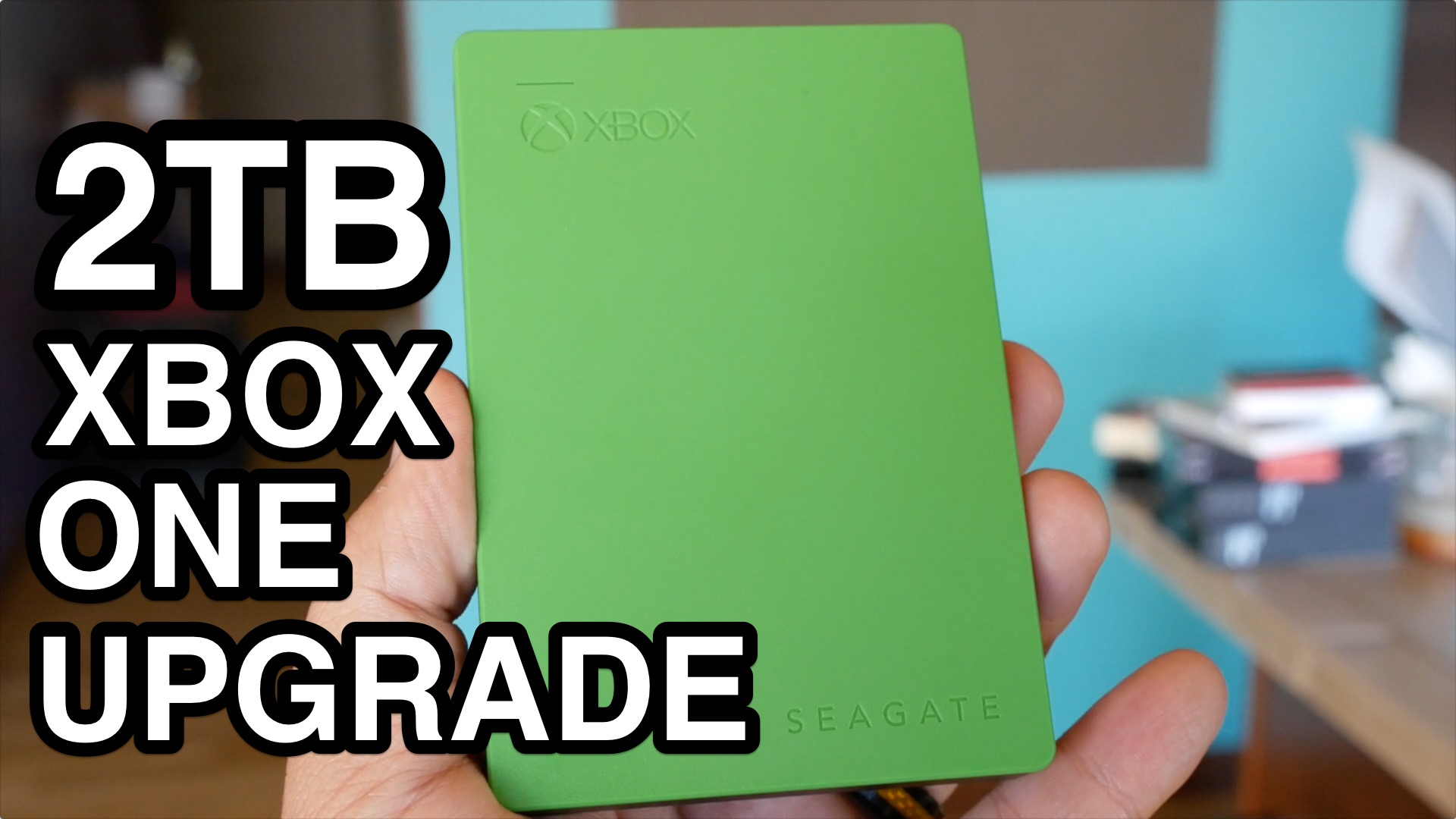
A compact, green external hard drive, the Seagate Game Drive, designed to expand storage for Xbox consoles.
5. Shirya matsala
If you encounter issues with your Xbox One console, try the following basic troubleshooting steps:
- Zagayowar Wuta: Hold the Xbox button on the front of the console for 10 seconds to turn it off completely. Unplug the power brick from the wall outlet and the console. Wait 30 seconds, then plug everything back in and restart the console.
- Duba Haɗin kai: Ensure all cables (power, HDMI, Ethernet) are securely connected to both the console and your display/router.
- Matsalolin Mai Gudanarwa: If your controller isn't responding, try replacing its batteries or connecting it directly to the console with a USB cable to check for connectivity.
- Kurakurai Karatun Disc: Ensure the disc is clean and free of scratches. Try another disc to determine if the issue is with the disc or the console's drive.
6. Ƙayyadaddun bayanai
| Siffar | Daki-daki |
|---|---|
| ASIN | B00KAI3KW2 |
| Ranar Saki | Yuni 9, 2014 |
| Girman samfur | 20 x 14 x 7 inci |
| Nauyin Abu | 11.05 fam |
| Nau'in Abu | Console |
| Harshe | Turanci |
| An ƙididdige shi | Kowa |
| Lambar Samfurin Abu | 5C5-00001 |
| Mai ƙira | Microsoft |
| Baturi | 2 AA batteries required (for controller) |
7. Garanti da Tallafawa
For information regarding product warranty, technical support, or service inquiries, please refer to the official Xbox support website or contact Microsoft customer service. Keep your proof of purchase for warranty claims.
Online resources and community forums are also available for additional assistance and tips.