
1. Gabatarwa
This manual provides detailed instructions for the setup, operation, and maintenance of your Eventide H9 Max Harmonizer Pedal. The H9 Max is a versatile multi-effects processor designed for musicians, offering a comprehensive suite of Eventide algorithms in a compact stompbox format.
2. Bayanin Tsaro
- Tushen wutan lantarki: Use only the specified 9-12VDC power supply (4.5W) to prevent damage to the unit.
- Danshi: Kada a bijirar da naúrar ga ruwa ko danshi mai yawa.
- Samun iska: Ensure adequate ventilation around the pedal to prevent overheating.
- Tsaftacewa: Clean the unit with a soft, dry cloth. Avoid abrasive cleaners.
- Hidima: Refer all servicing to qualified service personnel. Do not attempt to open or repair the unit yourself.
3. Abubuwan Kunshin
Upon opening your Eventide H9 Max package, you should find the following items:
- Eventide H9 Max Harmonizer Pedal
- Jakar kariya
- Power Supply (specific to region)
- Kebul na USB
- Jagoran Fara Mai Sauri
4. Kayan Samfura
- Includes all 45 algorithms and associated presets from the acclaimed Eventide Stompboxes: Space, TimeFactor, PitchFactor, and ModFactor.
- Features H9 Exclusives: Ultra Tap delay, Resonator, Compressor EQ, CrushStation, SpaceTime, Sculpt, and PitchFuzz.
- More than 600 Factory Presets available (unit ships with 99, others accessible via H9 Control App).
- Ability to share algorithms with up to 4 additional H9 units.
- Built-in tuner for convenient instrument tuning.
- True bypass circuitry to maintain signal integrity when the effect is disengaged.
- MIDI input and output for advanced control and integration with other gear.
- Wireless control via Bluetooth using the H9 Control app on Windows, OSX, or iOS devices.
5. Saita
5.1. Haɗin Jiki
Properly connecting your H9 Max pedal is crucial for optimal performance. Refer to the images below for connection points.

Hoto na 1: Rear panel connections including Input 1/2, Output 1/2, USB, Expression Pedal (EXP), and 9-12VDC power input.

Hoto na 2: Side panel connections for MIDI In and MIDI Out/Thru.
- Ƙarfi: Connect the provided power supply to the 9-12VDC input on the rear panel.
- Shigar Sauti: Connect your instrument or audio source to the Input 1 or Input 2 jacks.
- Fitowar Sauti: Connect the Output 1 or Output 2 jacks to your amplifier, mixer, or next pedal in the signal chain.
- Expression Pedal (Optional): Connect an expression pedal to the EXP jack for real-time control over parameters.
- MIDI (Optional): Use the MIDI In and Out/Thru ports for external MIDI control or synchronization.
- USB: Connect the USB port to your computer for software updates and control via the H9 Control app.
5.2. Software Installation and Update
To manage algorithms, presets, and system settings, install the H9 Control app on your computer or iOS device. Ensure you have the latest version for optimal performance.
Fim na 1: This video demonstrates the process of installing new algorithms and updating the H9 Control app on your device.
- Download the H9 Control app from the Eventide website or the App Store (for iOS devices).
- Follow the on-screen installation instructions for your operating system.
- Connect your H9 Max pedal to your computer via USB or wirelessly via Bluetooth.
- Launch the H9 Control app. The app will detect your pedal.
- Navigate to the 'Pedal' tab within the app and select 'Update Stompbox's Software' to ensure your pedal has the latest firmware.
6. Umarnin Aiki
6.1. Basic Controls
The H9 Max features a streamlined one-knob user interface for direct control.
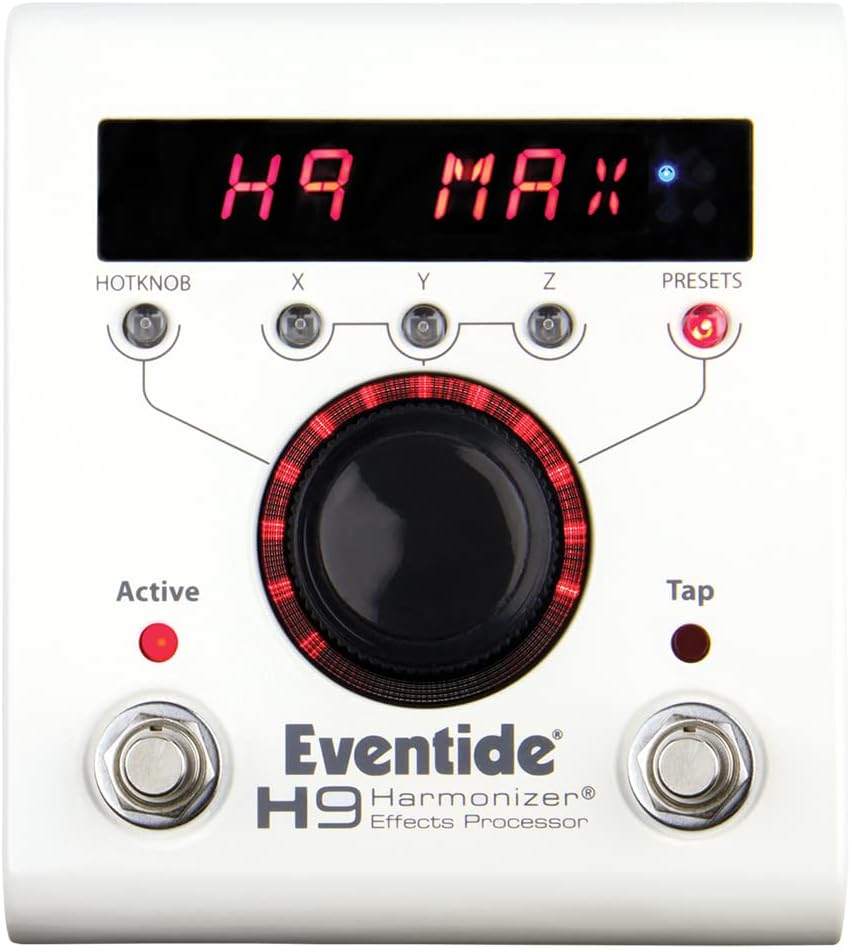
Hoto na 3: Front panel controls of the H9 Max pedal.
- Ƙofar Tsakiya: Used for navigating menus, selecting parameters, and adjusting values.
- HOTKNOB Button: Assignable button for quick access to a specific parameter.
- X, Y, Z Buttons: Used for navigating parameters within an algorithm.
- PRESETS Button: Accesses and scrolls through saved presets.
- ACTIVE Footswitch: Yana kunnawa/kashe tasirin.
- TAP Footswitch: Used for tap tempo or other assigned functions.
6.2. Algorithms and Presets
The H9 Max provides access to a vast library of algorithms and presets.

Hoto na 4: The H9 Max display showing the 'PHASER' algorithm.
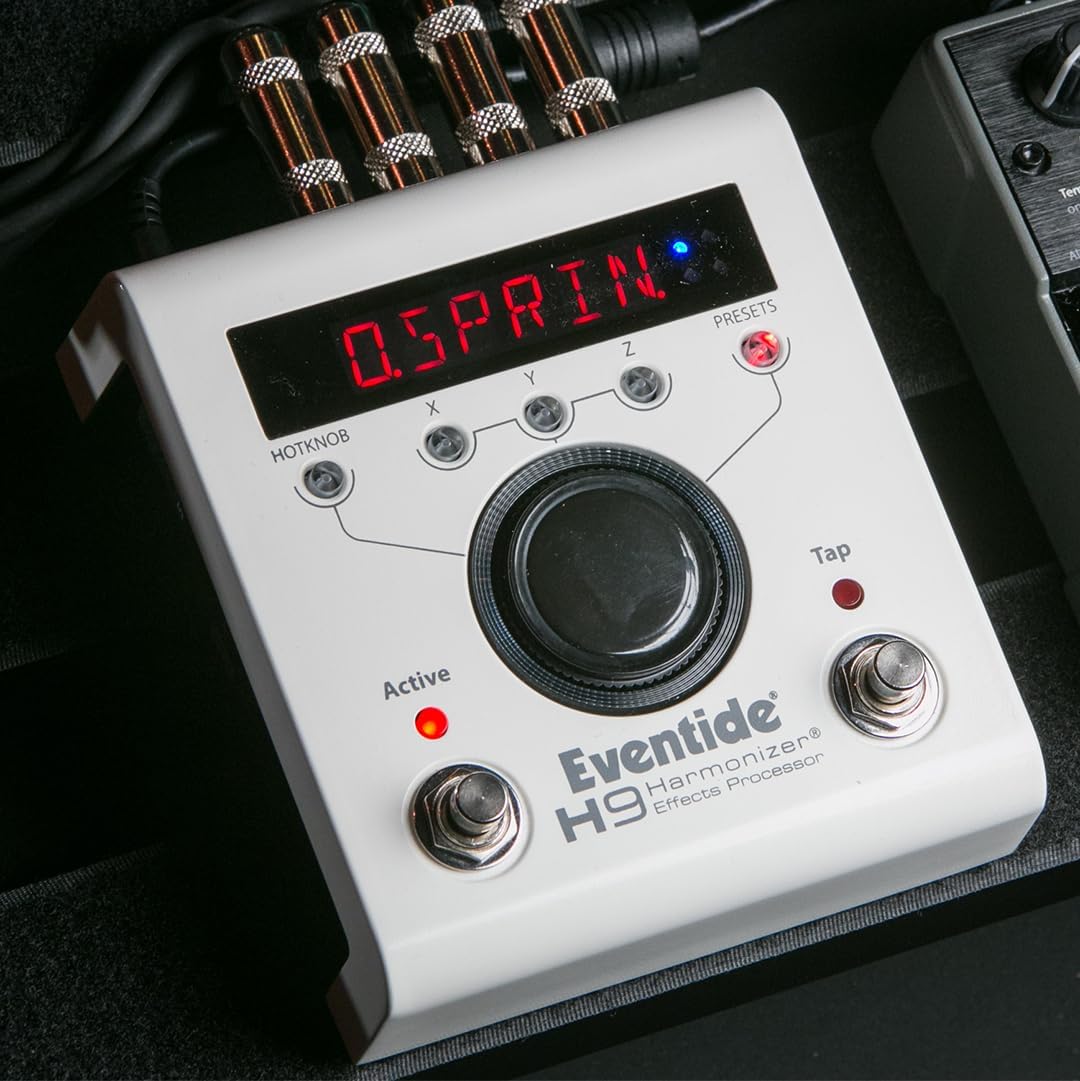
Hoto na 5: The H9 Max display showing a preset for 'SPRING' reverb.
- Selecting Algorithms: Use the H9 Control app to browse and load any of the 52 available algorithms onto your pedal.
- Ana Loda Saitattun Saituna: The pedal comes with 99 factory presets. Additional presets (over 500) can be downloaded and managed via the H9 Control app. Use the PRESETS button to scroll through them.
- Ma'aunin Gyara: Once an algorithm is loaded, use the central knob and X, Y, Z buttons to adjust its parameters.
6.3. Wireless Control
The H9 Control app allows for wireless management of your pedal via Bluetooth.
- Ensure Bluetooth is enabled on your device and the H9 Max.
- Open the H9 Control app and connect to your pedal.
- From the app, you can edit parameters, create and save custom presets, manage algorithm installations, and change system settings.
7. Ƙayyadaddun bayanai
| Siffar | Daki-daki |
|---|---|
| Nauyin Abu | 1.53 fam |
| Girman samfur | 10.5 x 6.5 x 3 inci |
| Kayan Jiki | Karfe |
| Launi | Fari |
| Interirƙirar Abun Taɗi | Bluetooth, USB, MIDI |
| Tsarin sigina | Analog |
| Tushen wutar lantarki | Corded Electric |
| Voltage | 9-12V DC |
| Lambar Samfura | H9 MAX |
8. Kulawa
- Tsaftacewa: Wipe the pedal's exterior with a soft, dry cloth to remove dust and grime. Do not use liquid cleaners or solvents.
- Ajiya: Store the pedal in a cool, dry place away from direct sunlight and extreme temperatures. When not in use, it is recommended to store it in its protective bag.
- Sabunta Firmware: Regularly check the Eventide website or the H9 Control app for firmware updates to ensure your pedal has the latest features and bug fixes.
9. Shirya matsala
- Babu Ƙarfi: Ensure the power adapter is correctly connected and supplying the correct voltage (9-12VDC). Check the power outlet.
- Babu Sauti: Verify all audio cables are securely connected to the correct input/output jacks. Check your instrument and amplifier. Ensure the pedal is 'ACTIVE'.
- Matsalolin Haɗin Bluetooth: Make sure Bluetooth is enabled on both the H9 Max and your control device. Restart both devices and the H9 Control app. Ensure the app is updated to the latest version.
- Halin da Ba A zata: Try performing a factory reset (refer to the Eventide website for specific instructions, as this may vary by firmware version). Ensure the pedal's firmware is up to date.
- Algorithm Loading Problems: Ensure your H9 Control app is updated. Check your internet connection if downloading new algorithms.
If you encounter persistent issues, please contact Eventide customer support.
10. Garanti da Tallafawa
The Eventide H9 Max Harmonizer Pedal is covered by a manufacturer's warranty. Please refer to the warranty card included with your product or visit the official Eventide website don cikakken garanti sharuɗɗa da sharuɗɗa.
For technical support, product registration, or further assistance, please visit the Eventide support page: