
1. Gabatarwa
This manual provides essential information for setting up, operating, maintaining, and troubleshooting your Alienware 17 R3 laptop. This high-performance gaming laptop features an Intel Core i7-6820HK processor, a 17.3-inch UHD (3840x2160) IPS-Panel Anti-Glare Display, NVIDIA GeForce GTX 980M graphics with 8GB GDDR5, 32GB DDR4 RAM, and a dual storage solution with a 256GB PCIe SSD and a 1TB 7200rpm HDD. It comes pre-installed with Windows 10 (64Bit) English.
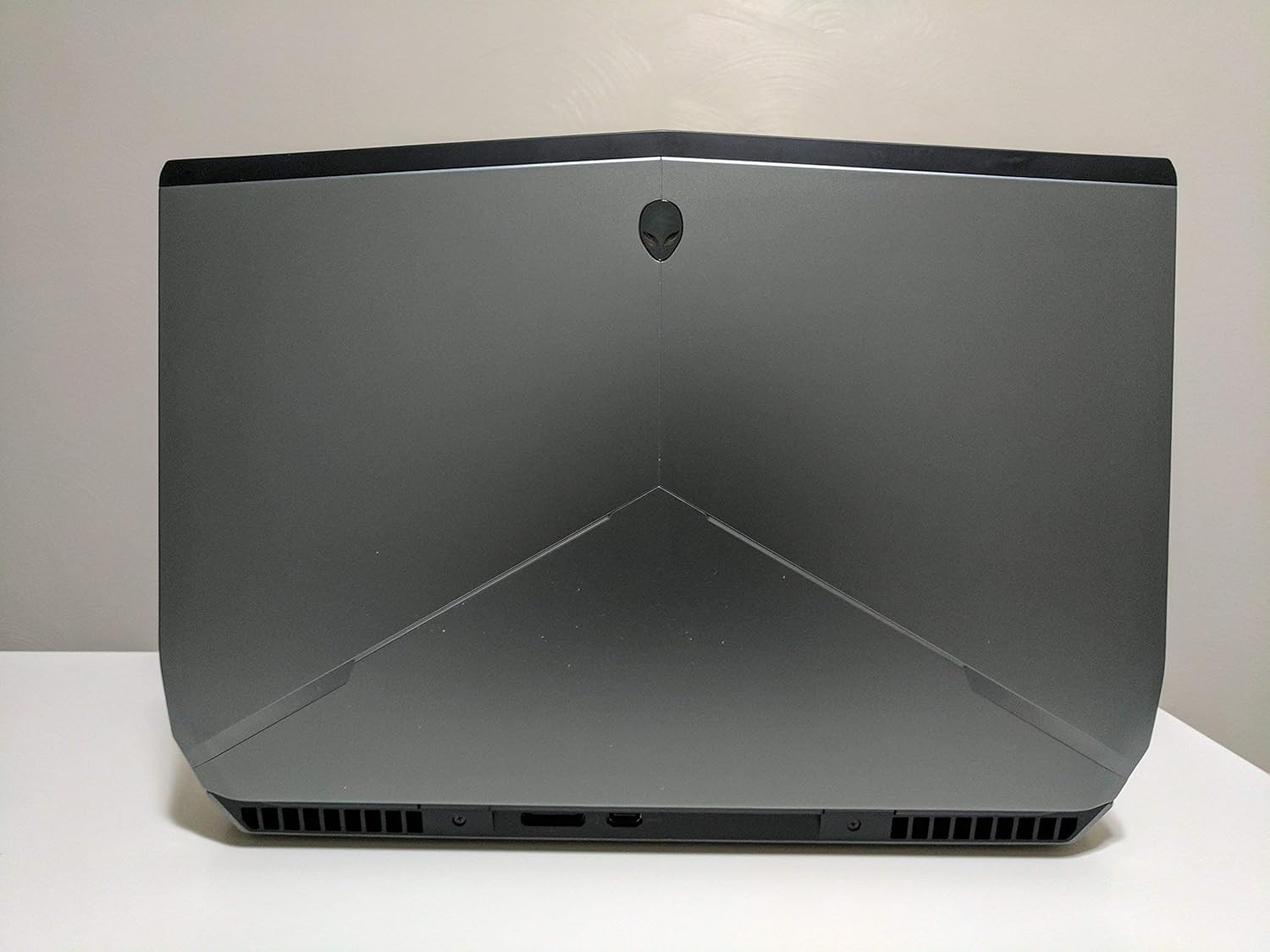
Hoto 1: Na baya view of the Alienware 17 R3 laptop, highlighting its distinctive design and cooling vents.
2. Saita
2.1 Unboxing da Farko dubawa
Carefully remove your Alienware 17 R3 laptop and its accessories from the packaging. Ensure all components listed below are present:
- Alienware 17 R3 Laptop
- Alienware 240W AC Adapter
- Igiyar Wutar Lantarki
- 8 Cell 92W Hour Battery (may be pre-installed)
- Takardu (Jagorar Farawa Cikin Sauri, Bayanin Tsaro)
2.2 Haɗa Adaftar Wuta
Connect the Alienware 240W AC Adapter to the power input port on the laptop, typically located at the rear or side. Plug the power cord into the AC adapter and then into a grounded electrical outlet. The laptop can be operated on battery power, but it is recommended to connect the AC adapter for initial setup and optimal performance.

Hoto 2: Gaba view of the Alienware 17 R3 laptop, ready for initial power-on.
2.3 Initial Boot-up and Windows 10 Setup
Press the power button, usually located on the top right of the keyboard deck or a dedicated button. The laptop will power on and guide you through the Windows 10 initial setup process. Follow the on-screen instructions to configure language, region, network settings, and user accounts.
2.4 Haɗawa zuwa Cibiyar Sadarwa ta Mara waya
During the Windows 10 setup, you will be prompted to connect to a Wi-Fi network. Select your desired network from the list and enter the password if required. The laptop features Killer 1535 802.11ac 2x2 WiFi for robust wireless connectivity.
3. Operating Your Alienware 17 R3
3.1 Keyboard da Touchpad
The Alienware 17 R3 features an English keyboard with Alienware's signature design and backlighting. It also includes 6 programmable Macro module keys, which can be customized for various functions using Alienware's software. The precision touchpad supports multi-touch gestures for intuitive navigation.
3.2 Saitunan Nuni
Your laptop is equipped with a 17.3-inch UHD (3840x2160) IPS-Panel Anti-Glare Display. To adjust display settings such as resolution, brightness, and color profiles, right-click on the desktop and select 'Display settings' or access them via the Windows Settings menu.
3.3 Haɗin Na'urorin Waje
The Alienware 17 R3 offers various ports for connecting peripherals:
- Tashoshin USB: Don haɗa ma'ajiyar waje, beraye, madanni, da sauran na'urorin USB.
- HDMI/Filin Nuni: For connecting external monitors or projectors.
- Ethernet Port: Don haɗin yanar gizo mai waya.
- Audio Jacks: For headphones, microphones, or external speakers.

Figure 3: Left side of the Alienware 17 R3, illustrating available connectivity ports.

Figure 4: Right side of the Alienware 17 R3, showing additional connectivity options.
4. Kulawa
4.1 Tsaftace Laptop ɗinku
To maintain optimal performance and appearance, regularly clean your laptop. Use a soft, lint-free cloth slightly dampened with water or a specialized screen cleaner for the display. For the chassis and keyboard, use a dry, soft cloth. Avoid harsh chemicals or abrasive materials.
4.2 Kula da baturi
The Alienware 17 R3 is equipped with an 8 Cell 92W Hour Battery. To prolong battery life, avoid extreme temperatures and allow the battery to discharge partially before recharging. For long-term storage, ensure the battery is charged to approximately 50%.
4.3 Sabunta software
Regularly update your Windows 10 operating system and device drivers to ensure security, stability, and optimal performance. Windows Update can be accessed through the Settings menu. Alienware Command Center or Dell SupportAssist can help manage driver updates.
4.4 Gudanar da Adana
Your laptop features a 256GB PCIe SSD for fast boot times and application loading, complemented by a 1TB 7200rpm SATA HDD for mass storage. Regularly manage your files, uninstall unused programs, and consider disk cleanup tools to maintain storage efficiency.
5. Shirya matsala
This section addresses common issues you might encounter with your Alienware 17 R3.
5.1 Matsalolin wutar lantarki
- Laptop ba ya kunna: Ensure the AC adapter is securely connected to both the laptop and a working power outlet. Check if the power outlet is functional. Try a different power outlet.
- Baturi ba caji: Verify the AC adapter connection. Check the battery status in Windows. If the issue persists, contact support.
5.2 Matsalolin Nuni
- Babu hoto a allon: Ensure the laptop is powered on. Try connecting an external monitor to check if the issue is with the laptop's display or the graphics card.
- Incorrect resolution or flickering: Sabunta direbobin zane-zanen ku. Daidaita saitunan nuni a cikin Windows.
5.3 Matsalolin Haɗuwa da hanyar sadarwa
- Ba za a iya haɗi zuwa Wi-Fi ba: Ensure Wi-Fi is enabled. Restart your router and modem. Check network adapter drivers.
- Saurin intanet mai jinkiri: Check your internet service provider. Ensure no other devices are consuming excessive bandwidth.
5.4 Matsalolin Aiki
- Laptop is slow: Close unnecessary applications. Check for background processes consuming high CPU or RAM. Ensure sufficient free space on the SSD.
- Yin zafi fiye da kima: Ensure ventilation grilles are not blocked. Clean dust from vents. Consider using a cooling pad.
6. Ƙayyadaddun bayanai
Detailed technical specifications for the Alienware 17 R3 (Model 6820HK):
| Siffar | Ƙayyadaddun bayanai |
|---|---|
| Mai sarrafawa | Intel Core i7-6820HK (8M Cache, unlocked up to 4.10 GHz) |
| Nunawa | 17.3-inch UHD (3840x2160) IPS-Panel Anti-Glare Display |
| Zane-zane | NVIDIA GeForce GTX 980M tare da 8GB GDDR5 |
| RAM | 32GB Dual Channel DDR4 2133MHz (2 x 16GB) |
| Adana | 256GB PCIe SSD + 1TB 7200rpm SATA 6Gb/s HDD |
| Tsarin Aiki | Windows 10 (64Bit) English |
| Haɗin mara waya | Killer 1535 802.11ac 2x2 WiFi and Bluetooth 4.1 |
| Baturi | 8 Cell 92W Hour Battery |
| Tushen wutan lantarki | Alienware 240W AC Adapter |
| Allon madannai | English Keyboard with 6 programmable Macro module keys |
| Nauyin Abu | Kimanin fam 15 (6.8 kg) |
| Girma | Approximately 7.87 x 6.69 x 1.97 inches (20 x 17 x 5 cm) - Package Dimensions |
7. Garanti da Tallafawa
7.1 Garanti mai iyaka
Your Alienware 17 R3 comes with a Garanti mai iyaka na Shekara 1. This warranty covers manufacturing defects and hardware failures under normal use conditions. Please refer to the warranty documentation included with your product for full terms and conditions.
7.2 Sabis da Tallafawa
Samfurin ya haɗa da:
- In-Home Service after Remote Diagnosis: Parts and Labor On-Site Response, Initial Year.
- Dell Hardware Warranty Plus On-Site Service: Initial Year.
- Taimakon garanti: Initial Year.
For technical assistance, troubleshooting, or to initiate a warranty claim, please visit the official Alienware or Dell support website. You will typically need your service tag or express service code, found on a label on your laptop, to access personalized support resources.
Lura: No official product videos were available in the provided data for embedding in this manual.