
1. Gabatarwa
This manual provides essential instructions for the proper setup, operation, and maintenance of your CipherLab 1500P HP 1D Corded Barcode Scanner. Please read this manual thoroughly before using the device to ensure optimal performance and to prevent damage.
2. Bayanin Tsaro
- Kada a fallasa na'urar daukar hoton ga yanayin zafi mai tsanani, danshi, ko hasken rana kai tsaye.
- Avoid dropping the scanner or subjecting it to severe impacts.
- Do not attempt to disassemble or modify the scanner. This will void the warranty.
- Yi amfani da kebul na USB da aka bayar kawai don haɗawa.
- Keep the scanning window clean to ensure accurate barcode reading.
3. Abubuwan Kunshin
Da fatan za a duba abubuwan da ke cikin kunshin don tabbatar da duk abubuwa suna nan:
- CipherLab 1500P HP 1D Corded Barcode Scanner
- Kebul na USB
- Jagoran Farawa Mai sauri (idan an haɗa)
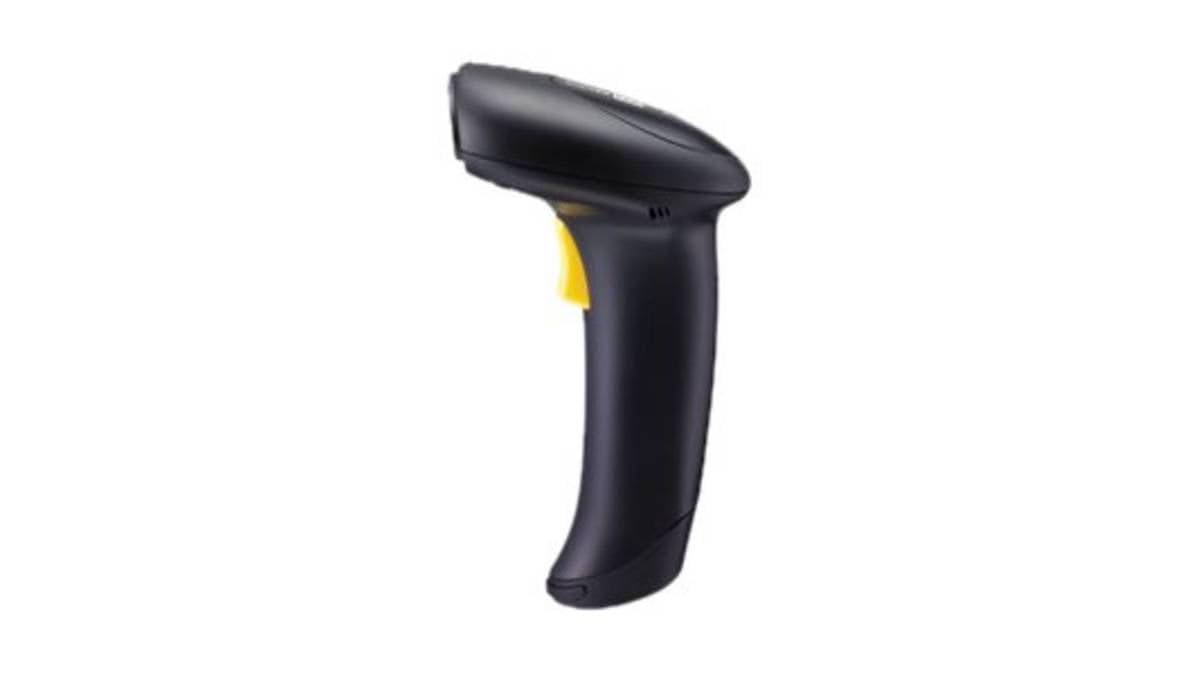
Figure 1: CipherLab 1500P HP 1D Corded Barcode Scanner with USB cable. This image displays the ergonomic design of the scanner and its wired connection.
4. Saita
4.1 Haɗa Scanner
- Locate an available USB port on your computer or host device.
- Connect the smaller end of the USB cable to the port at the base of the CipherLab 1500P HP scanner.
- Connect the larger end of the USB cable to the USB port on your computer.
- The scanner will power on automatically. Most operating systems will detect and install the necessary drivers automatically (Plug-and-Play).
4.2 Gwajin Farko
After connecting, open a text editor (e.g., Notepad, Word) or any application that accepts keyboard input. Scan a known barcode. The data should appear in the application. If not, refer to the Troubleshooting section.
5. Gudanar da Na'urar daukar hoto
5.1 Binciken asali
- Hold the scanner comfortably in your hand.
- Point the scanning window towards the barcode you wish to read.
- Press and hold the trigger button. A red aiming line will appear.
- Center the aiming line over the entire barcode.
- Once the barcode is successfully read, the scanner will emit a beep and the LED indicator will flash. Release the trigger button.
5.2 Scanning Feedback
- Successful Read: A short beep and a green LED flash.
- Unsuccessful Read: No beep or flash, or a different error tone (refer to troubleshooting).
6. Kulawa
6.1 Share Scanner
To maintain optimal scanning performance, keep the scanning window clean:
- Yi amfani da taushi, yadi mara lint dampened with water or a mild, non-abrasive cleaning solution.
- Gently wipe the scanning window and the exterior casing.
- Do not use harsh chemicals, solvents, or abrasive materials, as these can damage the scanner.
6.2 Adana
Idan ba a amfani da na'urar daukar hoton, a ajiye ta a wuri mai tsabta da bushewa, nesa da hasken rana kai tsaye da kuma yanayin zafi mai tsanani.
7. Shirya matsala
| Matsala | Dalili mai yiwuwa | Magani |
|---|---|---|
| Scanner baya kunnawa. | Kebul na USB ba a haɗa shi da kyau ko tashar USB mara kyau ba. | Ensure the USB cable is securely connected to both the scanner and the computer. Try a different USB port. |
| Scanner baya karanta lambar bariki. | Barcode damaged, scanning window dirty, incorrect scanning angle, or scanner not configured for barcode type. | Ensure the barcode is clear and undamaged. Clean the scanning window. Adjust the scanning angle. Refer to the full programming manual for advanced configuration. |
| Scanned data appears incorrectly. | Keyboard layout mismatch or incorrect data formatting. | Ensure your computer's keyboard layout matches the scanner's default or programmed layout. Consult the full programming manual for data formatting options. |
8. Ƙayyadaddun bayanai
- Lambar Samfura: A1500PCBSU001
- Fasahar Haɗuwa: Kebul na USB
- Tushen wutar lantarki: Kebul na USB
- Na'urori masu jituwa: Desktop, Laptop
- Nauyin Abu: 10.93 fam
- Girman Kunshin: 8 x 8 x 8 inci
- Mai ƙira: CipherLab
9. Garanti Bayani
CipherLab products are manufactured to high quality standards. This product is covered by a limited warranty against defects in materials and workmanship. For specific warranty terms and conditions, please refer to the warranty card included with your product or visit the official CipherLab website.
10. Tallafin Abokin Ciniki
If you encounter issues not covered in this manual or require further assistance, please contact your vendor or visit the official CipherLab support website for up-to-date resources, FAQs, and contact information.