
Gabatarwa
This manual provides essential information for the installation, operation, maintenance, and troubleshooting of your NVIDIA 699-51030-0501-101 graphics card. This component is designed for desktop computer systems to enhance graphics processing capabilities. Please read this manual thoroughly before proceeding with installation or use.
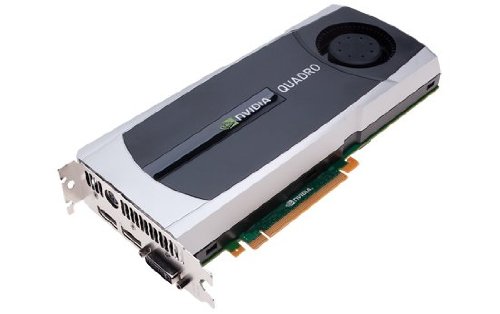
Image: NVIDIA 699-51030-0501-101 Graphics Card. This image displays the graphics card from an angled perspective, showing the cooling fan, heatsink, and the PCIe connector.
Ka'idojin Tsaro
Ka lura da waɗannan matakan tsaro don hana lalacewar samfurin ko raunin da zai iya samu a kanka:
- Koyaushe cire haɗin wuta daga kwamfutarka kafin shigarwa ko cire duk wani abu.
- Sanya madaurin wuyan hannu mai hana tsatsa ko kuma a riƙa taɓa wani abu da aka yi da ƙarfe don fitar da wutar lantarki mai tsatsa.
- Riƙe katin zane a gefuna don guje wa taɓa abubuwan da ke da mahimmanci.
- Tabbatar samun iska mai kyau a cikin akwati na kwamfutarka don hana zafi fiye da kima.
- Ka kiyaye samfurin daga danshi da matsanancin zafi.
Saita
1. Pre-installing Checks
- Verify your power supply unit (PSU) has sufficient wattage and appropriate connectors for the graphics card.
- Ensure your motherboard has an available PCI Express (PCIe) x16 slot.
- Confirm your computer case has adequate space for the graphics card dimensions.
- Tara kayan aikin da suka dace: Phillips head screwdriver, anti-a tsaye wuyan hannu (an shawarta).
2. Shigar Hardware
- Kashe wuta kuma Cire haɗin: Kashe kwamfutarka gaba ɗaya sannan ka cire kebul ɗin wutar lantarki daga mashigar bango.
- Bude Case: Cire gefen gefen akwati na kwamfutarka don samun dama ga motherboard.
- Gano wuri na PCIe: Gano ramin PCI Express x16 da ake da shi a kan motherboard ɗinka. Wannan yawanci shine ramin mafi tsayi.
- Cire Rufin Ramin: Remove the metal slot cover(s) from the back of your computer case corresponding to the PCIe slot you will use.
- Saka Katin Zane: Carefully align the graphics card with the PCIe slot. Press down firmly and evenly on both ends of the card until it is fully seated in the slot. You should hear a click from the retention clip.
- Amintaccen Katin: Secure the graphics card to the computer case using the screw(s) removed from the slot cover(s).
- Haɗa Wutar Lantarki (idan ya dace): If your graphics card requires additional power, connect the appropriate PCIe power cables from your PSU to the graphics card. This model (NVIDIA 699-51030-0501-101) may not require external power, but always check the card itself for connectors.
- Rufe Case: Maye gurbin sashin gefen akwati na kwamfutarka.
- Reconnect Peripherals: Reconnect your monitor cable to one of the display outputs on the new graphics card. Reconnect all other peripherals and the power cord.
3. Shigar Direba
- Kunna Wuta: Kunna kwamfutarka.
- Zazzage Direbobi: Navigate to the official NVIDIA webshafin (www.nvidia.com/drivers) and download the latest drivers compatible with your NVIDIA 699-51030-0501-101 graphics card and operating system.
- Sanya Direbobi: Gudar da mai sakawa na direba da aka sauke kuma bi umarnin da ke kan allo. Ana ba da shawarar yin shigarwa mai tsabta idan an buƙata.
- Sake farawa: Sake kunna kwamfutarka bayan an gama shigarwar direba.
Aiki
Once installed and drivers are updated, your NVIDIA 699-51030-0501-101 graphics card will automatically handle graphics processing for your system. You can verify its operation through your operating system's device manager or NVIDIA Control Panel.
- NVIDIA Control Panel: Access the NVIDIA Control Panel (usually via right-click on desktop or through Windows Control Panel) to adjust display settings, 3D settings, and monitor various aspects of your graphics card.
- Sabuntawar Direba: Regularly check the NVIDIA website for driver updates to ensure optimal performance and compatibility with new software and games.
Kulawa
Gyaran da ya dace yana tabbatar da tsawon rai da kyakkyawan aiki na katin zane na ku.
- Cire kura: Periodically (e.g., every 6-12 months), power off and unplug your computer. Open the case and use compressed air to gently clear dust from the graphics card's heatsink and fan. Hold the fan blades to prevent over-spinning during cleaning.
- Yanayin Muhalli: Operate your computer in a clean, dry, and well-ventilated environment. Avoid extreme temperatures and humidity.
Shirya matsala
Idan kun ci karo da al'amura, koma zuwa ga waɗannan matakan magance matsalar gama gari:
- Babu Fitar Nuni:
- Tabbatar cewa an haɗa kebul na dubawa amintacce zuwa katin zane da mai duba.
- Verify the monitor is set to the correct input source.
- Check if the graphics card is fully seated in its PCIe slot.
- If applicable, ensure all PCIe power connectors are securely attached.
- Gwada tare da na'ura mai duba daban ko kebul idan zai yiwu.
- Matsalolin Direba:
- Reinstall the latest drivers from the NVIDIA website.
- Try rolling back to a previous driver version if issues started after an update.
- Use Display Driver Uninstaller (DDU) in Safe Mode to completely remove old drivers before installing new ones.
- Matsalolin Aiki (Ƙarancin FPS, Tsari):
- Ensure drivers are up to date.
- Check for overheating using monitoring software (e.g., MSI Afterburner, HWMonitor). Clean dust if necessary.
- Verify that your system meets the minimum requirements for the applications or games you are running.
- Duba sashin samar da wutar lantarki (PSU) wattage; an insufficient PSU can cause performance issues.
- System Instability (Crashes, Blue Screens):
- Check for driver conflicts or corruption.
- Monitor temperatures to rule out overheating.
- Ensure the graphics card is properly seated and secured.
- Gudanar da kayan aikin gano ƙwaƙwalwar ajiya don bincika matsalolin RAM.
Ƙididdiga na Fasaha
Key specifications for the NVIDIA 699-51030-0501-101 graphics card:
| Lambar Samfura | NVIDIA 699-51030-0501-101 |
| Alamar | NVIDIA |
| Mai sarrafa Graphics | NVIDIA 699-51030 |
| Mai ƙera Na'urar Sarrafa Zane-zane | NVIDIA |
| Na'urori masu jituwa | Desktop |
| ASIN | B01NBI92VC |
| Kwanan Wata Farko Akwai | Disamba 8, 2016 |
Garanti da Taimako
This NVIDIA graphics card is covered by the manufacturer's standard warranty. For specific warranty terms, duration, and to register your product, please refer to the official NVIDIA website or contact NVIDIA customer support directly.
For technical assistance, driver downloads, and further support resources, visit the official NVIDIA support portal:
- Tallafin NVIDIA: www.nvidia.com/support