
1. Gabatarwa
Na gode da siyaasing the Ivation Portable Digital HD LCD Microscope. This device is designed for detailed observation and analysis, offering up to 220x optical and 500x digital magnification. Featuring a 3.5-inch LCD screen, 14MP HD sensor, and photo/video capture capabilities, it is suitable for various applications including education, inspection, and hobby use. Please read this manual thoroughly before use to ensure proper operation and to maximize the lifespan of your microscope.
Kariyar Tsaro
- Do not expose the device to extreme temperatures, humidity, or corrosive substances.
- Avoid dropping or subjecting the microscope to strong impacts.
- Keep the lens clean and free from dust. Use a soft, lint-free cloth for cleaning.
- Do not attempt to disassemble or modify the microscope, as this will void the warranty.
- Use only the provided power adapter and battery.
2. Abubuwan Samfur
Familiarize yourself with the various parts of your Ivation Digital Microscope:
- 3.5-inch LCD Display Screen
- Control Buttons (Power, Menu, OK, Navigation)
- Mayar da hankali Wheel
- Daidaitacce LED Haske
- Adjustable Specimen Stage with Clips
- Stage Adjustment Knob (Up/Down)
- Slot na MicroSD
- USB Port (for PC connection and charging)
- HDMI Fitar da fitarwa
- Rechargeable Li-ion Battery (pre-installed or included)
- Adaftar Wuta
- Kebul na USB
- HDMI Cable
- Software CD (for Windows XP SP2 driver, other OS are driver-free)

Gaba view of the Ivation Digital Microscope, highlighting the LCD screen and control buttons.

Gede view of the Ivation Digital Microscope, showing the adjustable stage and focus knob.
3. Saita
3.1 Shigar da Baturi da Caji
- Ensure the microscope is powered off.
- Locate the battery compartment on the underside of the base.
- Open the compartment cover and insert the provided Li-ion battery, ensuring correct polarity.
- Rufe murfin ɗakin baturi amintacce.
- Connect the power adapter to the microscope's USB port and plug it into a power outlet to charge the battery. The charging indicator light will illuminate. A full charge takes approximately 3 hours and provides about 2 hours of operation.
Official product demonstration video for the Ivation Portable Digital HD LCD Microscope, showcasing its features and usage, including battery installation.
3.2 Kunnawa / Kashewa
- To power on, press and hold the Power button (usually marked with a circle and vertical line) on the LCD screen panel until the screen illuminates.
- To power off, press and hold the Power button again until the screen turns off.
3.3 Shigar da Katin MicroSD
- Insert a MicroSD card (not included, up to 32GB recommended) into the MicroSD card slot on the side of the LCD unit. Ensure the card is inserted in the correct orientation until it clicks into place.
- Don cirewa, a hankali a tura katin zuwa ciki har sai ya fito.
3.4 Haɗawa da Kwamfuta (USB)
- Connect the microscope to your computer using the supplied USB cable.
- Ƙarfin microscope.
- On the microscope's LCD screen, navigate to the menu and select 'PC Camera' mode. For Windows XP SP2, you may need to install the driver from the included CD. For Windows 7/8 and Mac OS 10.5-10.9, it is typically driver-free.
- Open a compatible camera application on your computer to view abinci mai rai.
3.5 Connecting to a Television/Monitor (HDMI)
- Connect the microscope to an HDMI-enabled display using the supplied HDMI cable.
- Power on the microscope and the external display.
- Select the correct HDMI input on your television or monitor. The microscope's display will mirror on the external screen.
4. Aiki
4.1 Placing a Specimen
- Place the specimen directly onto the adjustable stage.
- Use the metal clips to secure slides or other flat objects if necessary.
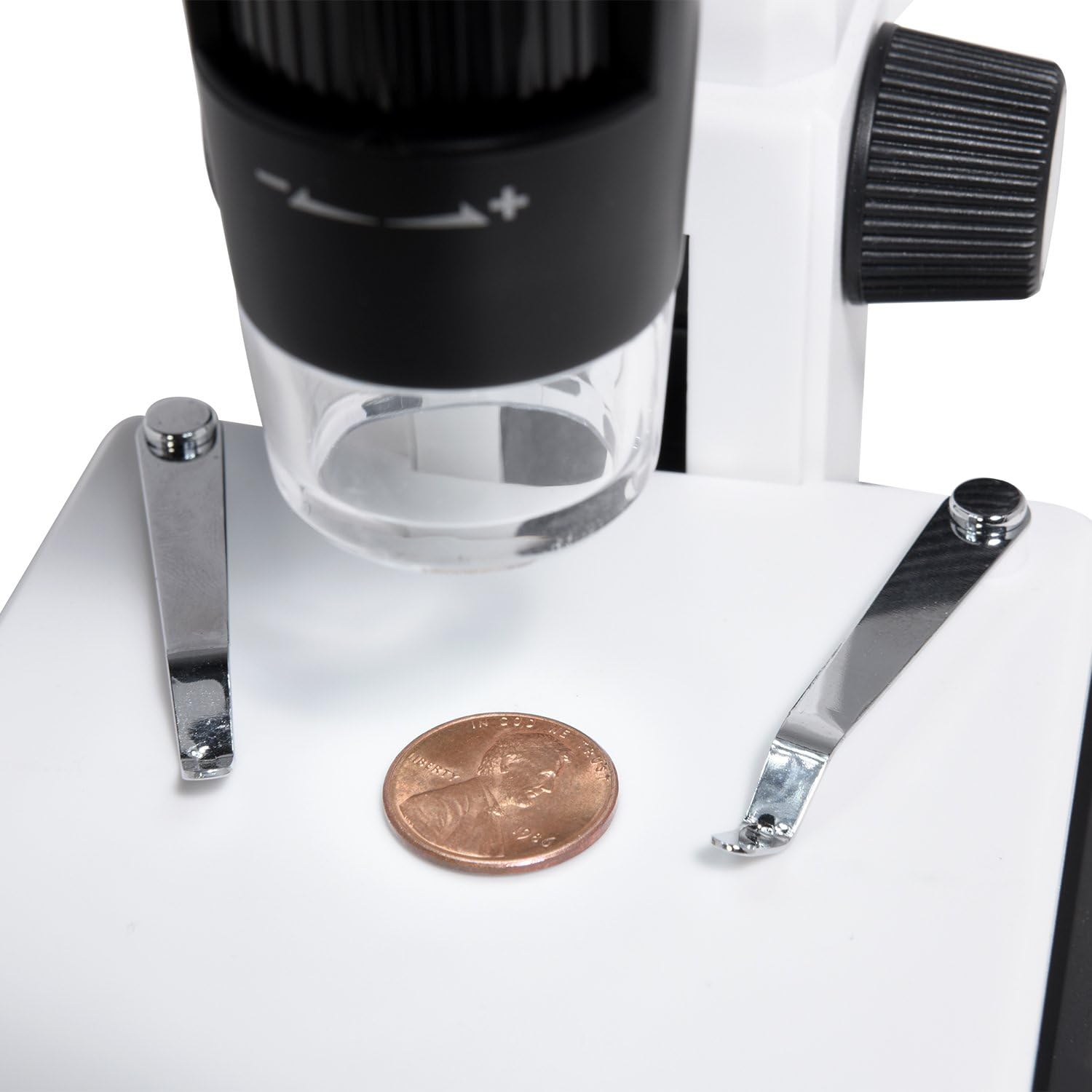
A penny placed on the adjustable stage for microscopic examination.
4.2 Adjusting Focus and Magnification
- Use the large focus wheel on the side of the microscope to bring the image into sharp focus on the LCD screen.
- The microscope offers 220x optical magnification. For additional magnification up to 500x, use the digital zoom function via the control buttons on the LCD panel.
- Adjust the height of the specimen stage amfani da stage adjustment knob (Up/Down) for larger or smaller objects, or to achieve initial focus before fine-tuning with the focus wheel.

Adjusting the focus wheel for clear observation.

Close-up of the LCD screen displaying a highly magnified section of a dollar bill.
4.3 Adjusting LED Illumination
- The microscope features 8 adjustable LED lights.
- Use the LED brightness control dial (typically on the side of the LCD unit) to increase or decrease the illumination intensity for optimal viewing.
4.4 Ɗaukar Hotuna da Bidiyo
- Ensure a MicroSD card is inserted.
- A cikin rayuwa view mode, press the 'OK' button to capture a still image.
- To record video, press the 'Menu' button to enter video mode, then press 'OK' to start/stop recording.
- Captured photos and videos are saved to the MicroSD card.
5. Kulawa
5.1 Tsaftacewa
- Lens: Use a soft, lint-free cloth or lens paper to gently wipe the lens. For stubborn smudges, a small amount of lens cleaning solution can be applied to the cloth, not directly to the lens.
- Jiki: Wipe the microscope body with a soft, dry cloth. Avoid using harsh chemicals or abrasive cleaners.
- Allon: Clean the LCD screen with a soft, dry, anti-static cloth.
5.2 Adana
- Store the microscope in a cool, dry place away from direct sunlight and dust.
- Idan an adana na tsawon lokaci, cire batirin don hana zubewa.
- Keep the microscope in its original packaging or a protective case to prevent damage.
6. Shirya matsala
- Babu Ƙarfi:
- Ensure the battery is properly installed and charged.
- Verify the power adapter is securely connected if operating via AC power. - Babu Hoto akan Allo:
- Check if the microscope is powered on.
- Adjust the focus wheel.
- Ensure the LED lights are on and adjusted to an appropriate brightness. - Hoto mai ruɗi:
- Adjust the focus wheel carefully.
- Ensure the specimen is properly positioned on the stage.
- Clean the lens if smudges are visible. - Cannot Capture Photos/Videos:
- Verify a MicroSD card is inserted and has sufficient free space.
- Ensure the MicroSD card is not locked (read-only).
- Format the MicroSD card if issues persist (this will erase all data). - No Image on PC/TV:
- For PC connection, ensure 'PC Camera' mode is selected on the microscope and the correct software is running on the computer. Check USB cable connection.
- For TV connection, ensure the HDMI cable is securely connected to both devices and the correct HDMI input is selected on the TV.
7. Ƙayyadaddun bayanai
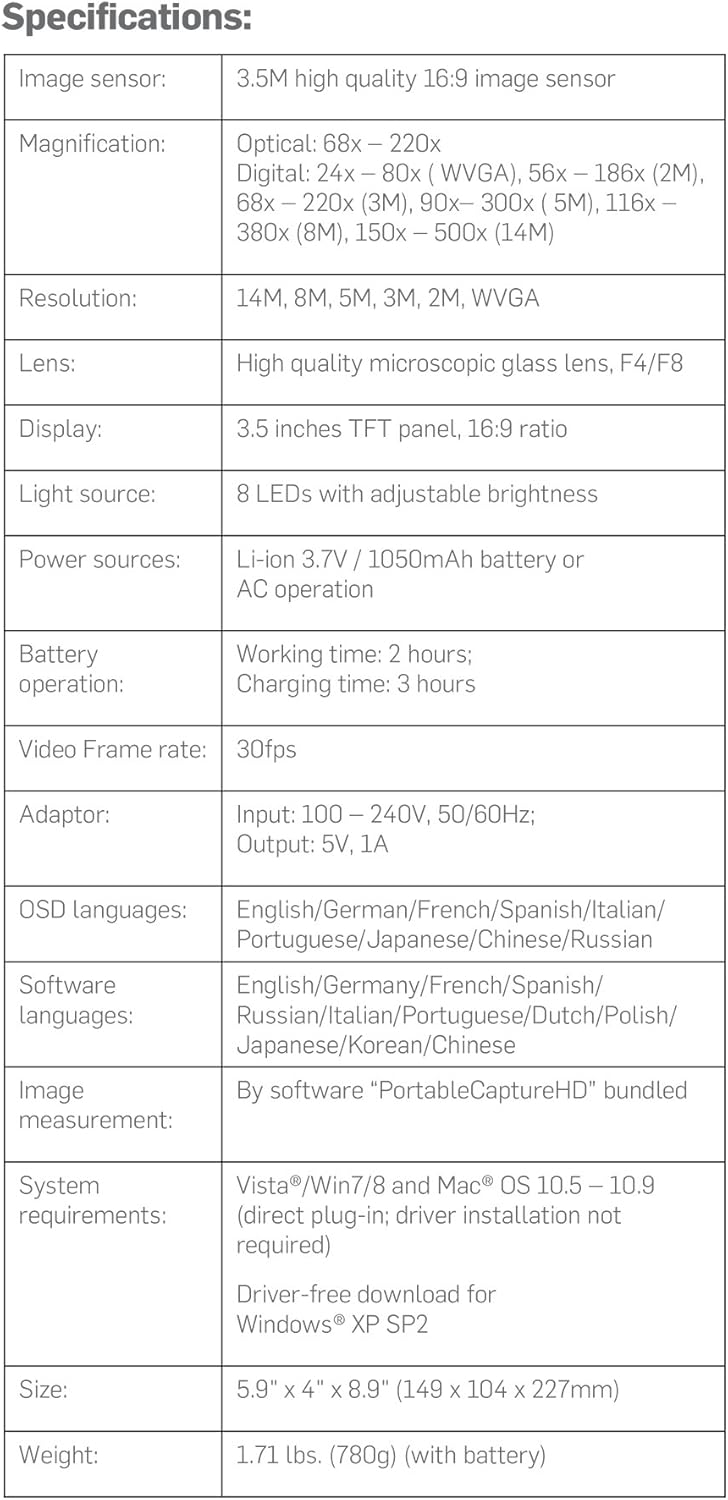
Detailed technical specifications of the Ivation Digital Microscope.
| Siffar | Daki-daki |
|---|---|
| Sensor Hoto | 3.5M high quality 16:9 image sensor |
| Girmamawa | Optical: 68x – 220x; Digital: 24x – 80x (WVGA), 56x – 186x (2M), 68x – 220x (3M), 90x – 300x (5M), 116x – 380x (8M), 150x – 500x (14M) |
| Ƙaddamarwa | 14M, 8M, 5M, 3M, 2M, WVGA |
| Lens | High quality microscopic glass lens, F4/F8 |
| Nunawa | 3.5 inches TFT panel, 16:9 ratio |
| Hasken Haske | 8 LEDs with adjustable brightness |
| Tushen wutar lantarki | Li-ion 3.7V / 1050mAh battery or AC operation |
| Ayyukan Baturi | Working time: 2 hours; Charging time: 3 hours |
| Matsakaicin Tsarin Bidiyo | 30fps |
| Adafta | Input: 100 – 240V, 50/60Hz; Output: 5V, 1A |
| Harsunan OSD | English, German, French, Spanish, Italian, Portuguese, Japanese, Chinese, Russian |
| Harsunan Software | Ingilishi, Jamusanci, Faransanci, Sifen, Rashanci, Italiyanci, Fotigal, Dutch, Yaren mutanen Poland, Jafananci, Koriya, Sinanci |
| Image Measurement | By software "PortableCaptureHD" bundled |
| Abubuwan Bukatun Tsarin | Vista/Win7/8 and Mac® OS 10.5 – 10.9 (direct plug-in; driver installation not required); Driver-free download for Windows® XP SP2 |
| Girman | 5.9" x 4" x 8.9" (149 x 104 x 227mm) |
| Nauyi | 1.71 lbs. (780g) (with battery) |
8. Garanti & Tallafi
Ivation products are designed to provide reliable performance. For specific warranty information regarding your Ivation Portable Digital HD LCD Microscope, please refer to the warranty card included in your product packaging or visit the official Ivation website.
If you encounter any issues or have questions not covered in this manual, please contact Ivation Customer Support:
- Website: Ivation Store on Amazon
- Imel: Koma zuwa kunshin samfur ko webshafin don cikakkun bayanai.
- Waya: Koma zuwa kunshin samfur ko webshafin don cikakkun bayanai.
Please have your model number (IVAMS04HD) and purchase date ready when contacting support.