
Gabatarwa
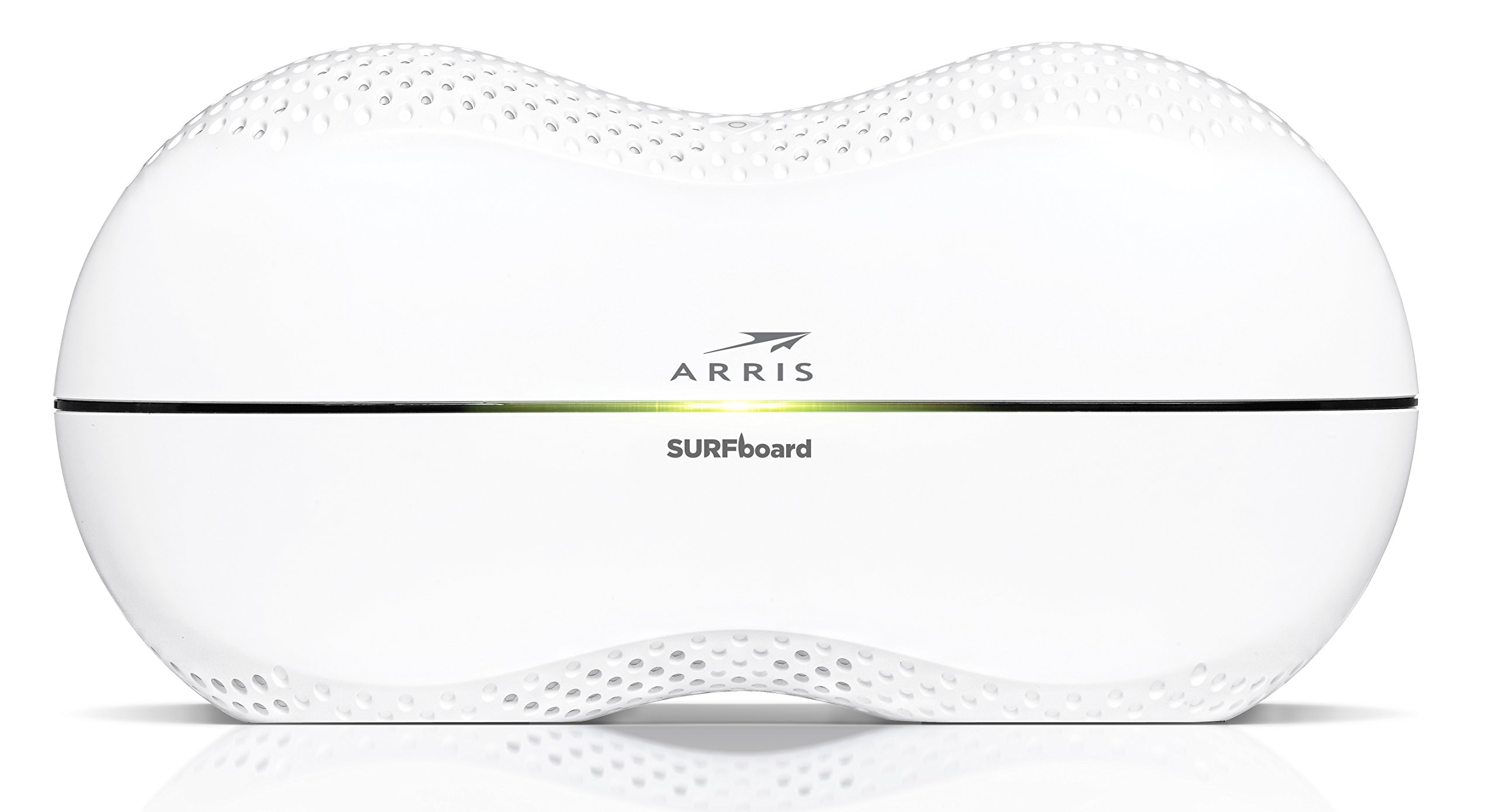
This manual provides detailed instructions for the setup, operation, maintenance, and troubleshooting of your ARRIS SURFboard SBR-AC3200P AC3200 Wi-Fi Router. The SBR-AC3200P is designed to deliver high-speed Wi-Fi performance for various home networking needs, including gaming, streaming, and general internet use. It features tri-band concurrent operation and integrated RipCurrent G.hn Powerline technology for extended network coverage.
Abubuwan Kunshin
- SURFboard WiFi Router SBR-AC3200P
- Ethernet Cable
- AC Power Igiyar
- Jagoran Fara Mai Sauri
Saita
1. Haɗin Jiki
Before powering on your router, ensure all necessary cables are connected securely. Refer to the diagram below for port identification.
Hoto: Na baya view of the ARRIS SURFboard SBR-AC3200P AC3200 Wi-Fi Router. From left to right, the ports include the Power input, two USB ports (one USB 2.0, one USB 3.0), a blue WAN port for connecting to a modem, four yellow LAN ports (1-4) for wired devices, and a small recessed Reset button.
- Haɗa zuwa Modem: Connect one end of the provided Ethernet cable to the WAN port (blue) on the back of the SBR-AC3200P router and the other end to your cable/DSL/fiber modem.
- Haɗa Ikon: Plug the AC power cord into the Power input on the router and then into an electrical outlet. The router will begin its startup sequence.
- Kunna Wuta: Wait for the router's indicator lights to stabilize. Refer to the Operating section for LED indicator meanings.
2. Kanfigareshan Farko
You can configure your router using a web browser or the dedicated mobile application.
- Amfani da a Web Mai lilo:
- Connect a computer to one of the router's LAN ports (yellow) using an Ethernet cable, or connect wirelessly to the default Wi-Fi network (SSID and password typically found on a label on the router).
- Bude a web browser and enter the router's default IP address (e.g.,
192.168.0.1or192.168.1.1) into the address bar. Consult the Quick Start Guide for the exact IP address and default login credentials. - Follow the on-screen instructions to set up your internet connection and customize your Wi-Fi network name (SSID) and password.
- Amfani da Mobile App: Download the ARRIS SURFboard Manager app from your device's app store. Follow the in-app instructions to set up and manage your router.
Aiki
LED Manuniya
The front panel of the SBR-AC3200P features several LED indicators that provide status information:
- LED Power: Yana nuna matsayin ƙarfin na'urar.
- Intanet LED: Yana nuna matsayin haɗin intanet.
- Wi-Fi LEDs (2.4 GHz da 5 GHz): Indicate the activity of the wireless networks.
- RipCurrent LED: Displays the status of the G.hn Powerline network.
Refer to the Quick Start Guide for specific color and blinking patterns and their meanings.
Haɗin Na'urori
- Na'urorin Mara waya: Bincika your customized Wi-Fi network name (SSID) on your device and enter the password you created during setup.
- Na'urorin Waya: Connect devices such as computers, gaming consoles, or smart TVs to the LAN ports (yellow) on the back of the router using Ethernet cables.
RipCurrent G.hn Technology
The SBR-AC3200P integrates RipCurrent G.hn Powerline technology, allowing you to expand your network coverage using your home's existing electrical wiring. This feature enables compatible SURFboard RipCurrent Wi-Fi Hotspots and network extenders (sold separately) to connect to your network through any electrical outlet, providing seamless Wi-Fi extension throughout your home.
Kulawa
- Sabunta Firmware: Periodically check the ARRIS support website for firmware updates. Keeping your router's firmware up-to-date ensures optimal performance, security, and access to new features. Firmware updates are typically performed through the router's web interface or the mobile app.
- Tsaftacewa: Keep the router in a clean, dust-free environment. Use a soft, dry cloth to clean the exterior. Do not use liquid cleaners or abrasive materials. Ensure ventilation openings are not blocked.
- Sake saita na'ura mai ba da hanya tsakanin hanyoyin sadarwa: If you experience persistent issues, you may need to reset the router. A soft reset (power cycle) can often resolve minor problems. For a factory reset, locate the recessed Reset button on the back of the router. Use a paperclip or similar pointed object to press and hold the button for approximately 10-15 seconds until the LEDs indicate a reset. Gargadi: A factory reset will erase all custom settings, including your Wi-Fi name and password, reverting the router to its default factory settings.
Shirya matsala
- Babu Haɗin Intanet:
- Tabbatar cewa modem ɗinka yana aiki daidai kuma yana da haɗin intanet mai aiki.
- Check all Ethernet cable connections between the modem and the router's WAN port.
- Restart both your modem and router by unplugging them from power for 30 seconds and then plugging them back in, starting with the modem.
- Sannun saurin Wi-Fi ko Haɗin da aka sauke:
- Tabbatar an sanya na'ura mai ba da hanya tsakanin hanyoyin sadarwa a tsakiyar wuri, nesa da cikas da hanyoyin tsangwama (misali, microwaves, wayoyi marasa igiya).
- Bincika don sabunta firmware.
- Consider using RipCurrent extenders to improve coverage in dead zones.
- Perform a factory reset if issues persist after other troubleshooting steps.
- Ba za a iya isa ga saitunan na'ura mai ba da hanya ba:
- Tabbatar cewa an haɗa na'urarka zuwa cibiyar sadarwar mai ba da hanya tsakanin hanyoyin sadarwa (mai waya ko mara waya).
- Verify the correct IP address for the router's web dubawa.
- Share cache na burauzar ku ko gwada wani mazugi daban.
Ƙayyadaddun bayanai
| Siffar | Bayani |
|---|---|
| Alamar | ARRIS |
| Sunan Samfura | Saukewa: SBR-AC3200P |
| Tsarin Mara waya | 802.11 ac |
| Ajin Mitar Maɗaukaki | Tri-Band (N450 + AC1350 + AC1350) |
| Yawan Canja wurin Bayanai | Har zuwa Megabits 3200 a cikin Dakika guda |
| Ethernet Ports | 4 Gigabit Ethernet Ports |
| USB Ports | 1 x USB 2.0, 1 x USB 3.0 |
| Siffofin Musamman | RipCurrent G.hn Powerline Technology, Wi-Fi Beamforming |
| Yarjejeniyar Tsaro | WPA2, WPA3 |
| Hanyar sarrafawa | App |
| Nauyin Abu | 3.8 fam |
Bayanin Garanti
The ARRIS SURFboard SBR-AC3200P AC3200 Wi-Fi Router comes with a Garanti mai iyaka na Shekaru 2. For detailed terms and conditions, please refer to the warranty documentation included with your product or visit the official ARRIS support website.
Taimako
For further assistance, technical support, or to access additional resources, please visit the official ARRIS support website. You can find FAQs, updated documentation, and contact information for customer service.


