
Xfinity XR15
Xfinity Comcast XR15 Voice Control Remote User Manual
Model: XR15
Gabatarwa
This manual provides comprehensive instructions for the Xfinity Comcast XR15 Voice Control Remote. Designed for seamless interaction with Xfinity X1, Xi6, Xi5, and XG2 equipment, this remote enhances your entertainment experience with intuitive voice commands and convenient features.
Samfurin Ƙarsheview
The Xfinity XR15 Voice Control Remote is engineered for ease of use and efficient control of your Xfinity entertainment system. Key features include voice control, a backlit keypad, Aim Anywhere functionality, and easy access to accessibility features like Closed Captioning, video description, and voice guidance.
Remote Layout and Button Functions
Familiarize yourself with the remote's buttons and their corresponding functions:

Figure 1: Xfinity XR15 Remote Button Functions
- Shigarwar TV: Switches to the next available input on your TV.
- Ƙarfi: Turns the TV on or off. When programmed, it can also control the TV Box and certain audio devices. The X1 TV Box is designed to remain on.
- VOL +/-: Increases or decreases the volume when programmed with a valid TV or AV receiver code.
- Yi shiru: Turns sound off or on.
- CH +/-: Selects the next channel up or down.
- Kunna/Dakata: Plays or pauses live TV, XFINITY On Demand, or DVR content.
- FF (Ci gaba da sauri): Fast forwards XFINITY On Demand or DVR content.
- Rew (Rewind): Rewinds XFINITY On Demand or DVR content.
- Fita: Exits on-screen guides; stops and exits XFINITY On Demand and DVR content. Returns to the "Live" point when replaying live TV.
- Record (red dot): Records the current program or saves future programs to your DVR.
- Xfinity: Displays the main menu of the guide, providing access to all guide features, including DVR and XFINITY On Demand.
- Jagora: Displays TV listings.
- Baya: Navigates back in menus or previous screens.
- Bayani (i): Displays information about programs and notifications.
- Voice Control (Microphone button): Use voice commands to search for networks, shows, set DVR recordings, and get recommendations.
- Maɓallan Lamba (0-9): Use predictive text (T9) to quickly search for content or directly enter channel numbers.

Hoto 2: Gaba view of two Xfinity XR15 Remotes
Saita
The Xfinity XR15 remote is designed for easy pairing with your Xfinity equipment. It is compatible with Xi6, Xi5, XG2, and X1 equipment.
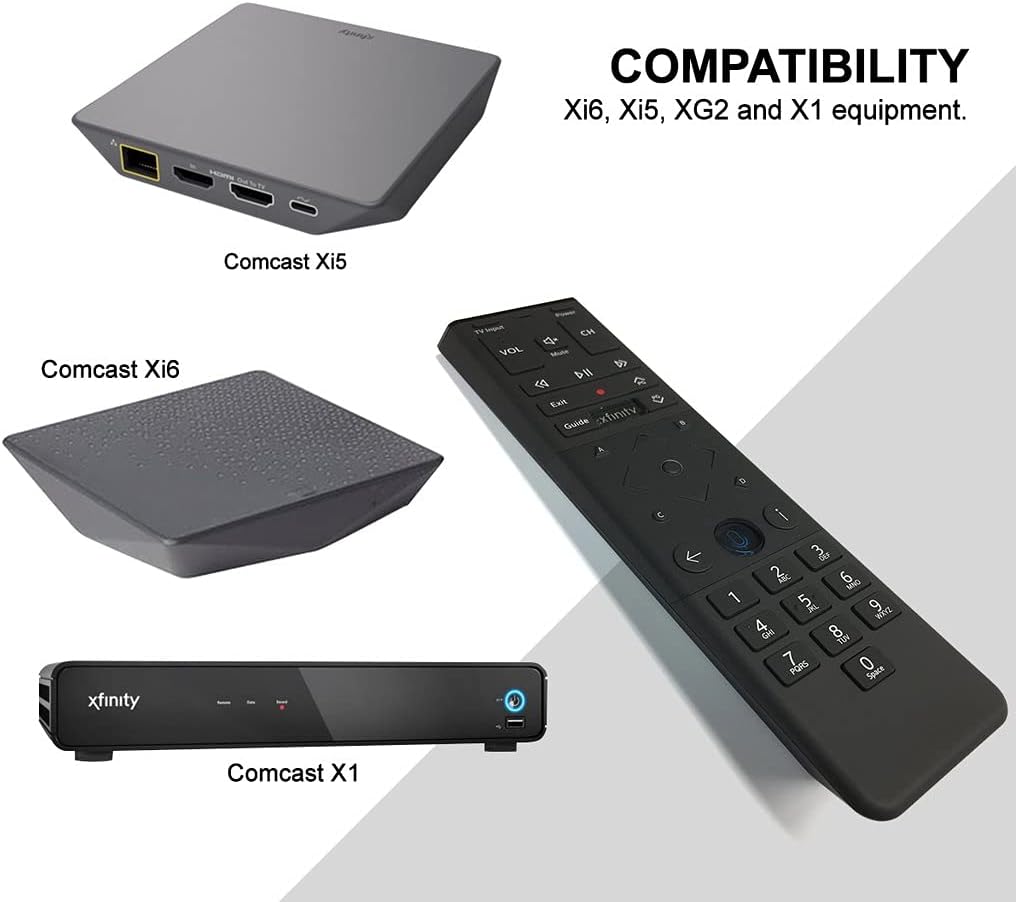
Figure 3: Xfinity XR15 Remote Compatibility
Haɗin kai ta atomatik
For most X1 TV Boxes, the remote will automatically pair when you first use it. Simply point the remote at your TV Box and press any button. Follow any on-screen prompts to complete the pairing process.
Manual Pairing (if automatic pairing fails)
- Ensure your TV Box is powered on.
- Latsa ka riƙe Xfinity kuma Bayani (i) buttons simultaneously for five seconds until the status LED on the remote changes from red to green.
- Bi umarnin kan allo don kammala haɗawa.
Pairing with your TV for Volume and Power Control
To control your TV's volume and power, you will need to program the remote:
- Turn on your TV and Xfinity TV Box.
- Latsa ka riƙe Saita button (usually a small, recessed button on the remote, or sometimes the Xfinity kuma Yi shiru buttons simultaneously) until the status LED on the remote changes from red to green.
- Enter the 5-digit code for your TV brand. A list of common codes can be found on the Xfinity support website.
- Point the remote at your TV and press the Ƙarfi button. If the TV turns off, the remote is programmed. If not, try the next code for your TV brand.
Umarnin Aiki
Amfani da Ikon Murya
The voice control feature allows you to quickly find content, change channels, and control your DVR. To use voice control:

Figure 4: Voice Control Microphone Button
- Latsa ka riƙe Makirifo button (located below the directional pad).
- Speak clearly into the microphone at the top of the remote.
- Saki da Makirifo button when you are finished speaking.
Exampumarnin murya:
- "Find [Movie Title]"
- "Go to [Channel Name/Number]"
- "Record [Show Name]"
- "What's on tonight?"
- "Nuna min barkwanci"
The remote's voice recognition is highly responsive, allowing for quick navigation and content discovery.
Kulawa
Madadin Baturi
The Xfinity XR15 remote requires two AA batteries (included). To replace the batteries:

Hoto 5: Dakin Baturi
- Locate the battery cover on the back of the remote.
- Slide the cover downwards and lift it off.
- Remove the old batteries and insert two new AA batteries, ensuring correct polarity (+/-).
- Replace the battery cover by sliding it back into place until it clicks.
Don ingantaccen aiki, yi amfani da batura masu inganci masu inganci.
Shirya matsala
If you encounter issues with your Xfinity XR15 remote, try the following solutions:
| Matsala | Magani |
|---|---|
| Remote not responding to commands. |
|
| Ikon murya baya aiki. |
|
| Volume or Power buttons not controlling TV. |
|
For further assistance, please visit the official Xfinity support website ko tuntuɓi sabis na abokin ciniki.
Ƙayyadaddun bayanai
| Siffar | Daki-daki |
|---|---|
| Lambar Samfura | XR15 |
| Girma | 7 x 5.3 x 1.6 inci |
| Nauyin Abu | 10.2 oz |
| Baturi | 2 AA baturi (an haɗa) |
| Na'urori masu jituwa | X1, Xi6, Xi5, XG2 TV Boxes |
| Siffa ta Musamman | Voice controlled, Backlit keypad, Aim Anywhere |
| Launi | Baki |
Garanti da Taimako
For information regarding product warranty, please refer to the documentation provided with your purchase or visit the official Xfinity support website. Xfinity provides various support resources, including online guides, FAQs, and customer service contact options.
Taimako kan layi: www.xfinity.com/support
Ask a question about this manual
Ask about setup, troubleshooting, compatibility, parts, safety, or missing instructions. Manuals+ will review the question and use this page’s manual context to help answer it.