
1. Gabatarwa
This manual provides comprehensive instructions for the installation, operation, and maintenance of the JEYI SK4 NVMe PCI-E Adapter with Warship iStorm Cooler. This product is designed to allow M.2 NVMe SSDs (PCIe protocol) to be used in a standard PCI Express X4, X8, or X16 slot, enhancing system performance with its PCIe 3.0 GEN3 full-speed design and integrated high-speed signal amplification technology. It is equipped with a cooling solution to maintain optimal SSD temperatures.
2. Bayanin Tsaro
- Koyaushe ka cire wutar lantarki daga kwamfutarka kafin ka shigar ko cire duk wani abu na ciki.
- Wear an anti-static wrist strap or frequently touch a grounded metal object to prevent electrostatic discharge (ESD) damage to components.
- Handle the adapter and SSD by their edges to avoid touching sensitive components.
- Tabbatar samun iska mai kyau a cikin akwati na kwamfutarka don hana zafi fiye da kima.
- Do not attempt to modify the product. Unauthorized modifications may void the warranty and pose safety risks.
- A kiyaye nesa da yara.
3. Abubuwan Kunshin
Tabbatar cewa duk abubuwa suna nan a cikin kunshin:
- 1x JEYI PCIE 3.0 X4 NVMe Adapter Card
- 1x JEYI Warship iStorm Cooler with Fan
- Mounting screws and accessories (e.g., thermal pads, screwdriver if included)
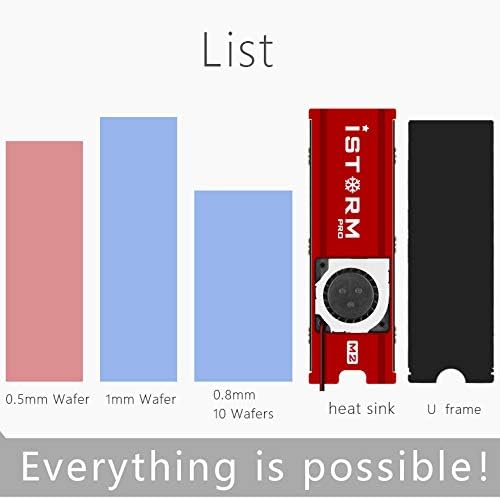
Hoto na 3.1: Included components. This image illustrates the heat sink, U frame, and different thicknesses of thermal pads (0.5mm, 1mm, 0.8mm) that are part of the package.
4. Ƙayyadaddun bayanai
| Siffar | Bayani |
|---|---|
| Alamar | JEYI |
| Samfura | SK4+Warship iStorm |
| Maganar Mai ƙira | N27361-G |
| Interirƙirar Abun Taɗi | PCI Express 3.0 X4 |
| Compatible PCIe Slots | PCIe X4, X8, X16 |
| SSDs masu goyan baya | NVMe M.2 SSDs (PCIe protocol) |
| Unsupported SSDs | M.2 NGFF disks (SATA protocol) |
| Sanyi | Integrated Warship iStorm Cooler with Fan |
| Tushen wutan lantarki | SATA 15-Pin 5V (for cooler fan) |
| Siffofin | JEYI high-speed signal enhancement technology, PCIe 3.0 GEN3 full-speed design, large capacity tantalum capacitor for stable voltage tace. |
| UPC | 761882095002 |
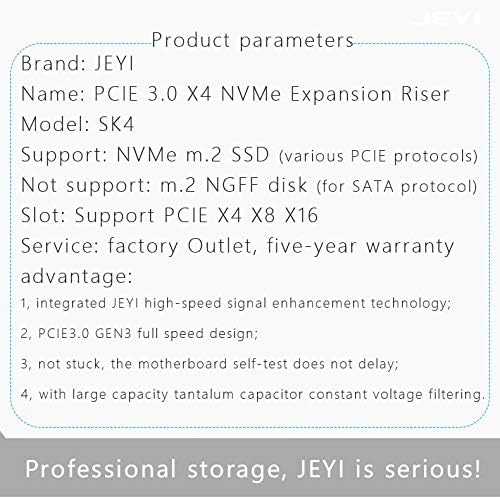
Hoto na 4.1: Detailed product parameters. This image provides a summary of the product's key specifications, including its name, model, supported SSD types, and PCIe slot compatibility.
5. Saita
5.1. Installing the M.2 NVMe SSD
- Carefully align your M.2 NVMe SSD with the M.2 slot on the JEYI SK4 adapter. The adapter supports various M.2 SSD lengths (2230, 2242, 2260, 2280).
- Insert the SSD into the slot at an angle and gently push it down until it is parallel with the adapter board.
- Secure the SSD with the provided screw or movable copper stud at the appropriate length. The adapter includes movable copper studs to accommodate different M.2 SSD lengths.

Hoto na 5.1: M.2 SSD length compatibility. This image illustrates how the adapter supports various M.2 SSD lengths (2230, 2242, 2260, 2280) using movable copper studs.
5.2. Installing the Warship iStorm Cooler
- Apply the thermal pads to the M.2 NVMe SSD. Ensure good contact between the SSD chips and the thermal pads.
- Place the Warship iStorm cooler assembly over the SSD and adapter, aligning the mounting holes.
- Secure the cooler to the adapter using the provided screws. Do not overtighten.
5.3. Installing the Adapter into a PCIe Slot
- Kashe kwamfutarka ka kuma cire kebul ɗin wutar lantarki.
- Bude akwati na kwamfutarka.
- Locate an available PCI Express X4, X8, or X16 slot on your motherboard.
- Cire murfin faɗaɗawa mai dacewa daga akwatin kwamfutarka.
- Carefully insert the JEYI SK4 adapter into the chosen PCIe slot, ensuring it is fully seated.
- Secure the adapter to the computer case with a screw.
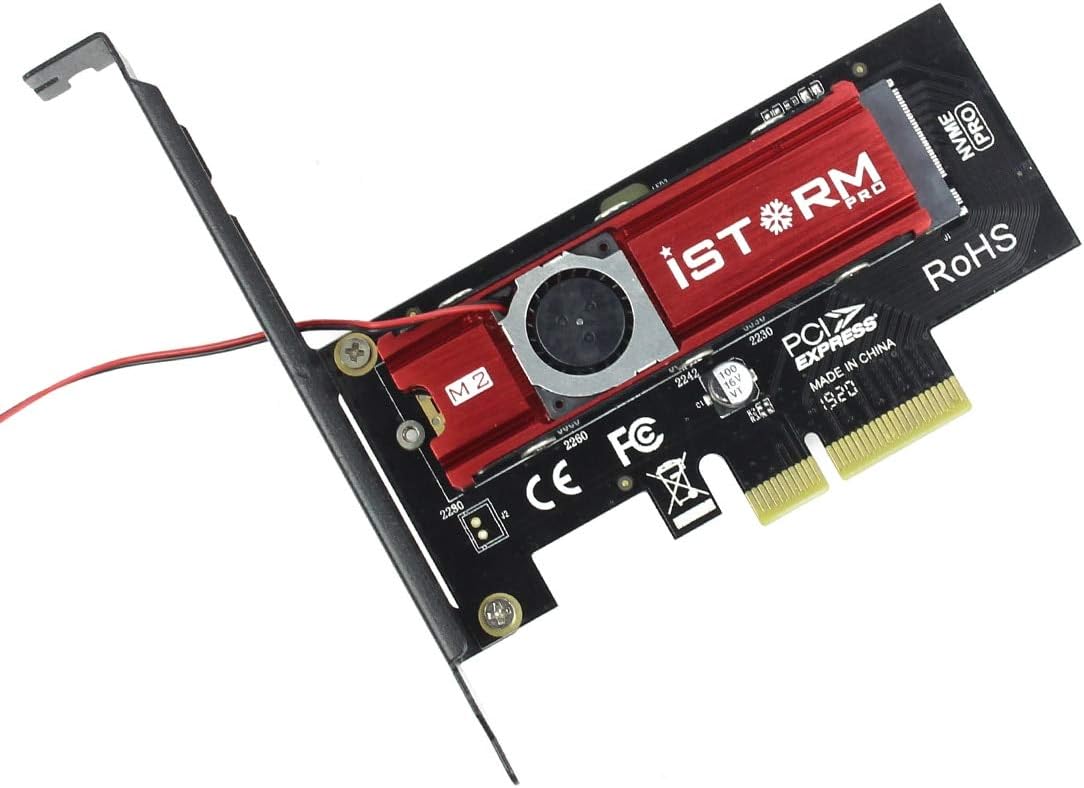
Hoto na 5.2: Assembled adapter card. This image shows the JEYI SK4 adapter with the Warship iStorm cooler and an M.2 NVMe SSD installed, ready to be inserted into a PCIe slot.
5.4. Haɗa Wutar Lantarki
- Locate the small power cable extending from the Warship iStorm cooler.
- Connect the SATA 15-Pin 5V connector of this cable to an available SATA power connector from your power supply unit (PSU). This connection is essential for the cooling fan to operate.
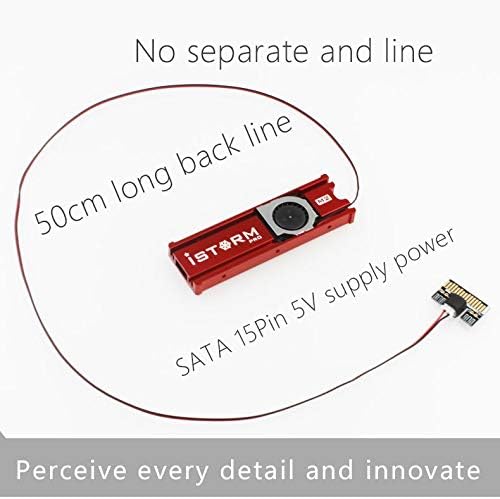
Hoto na 5.3: Cooler power connection. This image highlights the 50cm long SATA 15-Pin 5V power cable that connects the cooler fan to the power supply unit.
6. Aiki
After successful installation, close your computer case, reconnect the power cable, and power on your computer.
- Shigar Direba: Most modern operating systems (Windows 10/11, Linux kernels 4.0+, macOS) have native support for NVMe SSDs and typically do not require additional drivers. If the SSD is not detected, check your motherboard's BIOS/UEFI settings to ensure PCIe slots are configured correctly and NVMe support is enabled.
- SSD Initialization: For a new SSD, you may need to initialize it and create partitions using your operating system's disk management tools before it can be used.
- Ayyukan sanyaya: The integrated Warship iStorm cooler with its fan will automatically operate to dissipate heat from the NVMe SSD, helping to maintain optimal performance and prevent thermal throttling.

Hoto na 6.1: Cooling performance indication. This image suggests that the iStorm Pro cooler can reduce SSD temperatures by 10-40°C, contributing to stable operation.
7. Kulawa
- Tsaftacewa: Periodically inspect the cooler fan and heatsink for dust accumulation. Use compressed air or a soft brush to gently remove dust. Ensure the computer is powered off and unplugged before cleaning.
- Duban haɗi: Occasionally verify that the adapter is securely seated in the PCIe slot and that the SATA power cable for the cooler is firmly connected.
- Famfon zafi: If you need to remove and re-install the SSD or cooler, inspect the thermal pads. Replace them if they appear damaged or have lost their adhesive properties to ensure effective heat transfer.

Hoto na 7.1: Cooling design. This image shows the double-sided copper holes on the adapter, which are designed to enhance heat dissipation and improve overall cooling efficiency.
8. Shirya matsala
| Matsala | Dalili mai yiwuwa | Magani |
|---|---|---|
| SSD not detected by the system. |
|
|
| Cooling fan not spinning. |
|
|
| SSD overheating or thermal throttling. |
|
|
9. Garanti da Tallafawa
9.1. Garanti Bayani
The JEYI SK4 NVMe PCI-E Adapter with Warship iStorm Cooler comes with a garanti na shekaru biyar from the date of purchase. This warranty covers defects in materials and workmanship under normal use. It does not cover damage caused by misuse, accident, unauthorized modification, or improper installation. Please retain your proof of purchase for warranty claims.
9.2. Tallafin Fasaha
For technical assistance, troubleshooting, or warranty inquiries, please contact JEYI customer support through their official webshafin ko dillalin da kuka sayi samfurin daga wurinsa.