
1. Gabatarwa
Thank you for choosing the ipega PG-9083S Wireless Gamepad. This device is designed to enhance your mobile gaming experience on both iOS and Android smartphones and tablets. Please read this manual carefully before use to ensure proper operation and to maximize your enjoyment of the product.
2. Siffofin Samfura da Samaview
The ipega PG-9083S offers a range of features for an immersive gaming experience:
- Mara waya 4.0 Haɗin kai: Provides a stable and efficient connection to your mobile devices.
- Telescopic Holder: Adjustable holder accommodates devices from 5 to 10 inches, with a maximum extension of 28cm (11 inches).
- Faɗin Daidaitawa: Supports iOS (iPhone 8/XR/XS and newer) and Android mobile phones and tablets.
- Tsarin Ergonomic: Engineered for comfortable grip during extended gaming sessions.
- Taswirar Maɓallin Maɓalli: Allows for personalized control settings to suit various game types and player preferences.
- Babban Madaidaicin Joysticks: Designed for accurate control and smooth operation in games.

Figure 2.1: The ipega PG-9083S Wireless Gamepad, showcasing its design with a tablet inserted. This image highlights the sleek feel and how it holds a device.

Figure 2.2: The gamepad's telescopic function, illustrating its ability to hold various devices including smartphones and tablets, with a maximum length of 28cm (11 inches).

Figure 2.3: Illustration of the gamepad's ergonomic design for comfort and its support for both vertical and horizontal screen orientations for tablets.

Figure 2.4: Depiction of the customizable button mapping feature, allowing users to set function keys according to personal habits for various game control needs.
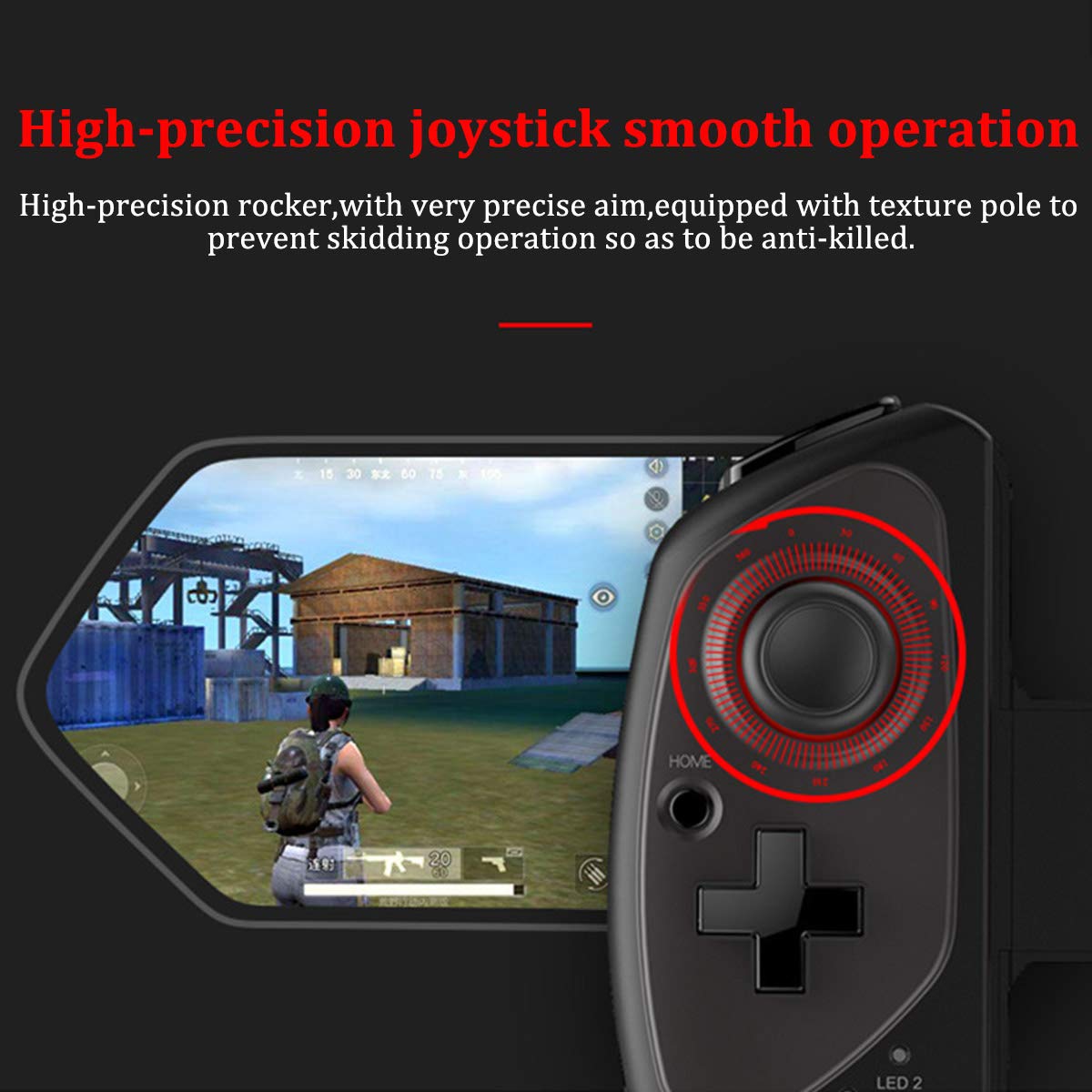
Figure 2.5: Close-up of the high-precision joystick, emphasizing its smooth operation and textured pole designed to prevent slipping during intense gameplay.
3. Jagorar Saita
3.1 Cajin Gamepad
Before initial use, fully charge the gamepad. Connect the provided USB charging cable to the gamepad's charging port and to a USB power source (e.g., computer, USB wall adapter). The LED indicator will show charging status and turn off or change color when fully charged.
3.2 Saka Na'urarka
- Pull the telescopic arm outwards to unlock and extend it.
- Carefully place your smartphone or tablet into the holder, ensuring it is centered and securely seated.
- Release the telescopic arm to allow it to retract and firmly grip your device. Ensure the device is locked in place before gaming.

Hoto 3.1: Cikakken bayani view of the security lock mechanism for the telescopic arm, illustrating how to extend and secure your device.
3.3 Haɗin Bluetooth
To connect the gamepad to your device:
- Kunna Wuta: Press and hold the Power button (usually the HOME button) for a few seconds until the LED indicator starts flashing, indicating it's in pairing mode.
- Kunna Bluetooth: On your smartphone or tablet, go to your Bluetooth settings and turn on Bluetooth.
- Bincika Na'urori: Your device will scan for available Bluetooth devices. Look for "PG-9083S" or a similar name in the list.
- Biyu: Select the gamepad from the list to initiate pairing. Once connected, the LED indicator on the gamepad will typically become solid.
- Mode Selection (if applicable): Some games or operating systems may require specific modes. Refer to your game's settings or the gamepad's quick start guide for specific mode switching instructions (e.g., Android Standard, iOS Direct Play).
4. Umarnin Aiki
4.1 Kunnawa / Kashewa
- Kunna Wuta: Latsa ka riƙe GIDA button for approximately 3 seconds. The indicator light will flash.
- Kashe Wuta: Latsa ka riƙe GIDA button for approximately 5 seconds until the indicator light turns off. The gamepad will automatically power off after a period of inactivity to save battery.
4.2 Gamepad Modes
The PG-9083S supports different operating modes for optimal compatibility with various platforms. Typically, these modes are activated by holding a specific button combination while powering on the gamepad.
- Daidaitaccen Yanayin Android: Often activated by holding X + GIDA. For general Android gaming.
- iOS Direct Play Mode: Often activated by holding Y + GIDA. For iOS games that support direct gamepad input.
- Sauran Hanyoyi: Consult the quick start guide included with your product for any additional specific modes or button combinations for advanced functionality or specific game titles.
4.3 In-Game Control
Once connected, the gamepad will function as your primary input device for compatible games. The layout includes:
- Dual Analog Sticks: Don daidaitaccen motsi da sarrafa kyamara.
- D-Pad: For directional input, often used in retro games or menu navigation.
- Maɓallan Aiki (A, B, X, Y): Don ayyukan cikin-wasan.
- Maɓallan kafada (L1, R1) da abubuwan jan hankali (L2, R2): For additional actions, often firing or accelerating.
- SELECT/BACK, START/MENU, HOME Buttons: For system functions and game menus.
Refer to individual game settings for specific button assignments and customization options.
5. Kulawa
- Tsaftacewa: Yi amfani da kyalle mai laushi da busasshe don goge saman allon wasan. Kada a yi amfani da sinadarai masu ƙarfi ko masu tsaftace goge-goge.
- Ajiya: Ajiye na'urar wasan a wuri mai sanyi da bushewa, nesa da hasken rana kai tsaye da kuma yanayin zafi mai tsanani.
- Kulawar Baturi: Domin tsawaita rayuwar batirin, a guji fitar da batirin gaba ɗaya akai-akai. A riƙa caja gamepad akai-akai, koda kuwa ba a amfani da shi na tsawon lokaci.
- Guji Sauki: Kare na'urar daga faɗuwa da tasiri, wanda zai iya lalata abubuwan ciki.
6. Shirya matsala
6.1 Gamepad Not Connecting/Pairing
- Tabbatar cewa an caji gamepad ɗin.
- Tabbatar cewa an kunna Bluetooth akan na'urarka.
- Try forgetting the device in your phone's Bluetooth settings and re-pairing.
- Ensure the gamepad is in the correct pairing mode for your operating system (Android/iOS).
- Restart both your mobile device and the gamepad.
6.2 Buttons or Joysticks Unresponsive/Inaccurate
- Verify the gamepad is properly connected and in the correct operating mode for the game.
- Some games may require specific controller configurations or do not fully support external gamepads. Check the game's settings.
- Ensure there are no physical obstructions preventing button presses or joystick movement.
- If experiencing issues with joystick sensitivity or "dead zones," check if the game offers in-game calibration or sensitivity adjustments.
6.3 Gamepad Not Charging
- Check the charging cable and USB power source. Try a different cable or adapter.
- Tabbatar da cewa tashar caji da ke kan na'urar wasan tana da tsabta kuma babu tarkace.
6.4 Device Not Fitting Securely
- Ensure your device's dimensions are within the specified telescopic holder range (5-10 inches, up to 28cm/11 inches).
- Remove any bulky cases from your device that might prevent a secure fit.
7. Ƙayyadaddun bayanai
| Lambar Samfura: | Saukewa: PG-9083S |
| Haɗin kai: | Mara waya 4.0 |
| Telescopic Holder Range: | 5 - 10 inches (up to 28 cm / 11 inches) |
| Daidaituwa: | iOS (iPhone 8/XR/XS and newer), Android (Mobile Phones, Tablets) |
| Nauyin Abu: | 13.1 oz (kimanin gram 371) |
| Girman Kunshin: | 9.53 x 6.81 x 2.44 inci |
8. Bayanin Tsaro
- Do not expose the gamepad to extreme temperatures, humidity, or direct sunlight.
- Do not attempt to disassemble or modify the gamepad. This will void any potential warranty and may cause damage.
- Tsare na'urar daga ruwa da sauran abubuwan ruwa.
- Dispose of the battery according to local regulations. Do not dispose of batteries in household waste.
- Ka tsare yara kanana.