
1. Gabatarwa
Welcome to the user manual for your new Alienware m15 R4 Gaming Laptop. This powerful machine is designed to deliver an immersive gaming experience with its high-performance components. Featuring an Intel Core i7-10870H processor, NVIDIA GeForce RTX 3070 graphics, a 15.6-inch Full HD 300Hz display, and a 1TB PCIe SSD, this laptop is built for speed and responsiveness. This manual provides essential information on setting up, operating, maintaining, and troubleshooting your device to ensure optimal performance and longevity.
2. Abin da ke cikin Akwatin
Upon unboxing your Alienware m15 R4, please verify that all the following items are included:
- Alienware m15 R4 Notebook
- Igiyar Wutar Lantarki
- Adaftar Wuta
- Jagorar mai amfani (wannan takaddar)
3. Samfurin Ya Ƙareview
Familiarize yourself with the key features and components of your Alienware m15 R4 gaming laptop.
3.1 Gaba View
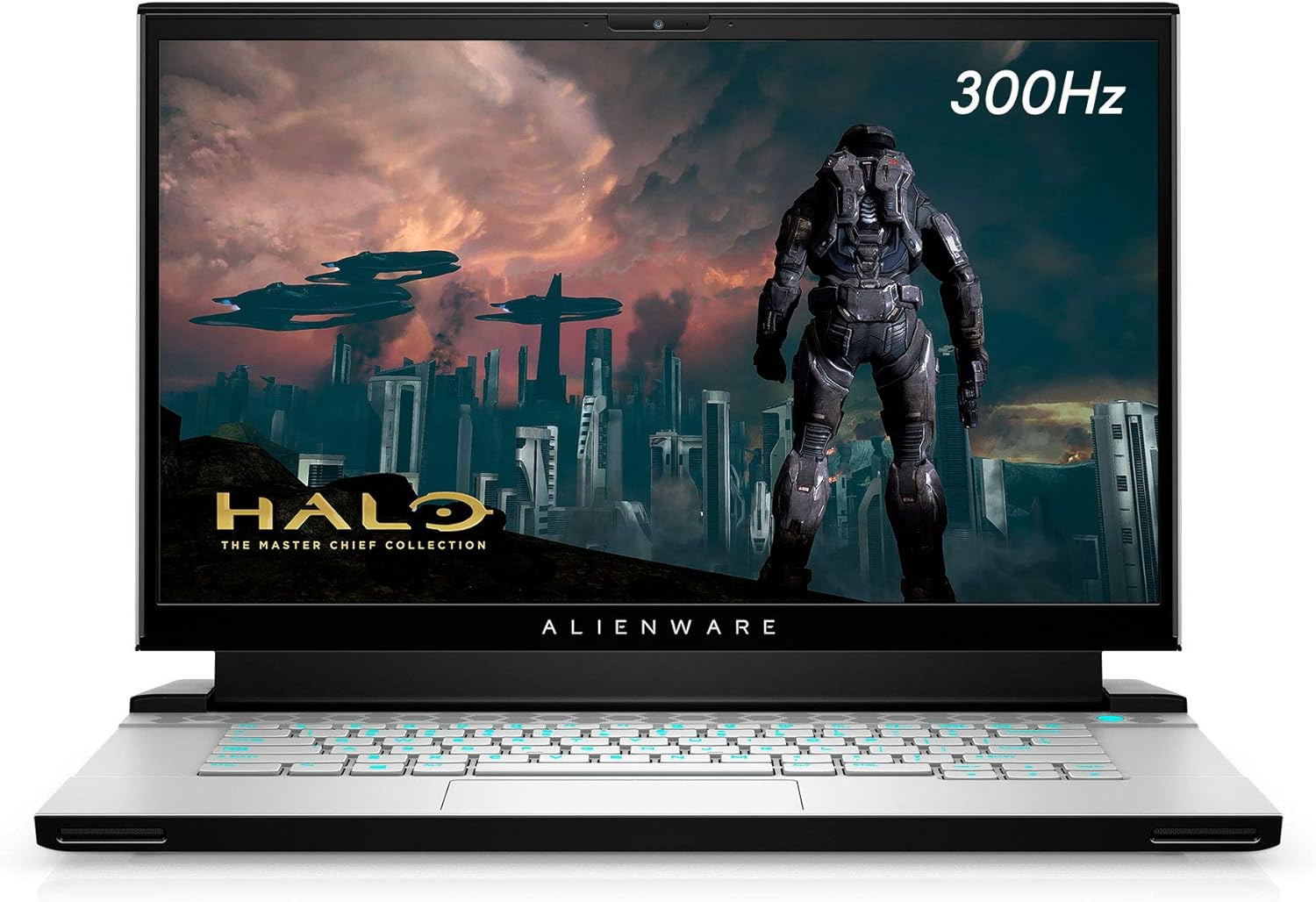
Hoto na 3.1: Gaba view of the Alienware m15 R4 laptop, showcasing the 15.6-inch Full HD display with a 300Hz refresh rate, ideal for immersive gaming. The Alienware logo is visible below the screen.
3.2 Tashar jiragen ruwa na gefen hagu

Hoto na 3.2: Left side of the laptop, featuring a USB 3.0 Type-A port, an Ethernet port for wired network connectivity, and a 3.5mm audio jack for headphones or headsets.
3.3 Tashar jiragen ruwa na gefen dama

Hoto na 3.3: Right side of the laptop, equipped with two USB 3.0 Type-A ports and an SD card reader for convenient data transfer from memory cards.
3.4 Rear Ports and Cooling

Hoto na 3.4: Na baya view of the laptop, highlighting the robust cooling vents and essential ports including HDMI, Mini-DisplayPort, Thunderbolt 3 (USB-C), and the power adapter input. This design optimizes airflow and connectivity.
3.5 Keyboard da Touchpad

Hoto na 3.5: Sama-ƙasa view of the Alienware m15 R4's keyboard and touchpad. The keyboard features per-key RGB lighting and a comfortable layout for gaming and typing. The precision touchpad offers smooth navigation.
3.6 Laptop Back and Alienware Logo

Hoto na 3.6: The back of the Alienware m15 R4 laptop, featuring the iconic illuminated Alienware head logo. The sleek design and Lunar Light finish are prominent.
3.7 Maɓalli Maɓalli
- Nunawa: 15.6-inch FHD (1920 x 1080) 300Hz 3ms 300-nits 100% sRGB color gamut for fluid visuals.
- Mai sarrafawa: 10th Generation Intel Core i7-10870H (8-Core, 16MB Cache, up to 5.0GHz Max Turbo Frequency).
- Ƙwaƙwalwar ajiya: 16GB 2933MHz DDR4 RAM (Note: RAM is soldered and not user-upgradeable on some configurations).
- Ajiya: 1TB PCIe SSD for fast boot times and game loading.
- Hotuna: NVIDIA GeForce RTX 3070 8GB GDDR6 for high-fidelity gaming.
- Haɗin kai: Killer Wi-Fi 6 AX1650i 802.11ax 2x2 Wireless LAN + Bluetooth 5.1.
- Tsarin Aiki: Windows 10 Home (upgradeable to Windows 11).
4. Jagorar Saita
Follow these steps to set up your Alienware m15 R4 for the first time.
- Haɗa Ikon: Plug the power adapter into the laptop's power input port (located at the rear) and then into a wall outlet.
- Boot na farko: Open the laptop lid and press the power button (located on the top right of the keyboard deck). The Alienware logo will illuminate, and the system will begin its initial boot sequence.
- Saita Windows: Follow the on-screen instructions to complete the Windows 10 Home setup. This includes selecting your region, language, creating a user account, and connecting to a Wi-Fi network.
- Sabuntawar Direba: After Windows setup, it is recommended to connect to the internet and allow Windows Update to download and install the latest drivers and security patches. You can also visit the official Alienware support website for the latest specific drivers for your model.
- Alienware Command Center: Explore the pre-installed Alienware Command Center software to customize lighting, power profiles, and monitor system performance.
5. Umarnin Aiki
This section covers basic operation and usage tips for your Alienware m15 R4.
5.1 Gudanar da Wuta
- Kunnawa/Kashewa: Press the power button to turn on the laptop. To turn off, go to Start > Power > Shut down in Windows.
- Yanayin Barci: Close the lid or select Sleep from the Start > Power menu to put the laptop into a low-power state.
- Sake farawa: Select Restart from the Start > Power menu to reboot the system.
5.2 Keyboard da Touchpad
- Hasken Baya na Allon madannai: Customize the per-key RGB lighting effects using the Alienware Command Center.
- Maɓallan Aiki: Yi amfani da Fn key in combination with the F1-F12 keys for quick access to features like volume control, screen brightness, and external display switching.
- Alamar taɓa taɓawa: The precision touchpad supports multi-touch gestures for scrolling, zooming, and switching applications. Refer to Windows settings for customization.
5.3 Ayyukan Wasan kwaikwayo
- Yanayin Wasan: Windows 10 includes a Game Mode feature that optimizes system resources for gaming. Enable it via Windows Settings > Gaming > Game Mode.
- Alienware Command Center: Utilize the Command Center to create custom performance profiles for your games, manage fan speeds, and monitor temperatures.
- Nuni na waje: For an enhanced gaming experience, connect to an external high-refresh-rate monitor using the HDMI or Mini-DisplayPort.
6. Kulawa
Regular maintenance helps ensure the longevity and optimal performance of your laptop.
- Tsaftacewa:
- Yi amfani da kyalle mai laushi wanda ba shi da lint don tsaftace allon da waje. A guji sinadarai masu ƙarfi.
- Use compressed air to clear dust from cooling vents periodically to maintain airflow.
- Sabunta software:
- Regularly check for Windows Updates to ensure your operating system is secure and up-to-date.
- Update graphics drivers (NVIDIA GeForce Experience) and other system drivers (Alienware Update or Dell SupportAssist) for best performance.
- Kulawar Baturi:
- Guji cikar cajin baturin akai-akai.
- Idan adana kwamfutar tafi-da-gidanka na tsawon lokaci, tabbatar da cajin baturi zuwa kusan 50-80%.
- Gudanar da Ajiya: Tsabtace lokaci-lokaci ba dole ba files and uninstall unused programs to free up disk space and maintain system speed.
7. Shirya matsala
This section addresses common issues you might encounter with your Alienware m15 R4.
7.1 Performance Issues (Lag, Slowdowns)
- Check Background Processes: Open Task Manager (Ctrl+Shift+Esc) to identify and close resource-intensive applications.
- Sabunta Direbobi: Ensure your graphics drivers and chipset drivers are up-to-date.
- Sanyaya: Ensure cooling vents are not obstructed. Excessive heat can lead to performance throttling. Consider using Alienware Command Center to adjust fan profiles.
- Yanayin Wuta: Ensure the laptop is set to a "High Performance" or "Balanced" power plan, especially when gaming.
7.2 Yawan zafi
- Samun iska: Ensure the laptop is on a hard, flat surface to allow proper airflow. Avoid using it on soft surfaces like beds or couches.
- Tsaftace Hatsari: Use compressed air to clear dust from the intake and exhaust vents.
- Gudun Masoya: Adjust fan curves in Alienware Command Center to increase cooling during intense workloads.
7.3 Display Issues (No Image, Flickering)
- Mai Kula da Waje: Connect an external monitor to check if the issue is with the laptop's display or the graphics card.
- Driver Reinstallation: Reinstall graphics drivers.
- Haske: Ensure display brightness is not set to minimum.
7.4 Keyboard/Touchpad Unresponsive
- Sake farawa: A simple restart can often resolve temporary unresponsiveness.
- Duba Direba: Ensure keyboard and touchpad drivers are correctly installed and up-to-date in Device Manager.
- Na'urorin Waje: Disconnect any external keyboards or mice to rule out conflicts.
8. Ƙayyadaddun bayanai
Detailed technical specifications for the Alienware m15 R4 (Model: AWM15R4-7689WHT-PUS).
| Siffar | Ƙayyadaddun bayanai |
|---|---|
| Alamar | Alienware |
| Sunan Samfura | Alienware m15 R4 |
| Lambar Samfurin Abu | AWM15R4-7689WHT-PUS |
| Girman allo | Inci 15.6 |
| Tsarin allo | 1920 x 1080 pixels (FHD) |
| Nuna Rawar Waraka | 300Hz |
| Mai sarrafawa | Intel Core i7-10870H (8-Core, up to 5.0GHz) |
| RAM | 16 GB DDR4 (2933 MHz) |
| Hard Drive | 1 TB PCIe SSD |
| Mai sarrafa Graphics | NVIDIA GeForce RTX 3070 |
| Girman Katin RAM ɗin Graphics | 8 GB GDDR6 |
| Tsarin Aiki | Windows 10 Gida |
| Nau'in Mara waya | Killer Wi-Fi 6 AX1650i 802.11ax, Bluetooth 5.1 |
| USB 3.0 Ports | 3 |
| Nauyin Abu | 5.5 fam |
| Girman Samfura (LxWxH) | 14.19 x 10.86 x 0.78 inci |
| Launi | Lunar Light (White) |
| Baturi | 1 baturin lithium ion (an haɗa) |
9. Garanti da Tallafawa
Your Alienware m15 R4 laptop comes with a standard manufacturer's warranty. For detailed information regarding warranty coverage, terms, and conditions, please refer to the warranty documentation included with your purchase or visit the official Dell/Alienware support website.
Goyon bayan sana'a:
- For technical assistance, driver downloads, and troubleshooting guides, please visit the Dell Taimako website.
- You can also contact Alienware customer support directly through their website for personalized assistance.
Please have your service tag or express service code ready when contacting support, as this will help expedite the process.