
1. Gabatarwa
The Poly Studio is an all-in-one USB video and audio conferencing system designed for home offices and small meeting rooms. It integrates a 4K camera, smart microphones, and a speaker into a single, sleek bar, offering a plug-and-play solution for enhanced virtual meetings.

Image: Poly Studio Premium USB Video & Audio Conferencing System, showcasing ta m zane.
Mabuɗin fasali:
- Magani Duk-In-Daya: Combines a 4K camera, smart microphone, and speaker into a single bar, ideal for small meeting rooms and home offices.
- Haɗin kebul na USB mai haɗawa da kunnawa: No software required for basic functionality. Connect via USB to instantly elevate your Zoom, Teams, Skype, and Google Meet experience.
- Exceptional Audio Clarity: Features Polycom noise-blocking technology and beamforming microphones for crystal-clear sound.
- Smart Camera Framing: Automatically adjusts framing and tracking based on speaker movement and participants in the room.
2. Saita
Follow these steps to set up your Poly Studio conferencing system:
- Cire na'urar: Carefully remove the Poly Studio bar and all accessories from the packaging.
- Zaɓi Zaɓin Haɗawa: The Poly Studio can be mounted on a tabletop, wall, or tripod.
- Dutsen tebur: Sanya na'urar a kan tsayayye.
- Bangon Dutsi: Use the provided wall mount bracket and hardware to securely attach the device to a wall, typically above or below your display.
- Dutsen Tripod: Attach the device to a standard tripod using the integrated tripod thread.
- Haɗa Ikon: Plug the power cable into the Poly Studio and then into a power outlet.
- Haɗa zuwa Kwamfuta: Connect the USB cable from the Poly Studio to an available USB port on your laptop or PC.
- Gane Manhaja: Your computer should automatically recognize the device as a USB camera, microphone, and speaker.

Image: Poly Studio connected to a display, highlighting its compatibility with various video conferencing applications.
3. Umarnin Aiki
The Poly Studio is designed for ease of use with popular video conferencing platforms.
- Select Device in Application: In your preferred video conferencing application (e.g., Zoom, Microsoft Teams, Skype, Google Meet), navigate to the audio and video settings. Select "Poly Studio" as your camera, microphone, and speaker.
- Utilize Smart Camera Features: The device's smart camera framing and speaker tracking features will automatically adjust the view to keep participants in frame and focus on the active speaker.
- Experience Clear Audio: Polycom's noise-blocking and beamforming technologies work automatically to ensure clear audio transmission and reception.
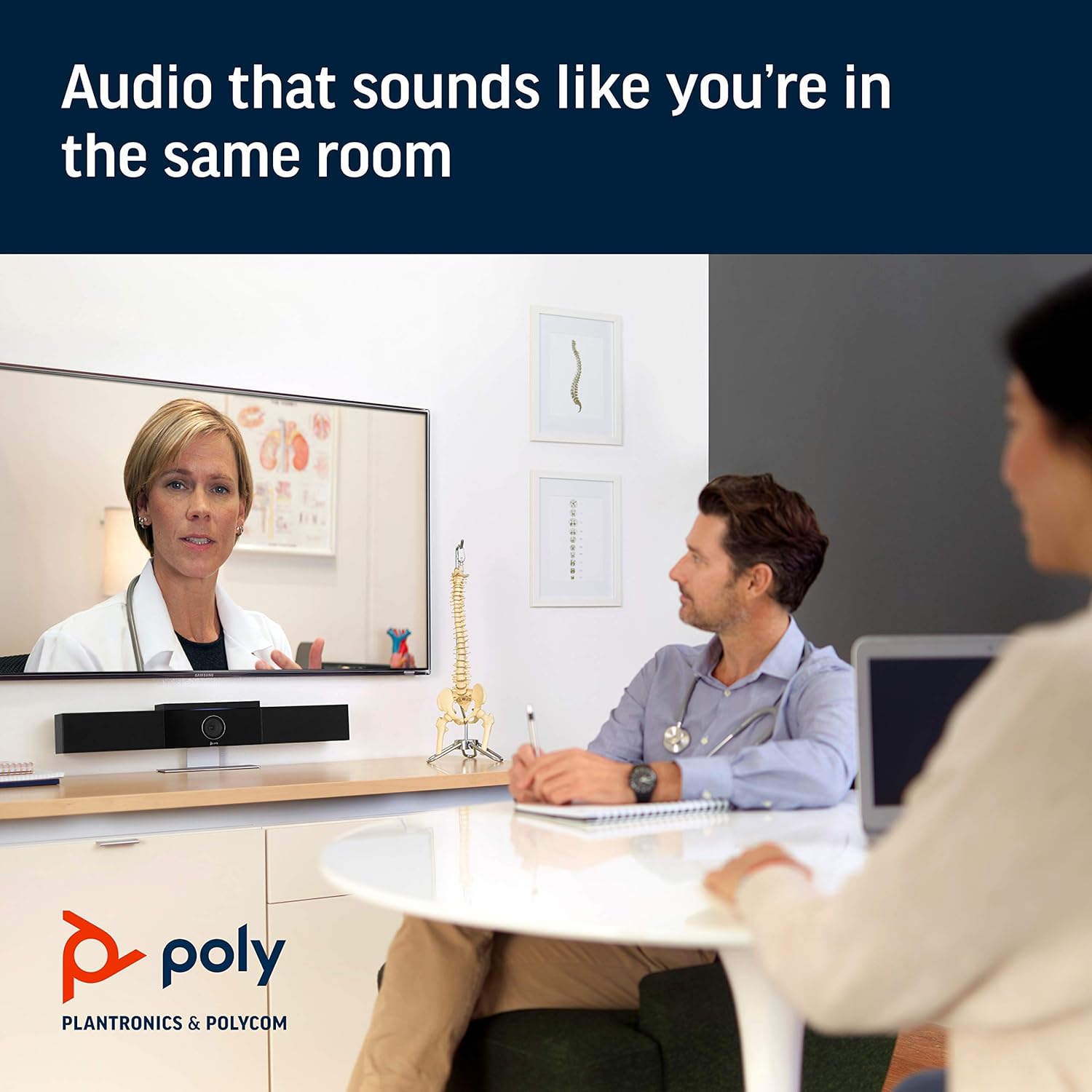
Image: Poly Studio in a meeting room, illustrating its capability to deliver clear audio for all participants.

Image: Poly Studio capturing vivid details and facial expressions of meeting participants.
4. Kulawa
To ensure optimal performance and longevity of your Poly Studio, regular maintenance is recommended:
- Tsaftacewa: Gently wipe the device with a soft, dry cloth. Avoid using harsh chemicals or abrasive materials.
- Sabunta software: Regularly check for and install software updates. These updates often include performance improvements, new features, and bug fixes. Poly Lens remote device management software can assist with this.
- Na'urar USB: Ensure all cables are neatly organized and not under strain to prevent damage.

Image: Poly Studio, illustrating its compatibility with cloud-based management tools for easy software updates.
5. Shirya matsala
If you encounter issues with your Poly Studio, try the following troubleshooting steps:
- Babu Ƙarfi: Ensure the power cable is securely connected to both the device and the power outlet. Try a different outlet if necessary.
- Babu Bidiyo/Sauti: Verify that the USB cable is securely connected to both the Poly Studio and your computer. Check your video conferencing application settings to ensure the Poly Studio is selected as the active camera, microphone, and speaker.
- Rashin ingancin Sauti: Ensure the device is placed in a central location in the room. Check for any physical obstructions blocking the microphones or speakers. Update the device firmware via the Poly Lens app.
- Kyamara Ba Ta Bin Diddigi Ba: Ensure the room is adequately lit. Check the Poly Lens app settings for camera tracking modes and adjust as needed.
- Ba a Gane Na'urar: Try connecting the USB cable to a different USB port on your computer. Restart your computer.
6. Ƙayyadaddun bayanai
| Siffar | Daki-daki |
|---|---|
| Nau'in hawa | Dutsen Tabletop |
| Sunan Samfura | 649661882596 |
| Nau'in Kakakin | Sitiriyo |
| Siffa ta Musamman | Ƙananan Haske |
| Abubuwan Amfani Don Samfura | video conferencing in home offices and small conference rooms |
| Na'urori masu jituwa | Laptop |
| Kewaye Sauti Kanfigareshan | 2.0 |
| Launi | Baki |
| Abubuwan da aka haɗa | camera, stereo speakers, microphones, control unit |
| Mai hana ruwa | KARYA |
| Nau'in Garanti | Iyakance |
| Adadin Abubuwan | 1 |
| Hanyar sarrafawa | Murya |
| Fasahar Sadarwa mara waya | No Wireless Communication Technology |
| Girman Kakakin | 21.59 santimita |
| Tushen wutar lantarki | Corded Electric |
| Matsayin Juriya na Ruwa | Ba Mai Tsayar da Ruwa ba |
| Nau'in Direba Audio | Direba mai ƙarfi |
| Fasahar Haɗin Subwoofer | Waya |
| Takamaiman Amfani Don Samfura | Home office, Small conference rooms, Video conferencing with Zoom and Microsoft Teams |
| UPC | 649661882596 |
| Amfanin Cikin Gida/Waje | Cikin gida |
| Mai ƙira | Polycom Inc. girma |
| Siffar | rectangular prism |
| Girman samfur | 30 x 6 x 4 inci |
| Nauyin Abu | 10.58 fam |
| ASIN | B091YCFF84 |
| Lambar samfurin abu | 649661882596 |
| Kwanan Wata Farko Akwai | Afrilu 7, 2021 |
| Alamar | POLY |
| Matsakaicin Ƙarfin Fitar da Kakakin | 40 Watts |
| Amsa Mitar | 120 kHz |
| Fasahar Haɗuwa | USB |
| Yanayin Fitarwa na Audio | Sitiriyo |
7. Garanti da Tallafawa
Your Poly Studio Premium USB Video & Audio Conferencing System comes with a Garanti mai iyaka. For specific details regarding the warranty period and coverage, please refer to the official Poly documentation or contact Poly support.
This product is also eligible for a Maidowa/majiyewar kwanaki 90 policy under the Amazon Renewed Guarantee, as it is a renewed product. For support or to claim warranty/return, please contact the seller or refer to the product's official support channels.