
Gabatarwa
The HyperGear HyperStream 1080P Webcam provides high-definition video and clear audio for various applications, including online meetings, classes, and streaming. This manual provides instructions for setup, operation, maintenance, and troubleshooting to ensure optimal performance of your webkama.
Abubuwan Kunshin
Da fatan za a tabbatar cewa duk abubuwa suna nan a cikin kunshin ku:
- HyperGear HyperStream 1080P Webkama
- Kebul na USB
- Microphone da aka gina a ciki
Samfurin Ƙarsheview
The HyperGear HyperStream 1080P Webcam is designed for ease of use and high-quality performance. Key features include:
- Crystal-Clear 1080P HD Resolution: Delivers sharp and vibrant visuals.
- Built-in Noise Reduction Microphone: Captures clear audio by reducing background sounds.
- Toshe & Kunna Haɗin USB: Requires no additional software or drivers for quick setup.
- Wide-Angle 110° Lens: Captures a broad field of view, suitable for group interactions.
- Auto-White Balance: Automatically adjusts to various lighting conditions for optimal image quality.
- Daidaitacce Clip-on Dutsen: Securely attaches to monitors or laptops, and can also be positioned as a standalone unit.
Saita Umarnin
Follow these steps to set up your HyperGear HyperStream 1080P Webkamara:
- Cire kayan Webkamara: Hankali cire webcam and its USB cable from the packaging.

Image: The HyperGear HyperStream 1080P Webcam is designed for instant plug-and-play setup without requiring additional drivers. Simply connect the USB cable to your computer.
- Dutsen da Webkamara:
- On a Monitor/Laptop: Open the adjustable clip and place it securely on top of your monitor or laptop screen. Adjust the angle to ensure the webcam yana da ƙarfi kuma yana fuskantar ku.
- On a Desk: Fold the clip to form a stable stand and place the webcam on a flat surface, such as your desk.

Hoto: The webcam features an adjustable mount that allows it to be clamped onto any screen or display, or positioned as a standalone unit on your desk. It offers 180-degree rotation for flexible positioning.
- Haɗa zuwa Na'urar ku: Haɗa kebul na USB daga kebul ɗin webcam into an available USB port on your computer (PC, Mac) or Xbox console. The webcam is plug-and-play, so no additional drivers are typically required.
- Tabbatar da Haɗin kai: Your operating system should automatically detect the webcam. You can verify its connection in your device settings or within your preferred video conferencing/streaming application.
Umarnin Aiki
Once connected, the HyperGear HyperStream 1080P Webcam is ready for use with various applications.
Daidaituwar tsarin
The webcam is compatible with multiple operating systems and platforms:
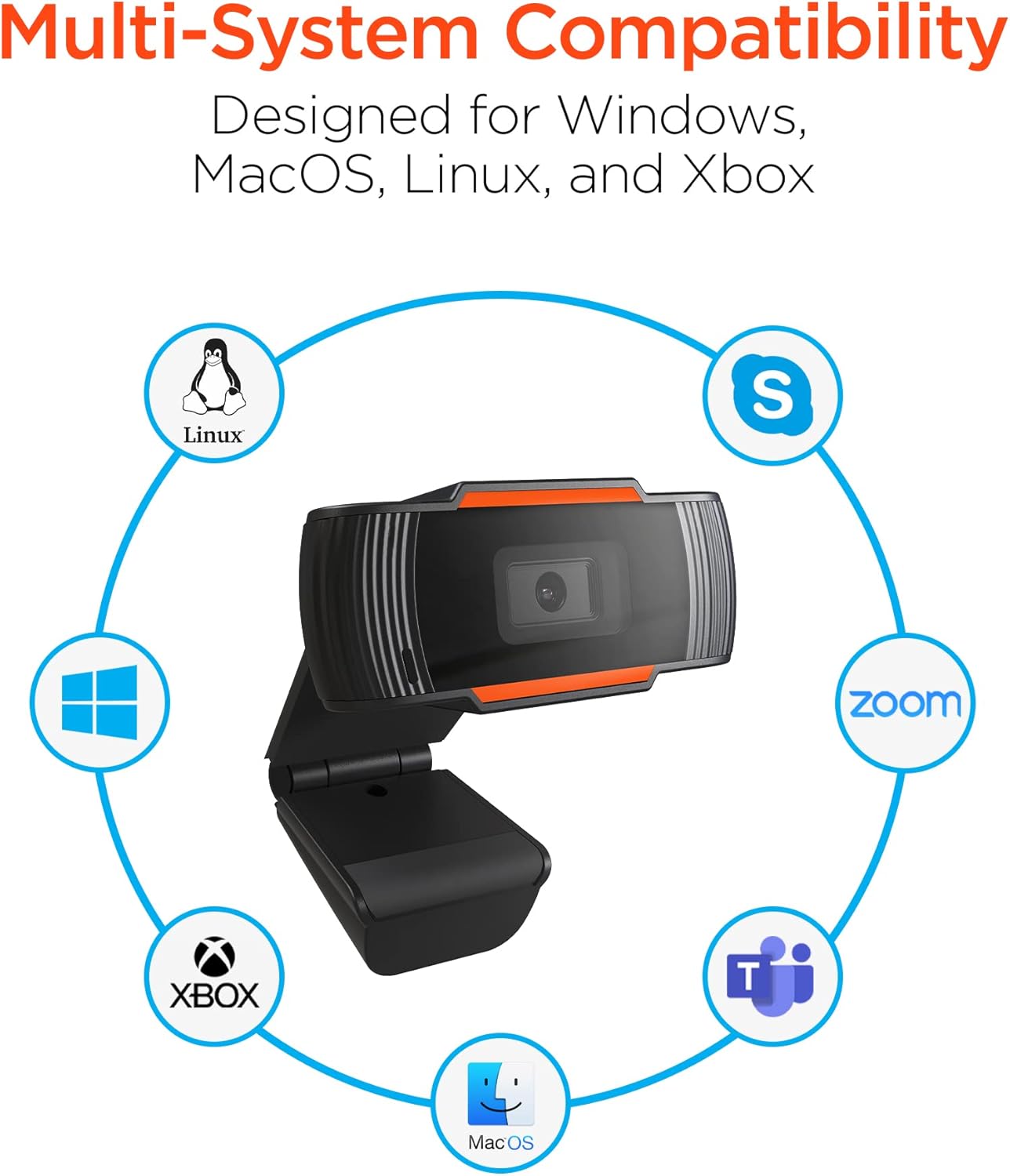
Image: The HyperGear HyperStream 1080P Webcam offers multi-system compatibility, designed for use with Windows, MacOS, Linux, and Xbox, as well as popular communication platforms like Skype, Zoom, and Microsoft Teams.
- Windows
- macOS
- Linux
- Xbox
- Compatible with popular video conferencing software (e.g., Skype, Zoom, Microsoft Teams).
Amfani da Webkama
- Zaɓin Webkamara: In your video conferencing or streaming application, navigate to the video and audio settings. Select "HyperGear HyperStream 1080P Webcam" as your video input device and its integrated microphone as your audio input device.
- Adjust Position and Angle: Tabbatar da webcam is positioned to capture your desired view. The 110° wide-angle lens is ideal for capturing multiple participants or a broader background.

Image: The 110° ultra wide-angle lens ensures that your entire team and presentations fit within the frame, making it suitable for group meetings and collaborative environments.
- Benefit from Auto-White Balance and Fixed Focus: The webcam automatically adjusts for optimal lighting and maintains a sharp focus on subjects within its field of view, eliminating the need for manual adjustments.

Hoto: The webcam features fixed focus and auto-white balance (AWB) to automatically adjust to various lighting conditions (like daylight or fluorescent), ensuring clear and sharp visuals without manual intervention.
- Utilize Noise Reduction Microphone: The built-in microphone actively reduces ambient noise, ensuring your voice is clear and easily understood during calls.

Image: The integrated noise reduction microphone minimizes unwanted background noise and distortions, ensuring clear audio during your video calls and streams.
Kulawa
Don tabbatar da tsawon rai da kyakkyawan aiki na ku webcam, bi waɗannan jagororin kulawa:
- Tsaftacewa: Gently wipe the lens with a soft, lint-free cloth. Avoid using harsh chemicals or abrasive materials that could scratch the lens or damage the casing.
- Ajiya: Lokacin da ba a amfani, adana webcam a cikin tsaftataccen wuri, busasshiyar wuri nesa da matsanancin zafi da hasken rana kai tsaye.
- Gudanarwa: Guji faduwa da webcam or subjecting it to strong impacts, which could damage internal components.
Shirya matsala
If you encounter issues with your HyperGear HyperStream 1080P Webcam, try the following troubleshooting steps:
- WebBa a Gano cam ba:
- Ensure the USB cable is securely plugged into both the webcam and your computer's USB port.
- Gwada toshe na webcam zuwa wani tashar USB na daban.
- Sake kunna kwamfutarka.
- Check your operating system's device manager (Windows) or System Information (macOS) to see if the webcam yana lissafin.
- Babu Fitar Bidiyo:
- Tabbatar cewa webcam is selected as the video input device in your application's settings.
- Tabbatar cewa babu wani aikace-aikacen da ke amfani da shi a halin yanzu webcam, as some systems only allow one application to access it at a time.
- Check for any physical obstructions covering the lens.
- No Audio Input (Microphone):
- Tabbatar da cewa webcam's microphone is selected as the audio input device in your application's settings and your system's sound settings.
- Check that the microphone is not muted in your application or system settings.
- Ensure your system's privacy settings allow applications to access the microphone.
- Rashin ingancin Bidiyo:
- Ensure you have adequate lighting in your environment. While the webcam has auto-white balance, sufficient ambient light is crucial for best results.
- Tsaftace da webcam lens if it appears smudged or dirty.
- Check your internet connection speed if streaming or video conferencing, as a slow connection can affect video quality.
Ƙayyadaddun bayanai
| Siffar | Daki-daki |
|---|---|
| Alamar | HyperGear |
| Sunan Samfura | HyperStream Portable 1080P |
| Ƙimar Ɗaukar Bidiyo | 1080p |
| Fasahar Haɗuwa | USB |
| Launi | baki |
| Siffa ta Musamman | Daidaitacce |
| Nau'in kyamarori | Webkama |
| Tsarin Aiki | Windows, macOS |
| Nau'in Lens | Fadin kusurwa |
| Nau'in Mayar da hankali | Kafaffen Mayar da hankali |
| Girman Yanayin Hoto | 16:9 |
| Nau'in Gudanar da Bayyanawa | Na atomatik |
| Ingantacciyar Tsarin Bidiyo | 1920 pixels |
| Na'urori masu jituwa | Kwamfuta ta sirri |
| Kafofin watsa labarai da aka Gina | Microphone, USB Cable |
| Nauyin Abu | 4.72 oz |
| UPC | 633755155390 |
| ASIN | B09S51KSC4 |
Garanti da Taimako
For warranty information and customer support, please refer to the documentation included with your purchase or visit the official HyperGear website.
Hakanan zaka iya ziyartar wurin HyperGear Store on Amazon don ƙarin bayanin samfur da albarkatun tallafi.