
Gabatarwa
This manual provides instructions for the Flutesan Portable Bluetooth Item Finder. Please read this manual carefully before using the device to ensure proper operation and to maximize its functionality. This device utilizes Bluetooth technology for proximity tracking, not satellite-based GPS.
Samfurin Ƙarsheview
The Flutesan Portable Bluetooth Item Finder is a compact device designed to help locate misplaced items such as keys, wallets, pets, and luggage. It connects to your smartphone via Bluetooth, allowing you to track items within a certain range and trigger an alarm.
Mabuɗin fasali:
- Haɗin Bluetooth: Connects wirelessly to your smartphone for proximity tracking.
- Karamin Tsara: Small size (approximately 1.5 x 1.5 x 0.3 inches) with an integrated keychain loop for easy attachment.
- Ayyukan ƙararrawa: Triggers an audible alarm on the device to help locate items.
- Remote Camera Shutter: Can function as a remote button for your smartphone camera.

Image: A collection of eight Flutesan Bluetooth item finders, black in color, with one attached to a gold keychain. These devices are designed to be compact and easily attachable to various items.
Abubuwan Kunshin
- Flutesan Portable Bluetooth Item Finder (8 units)
- Jagorar mai amfani (wannan takaddar)
Ƙayyadaddun bayanai
| Siffar | Daki-daki |
|---|---|
| Girma | Kusan 1.5 x 1.5 x 0.3 inci (3.8 x 3.8 x 0.76 cm) |
| Nauyi | Approximately 2.89 ounces (82 grams) per unit |
| Haɗuwa | Bluetooth |
| Na'urori masu jituwa | Smartphones (iOS and Android) |
| Kayan abu | Roba |
| Tushen wutar lantarki | Button Cell Battery (CR2032, not included) |

Image: A diagram illustrating the dimensions of the item finder (5.2 cm length, 3.1 cm width, 1.1 cm thickness) and a visual guide on how to open the case to replace the CR2032 battery.
Saita Umarnin
- Sanya Baturi: Open the device casing (refer to the diagram in the Specifications section) and insert a CR2032 button cell battery. Ensure correct polarity. Close the casing lafiya.
- Sauke App: Bincika the recommended companion application on your smartphone's app store (e.g., "iSearching" or similar, as implied by common Bluetooth trackers). Follow the on-screen instructions to download and install the app.
- Kunna Bluetooth: Tabbatar cewa an kunna Bluetooth akan wayoyin ku.
- Haɗa Na'urar: Open the installed app. Follow the in-app instructions to add a new device. Typically, you will need to press and hold the button on the item finder until it beeps or a light flashes, indicating it's in pairing mode. Select the device from the list in the app to complete pairing.
- Keɓance Saituna: Within the app, you can rename your device (e.g., "Keys," "Wallet," "Pet Collar") and adjust alert settings.

Image: A visual guide showing the six main steps for using the item finder: downloading the app, ensuring Bluetooth compatibility, binding the device, clicking the alarm in the app, the device beeping, and finally locating the item.
Umarnin Aiki
Locating an Item:
- Ensure your smartphone's Bluetooth is active and the item finder is within range.
- Bude ƙa'idar aboki akan wayoyin ku.
- Select the desired item finder from your list of paired devices.
- Tap the "Alarm" or "Find" button within the app. The item finder will emit an audible beep, helping you pinpoint its location.
- To stop the alarm, tap the "Stop" button in the app or press the button on the item finder.
Anti-Loss Alert:
The app can be configured to alert you if the item finder moves out of Bluetooth range from your smartphone. This feature helps prevent items from being left behind.
- Enable the "Anti-Loss" or "Disconnection Alert" feature in the app settings for each device.
- If the connection is lost, both your phone and the item finder may emit an alert.

Image: A small dog with a Flutesan item finder attached to its collar, demonstrating a common use case for pet tracking. The device is discreetly placed on the collar.

Image: A collage showing multiple applications of the item finder: placed inside a wallet, attached to a set of keys, hanging from a handbag, and positioned near a camera, illustrating its versatility.
Ayyukan Kamara Nesa
The item finder can also serve as a remote shutter button for your smartphone's camera.
- Buɗe manhajar kyamarar wayarku ta hannu.
- Ensure the item finder is connected via Bluetooth.
- Press the button on the item finder. This will trigger your phone's camera to take a photo.
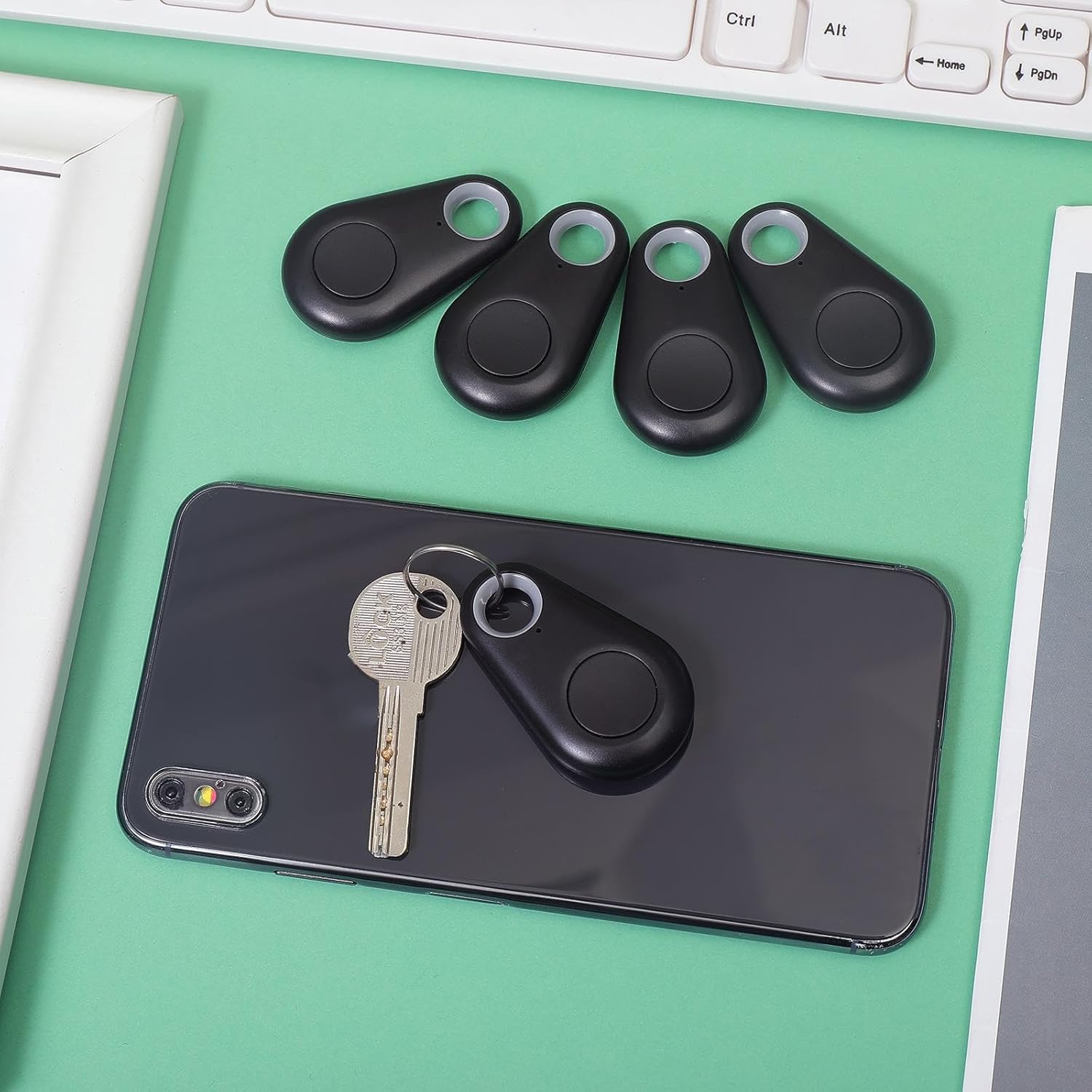
Image: A family enjoying a meal, with a smartphone set up on a tripod, capturing a group photo using the item finder as a remote shutter, highlighting its convenience for selfies and group shots.
Kulawa
Madadin Baturi:
The device uses a CR2032 button cell battery. When the alarm sound becomes weak or the device fails to connect, it's time to replace the battery.
- Carefully open the device casing. Refer to the diagram in the Specifications section for guidance.
- Cire tsohon baturin CR2032.
- Insert a new CR2032 battery, ensuring the positive (+) side faces up.
- Rufe casing lafiya.
Tsaftacewa:
Goge na'urar da kyalle mai laushi da busasshe. A guji amfani da sinadarai masu ƙarfi ko kuma masu tsaftace muhalli.
Ajiya:
Ajiye na'urar a wuri mai sanyi, bushe lokacin da ba a amfani da ita. Cire batura idan ana adanawa na tsawon lokaci don hana yaɗuwa.
Shirya matsala
- Device not connecting to smartphone:
- Tabbatar cewa an kunna Bluetooth akan wayoyin ku.
- Make sure the item finder has a fresh battery and is powered on.
- Bring the item finder closer to your smartphone.
- Sake kunna manhajar kuma gwada sake haɗawa.
- Idan matsalolin sun ci gaba, gwada sake kunna wayowin komai da ruwan ku.
- Alarm is too quiet or not sounding:
- Replace the battery in the item finder.
- Check the volume settings within the companion app.
- Device frequently disconnects:
- Ensure the device is within the effective Bluetooth range (typically up to 75 feet/23 meters in open areas, less indoors).
- Minimize obstructions between the device and your smartphone.
- Bincika tsangwama daga wasu na'urorin mara waya.
- Ensure your smartphone's operating system and the companion app are up to date.
- Remote camera function not working:
- Ensure the item finder is connected via Bluetooth.
- Some camera apps may not fully support external Bluetooth shutters. Try using your phone's default camera app.
Garanti da Taimako
For warranty information or technical support, please refer to the contact details provided with your purchase or visit the official Flutesan website. Ajiye shaidar siyan ku don da'awar garanti.