
1. Gabatarwa
Thank you for choosing the LDNIO SCW1050 WiFi Smart Plug. This manual provides essential information for the safe and efficient use of your smart plug. Please read it thoroughly before installation and operation, and retain it for future reference.
2. Samfurin Ya Ƙareview
The LDNIO SCW1050 is a smart electric plug designed to integrate seamlessly into your smart home ecosystem. It features WiFi connectivity for remote control, a timing function for scheduled operations, and multiple safety protections. Its fire-resistant polycarbonate structure ensures durability and safety.
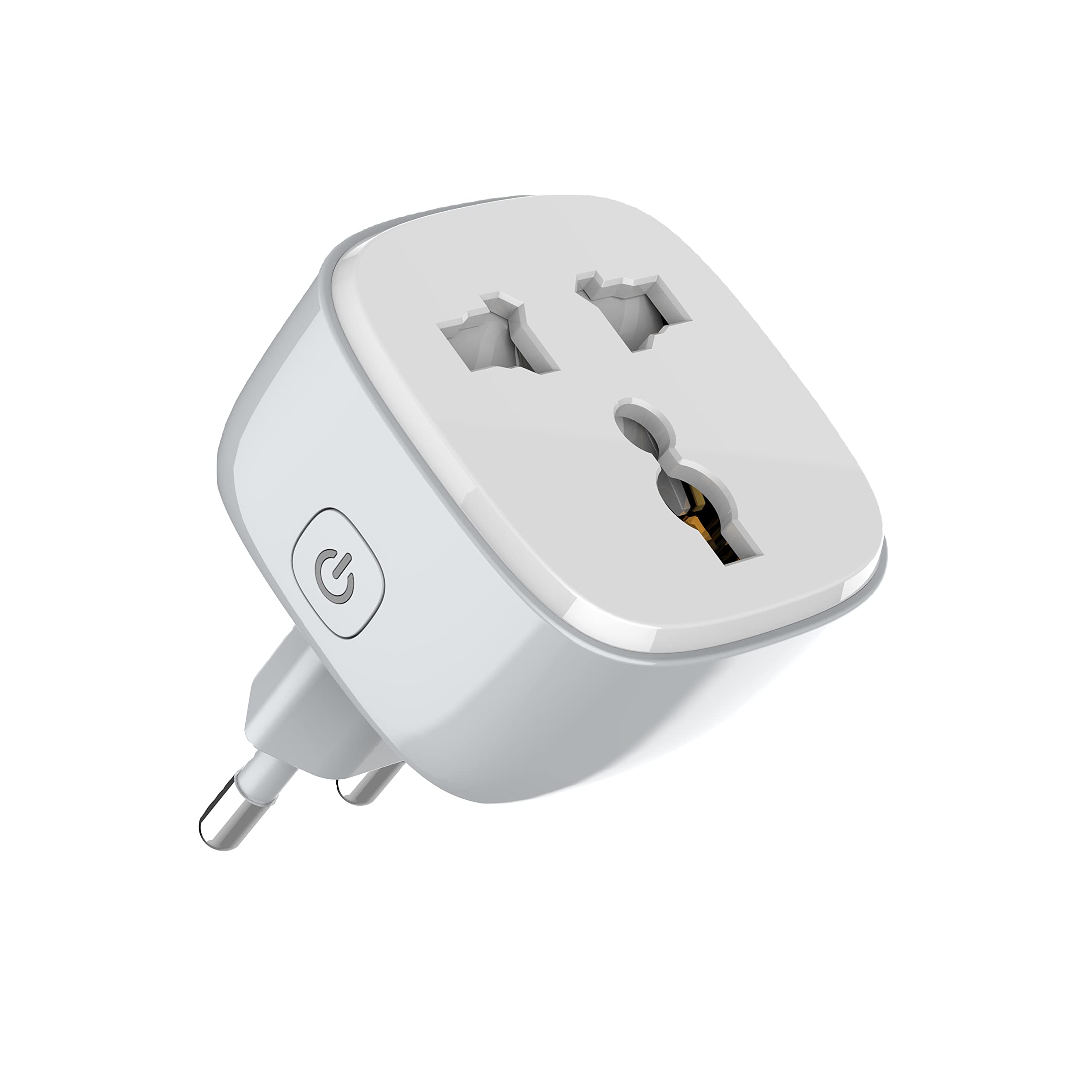
Hoto 1: Gaba view of the LDNIO SCW1050 WiFi Smart Plug.

Hoto 2: Angled view of the LDNIO SCW1050 WiFi Smart Plug, highlighting its compact design.
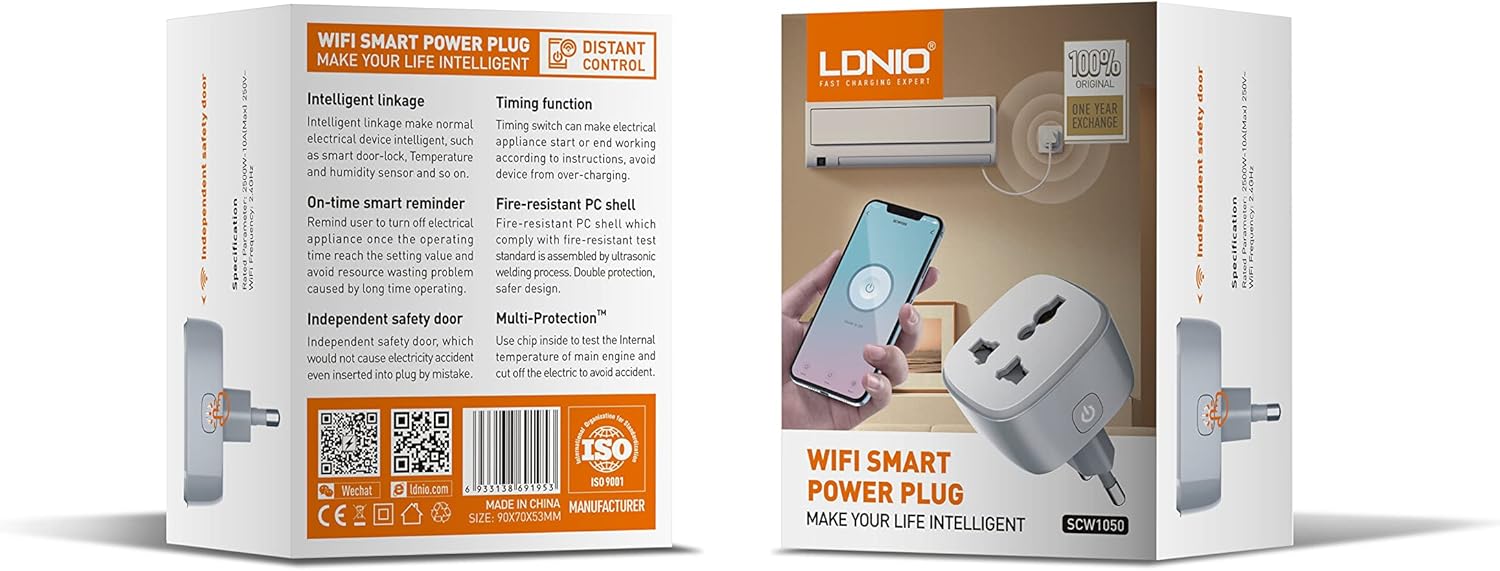
Figure 3: Product packaging illustrating key features such as intelligent linkage, timing function, on-time smart reminder, independent safety door, fire-resistant PC shell, and multi-protection. For more information, visit www.siyoteam.com.
3. Bayanin Tsaro
- Kada a sake haɗa ko gyara na'urar.
- Tabbatar cewa an shigar da filogi cikakke a cikin soket ɗin bango.
- Do not overload the smart plug beyond its rated capacity (2500W, 10A).
- Ka kiyaye na'urar daga ruwa, danshi, da yanayin zafi.
- Wannan samfurin don amfanin cikin gida ne kawai.
- If the device is damaged, discontinue use immediately and contact support.
4. Saita
4.1 Haɗin Farko
- Plug the LDNIO SCW1050 Smart Plug into a standard wall outlet.
- Ensure the indicator light on the smart plug is blinking, indicating it is in pairing mode. If not, press and hold the power button for 5-10 seconds until it blinks rapidly.
4.2 Shigar App da Haɗin kai
- Download the compatible smart home application (e.g., Tuya Smart or Smart Life app) from your mobile device's app store.
- Yi rijista ko shiga cikin asusun ku a cikin app.
- Danna gunkin "+" ko "Ƙara Na'ura" don fara aikin haɗawa.
- Zaɓi "Electrical Outlet" ko "Smart Plug" daga lissafin na'urar.
- Follow the on-screen instructions to connect the smart plug to your 2.4GHz WiFi network. Ensure your phone is connected to the same 2.4GHz network during setup.
- Once successfully paired, you can rename the device and assign it to a room.

Figure 4: Remote control of the smart plug using a mobile application.
5. Umarnin Aiki
5.1 Ikon Manual
Press the power button on the smart plug to manually turn the connected appliance on or off.
5.2 App Control
- Kunna/Kashe: Tap the power icon next to the device in the app to toggle power.
- Ayyukan Lokaci: Set schedules for the smart plug to turn on or off automatically at specific times. This is useful for managing lighting or other appliances.
- Abubuwan Tunatarwa: Configure smart reminders within the app to receive notifications or automate actions based on usage patterns or set conditions.
- Haɗin kai na hankali: Connect your smart plug with other smart devices or sensors to create automated scenarios (e.g., turn on a lamp when a motion sensor is triggered).
6. Kulawa
- To clean the smart plug, disconnect it from the power outlet and wipe it with a dry, soft cloth.
- Kada ayi amfani da mai tsabtace ruwa ko aerosol.
- Bincika akai-akai don kowane alamun lalacewa ko lalacewa.
7. Shirya matsala
- Na'urar ba ta haɗi zuwa WiFi: Ensure your WiFi network is 2.4GHz. Check that the smart plug is within range of your router. Restart the smart plug and your router, then try pairing again.
- App control not working: Verify your phone has an active internet connection. Ensure the smart plug is connected to WiFi and its indicator light is solid. Update the app to the latest version.
- Appliance not turning on/off: Check if the appliance is properly plugged into the smart plug and if the appliance itself is functional. Ensure the smart plug is receiving power.
- Indicator light behavior:
- Kiftawa da sauri: Shirye don haɗawa.
- Sannu a hankali: Disconnected from WiFi.
- m: Connected to WiFi and operating normally.
8. Ƙayyadaddun bayanai
| Siffar | Ƙayyadaddun bayanai |
|---|---|
| Lambar Samfura | Annabi Muhammadu 1050 |
| Ƙarfin Ƙarfi | 2500W |
| Ƙimar Yanzu | 10A (max) |
| An ƙaddara Voltage | 250V ~ |
| Mitar WiFi | 2.4GHz |
| Girman samfur | 7.62 x 5.08 x 5.08 cm |
| Nauyin samfur | 70g ku |
| Shell Material | Fire-resistant Polycarbonate |
9. Garanti da Tallafawa
LDNIO offers a One Year Exchange warranty for this product, as indicated on the packaging. For technical support, warranty claims, or further inquiries, please visit the official LDNIO websaiti a www.siyoteam.com ko tuntuɓi mai rabawa na gida.
You may also find additional resources and community support through the WeChat platform by scanning the QR code found on the product packaging (refer to Figure 3).


