
1. Gabatarwa
This manual provides detailed instructions for the setup, operation, maintenance, and troubleshooting of your Cosmic Byte ARES Wired Controller for PC. Designed for an enhanced gaming experience, this controller features Hall Effect joysticks and triggers, dual vibration, and customizable Turbo functions.
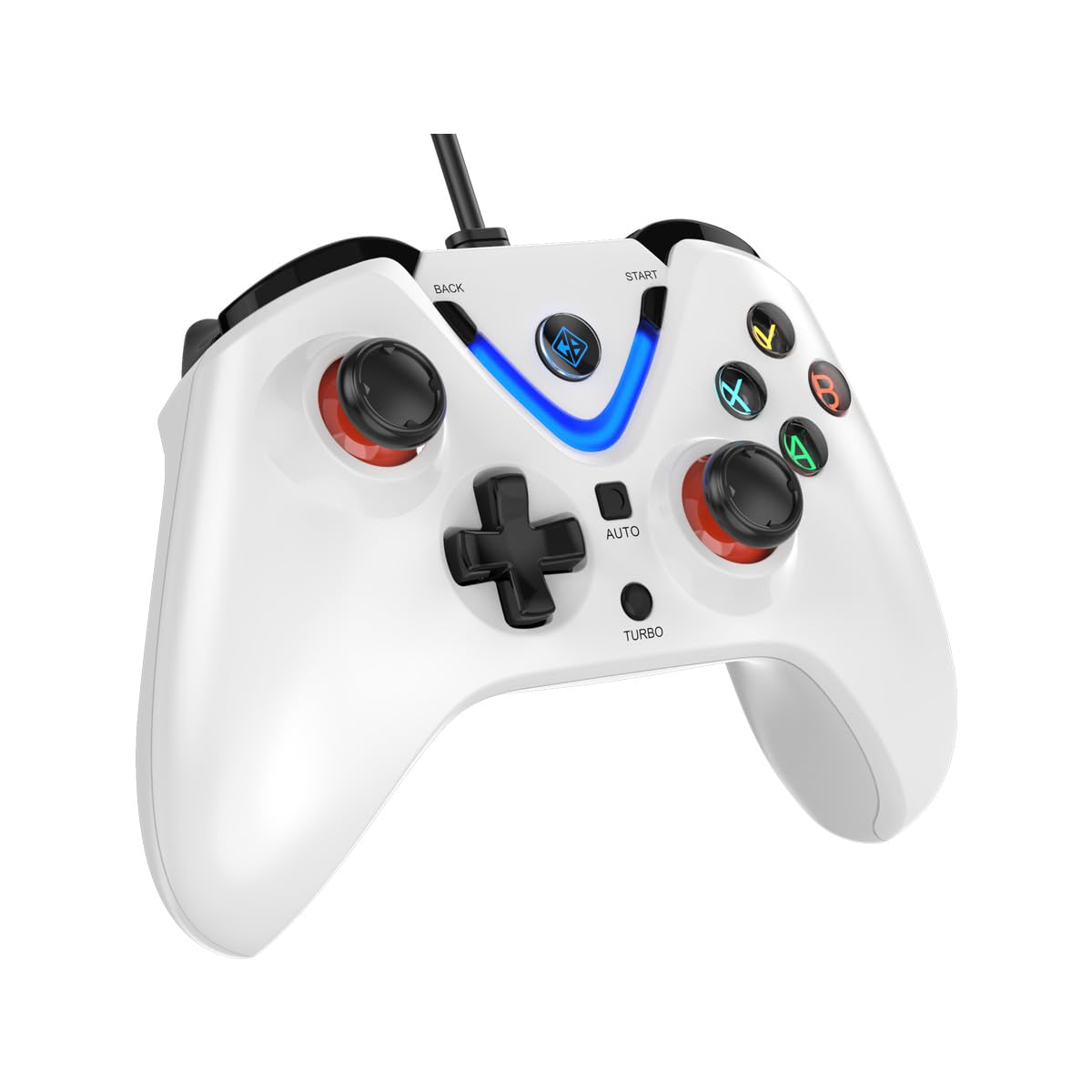
Image 1: The Cosmic Byte ARES Wired Controller in white, showcasing ta ergonomic zane.
2. Saita Umarnin
2.1 Haɗa zuwa PC
- Tabbatar cewa an kunna PC ɗin ku.
- Nemo tashar USB da ke akwai akan kwamfutarka.
- Plug the USB connector of the Cosmic Byte ARES Wired Controller into the USB port.
- Tsarin aiki zai gano ta atomatik kuma shigar da direbobin da suka dace. Wannan tsari na iya ɗaukar ɗan lokaci kaɗan.
- Once installation is complete, the controller is ready for use.

Image 2: The controller connected via its wired USB connection, ensuring fast response.
3. Umarnin Aiki
3.1 Abubuwan Gudanarwa na asali
The Cosmic Byte ARES controller features standard gamepad layouts, including:
- Left and Right Analog Joysticks: Don daidaitaccen motsi da sarrafa kyamara.
- D-Pad: For directional input, often used in menus or for specific game actions.
- Maɓallan Aiki (A, B, X, Y): For primary game interactions.
- Maɓallan kafada (L1, R1) da abubuwan jan hankali (L2, R2): For various in-game functions like shooting, aiming, or accelerating.
- Start and Back Buttons: For pausing games, accessing menus, or specific in-game commands.
- Maballin Turbo: For activating rapid-fire functions.
- Button Mota: For activating automatic rapid-fire functions.
3.2 Joysticks da abubuwan da ke haifar da tasirin Hall
The controller is equipped with Hall Effect joysticks and triggers, which use magnetic sensors instead of physical contacts. This technology provides:
- Ingantattun daidaito: More accurate and responsive input.
- Ƙara Dorewa: Reduces wear and tear, preventing stick drift over time.
- Aiki Lafiya: Consistent and linear response for triggers, allowing for nuanced control in games.

Hoto 3: Fashe view illustrating the Hall Effect joystick mechanism and the Hall Effect triggers.
3.3 Ra'ayin Girgiza Biyu
The controller features dual vibration motors that provide tactile feedback during gameplay, enhancing immersion by simulating in-game events such as impacts, explosions, or engine rumbling.
3.4 Backlit LED Buttons
The action buttons (A, B, X, Y) and the central V-shaped indicator feature LED backlighting, providing visibility in low-light conditions and adding to the controller's aesthetic.

Image 4: The controller with its LED buttons illuminated and visual representation of vibration effects.
3.5 Turbo and Auto Turbo Functions
The Turbo and Auto Turbo functions allow for rapid, repeated input of a button press without continuously pressing the button.
- Kunna Turbo: Press and hold the desired action button (e.g., A) and then press the Turbo button. The button will now rapidly repeat its input as long as you hold it down.
- Activating Auto Turbo: Press and hold the desired action button (e.g., A) and then press the Mota button. The button will now rapidly repeat its input automatically without needing to be held down.
- Deactivating Turbo/Auto Turbo: To deactivate, repeat the activation steps for the specific button, or press the Share button (if available) or disconnect and reconnect the controller.

Image 5: Close-up of the controller showing the Turbo and Auto function buttons.
4. Kulawa
- Tsaftacewa: Use a soft, dry cloth to clean the controller. For stubborn dirt, a slightly damp cloth can be used, ensuring no liquid enters the controller. Avoid harsh chemicals or abrasive cleaners.
- Ajiya: Store the controller in a cool, dry place away from direct sunlight and extreme temperatures. Avoid placing heavy objects on the controller.
- Kulawar Kebul: Do not sharply bend or pull the USB cable. Always grasp the plug when disconnecting from the PC.
5. Shirya matsala
- Ba a Gane Mai Kulawa ba:
- Ensure the USB cable is securely connected to both the controller and the PC.
- Try plugging the controller into a different USB port.
- Sake kunna kwamfutarka.
- Check Device Manager on Windows to see if the controller is listed and if there are any driver issues.
- Buttons/Joysticks Not Responding:
- Verify the controller is recognized by your PC (see above).
- Test the controller in a different game or a controller testing utility to rule out game-specific issues.
- Ensure no other input devices are interfering.
- Girgiza Ba Ya Aiki:
- Duba saitunan cikin wasa don tabbatar da cewa an kunna amsawar girgiza.
- Some games may not support vibration or may have limited vibration effects.
6. Ƙayyadaddun bayanai
| Siffar | Daki-daki |
|---|---|
| Alamar | Cosmic Byte |
| Sunan Samfura | Ares |
| Na'urori masu jituwa | PC |
| Nau'in Mai Gudanarwa | Gamepad |
| Fasahar Haɗuwa | USB |
| Siffofin Samfur | Ergonomic |
| Adadin Maɓalli | 16 |
| Platform Hardware | PC |
| Nau'in Kayan Wuta | Corded Electric, Kebul na USB |
| Nauyin Abu | 220 Grams |
| Girman Abu | 6 x 10 x 4 santimita |
| Launi | Fari |
| Ƙasar Asalin | China |

Image 6: A comparison table highlighting features of different ARES controller models.
7. Garanti da Tallafawa
7.1 Bayanin Garanti
The Cosmic Byte ARES Wired Controller comes with a Garanti na Shekara 1 Kan Lalacewar Masana'antu daga ranar sayayya. Da fatan za a riƙe shaidar siyan ku don da'awar garanti.
7.2 Bayanin Tuntuɓar Mai ƙira
For support, service, or warranty inquiries, please contact:
Cosmic BytePrakash Warehousing, S. No.163, Hissa No 1-2-3-4-5A-5B/2/1,
Phursungi, Pune 412308, Maharashtra, India
For further assistance, please visit the official Cosmic Byte website ko tuntuɓi sabis na abokin ciniki.