
1. Gabatarwa
Wannan littafin jagora yana ba da umarni masu mahimmanci don shigarwa, aiki, da kuma kula da PureLink Vuelogic VB200 Huddle Space Videobar ɗinku. Da fatan za a karanta wannan littafin jagora sosai kafin amfani da samfurin don tabbatar da ingantaccen aiki da kuma hana lalacewa.
PureLink Vuelogic VB200 mafita ce ta taron tattaunawa ta kowa da kowa wacce aka tsara don ɗakunan taro da ƙananan dakunan taro zuwa matsakaici. Yana haɗa kyamarar 4K, makirufo da yawa, da lasifikan sitiriyo don samar da cikakkiyar ƙwarewar sauti da bidiyo.
2. Bayanin Tsaro
A lura da waɗannan matakan tsaro don hana lalacewa ga na'urar da kuma tabbatar da tsaron mai amfani:
- Kada a bijirar da na'urar ga ruwa, danshi, ko matsanancin yanayin zafi.
- Ka guji sanya na'urar kusa da tushen zafi ko cikin hasken rana kai tsaye.
- Yi amfani da adaftar wutar kawai da aka kawo tare da na'urar.
- Kada kayi ƙoƙarin buɗe ko gyara na'urar da kanka. Koma duk hidima ga ƙwararrun ma'aikata.
- Tabbatar da samun iska mai kyau a kusa da na'urar yayin aiki.
3. Samfurin Ya Ƙareview
PureLink Vuelogic VB200 yana haɗa kyamara mai inganci, jerin makirufo, da lasifika zuwa cikin na'ura ɗaya, mai ƙaramin na'ura don gudanar da taron bidiyo mai sauƙi.
3.1. Abubuwan Kunshin
Tabbatar cewa duk abubuwa suna nan a cikin kunshin:
- PureLink Vuelogic VB200 Videobar
- Adaftar Wuta
- Kebul na USB
- Maƙallin Haɗawa (idan an haɗa shi)
- Jagoran Fara Mai Sauri

Siffa ta 3.1: Marufin sayar da kayayyaki na PureLink Vuelogic VB200 Videobar, wanda ke nuna cewa mafita ce ta taron tattaunawa gaba ɗaya.

Hoto 3.2: Cikakken bayani view na marufin samfurin, wanda ke nuna lambar samfurin VL-VB200 da UPC 4251364736913.
3.2. Abubuwan Na'urar
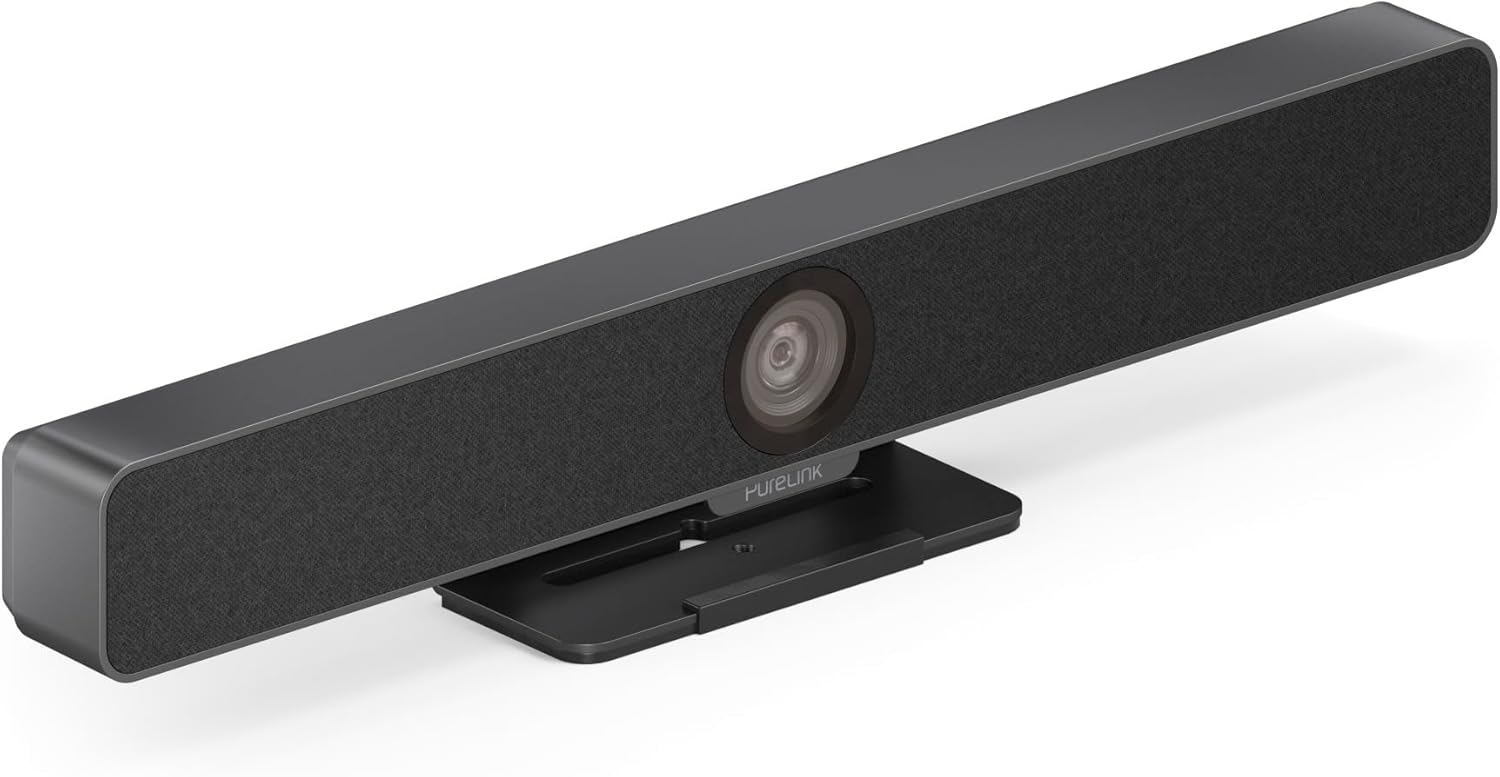
Hoto 3.3: Gaba view na PureLink Vuelogic VB200 Huddle Space Videobar, showcasing haɗakar kyamara da lasifika grille.

Hoto na 3.4: Gaba da baya viewna sandar bidiyo. Bayan view yana nuna shigarwar wutar lantarki, tashar USB-C, da sauran zaɓuɓɓukan haɗi.
- Gaba: Kyamarar 4K mai haɗaka, grille mai lasifika, alamar PureLink.
- Na baya: Shigar da wutar lantarki, tashar USB-C don bayanai da wuta, fitowar HDMI (idan ya dace), wuraren hawa.
4. Saita
Bi waɗannan matakan don saita PureLink Vuelogic VB200 Videobar ɗinku:
- Wuri: Sanya sandar bidiyo a kan wani wuri mai santsi, kamar tebur ko allo, don tabbatar da cewa kyamarar tana da haske view na mahalarta taron. Tsarin da aka haɗa yana ba da damar sanya wuri mai sassauƙa.
- Haɗin Wuta: Haɗa adaftar wutar da aka bayar zuwa wurin shigar da wutar lantarki na bidiyo sannan zuwa wurin fitar da wutar bango.
- Haɗin USB: Haɗa maɓallin bidiyo zuwa kwamfutarka ta amfani da kebul na USB-C da aka kawo. Na'urar tana da haɗin kai kuma ya kamata tsarin aikinka ya gane ta atomatik.
- Haɗin HDMI na zaɓi: Idan saitinka yana buƙatar fitarwar bidiyo zuwa nuni, haɗa kebul na HDMI daga fitowar HDMI na sandar bidiyo (idan akwai) zuwa nunin ka.
- Gane Manhaja: Da zarar an haɗa shi, tsarin aiki na kwamfutarka (Windows, macOS, da sauransu) ya kamata ya gano na'urar. Kuna iya buƙatar zaɓar "PureLink Vuelogic VB200" a matsayin kyamarar da kuka fi so, makirufo, da lasifika a cikin saitunan aikace-aikacen taron bidiyo ɗinku (misali, Zoom, Microsoft Teams, WebEx).

Siffa ta 4.1: Maƙallin bidiyo da aka sanya a kan wani abu, yana nuna zaɓuɓɓukan hawa masu sassauƙa don yanayin aiki daban-daban.
5. Umarnin Aiki
An ƙera PureLink Vuelogic VB200 don sauƙin amfani da dandamalin taron bidiyo masu shahara.
5.1. Fara Taro
- Tabbatar cewa an haɗa sandar bidiyo kuma an kunna ta.
- Buɗe aikace-aikacen taron bidiyo da kuka fi so (misali, Zoom, Microsoft Teams, WebMisali, Google Meet, Skype, Slack, GoToMeeting).
- A cikin saitunan sauti da bidiyo na aikace-aikacen, zaɓi "PureLink Vuelogic VB200" a matsayin kyamararka, makirufo, da na'urar lasifika.
- Fara ko shiga taronku.

Siffa ta 5.1: Bidiyon yana dacewa da manyan dandamalin sadarwa kamar Zoom, Slack, GoToMeeting, Google Hangouts, Skype, Microsoft Teams, da Google Meet.
5.2. Mabuɗin Siffofin
- Ingancin Bidiyo na 4K: Gilashin ruwan tabarau mai faɗi na 120° yana ɗaukar bidiyo mai kaifi, mai ƙuduri mai girma, wanda ya dace da ƙananan ɗakuna zuwa matsakaici.
- Tsarin Tsarawa da Bin-sawu na atomatik Mai Hankali: Kyamarar tana daidaita firam ɗinta ta atomatik don ganin dukkan mahalarta kuma tana iya bin diddigin lasifikar da ke aiki, tana tabbatar da ingantaccen tsarin firam yayin tarurruka masu motsi.
- Ɗaukar Sauti Mai Inganci: An sanye shi da jerin makirufo na dijital na MEMS guda 4, suna ba da kewayon mita 3-5 da kuma rufewa 180°. Fasaloli kamar Cancellation na Acoustic Echo (AEC), Control na Gain Automatic (AGC), da kuma Atomatik Noise Suppression (ANS) suna tabbatar da sadarwa mai kyau.
- Lasifika masu amfani da sitiriyo na Hi-Fi: Lasisin sitiriyo guda biyu masu ƙarfin 3W tare da ƙarfin bass suna ba da fitarwa mai haske da ƙarfi don ƙwarewar sauti mai zurfi.
6. Kulawa
Don tabbatar da tsawon rai da kuma kyakkyawan aikin bidiyo ɗinku:
- Tsaftacewa: Yi amfani da kyalle mai laushi da busasshe don tsaftace wajen na'urar. Don ruwan tabarau na kyamara, yi amfani da kyallen tsaftace ruwan tabarau da maganin da aka tsara musamman don na'urorin gani. Kada a yi amfani da masu tsaftace goge-goge ko masu narkewa.
- Ajiya: Idan ba a amfani da na'urar na tsawon lokaci, a ajiye ta a wuri mai sanyi da bushewa, nesa da hasken rana kai tsaye.
- Sabunta Firmware: Duba PureLink lokaci-lokaci webshafin yanar gizo don duk wani sabuntawar firmware da ake da shi don tabbatar da cewa na'urarka tana da sabbin fasaloli da haɓaka aiki.
7. Shirya matsala
Idan kun ci karo da matsaloli tare da PureLink Vuelogic VB200 ɗinku, duba waɗannan matsaloli da mafita na gama gari:
| Matsala | Dalili mai yiwuwa | Magani |
|---|---|---|
| Babu fitarwar bidiyo / Ba a gano kyamara ba | Haɗin USB mara kyau, saitunan software marasa kyau, matsalar direba. |
|
| Babu sauti daga lasifika / Makirufo baya aiki | Saitunan sauti marasa daidai, na'urar da aka kashe. |
|
| Tsarin tsari ta atomatik baya aiki yadda ya kamata | Rashin kyawun haske, toshewa, da kuma matsalar software. |
|
8. Ƙayyadaddun bayanai
| Siffar | Daki-daki |
|---|---|
| Alamar | PureLink |
| Lambar Samfura | Saukewa: VL-VB200 |
| Girma | 20.47 x 7.87 x 5.12 inci |
| Nauyi | 2.2 fam |
| Launi | Baki |
| Ƙimar Ɗaukar Bidiyo | 4K |
| Zuƙowa na gani | 5x |
| Fasahar Sensor Hoto | CMOS |
| Siffofin Musamman | Tsarin Zane da Bin-sawu ta atomatik |
| Nau'in Makarufo | Jerin Makarufo na Dijital guda 4 na MEMS |
| Kewayon Makarufo | 3-5m, rufewa 180° |
| Siffofin Sauti | AEC, AGC, ANS |
| Masu magana | Lasisin sitiriyo guda biyu masu ƙarfin 3W tare da Bass Boost |
| Fasahar Haɗuwa | HDMI, USB |
| Tsarin Sauti mai goyan baya | AAC, MP3 |
| Tsarin Bidiyo Mai Goyan baya | MP4 |
| Daidaituwa | Windows, macOS, Zoom, WebTsohon, Taron Tencent, Ƙungiyoyi, da sauransu. |
9. Garanti da Tallafawa
An tsara samfuran PureLink don aminci da aiki. Don takamaiman bayani game da garanti, da fatan za a duba katin garanti da ke cikin samfurin ku ko ziyarci PureLink na hukuma website.
Don tallafin fasaha, taimakon magance matsaloli, ko don neman bayani game da sabis, tuntuɓi tallafin abokin ciniki na PureLink ta hanyoyinsu na hukuma. Ajiye rasitin siyan ku da lambar samfurin samfurin (VL-VB200) a hannu lokacin tuntuɓar tallafi.
PureLink na hukuma Website: www.purelink.de