
1. Gabatarwa
This manual provides essential instructions for setting up, operating, maintaining, and troubleshooting your VIBOX VI-63 PC Gamer. Please read this guide thoroughly before using your new computer to ensure optimal performance and longevity.
2. Bayanin Tsaro
- Ensure the PC is placed on a stable, flat surface with adequate ventilation.
- Do not block any ventilation openings on the PC case.
- Keep the PC away from direct sunlight, heat sources, and liquids.
- Use only the power adapter supplied with your PC.
- Cire kebul ɗin wutar lantarki kafin tsaftacewa ko yin duk wani gyara.
- Avoid opening the PC case unless instructed by VIBOX support, as this may void your warranty.
3. Abubuwan Kunshin
Tabbatar cewa duk abubuwan da aka jera a ƙasa suna cikin kunshin ku:
- VIBOX VI-63 PC Gamer Tower
- 22-inch Monitor
- Makullin Wasan RGB
- RGB Gaming Mouse
- Black Mouse Pad
- Lasifikan kai na caca tare da Makirifo
- Wireless WiFi Network Adapter (600 Mbps)
- Kebul na Wuta
- Display Cable (HDMI or VGA, depending on monitor)
- Takardun (wannan littafin)
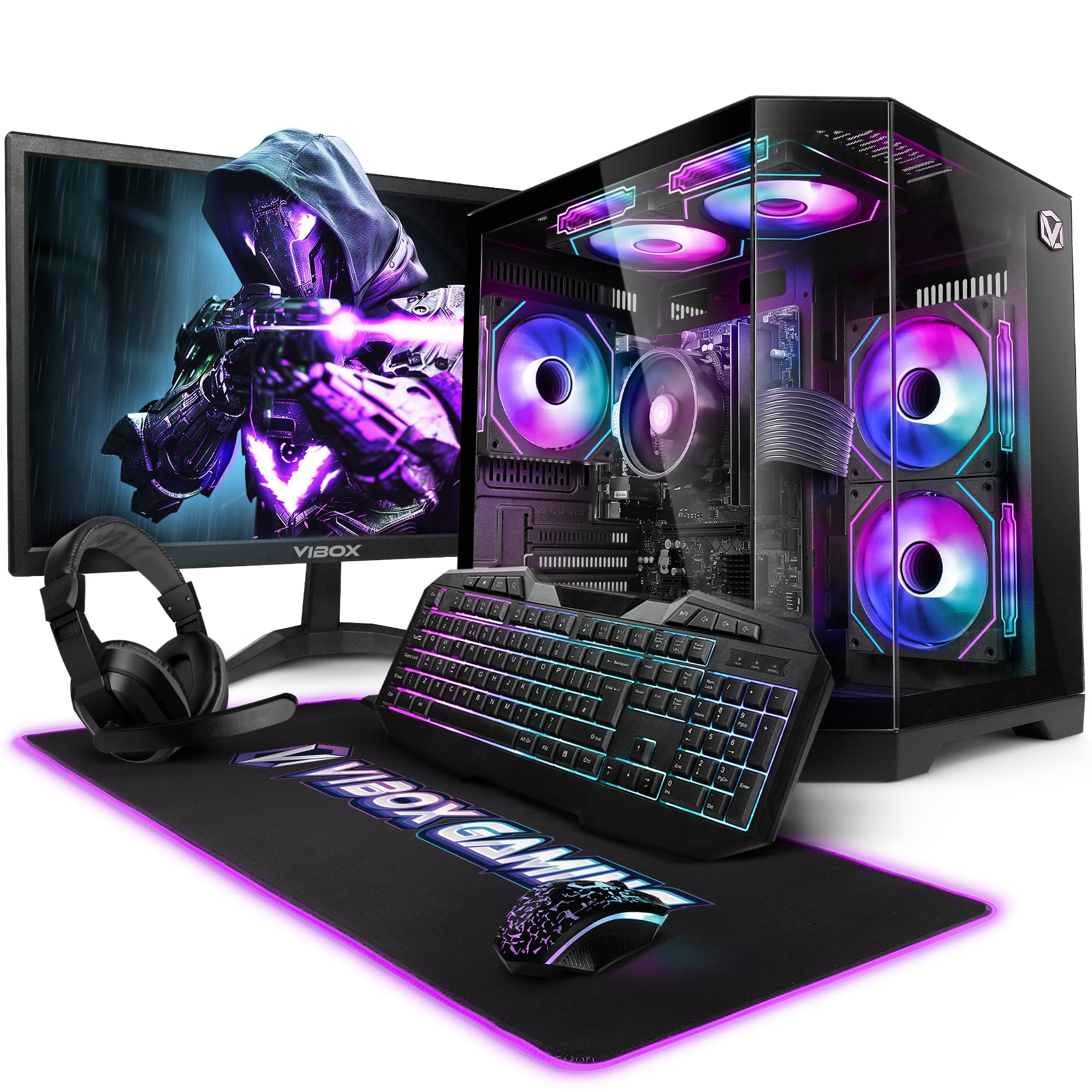
Image 3.1: VIBOX VI-63 PC Gamer Tower with internal RGB lighting.
4. Saita Umarnin
4.1. Cire kaya da Sanyawa
- A hankali a cire dukkan kayan da ke cikin marufinsu.
- Place the PC tower on a flat, stable surface. Ensure there is sufficient space around the tower for proper airflow.
- Place the monitor on a stable surface at a comfortable viewtsawo.
4.2. Haɗa Abubuwan Haɗawa
- Saka idanu: Connect one end of the display cable (HDMI or VGA) to the corresponding port on the back of the PC and the other end to the monitor.
- Allon madannai da linzamin kwamfuta: Connect the USB cables of the keyboard and mouse to any available USB ports on the PC.
- Lasifikan kai: Connect the headset to the audio jacks (headphone and microphone) on the front or rear of the PC.
- Adaftar WiFi: Insert the wireless WiFi network adapter into an available USB port.
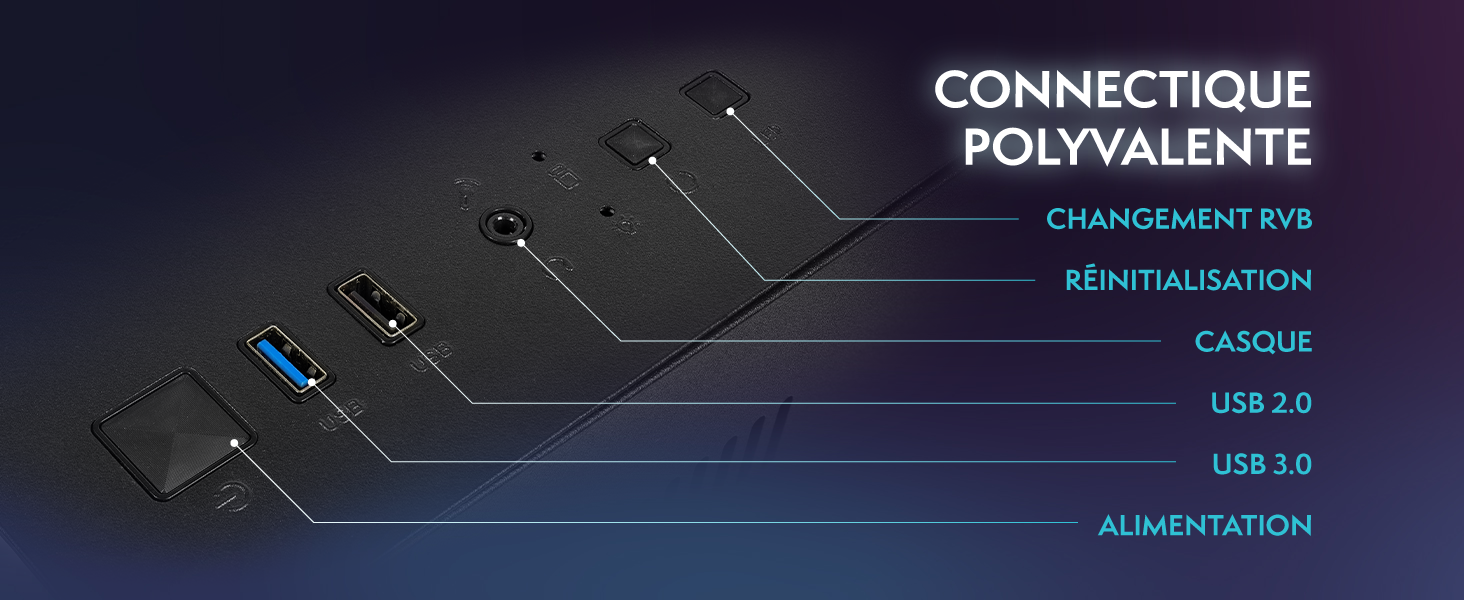
Image 4.1: Front panel connections including USB 2.0, USB 3.0, headset jack, reset button, and RGB change button.
4.3. Haɗin Wuta
- Connect the power cable to the power supply unit (PSU) at the back of the PC.
- Connect the other end of the power cable to a wall outlet.
- Connect the monitor's power cable to a wall outlet.
4.4. Initial Boot and Windows 11 Setup
- Press the power button on the front of the PC tower.
- Kunna mai duba.
- Follow the on-screen instructions to complete the Windows 11 Home setup. This typically involves selecting your region, language, creating a user account, and connecting to a Wi-Fi network.
5. Umarnin Aiki
5.1. Basic Aiki
- Kunnawa/Kashewa: Press the power button to turn on the PC. To shut down, click the Start button in Windows, then Power > Shut down.
- Sake farawa: From the Start menu, select Power > Restart.
- Yanayin Barci: From the Start menu, select Power > Sleep.
5.2. Windows 11 Features
Your VIBOX VI-63 PC Gamer comes with Windows 11 Home pre-installed, offering features designed to enhance your computing and gaming experience:
- DirectStorage: Enables faster loading times for compatible games.
- AutoHDR: Automatically enhances visuals for a wider range of games.
- Xbox Game Pass Integration: Seamless access to a library of games (subscription may be required).
- Optimized CPU Performance: Windows 11 is designed to optimize CPU usage for gaming and multitasking.
5.3. Yin Wasa
The VIBOX VI-63 is equipped with an AMD Ryzen 3 3200GE processor and integrated Radeon Vega 8 graphics, providing solid performance for everyday computing and gaming at 720p to 1080p resolutions.

Hoto na 5.1: Ƙarsheview of internal components including CPU, GPU, RAM, and storage.
5.4. RGB Lighting Control
Your PC features RGB lighting. Use the dedicated RGB change button on the front panel (refer to Image 4.1) to cycle through different lighting modes and colors.
6. Kulawa
6.1. Cleaning the PC
- Na waje: Yi amfani da taushi, damp cloth to wipe down the exterior of the PC case and monitor. Avoid abrasive cleaners.
- kura: Periodically use compressed air to clear dust from the ventilation openings and fan grilles. Ensure the PC is powered off and unplugged before doing so.
- Abubuwan da ke kewaye: Clean your keyboard and mouse regularly to prevent dust and debris buildup.
6.2. Sabunta software
- Regularly check for and install Windows updates to ensure system stability and security. Go to Settings > Windows Update.
- Keep your graphics drivers updated for optimal gaming performance. You can usually download the latest drivers from the AMD website.
6.3. System Care
- Avoid installing unnecessary software to keep your system lean and fast.
- Run regular antivirus scans to protect against malware. Windows Defender is pre-installed.
- Ensure proper airflow around the PC to prevent overheating. The inverted airflow design helps with cooling.
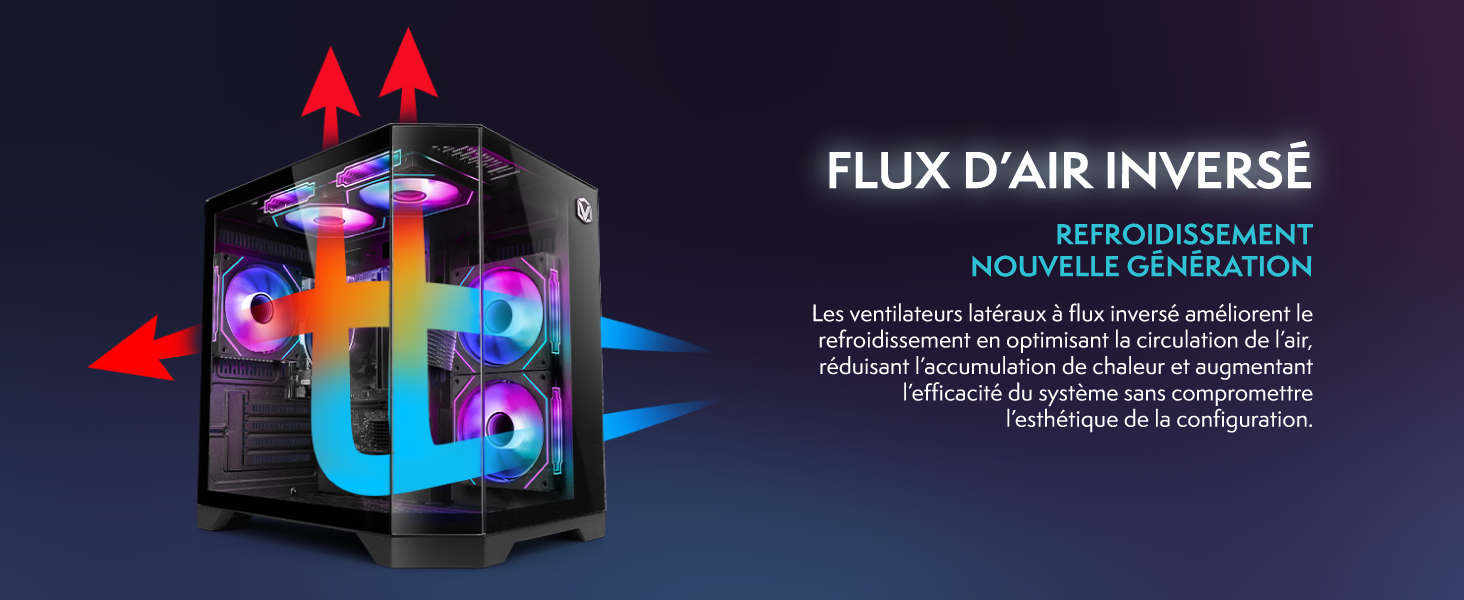
Image 6.1: Inverted airflow design for efficient cooling.
7. Shirya matsala
- Babu Ƙarfi: Check all power cable connections. Ensure the wall outlet is functional.
- Babu Nuni: Ensure the monitor is powered on and the display cable is securely connected to both the PC and the monitor. Try a different display cable or port if available.
- Babu Haɗin Intanet: Verify the WiFi adapter is properly installed. Check your router and internet service. In Windows, go to Settings > Network & internet to troubleshoot.
- PC Freezes/Crashes: Restart the PC. Ensure all drivers are updated. Check for overheating (ensure good airflow).
- Peripherals Not Working: Try connecting the keyboard, mouse, or headset to different USB/audio ports. Ensure drivers are installed if required.
8. Ƙayyadaddun bayanai
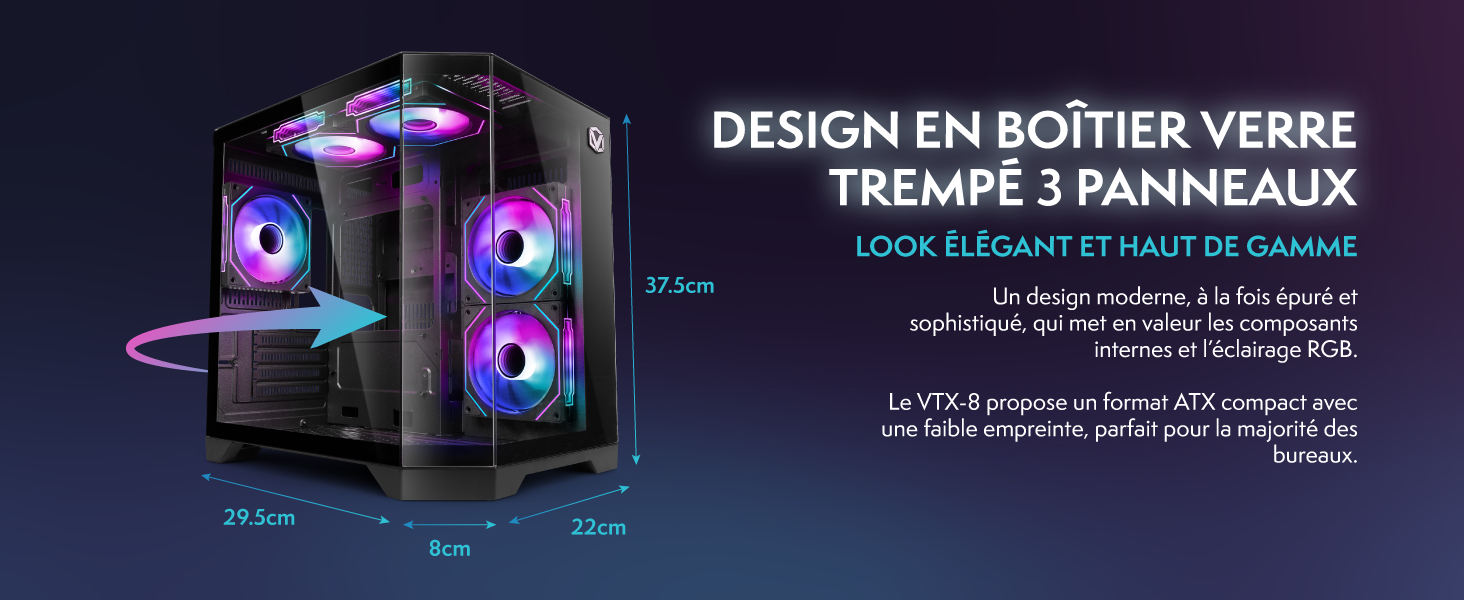
Image 8.1: VIBOX VI-63 PC Gamer case dimensions.
| Siffar | Ƙayyadaddun bayanai |
|---|---|
| Alamar | VIBOX |
| Sunan Samfura | Vibox VI-63 Gaming PC |
| Tsarin Aiki | Windows 11 Gida |
| Samfurin CPU | AMD Ryzen 3 3200G |
| Saurin CPU | 3.6GHz (4 GHz Turbo) |
| CPU Cores | 4 |
| Mai sarrafa Graphics | Radeon Vega 8 (Integrated) |
| RAM na zane-zane | 2 GB (Shared) |
| RAM Installed | 16 GB DDR4 |
| RAM Speed | 2666 MHz |
| Ƙarfin ajiya | 1 TB SSD |
| Hard Drive Technology | SSD |
| Girman Saka idanu | Inci 22 |
| Mafi girman ƙudurin Allo | 1920x1080 pixels |
| Interface Fitar Bidiyo | HDMI, VGA |
| Fasahar Haɗuwa | AMD Radeon Vega 8, Ethernet, HDMI, USB, Wi-Fi |
| Girma (L x W x H) | 32.6 x 19.5 x 42 cm |
| Launi | VTX-1 Black |
9. Garanti da Tallafawa
9.1. Garanti Bayani
Your VIBOX VI-63 PC Gamer comes with a Garanti na shekaru 2 on spare parts. This warranty covers manufacturing defects and component failures under normal use. Please retain your proof of purchase for warranty claims.
9.2. Tallafin Abokin Ciniki
For technical assistance, troubleshooting, or warranty inquiries, please contact VIBOX customer support. Refer to the contact information provided with your purchase documentation or visit the official VIBOX webshafin don cikakkun bayanai na tallafi.
Albarkatun Kan layi: For additional support and FAQs, please visit the VIBOX official website.