
1. Gabatarwa
This user manual provides comprehensive instructions for the installation, operation, and maintenance of your NVIDIA RTX 5000 Ada Generation GPU. Designed for professional workflows, this GPU leverages the NVIDIA Ada Lovelace architecture to deliver exceptional performance for rendering, AI, graphics, and compute workloads. Please read this manual carefully before installing and using the product to ensure optimal performance and longevity.
2. Samfurin Ya Ƙareview
The NVIDIA RTX 5000 Ada Generation GPU is a high-performance graphics card built for demanding professional applications. It features 100 third-generation RT Cores, 400 fourth-generation Tensor Cores, and 12,800 CUDA cores, coupled with 32 GB of GDDR6 graphics memory. This combination enables advanced AI graphics and petaFLOPS inferencing performance.
Mabuɗin fasali:
- NVIDIA GPUDirect samun damar ƙwaƙwalwar ajiyar kai tsaye (RDMA) goyon baya
- NVIDIA Quadro Sync II dacewa
- Goyan bayan sitiriyo 3D tare da mai haɗa sitiriyo
- NVIDIA GPUDirect don tallafin Bidiyo
- NVIDIA Mosaic fasahar
Abin da ke cikin Akwatin:
- NVIDIA 900-5G132-2540-000 RTX 5000 Ada Graphic Card - 32 GB GDDR6
Hotunan samfur:

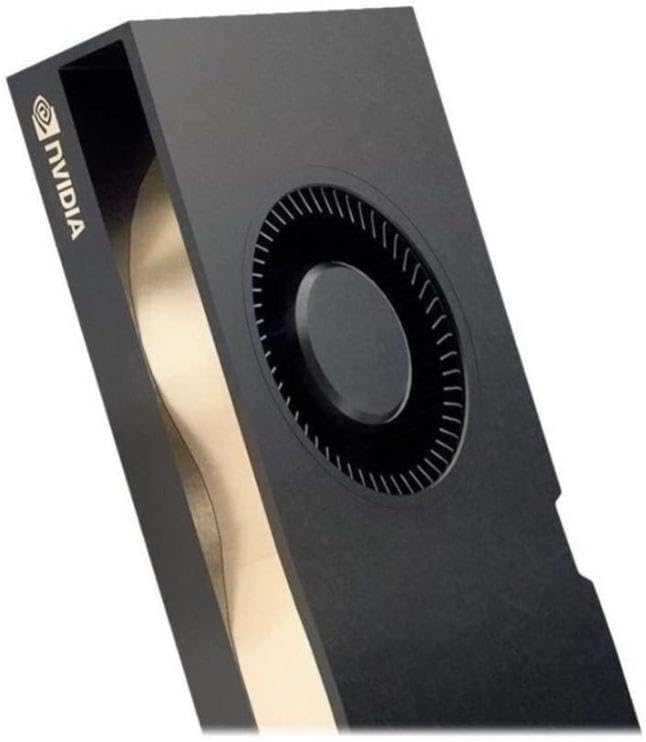
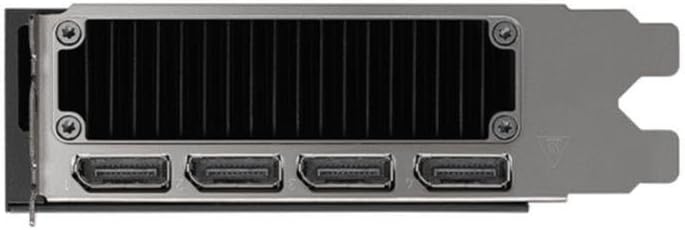
3. Saita da Shigarwa
Proper installation is crucial for the performance and stability of your NVIDIA RTX 5000 Ada GPU. Ensure your system meets the minimum requirements before proceeding.
Abubuwan Bukatun Tsari:
- PCI Express x16 slot on motherboard
- Adequate power supply unit (PSU) with required PCIe power connectors (refer to GPU specifications for exact wattage)
- Compatible operating system (Windows, Linux)
- Minimum 8GB system memory (RAM)
Matakan Shigarwa:
- Shirya Tsarin ku: Kashe kwamfutarka ka cire dukkan kebul. Buɗe akwatin kwamfutar.
- Gano wuri na PCIe: Identify an available PCI Express x16 slot on your motherboard. Remove any expansion slot covers if necessary.
- Insert the GPU: Carefully align the GPU with the PCIe slot and press down firmly until it is securely seated. Ensure the retention clip locks into place.
- Haɗa Ikon: Connect the required PCIe power cables from your power supply to the GPU's power connectors.
- Secure the GPU: Secure the GPU to the computer case using the screw or latch mechanism provided by your case.
- Rufe Harka kuma Sake haɗawa: Rufe akwati na kwamfutarka, sake haɗa duk igiyoyin igiyoyi, kuma kunna na'urarka.
- Sanya Direbobi: Once the operating system loads, download and install the latest NVIDIA Quadro drivers from the official NVIDIA webshafin (www.nvidia.com/drivers). Follow the on-screen instructions for driver installation.
4. Umarnin Aiki
After successful installation, your NVIDIA RTX 5000 Ada GPU is ready for operation. This section covers general usage and specific features.
NVIDIA Control Panel:
The NVIDIA Control Panel provides extensive options for configuring your GPU settings, including display resolution, refresh rates, 3D settings, and multi-display configurations. Access it by right-clicking on your desktop and selecting "NVIDIA Control Panel."
Multi-Display Setup (NVIDIA Mosaic Technology):
The NVIDIA RTX 5000 Ada supports multiple displays. Utilize NVIDIA Mosaic technology to seamlessly span applications across multiple high-resolution displays, creating a single large desktop. Refer to the NVIDIA Control Panel for Mosaic configuration options.
Professional Application Optimization:
For optimal performance in professional design, rendering, and simulation applications, ensure you are using the latest certified drivers. Many applications have specific GPU acceleration settings that can be configured within the application itself or via the NVIDIA Control Panel.
GPUDirect and Quadro Sync II:
Leverage NVIDIA GPUDirect for direct data transfer between GPUs and third-party devices, reducing CPU overhead. For advanced synchronization across multiple GPUs and displays, the RTX 5000 Ada is compatible with NVIDIA Quadro Sync II (sold separately).
5. Kulawa
Regular maintenance helps ensure the longevity and optimal performance of your GPU.
Sabuntawar Direba:
Periodically check the official NVIDIA website for the latest driver updates. Keeping your drivers current can improve performance, add new features, and resolve compatibility issues.
Tsaftacewa:
- Cire kura: Over time, dust can accumulate on the GPU's heatsink and fan, impeding cooling. With the system powered off and unplugged, use compressed air to gently clear dust from the fan blades and heatsink fins.
- Tsabtace Fashi: Use a soft, dry, lint-free cloth to wipe the exterior surfaces of the GPU. Avoid using liquid cleaners directly on the card.
6. Shirya matsala
This section addresses common issues you might encounter with your NVIDIA RTX 5000 Ada GPU.
Babu Fitar Nuni:
- Ensure the monitor cable is securely connected to both the GPU and the monitor.
- Verify that the GPU is fully seated in the PCIe slot and that all power connectors are properly attached.
- Gwada da kebul na nuni daban ko saka idanu idan zai yiwu.
- Check your BIOS/UEFI settings to ensure the correct primary display adapter is selected (PCIe/Discrete GPU).
Abubuwan Shigar Direba:
- Download the latest drivers directly from the official NVIDIA website.
- Kashe software na riga-kafi na ɗan lokaci yayin shigar da direba.
- Use Display Driver Uninstaller (DDU) in Safe Mode to completely remove previous driver versions before attempting a clean installation.
Performance Problems or Crashes:
- Ensure your system's power supply unit (PSU) meets the recommended wattage for the GPU.
- Monitor GPU temperatures using monitoring software. Excessive heat can lead to throttling or instability. Ensure adequate case airflow.
- Verify that your operating system and applications are up to date.
- Run diagnostic tools (e.g., NVIDIA's built-in diagnostics or third-party stress tests) to identify potential hardware issues.
7. Ƙayyadaddun bayanai
The following table details the technical specifications of the NVIDIA RTX 5000 Ada Generation GPU.
| Siffar | Ƙayyadaddun bayanai |
|---|---|
| Alamar | NVIDIA |
| Lambar Samfura | 900-5G132-2540-000 |
| Mai sarrafa Graphics | NVIDIA Quadro RTX 5000 |
| Girman Katin Katin Zane | 32 GB GDDR6 |
| Gudun ƙwaƙwalwa | 2000 MHz |
| Gudun Agogon GPU | 2550 MHz |
| Matsakaicin ƙudurin allo | 3840 x2160 |
| Interface Fitar Bidiyo | DisplayPort, HDMI |
| Nauyin Abu | 1.32 fam |
| Launi | Baki |
| Kwanan Wata Farko Akwai | Disamba 1, 2024 |
8. Garanti da Tallafawa
NVIDIA provides support for its products. For detailed warranty information and technical assistance, please refer to the official NVIDIA support resources.
Goyon bayan hukuma:
- NVIDIA Support Website: For drivers, FAQs, and troubleshooting guides, visit www.nvidia.com/support.
- Rijistar Samfur: Register your product on the NVIDIA website to receive updates and facilitate warranty claims.
Extended Protection Plans:
Extended protection plans may be available for purchase to provide additional coverage beyond the standard manufacturer's warranty. Please check with your retailer or NVIDIA for details on available plans.
- Shirin Kariya na Shekara Biyu
- Shirin Kariya na Shekara Biyu
- Cikakken Kariya (tsarin wata-wata)