
Gabatarwa
Thank you for choosing the Phomemo M221 Bluetooth Thermal Label Printer. This manual provides essential information for the safe and efficient operation of your device. Please read it thoroughly before use and retain it for future reference. The Phomemo M221 is designed for fast, clear, and smart label printing, supporting various label types and applications for small businesses, home, and school use.
Bayanin Tsaro
Don tabbatar da aiki mai aminci da hana lalacewa, kiyaye matakan tsaro masu zuwa:
- Do not disassemble, repair, or modify the printer.
- Keep the printer away from water, moisture, and direct sunlight.
- Use only Phomemo-approved power adapters and accessories.
- Avoid touching the print head immediately after printing, as it may be hot.
- Store the printer and labels in a cool, dry place.
Abubuwan Kunshin
Tabbatar cewa duk abubuwa suna nan a cikin kunshin ku:
- Phomemo M221 Label Printer
- USB Type-C Cajin caji
- 1 roll of 40 x 30 mm thermal labels
- 1 roll of 50 x 80 mm thermal labels
- 1 roll of 70 x 80 mm thermal labels
- akwati mai ɗaukar nauyi
- Jagorar mai amfani (wannan takaddar)
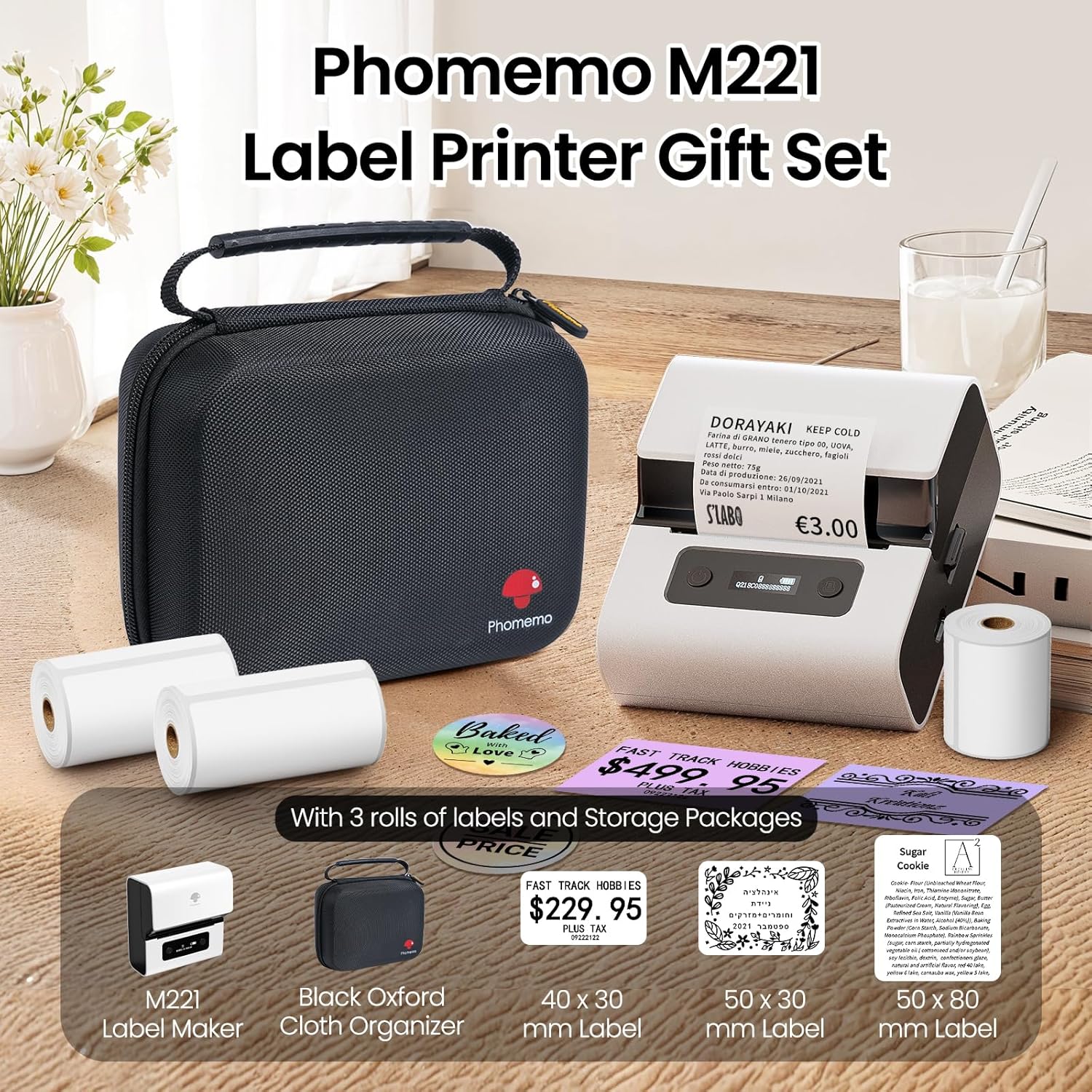
Image: Phomemo M221 Label Printer Gift Set, showing the printer, a black carrying case, and three rolls of white thermal labels.
Samfurin Ƙarsheview
The Phomemo M221 is a compact and efficient thermal label printer. Key features include:
- Fasahar Bugawa ta thermal: No ink or toner required.
- Daidaituwar Lakabi mai faɗi: Supports labels from 20mm to 80mm (0.78" to 3.14") wide, including rectangular, round, transparent, and colored types.
- Haɗin kai: Bluetooth for iOS/Android smartphones and tablets, USB for Windows PCs.
- Baturi Mai Girma: 2200 mAh battery with Type-C fast charging.
- Aiki mai sauri da shiru: Prints at 50 mm/s with reduced noise.
- Zane na Abokin Amfani: Easy label loading and automatic gap detection.

Image: Phomemo M221 Label Maker Set, illustrating its features such as no ink requirement, large battery capacity, Bluetooth wireless printing, and its suitability as a gift.
Saita
1. Cajin Printer
Before first use, fully charge the Phomemo M221 printer.
- Connect the provided USB Type-C cable to the printer's charging port.
- Connect the other end of the cable to a 5V USB power adapter (not included) or a computer's USB port.
- The indicator light will show charging status. A full charge typically takes several hours. The 2200 mAh battery supports extended use.
2. Loading Labels
The M221 features an integrated label fixing structure for easy loading.
- Bude murfin firinta.
- Insert the label roll into the compartment, ensuring the printing side faces upwards and the labels feed smoothly.
- Adjust the side guide plates to secure the label roll in place.
- Close the printer cover. The printer will automatically detect and calibrate the label gap.
3. Haɗa zuwa Na'urarka
The Phomemo M221 supports both Bluetooth and USB connections.
Bluetooth Connection (Smartphones/Tablets)
- Ensure Bluetooth is enabled on your iOS or Android device.
- Download and install the "Print Master" application from your device's app store.
- Open the "Print Master" app and follow the on-screen instructions to search for and connect to your M221 printer.

Image: Phomemo M221 printer demonstrating Bluetooth wireless connection with a tablet and a smartphone.
USB Connection (Windows PC)
- Connect the USB Type-C cable from the printer to an available USB port on your Windows PC.
- Download and install the "Labelife" software and printer drivers from the official Phomemo website.
- Follow the software installation prompts. Once installed, you can select the M221 as your printer.

Image: Phomemo M221 printer connected to a laptop using a USB cable, indicating wired connectivity.
Umarnin Aiki
1. Basic Printing with "Print Master" App (Mobile)
- Ensure your M221 printer is connected via Bluetooth to your mobile device.
- Open the "Print Master" app.
- Select a template or create a new label design. The app offers various templates for text, images, barcodes, QR codes, and more.
- Customize your label content.
- Tap the print icon. Confirm print settings such as quantity.
- The printer will begin printing your labels.
2. Printing with "Labelife" Software (PC)
- Ensure your M221 printer is connected via USB to your Windows PC.
- Open the "Labelife" software.
- Design your label using the software's features, including text, images, barcodes, and QR codes.
- Go to "File" > "Print" or click the print icon.
- Select the Phomemo M221 from the list of available printers and adjust any necessary print settings.
- Click "Print" to start printing.
3. Batch Printing
Both "Print Master" and "Labelife" support batch printing for efficiency.
- In the print dialogue, specify the desired number of copies.
- The printer will automatically print multiple labels consecutively.

Image: Phomemo M221 printer demonstrating its versatility with examples of address labels, price tags, ingredient labels, and gift tags.

Image: Phomemo M221 printer showcasing its compatibility with over 50 types of thermal labels, including various shapes and designs.
Kulawa
1. Tsabtace Shugaban Buga
Regular cleaning of the print head ensures optimal print quality.
- Turn off the printer and disconnect the power cable.
- Bude murfin firinta.
- Gently wipe the print head with a cotton swab lightly damptare da isopropyl barasa.
- Allow the print head to dry completely before closing the cover and turning on the printer.
2. Adana
Store the printer in a clean, dry environment, away from extreme temperatures and direct sunlight. When not in use for extended periods, ensure the printer is fully charged and then powered off.

Image: A man holding the Phomemo M221 printer's carrying case, illustrating its portable design.
Shirya matsala
Printer Does Not Turn On or Charge
- Duba Haɗin Wuta: Ensure the USB Type-C cable is securely connected to both the printer and a working power source (5V adapter or PC USB port).
- Tabbatar da Adaftar Wuta: Use a reliable 5V USB power adapter.
- Tsawon Cajin: Allow sufficient time for charging. The battery indicator should show charging status.
No Printing or Blank Output
- Check Label Orientation: Ensure the thermal labels are loaded correctly with the printing side facing upwards.
- Nau'in Lakabi: Confirm you are using thermal labels. The M221 does not use ink.
- Print Head Cleanliness: A dirty print head can cause blank lines or poor print quality. Refer to the Maintenance section for cleaning instructions.
- Label Alignment: Ensure the label roll is properly seated and aligned by the side guide plates to prevent misalignment errors.
Matsalolin Haɗin Bluetooth
- Printer On: Ensure the printer is powered on and within Bluetooth range of your device.
- An kunna Bluetooth: Verify Bluetooth is active on your smartphone or tablet.
- Haɗin App: Connect through the "Print Master" app, not directly through your device's Bluetooth settings.
- Sake kunna na'urori: Try restarting both the printer and your mobile device.
Ingancin Buga mara kyau
- Print Head Cleanliness: Clean the print head as described in the Maintenance section.
- Lakabin ingancin: Use high-quality thermal labels.
- Print Density Settings: Adjust print density settings within the "Print Master" app or "Labelife" software if available.
Ƙayyadaddun bayanai
| Siffar | Daki-daki |
|---|---|
| Lambar Samfura | M221 |
| Alamar | Phomemo |
| Fasahar Haɗuwa | Bluetooth, USB Type C |
| Fasahar Bugawa | Thermal |
| Fitar da Fitowa | Monochrome |
| Matsakaicin Saurin Buga (Monochrome) | 15.0 pages per minute (50 mm/s) |
| Mafi girman ƙudurin bugawa (Monochrome) | 203 dpi |
| Nisa Label mai goyan baya | 20mm - 80mm (0.78" - 3.14") |
| Baturi | 2200 mAh (1 D - included) |
| Nauyin Abu | 820 Grams |
| Girman samfur (L x W x H) | 12.9 x 6.7 x 11.9 santimita |
| Control Device Type | Smartphone/PC |
| Nau'in Mai jarida | Lakabi |
Garanti da Taimako
For warranty information and technical support, please refer to the official Phomemo website ko tuntuɓi sabis na abokin ciniki kai tsaye. Ajiye rasidin siyan ku azaman shaidar siyan.
Albarkatun Kan layi: Ziyarci Phomemo Store on Amazon for product updates and FAQs.


