
ARCCTV P2
Kyamarar Tsaro ta ARCCTV 2K Jagorar Mai Amfani da P2 ta Waje
Saukewa: P2
1. Gabatarwa
This manual provides detailed instructions for the installation, operation, and maintenance of your ARCCTV 2K Security Camera Outdoor P2. Please read this manual thoroughly before using the product to ensure correct usage and optimal performance. Keep this manual for future reference.

Hoto 1.1: Gaba view of the ARCCTV 2K Security Camera Outdoor P2.
2. Abin da ke cikin Akwatin
Tabbatar cewa duk abubuwan da aka gyara suna nan a cikin kunshin:
- Jikin Kamara
- 5V1A Adaftar Wuta
- Mounting Screws (set)
- Screw Positioning Sticker
- Sitika na Gargaɗi
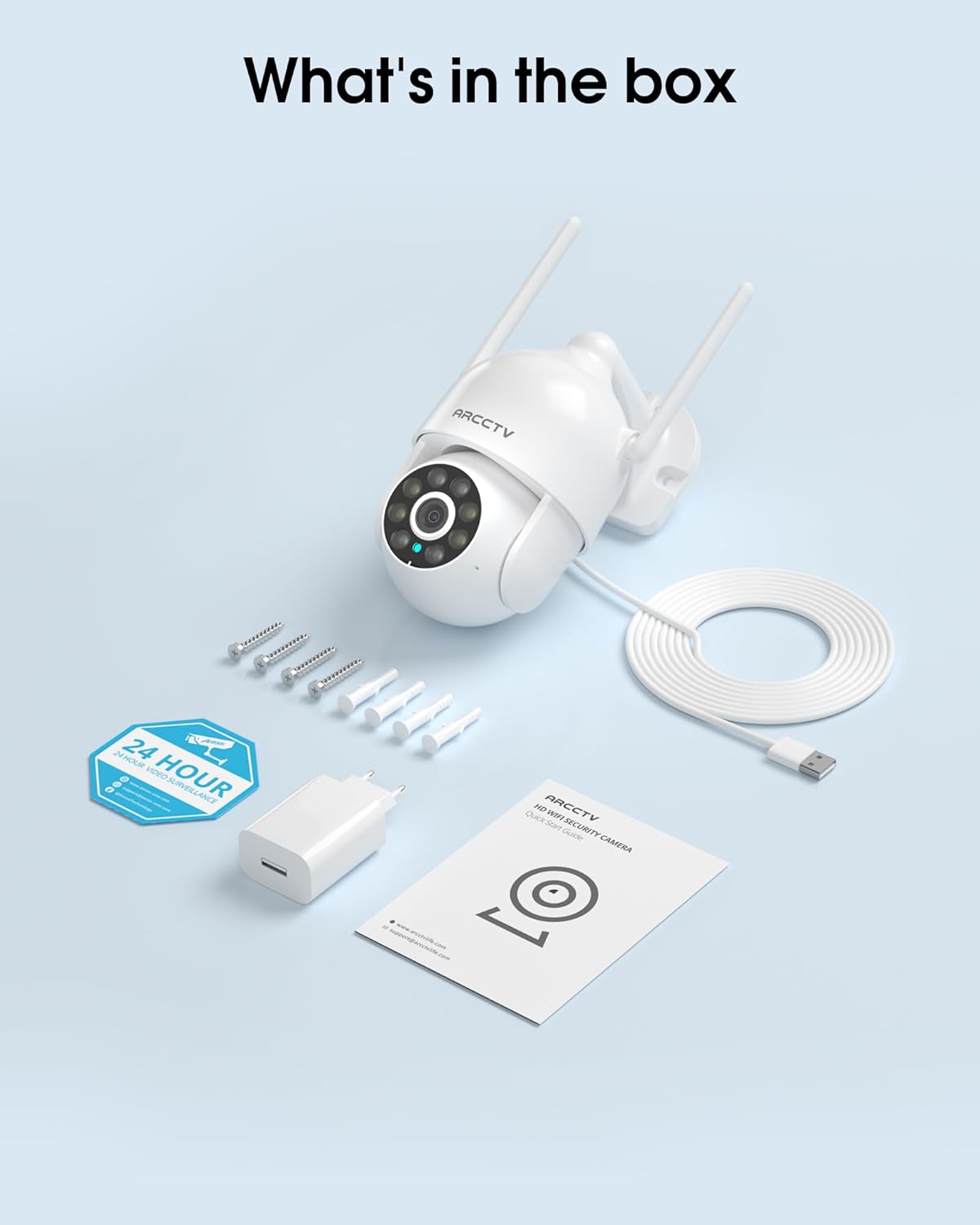
Image 2.1: All items included in the ARCCTV 2K Security Camera package.
3. Kayan Samfura
- 2K Ultra HD Resolution: Provides clear 2304x1296p video.
- Cikakken Launi na Dare: Built-in spotlight enables vivid color monitoring in low light.
- 360° Pan-Tilt-Zoom (PTZ): Remotely control 355° horizontal and 90° vertical rotation.
- Auto Motion Tracking: Smart AI automatically follows and records detected movement.
- Dual-Band WiFi: Supports both 2.4G and 5G WiFi for stable connectivity.
- Audio Hanyoyi Biyu: Makirufo da lasifika da aka gina a ciki don sadarwa.
- IP66 Mai hana yanayi: Durable design for outdoor use in various weather conditions (-4°F ~ 122°F).
- Ma'ajiya Mai Sauƙi: Supports local microSD card storage (up to 128GB, not included) and optional cloud storage.
- 24/7 Rikodi: Continuous recording capability with stable power supply.
4. Saita
4.1 Shigarwa
- Zaɓi Wuri: Select an outdoor location with a clear view of the area you wish to monitor. Ensure it is within range of your Wi-Fi network and a power outlet.
- Dutsen Kamara: Use the provided screw positioning sticker to mark drill holes. Drill holes, insert wall anchors, and secure the camera body to the wall using the mounting screws.
- Haɗa Ikon: Plug the 5V1A power adapter into the camera and then into a power outlet. The camera will power on and begin its startup sequence.
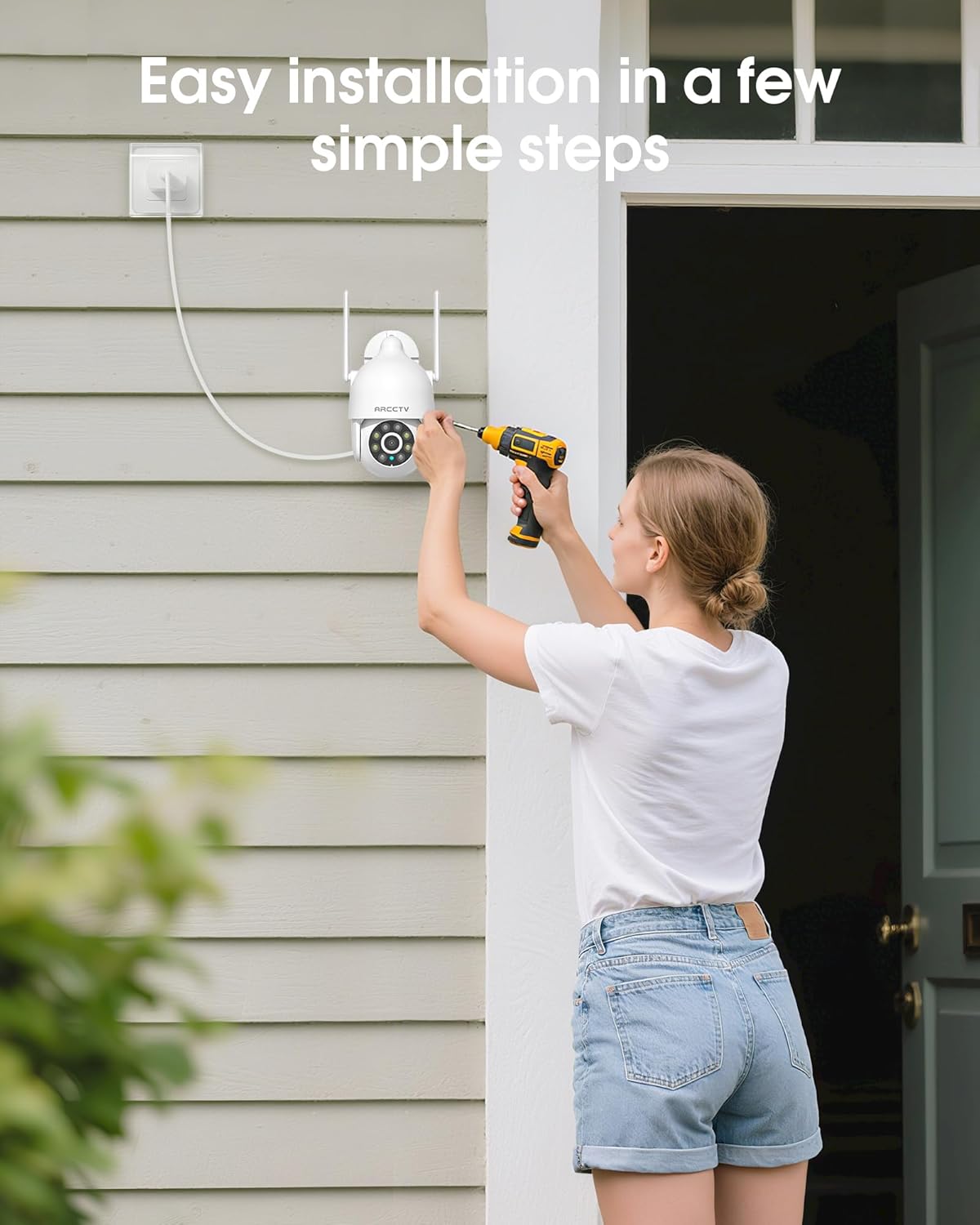
Image 4.1: Illustration of easy camera installation steps.
4.2 Sauke App da Ƙirƙirar Asusu
- Download the official ARCCTV app from your smartphone's app store (iOS or Android).
- Bude app ɗin kuma bi umarnin kan allo don ƙirƙirar sabon asusu ko shiga idan kuna da ɗaya.
4.3 Haɗin Wi-Fi
- In the app, tap the "Add Device" or "+" icon.
- Select your camera model and follow the prompts to connect it to your Wi-Fi network. The camera supports both 2.4GHz and 5GHz bands for stable connectivity.
- Ensure your smartphone is connected to the same Wi-Fi network during the setup process.
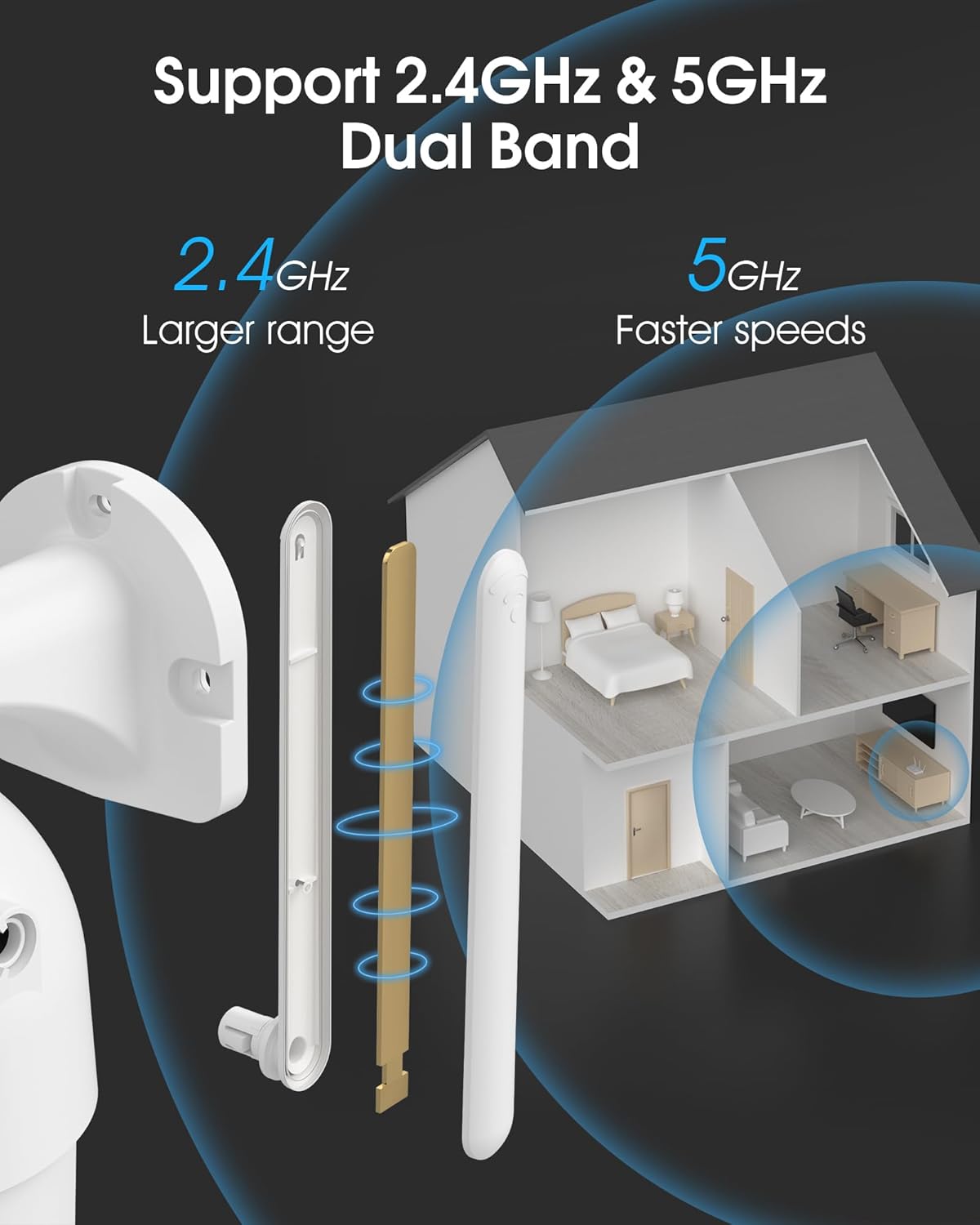
Image 4.2: The camera supports both 2.4GHz (larger range) and 5GHz (faster speeds) Wi-Fi bands.
4.4 Shigar da Katin MicroSD (Na zaɓi)
For local storage, install a microSD card (up to 128GB, not included) into the designated slot on the camera. Ensure the camera is powered off before inserting or removing the card.
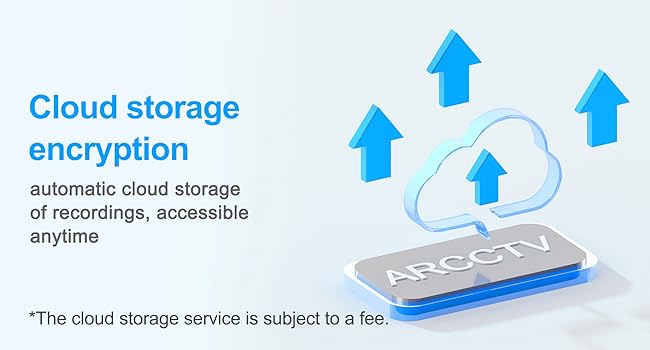
Image 4.3: Location of the microSD card slot on the camera.
5. Aiki da Kamara
5.1 Rayuwa View
Open the ARCCTV app and select your camera to view the live feed. You can monitor your property in real-time.
5.2 Pan-Tilt-Zoom (PTZ) Control
A raye view screen, use the directional controls to rotate the camera horizontally (Pan: 355°) and vertically (Tilt: 90°) to adjust the viewing angle. You can also set preset points for quick navigation.
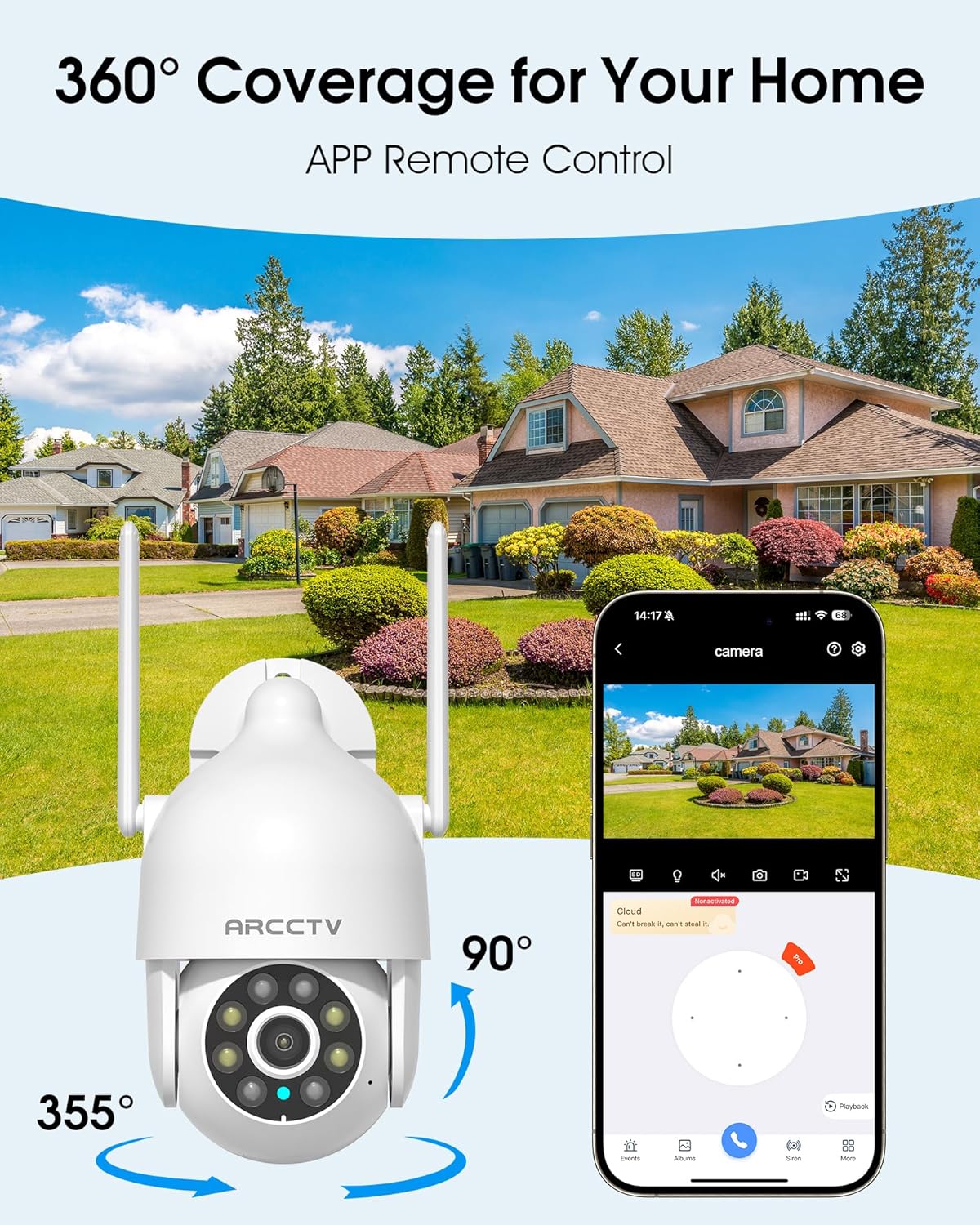
Image 5.1: The camera offers 360° coverage through remote pan and tilt controls.
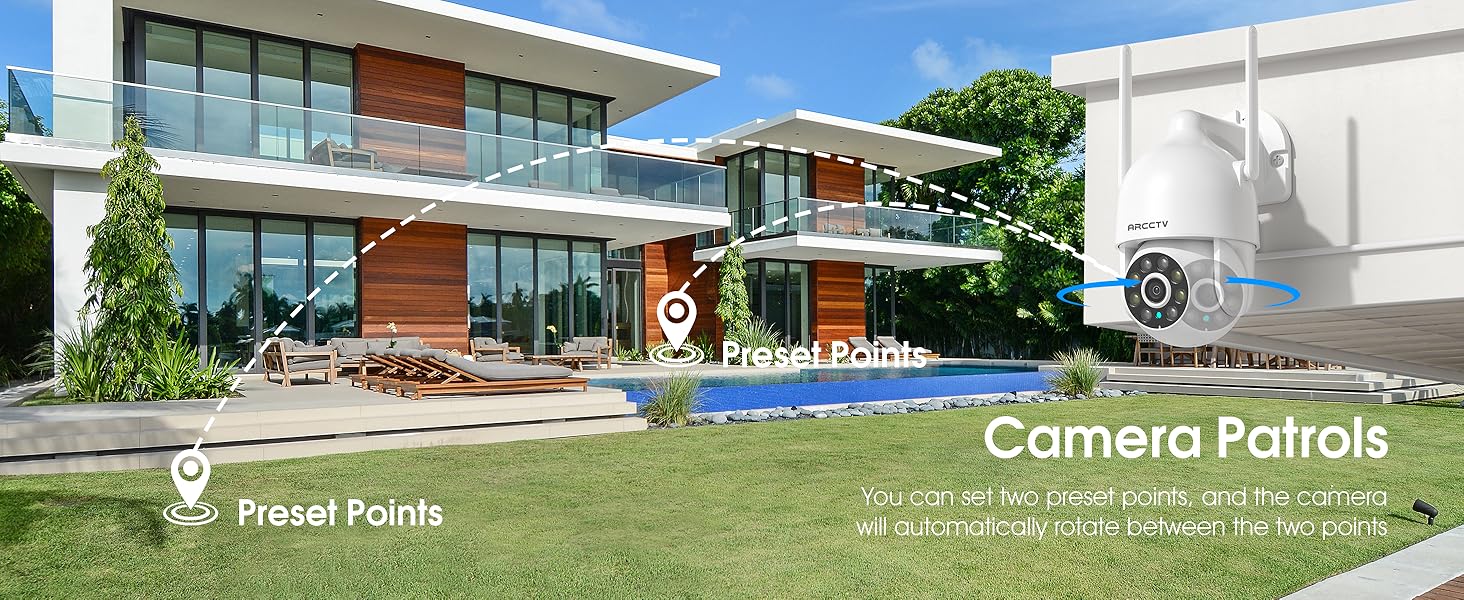
Image 5.2: Setting up camera patrol routes between preset points.
5.3 Motion Tracking and Alerts
The camera features smart AI motion tracking that automatically follows detected movement. You can customize alert zones and receive instant notifications on your smartphone when motion is detected.

Image 5.3: The camera's smart motion tracking feature in action.

Image 5.4: Instant alerts with customizable settings, including spotlight, siren, and two-way audio.
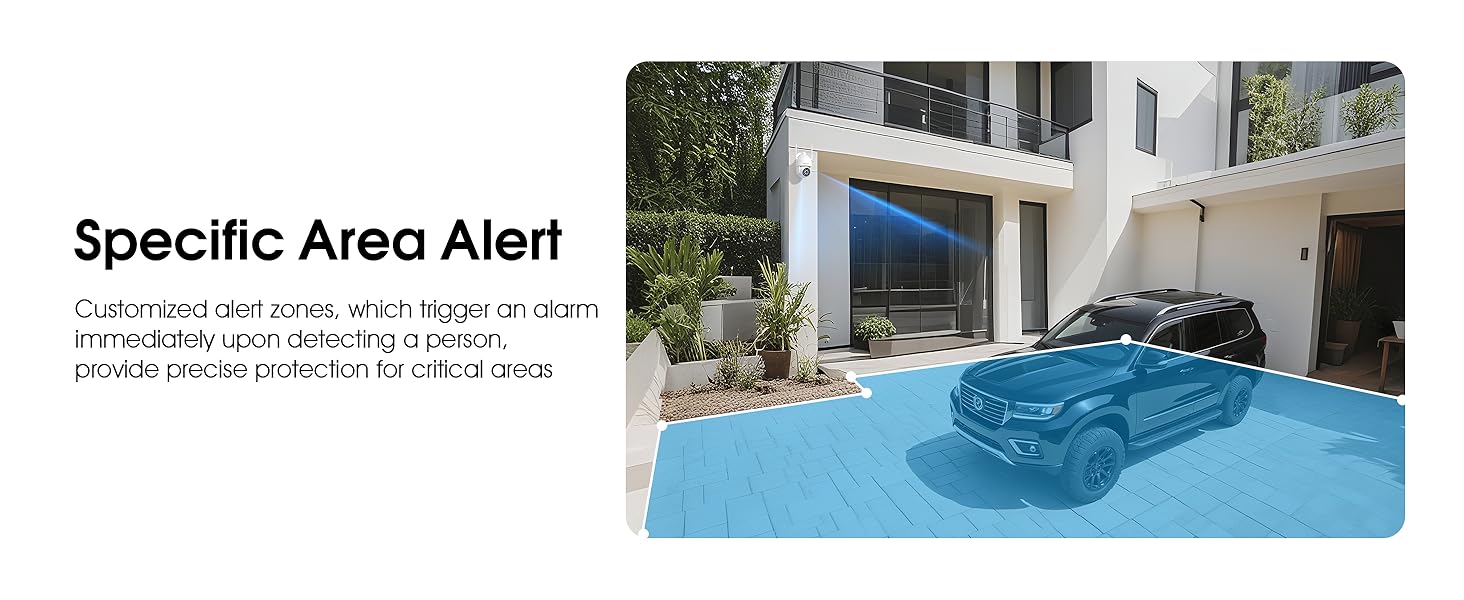
Image 5.5: Setting up specific area alerts for precise protection.
5.4 Hanyoyin Hangen Dare
The camera offers both full-color night vision (activated by the built-in spotlight) and infrared night vision for clear monitoring in various low-light conditions.

Image 5.6: Comparison of Color Night Vision and Infrared Night Vision.
5.5 Sauti Mai Hanya Biyu
Use the two-way audio feature to communicate with visitors or deter unwanted guests directly through the camera's built-in microphone and speaker.
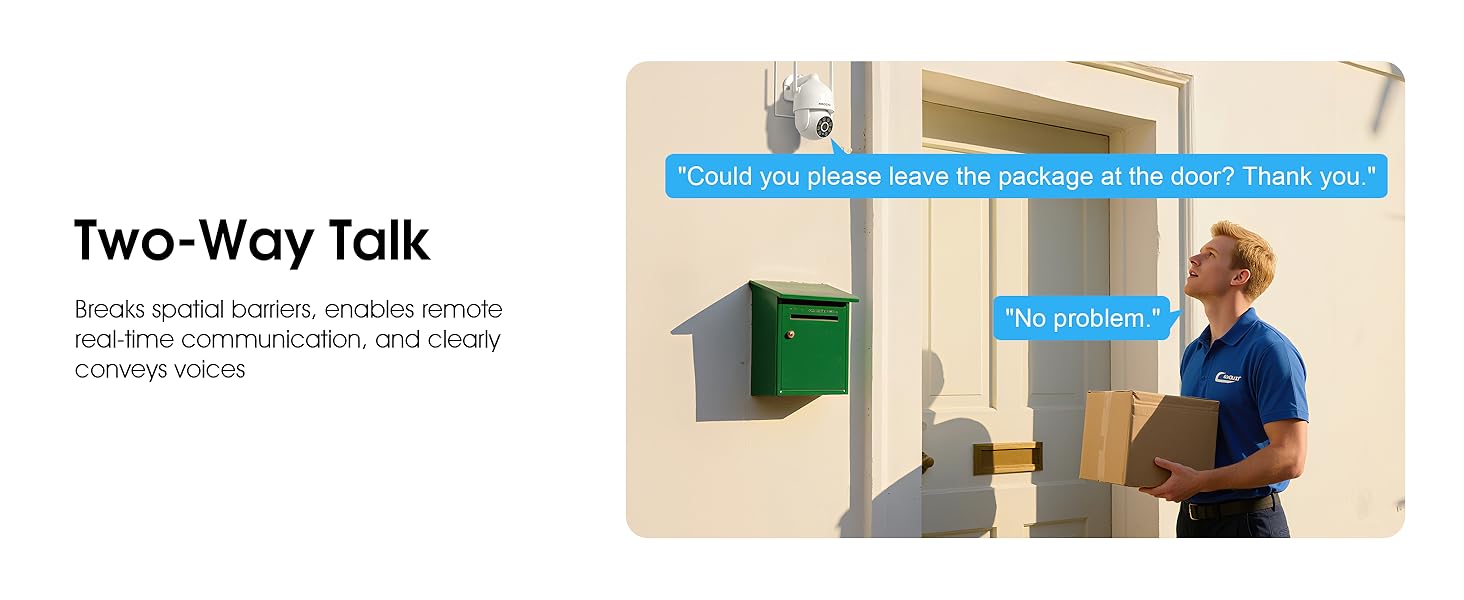
Image 5.7: Utilizing two-way talk for remote communication.
5.6 Rikodi da sake kunnawa
The camera supports 24/7 continuous recording. Footage can be saved to a local microSD card (up to 128GB) or to optional cloud storage. Access recorded videos through the app's playback function.

Image 5.8: The camera provides 24/7 recording capabilities.
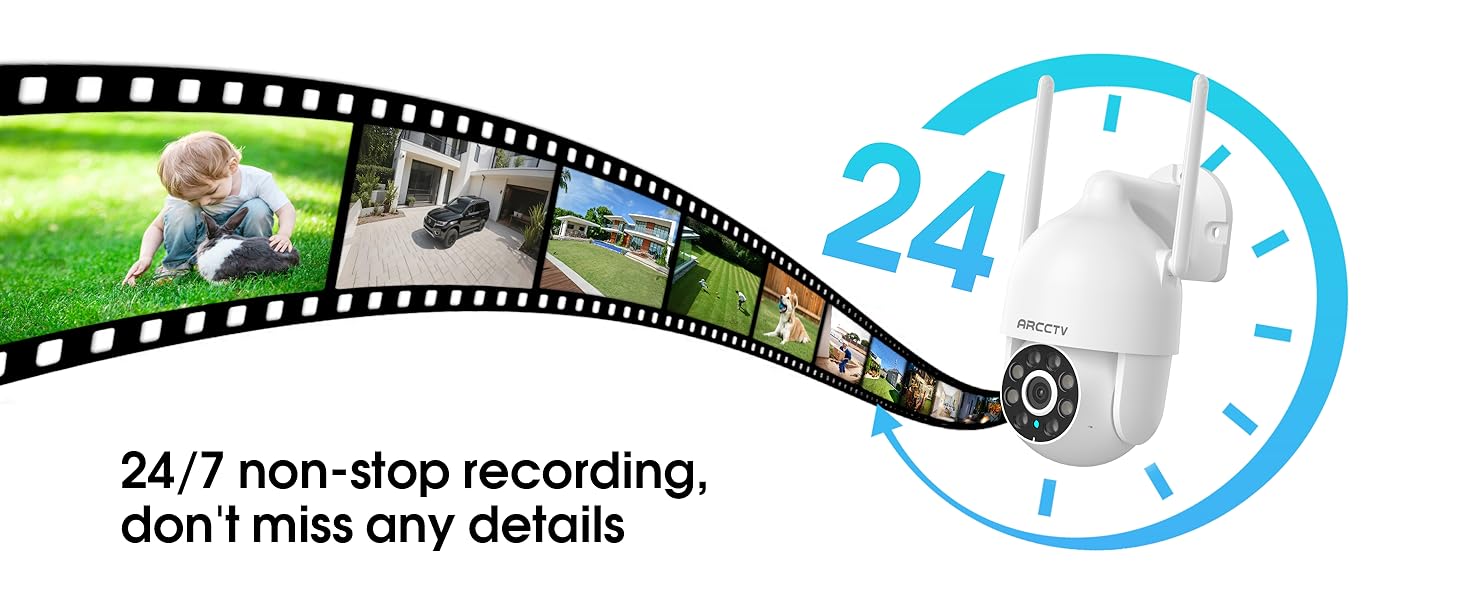
Image 5.9: Continuous 24/7 recording ensures no details are missed.
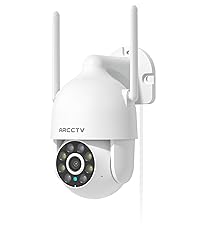
Image 5.10: Cloud storage encryption for secure and accessible recordings (subscription may apply).
5.7 Rarraba Iyali
The app supports multi-member sharing, allowing family members to view the camera feed and collaborate on security monitoring.
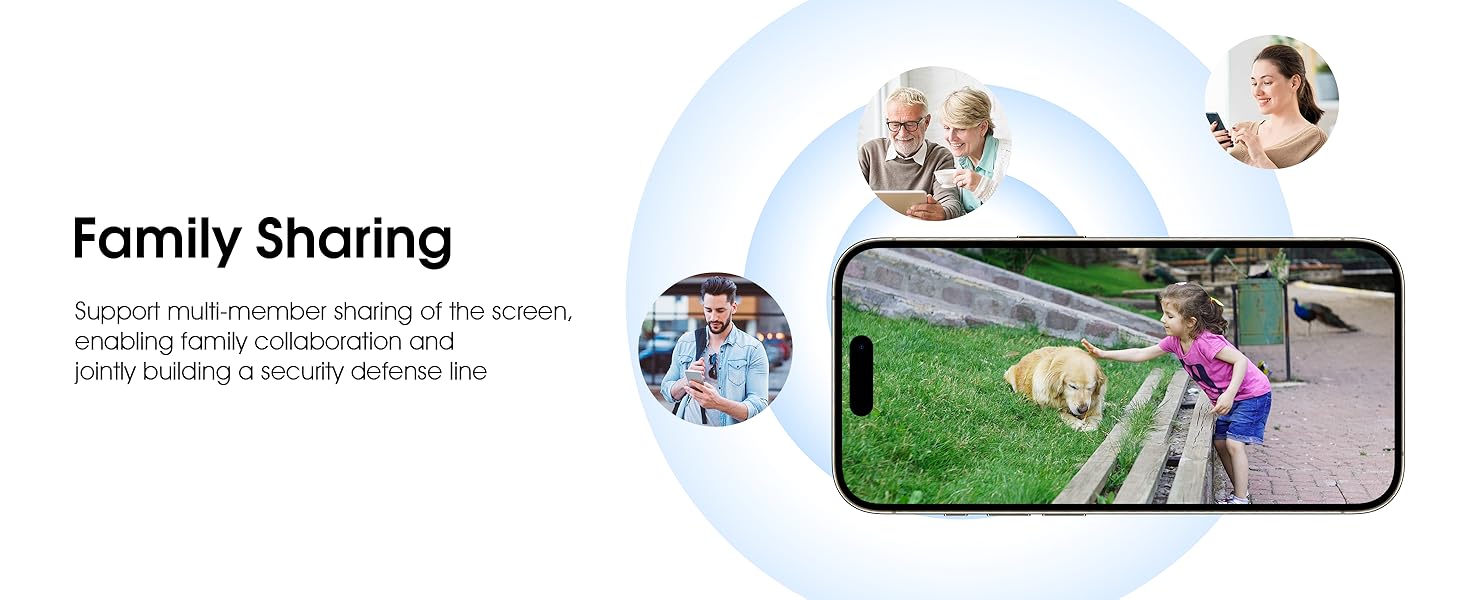
Image 5.11: The family sharing feature allows multiple users to access the camera feed.
5.8 Alexa Compatibility
The camera is compatible with Alexa, allowing you to check the monitoring screen using voice commands.
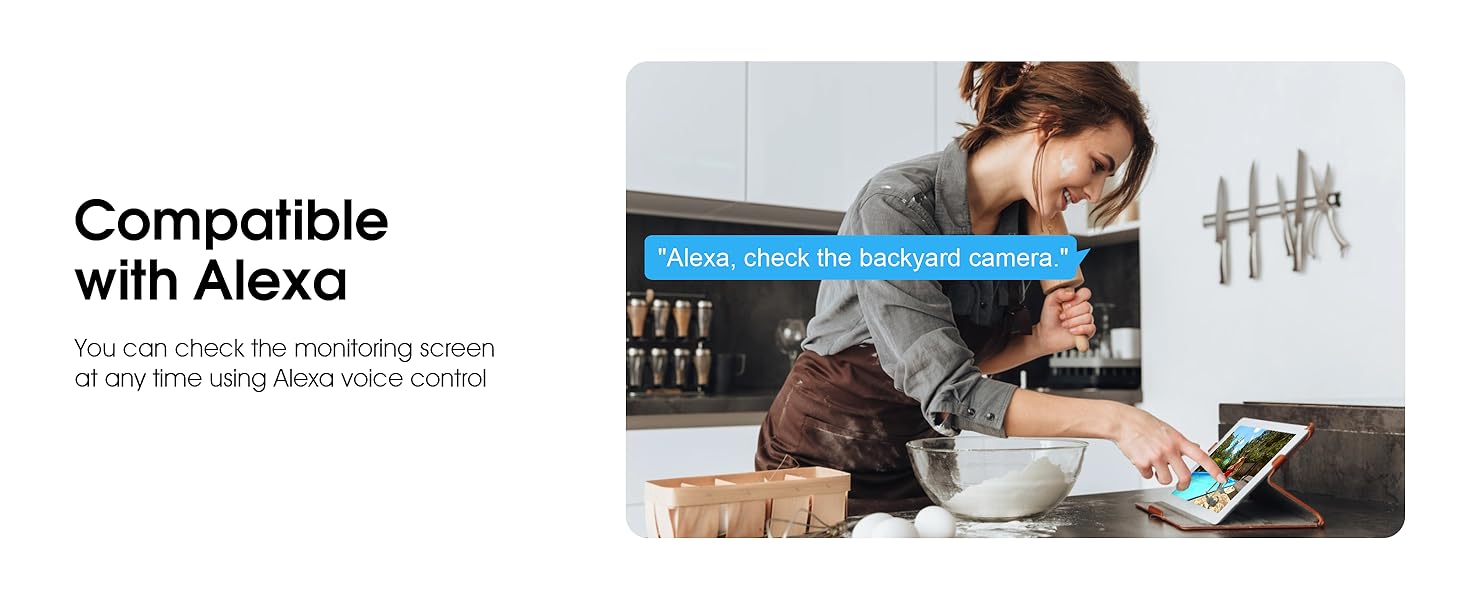
Image 5.12: Voice control via Alexa for convenient monitoring.
6. Kulawa
6.1 Tsaftace Kamara
Lokaci-lokaci tsaftace ruwan tabarau na kamara da gidaje tare da taushi, damp zane don cire ƙura da tarkace. Kada a yi amfani da sinadarai masu ƙarfi ko masu tsaftace goge-goge.
6.2 Sabunta Firmware
Ensure your camera's firmware is up to date for optimal performance and security. Check for updates within the ARCCTV app and follow the instructions to install them.
6.3 Gudanar da Adana
If using a microSD card, regularly check its status in the app. Format the card periodically to maintain performance. For cloud storage, manage your subscription and storage space through the app.
7. Shirya matsala
- Kamara Ba Haɗawa zuwa Wi-Fi:
- Ensure your Wi-Fi network is 2.4GHz or 5GHz and has a strong signal at the camera's location.
- Verify the Wi-Fi password is entered correctly.
- Sake kunna na'ura mai ba da hanya tsakanin hanyoyin sadarwa da kamara.
- Rashin ingancin Hoto:
- Tsaftace ruwan tabarau na kamara.
- Ensure adequate lighting for optimal night vision performance.
- Duba saurin haɗin Intanet ɗin ku.
- Gano Motsi Ba Ya Aiki:
- Tabbatar cewa an kunna gano motsi a cikin saitunan app.
- Daidaita saitunan hankali.
- Tabbatar babu wani cikas a fannin kyamarar view.
- No Recording to MicroSD Card:
- Ensure a microSD card is properly inserted and formatted in the app.
- Check if the card is full; consider formatting or replacing it.
- Verify recording settings in the app.
8. Ƙayyadaddun bayanai
| Siffar | Ƙayyadaddun bayanai |
|---|---|
| Sunan Samfura | P2 |
| Amfanin Cikin Gida/Waje | Waje |
| Ƙimar Ɗaukar Bidiyo | 2K (2304x1296p) |
| Fasahar Haɗuwa | Mara waya (Wi-Fi) |
| Fasahar Sadarwa mara waya | Wi-Fi (2.4G/5G Dual-Band) |
| Viewcikin Angle | 360 Degrees (355° Pan, 90° Tilt) |
| Range Na Dare | 50 Kafafu |
| Matsayin Juriya na Ruwa | Mai hana ruwa IP66 |
| Tushen wutar lantarki | Adaftar wutar lantarki 5V1A |
| Girman Tallafin Ƙwaƙwalwar Ƙwaƙwalwar Filastik | 128 GB (MicroSD) |
| Audio Visual Recording Capabilities | Bidiyo & Audio |
| Siffa ta Musamman | 2-Way Audio, Motion Tracking, Full Color Night Vision |
| Girman Abun L x W x H | 7.8 x 6.6 x 5.3 inci |
| Nauyin Abu | 1.39 fam |
9. Garanti da Tallafawa
For warranty information and technical support, please refer to the official ARCCTV website or contact their customer service directly. Contact details are typically provided on the product packaging or within the mobile application.
Ask a question about this manual
Ask about setup, troubleshooting, compatibility, parts, safety, or missing instructions. Manuals+ will review the question and use this page’s manual context to help answer it.