
Gabatarwa
This manual provides comprehensive instructions for the ARCCTV C3 Solar Security Camera. This device is designed for outdoor surveillance, featuring a built-in solar panel for continuous power, 4MP resolution, PIR motion detection, and dual-band Wi-Fi connectivity. Please read this manual thoroughly before installation and operation to ensure proper use and optimal performance.
Samfurin Ƙarsheview
Abubuwan Kunshin
- ARCCTV C3 Solar Security Camera (Quantity may vary based on pack size)
- Hawan Dutsen
- Sukurori da Bango Toshe
- Kebul na Caji
- Manual mai amfani
Abubuwan Kamara
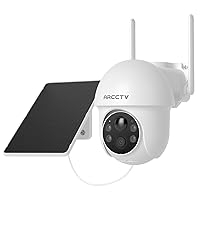
Familiarize yourself with the main components of your ARCCTV C3 camera:

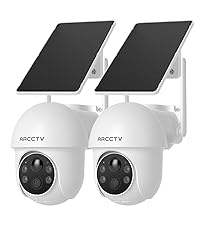
Image showing two ARCCTV C3 Solar Security Cameras, highlighting the integrated solar panel, camera lens, and motion sensor.

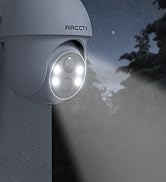
Kusa view of the camera's front, detailing the 4MP lens, LED lights for night vision, and the PIR motion sensor.
- Tashoshin Rana: Integrated on top for continuous battery charging.
- Lens na kyamara: 4MP resolution for clear video capture.
- PIR firikwensin motsi: Detects human and animal movement.
- Infrared LEDs: For black and white night vision.
- Abubuwan Halaye: For color night vision and deterrence.
- Makarafo: Don shigar da sauti.
- Mai magana: For two-way audio communication and siren.
- USB Cajin Port: For initial charging or manual charging.
- Ramin Katin MicroSD: For local video storage (card not included).
Saita Umarnin
1. Cajin Farko
Before first use, fully charge the camera battery using the provided USB charging cable. Connect the cable to the camera's USB port and a standard 5V/1A USB power adapter (not included). The charging indicator will show the battery status. The integrated solar panel will maintain the charge after installation, but an initial full charge ensures optimal performance.
2. Shigar da Manhaja da Ƙirƙirar Asusu
Sauke da ARECCTV mobile application from your smartphone's app store (available for iOS and Android). Follow the on-screen prompts within the app to create a new user account and log in.
3. Haɗin Na'ura
A smartphone screen displaying the ARCCTV app's Wi-Fi setup interface, prompting for network name and password.
- Open the ARCCTV app and tap 'Add Device' or the '+' icon.
- Zaɓi samfurin kyamararka daga jerin.
- Follow the in-app instructions to connect the camera to your Wi-Fi network. Ensure your smartphone is connected to the same Wi-Fi network (supports both 2.4GHz and 5GHz bands).
- The camera will automatically select the optimal Wi-Fi band for connection.
- Once connected, you can name your camera and complete the setup process.
4. Hawan Kamara

A person installing the ARCCTV C3 camera on an outdoor wall, demonstrating the ease of installation.
- Zaɓin Wuri: Choose a suitable outdoor location with good Wi-Fi signal strength and direct sunlight exposure for the solar panel. Avoid areas with heavy shade.
- Shigarwa: Use the provided mounting bracket, screws, and wall plugs to securely attach the camera to a wall, fence, or pole.
- Matsayi: Adjust the camera angle to cover the desired surveillance area. Ensure the PIR motion sensor has a clear line of sight to the area you wish to monitor.
Umarnin Aiki
Rayuwa View da Rikodi
Access the live video feed of your camera through the ARCCTV app. The camera records in 4MP (2560x1440p) resolution. Recordings are primarily triggered by motion detection events.
Hangen Dare

A split image demonstrating the camera's day vision (left) and enhanced night vision (right) capabilities, showing clear visibility in low light.
The camera features advanced IR night vision, providing clear black and white video up to 33 feet in complete darkness. An optional color night mode, activated by the built-in spotlights, delivers vivid nighttime images when sufficient light is available or motion is detected.
Gano Motsi da Faɗakarwa

An image depicting a security camera detecting a person, illustrating the instant alert feature with siren warning and two-way audio.
The integrated PIR motion sensor detects human and animal activity, sending instant push notifications to your smartphone. You can customize motion detection zones and sensitivity settings within the ARCCTV app to minimize false alerts.
Audio Hanyoyi Biyu

A person using a tablet to communicate via the camera's two-way audio feature, showing a live video call interface.
Utilize the two-way audio feature via the ARCCTV app to communicate with individuals near the camera. This allows for direct interaction, such as speaking to delivery personnel or deterring unwanted visitors.
Zaɓuɓɓukan ajiya
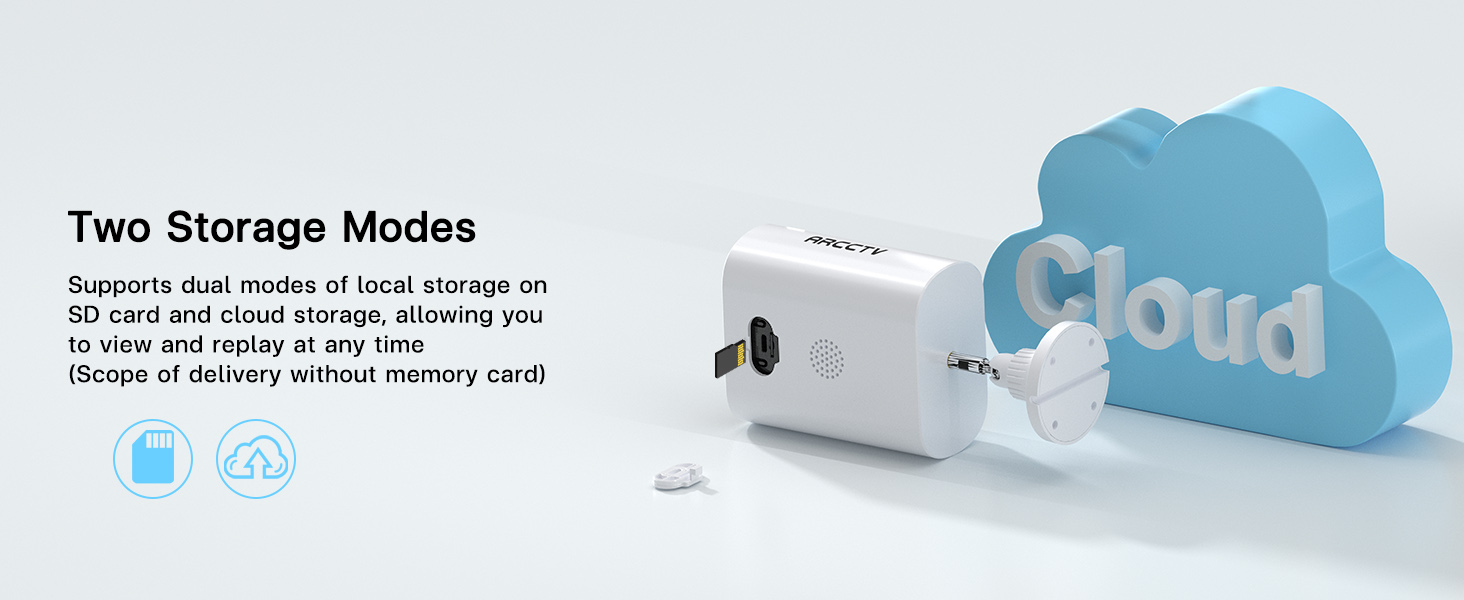
A close-up of the camera's side, showing the slot for a microSD card, indicating local storage capability.
An illustration showing the camera connected to a cloud icon, representing the cloud storage option for recorded footage.
The camera supports two storage modes:
- Ma'ajiyar Gida: Insert a microSD card (up to 128GB, not included) into the designated slot for local recording.
- Ma'ajiyar gajimare: An optional cloud storage service is available via subscription for secure, off-site storage of your footage.
Raba Hannu
A smartphone screen displaying live camera footage, surrounded by icons representing multiple users, indicating shared access functionality.
You can share camera access with family members or trusted individuals through the ARCCTV app, allowing multiple users to view live feeds and recorded surveillance simultaneously.
Kulawa
Kula da Hasken rana
Periodically clean the surface of the integrated solar panel to ensure maximum charging efficiency. Remove any dust, dirt, leaves, or debris that may obstruct sunlight. Use a soft, damp zane don tsaftacewa.
Gudanar da Baturi
While the solar panel provides continuous power, prolonged periods of low sunlight, heavy cloud cover, or high motion activity may lead to battery depletion. Monitor battery levels through the ARCCTV app. If the battery level becomes critically low, manually charge the camera using the USB port.
Juriya na Yanayi

A split image showing the camera in rainy and sunny conditions, illustrating its weatherproof design and ability to withstand extreme temperatures.
The camera is designed with weatherproof construction to withstand outdoor conditions, including temperatures from -4°F to 122°F. Ensure all covers and seals are securely closed after accessing ports (e.g., USB, microSD slot) to maintain water resistance.
Shirya matsala
Camera Not Charging
- Ensure the solar panel is exposed to direct sunlight for several hours daily.
- Clean the solar panel surface if it is dirty or obstructed.
- If the issue persists, charge the camera manually using the USB cable.
Matsalolin Haɗin Wi-Fi
- Verify your Wi-Fi network is operational and the camera is within range of your router.
- Ensure you are connecting to a 2.4GHz or 5GHz network.
- Restart your Wi-Fi router and the camera, then attempt to reconnect.
- If necessary, reset the camera and re-pair it with the app.
Gano Motsi Ba Ya Aiki
- Check the motion detection settings in the ARCCTV app; ensure it is enabled and sensitivity is adjusted appropriately.
- Ensure there are no physical obstructions blocking the PIR sensor.
- Test the detection by walking in front of the camera.
Rashin ingancin Bidiyo
- Tsaftace ruwan tabarau na kamara tare da laushi, yadi mara lint.
- Check your Wi-Fi signal strength in the app; a weak signal can affect streaming quality.
- For night vision, ensure no strong light sources are directly facing the camera, as this can cause glare.
Ƙayyadaddun bayanai
| Siffar | Ƙayyadaddun bayanai |
|---|---|
| Sunan Samfura | C3 |
| Amfanin Cikin Gida/Waje | Waje |
| Tushen wutar lantarki | Battery Powered & Solar Powered |
| Ka'idar Haɗuwa | Wi-Fi (2.4GHz & 5GHz Dual Band) |
| Ƙimar Ɗaukar Bidiyo | 1440p (4MP) |
| Viewcikin Angle | 130 Digiri |
| Girman Abu (L x W x H) | 7.8 x 6.2 x 4.3 inci |
| Nauyin Abu | 2.05 fam (Kilogram 0.93) |
| Girman Tallafin Ƙwaƙwalwar Ƙwaƙwalwar Filastik | 128 GB (MicroSD card) |
| Audio Visual Recording Capabilities | Audio & Bidiyo |
| Siffa ta Musamman | 2-Hanyar Audio |
| Baturi | Ana buƙatar baturi 1 (an haɗa) |
| Tsawon Zazzabi Mai Aiki | -4°F zuwa 122°F |
Garanti da Taimako
For detailed warranty information, technical assistance, and customer support, please visit the official ARCCTV website or contact customer service directly through the ARCCTV mobile application. Please retain your purchase receipt for warranty claims.