
Gabatarwa
This manual provides essential instructions for the setup, operation, maintenance, and troubleshooting of your Insignia 32-inch 1080p HD HDR LCD Fire TV Smart TV, model NS-32F401CA26. Please read this manual thoroughly before using your television to ensure proper and safe operation.
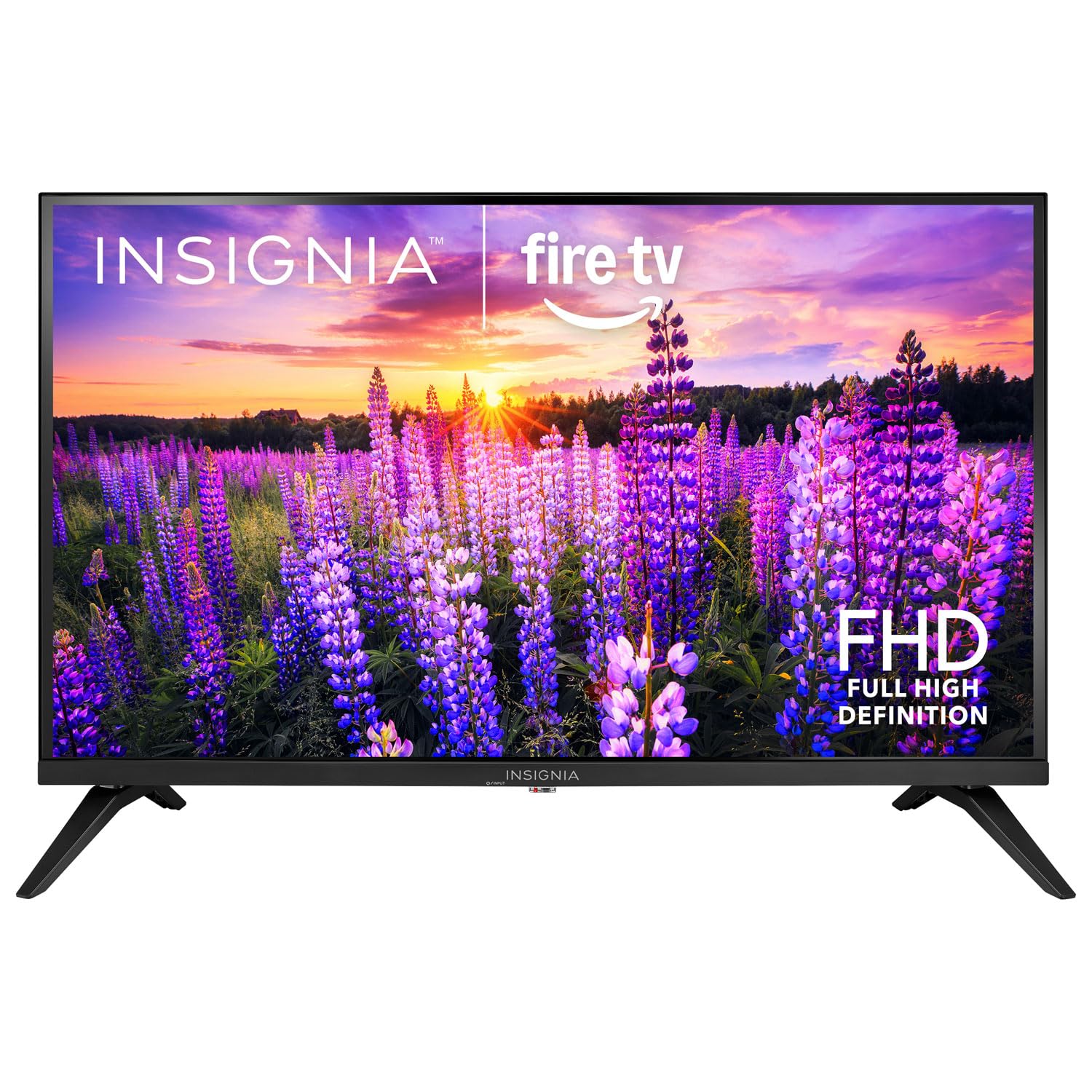
Hoto: Gaba view of the Insignia 32-inch Fire TV Smart TV, showing the screen and a remote control.
1. Saita
1.1 Buɗewa
Carefully remove the TV and all accessories from the packaging. Retain the packaging materials for future transport or storage.
1.2 Haɗe Tsaya ko Dutsen bango
Don Shigarwa Tsaye:
- Place the TV face-down on a soft, clean surface to prevent screen damage.
- Daidaita sansannin tsayawa tare da ramukan dunƙule a ƙasan TV.
- Tsare tsaye ta amfani da sukurori da aka bayar.
Don Dutsen bango:
- This TV supports a VESA Mount Standard of 200 x 200 mm.
- Use a compatible wall mount kit (sold separately) and follow its installation instructions.
- Tabbatar cewa bangon zai iya ɗaukar nauyin talabijin da wurin da aka ɗora.
1.3 Haɗin Wuta
Plug the power cord into the TV's power input, then plug the other end into a working electrical outlet.
1.4 Haɗin Na'urorin Waje
Your TV includes multiple ports for external devices:
- HDMI Ports (Total 2): Haɗa 'yan wasan Blu-ray, na'urorin wasan bidiyo, akwatunan USB/Satellite.
- USB 3.0 Port (Total 1): Haɗa na'urorin ajiya na USB don sake kunnawa mai jarida.
- Shigar da Eriya/Cable: Connect an antenna for over-the-air broadcasts or a cable connection.
1.5 Initial Setup (Fire TV OS)
Upon first power-on, the TV will guide you through the Fire TV setup process:
- Haɗin Ikon Nesa: Insert the included 2 AAA batteries into the remote. Follow on-screen instructions to pair the remote.
- Haɗin Yanar Gizo: Zaɓi hanyar sadarwar Wi-Fi ɗin ku kuma shigar da kalmar wucewa.
- Amazon Account: Log in with your Amazon account or create a new one.
- Tashar Tashoshi: If using an antenna, the TV will scan for available channels.
- Sabunta software: The TV may download and install the latest software updates.
2. Aiki da TV
2.1 Kunnawa / Kashewa
Danna maɓallin Ƙarfi maɓalli a kan na'urar sarrafawa ta nesa don kunna ko kashe TV.
2.2 Kewayawa da Wuta TV Interface
Yi amfani da kushin jagora da Zaɓi button on your remote to browse the Fire TV home screen, access apps, and navigate menus.
2.3 Amfani da Nesa Muryar Alexa
Latsa ka riƙe Alexa button on your remote and speak into the microphone to:
- Bincika fina-finai da shirye-shiryen TV.
- Launch applications (e.g., "Open Netflix").
- Control playback (e.g., "Pause", "Fast forward").
- Ask questions or get information.
2.4 Shiga Aikace-aikace
Popular streaming services like Amazon Prime Video, Netflix, and YouTube are pre-installed. You can download additional apps from the Amazon Appstore.
2.5 Adjusting Picture and Sound Settings
Shiga cikin Saituna menu on the Fire TV home screen to adjust:
- Hoto: Brightness, contrast, color, aspect ratio (16:9).
- Sauti: Volume, sound mode, DTS Virtual-X settings.
- Nunawa: Resolution (1080p), refresh rate (120 Hz).
2.6 Kulawar Iyaye
The TV includes parental control features. Navigate to the Saituna menu, sannan zaɓi Abubuwan da ake so, sai me Ikon Iyaye to set restrictions on content, purchases, and app usage. A PIN is required to enable or disable these controls.
3. Kulawa
3.1 Tsaftace TV
- Allon: A hankali shafa allon tare da laushi, yadi mara laushi. Don alamun taurin kai, ɗan dampen the cloth with water or a screen cleaner specifically designed for TVs. Do not spray liquid directly onto the screen.
- Jiki: Shafa firam ɗin TV ɗin kuma tsayawa da taushi, bushe bushe.
- Koyaushe cire TV ɗin kafin tsaftacewa.
3.2 Sabunta software
Your Fire TV Smart TV automatically checks for and installs software updates when connected to the internet. You can manually check for updates in the Saituna menu karkashin TV na Wuta > Game da > Duba Sabuntawa.
3.3 Maye gurbin Baturi Mai Ikon Nesa
When the remote control's performance degrades, replace the two AAA batteries. Ensure correct polarity when inserting new batteries.
4. Shirya matsala
| Matsala | Dalili mai yiwuwa | Magani |
|---|---|---|
| Babu iko | Ba a haɗa igiyar wuta ba; mafita ba ya aiki. | Ensure power cord is securely plugged into TV and a live outlet. Test outlet with another device. |
| Babu hoto ko sauti | Incorrect input source; external device off or disconnected. | Danna maɓallin Shigarwa button on the remote to select the correct source. Check connections of external devices. Ensure devices are powered on. |
| Ikon nesa baya aiki | Batura marasa aiki; ba a haɗa su da na'urar nesa ba. | Replace batteries (2 AAA). Re-pair remote by holding the Gida button for 10 seconds near the TV. |
| Matsalolin haɗin Wi-Fi | Kalmar sirri mara daidai; matsalolin na'ura mai ba da hanya tsakanin hanyoyin sadarwa; TV yayi nisa da na'ura mai ba da hanya tsakanin hanyoyin sadarwa. | Verify Wi-Fi password. Restart your router and modem. Move TV closer to router or use a Wi-Fi extender. |
| Apps not loading or crashing | Temporary software glitch; insufficient memory. | Restart the TV. Clear app cache (Settings > Applications > Manage Installed Applications). Ensure sufficient storage. |
5. Ƙayyadaddun bayanai
| Lambar Samfura | Saukewa: NS-32F401CA26 |
| Girman allo | Inci 32 |
| Nunin Fasaha | LCD |
| Ƙaddamarwa | 1080p (Cikakken HD) |
| Matsakaicin Sassauta | 120 Hz |
| Ana Tallafin Tsarin HDR | HDR10 |
| Halayen Rabo | 16:9 |
| Fasahar Haɗuwa | Wi-Fi |
| HDMI Ports | 2 |
| USB 3.0 Ports | 1 |
| Sabis na Intanet masu goyan baya | Amazon Prime Video, Netflix, YouTube, Alexa |
| Bayanin Kakakin | DTS Virtual-X virtual surround sound |
| Integrated Surround Sound Format | DTS Virtual-X |
| Hanyar sarrafawa | Remote (with Alexa Voice) |
| Ana Bukata Batura | 2 AAA (an haɗa) |
| Girman samfur (D x W x H) | 47.3D x 17.1W x 71.9H Santimita |
| Tsarin Dutsen VESA | 200 x 200 mm |
| Ƙarin Halaye | Ikon Iyaye |
6. Garanti da Tallafawa
For warranty information, please refer to the warranty card included with your product or visit the official Insignia support website. For technical assistance, product registration, or service inquiries, please contact Insignia customer support through their official channels.
Lura: Takamaiman sharuɗɗan garanti da bayanan tuntuɓar tallafi na iya bambanta ta kowace yanki kuma ana iya canzawa.