
Alienware Alienware Aurora R16 Desktop
Littafin Jagorar Mai Amfani da Kwamfutar Tebur ta Alienware Aurora R16
Model: Alienware Aurora R16 Desktop
1. Gabatarwa
This manual provides essential information for setting up, operating, maintaining, and troubleshooting your Alienware Aurora R16 Gaming Desktop. Please read this manual thoroughly before using your system to ensure optimal performance and longevity.

Figure 1.1: Alienware Aurora R16 Gaming Desktop with included keyboard and mouse.
The Alienware Aurora R16 features the new Legend 3 design, focusing on minimalism and functionality while optimizing for any desktop gaming setup.

Figure 1.2: The Alienware Aurora R16's Legend 3 design emphasizes a minimalist and functional aesthetic.
2. Abin da ke cikin Akwatin
Tabbatar cewa duk abubuwan da aka gyara suna nan a cikin marufi:
- Alienware Aurora R16 Desktop Gaming
- Wutar Wuta
- Allon madannai
- Mouse
- Takardu (Jagorar Farawa Cikin Sauri, Bayanin Tsaro)
If any items are missing or damaged, contact Alienware support immediately.
3. Saitin Farko
Follow these steps to set up your Alienware Aurora R16 Desktop:
- Buɗe Tsarin: Carefully remove the desktop from its packaging.
- Abubuwan Haɗawa:
- Connect your monitor(s) to the appropriate display ports (DisplayPort, HDMI) on the graphics card.
- Connect the keyboard and mouse to available USB ports.
- Haɗa kowane nau'i na gefe kamar lasifika, belun kunne, ko faifai na waje.

Figure 3.1: Rear I/O ports for connecting display, USB devices, and audio.

Figure 3.2: Front I/O ports including USB 3.2 Gen 1, USB 3.2 Gen 2 Type-C, and headphone/line out.
- Haɗa zuwa Wuta: Plug the power cable into the power supply unit on the back of the desktop, then plug the other end into a wall outlet or surge protector.
- Kunna Wuta: Press the power button located on the front of the desktop. The system will boot up and guide you through the Windows 11 Pro initial setup.
4. Yin aiki da Desktop ɗinku
4.1 Boot na Farko da Saitin Windows
Upon first power-on, the system will guide you through the Windows 11 Pro setup process. Follow the on-screen instructions to configure your region, language, network settings, and user account.
4.2 Alienware Command Center
The Alienware Command Center software allows you to customize your system's performance profiles, monitor thermals, and manage lighting effects. This software is pre-installed and can be accessed from the Windows Start Menu.

Figure 4.1: Alienware Command Center interface for system customization.
4.3 Aiki da Wasanni
Your Alienware Aurora R16 is equipped with a 14th Gen Intel Core i9-14900KF processor and NVIDIA GeForce RTX 4080 SUPER graphics, designed for high-performance gaming and demanding applications. Ensure your graphics drivers are up to date for optimal performance.

Figure 4.2: The Alienware Aurora R16 is designed for immersive gaming experiences.

Hoto 4.3: Example of a complete gaming setup featuring the Alienware Aurora R16.
5. Kulawa
5.1 Tsaftacewa
Regular cleaning helps maintain system performance and longevity:
- Use a soft, lint-free cloth to wipe down the exterior of the desktop.
- For dust accumulation in vents, use compressed air. Ensure the system is powered off and unplugged before cleaning.
- A guji amfani da masu tsaftace ruwa kai tsaye a kan abubuwan da aka gyara.
5.2 Guduwar Iska da Sanyaya
The Aurora R16 features an optimized airflow design and a 240mm liquid CPU cooler to ensure efficient thermal management. Ensure the desktop is placed in a well-ventilated area and that air vents are not obstructed.

Figure 5.1: Optimized internal design for efficient airflow and cable management.
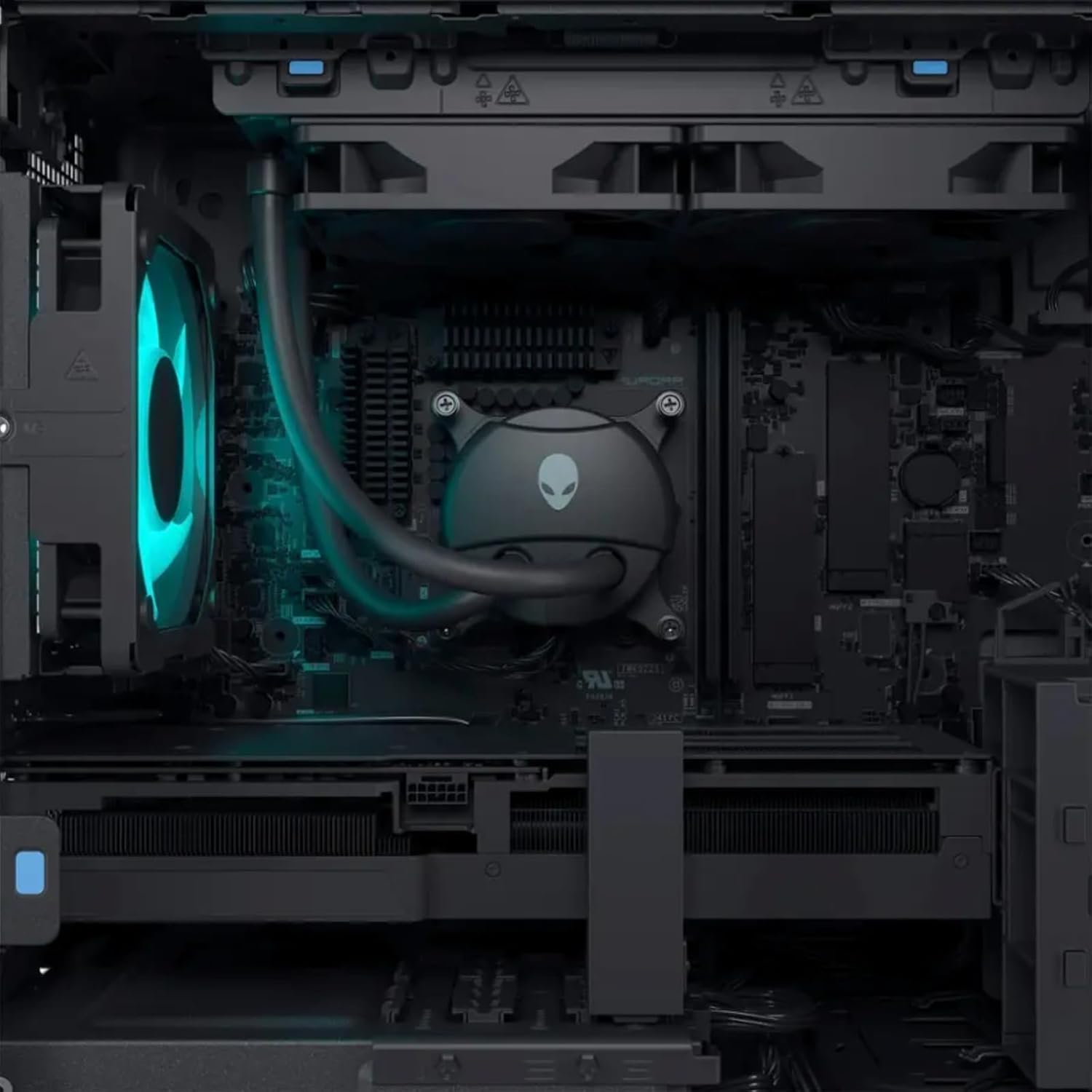
Hoto 5.2: Na ciki view highlighting the liquid CPU cooling system and other components.

Hoto 5.3: Sama-sama view of the internal layout, showing components and fan.

Figure 5.4: Angled internal view, providing a clearer look at the internal structure.
6. Shirya matsala
This section provides solutions to common issues. For more complex problems, refer to the Alienware support website ko tuntuɓar tallafin fasaha.
| Matsala | Magani mai yiwuwa |
|---|---|
| Tsarin baya kunnawa. |
|
| Babu nuni akan duba. |
|
| System is running slow or freezing. |
|
| Peripheral (keyboard/mouse) not responding. |
|
7. Ƙayyadaddun bayanai
Detailed technical specifications for the Alienware Aurora R16 Gaming Desktop:
| Bangaren | Ƙayyadaddun bayanai |
|---|---|
| Mai sarrafawa | 14th Gen Intel Core i9-14900KF (24 Cores, 32 Threads, up to 6 GHz) |
| Katin Zane | NVIDIA GeForce RTX 4080 SUPER 16GB GDDR6X |
| RAM | Up to 64GB DDR5 RAM (5600MHz) |
| Adana | Up to 8TB SSD + 2TB HDD |
| Tsarin Aiki | Windows 11 Pro |
| Haɗin mara waya | Wi-Fi 6E (802.11ax), Bluetooth |
| CPU Cooling System | Liquid Cooling (240mm) |
| GPU Cooling System | Sanyaya iska |
| Nuni Mashigai | 4 x DisplayPort 1.4, 1 x Mini DisplayPort (Total 5 DisplayPort Outputs) |
| USB Ports | 3 x USB-C 3.2, 5 x USB-A 3.2, 4 x USB-A 2.0 (Total 12 USB Ports) |
| Girma (HxWxD) | 7.76 x 18.05 x 16.5 inci |
| Nauyi | 33.89 fam |
8. Garanti da Tallafawa
8.1 Bayanin Garanti
Your Alienware Aurora R16 Gaming Desktop comes with a standard manufacturer's warranty. For detailed terms and conditions, including warranty duration and coverage, please refer to the warranty documentation included with your product or visit the official Alienware support website.
8.2 Tallafin Fasaha
For technical assistance, driver downloads, or further troubleshooting, please visit the official Alienware support webshafin yanar gizo ko tuntuɓar sabis na abokin ciniki. A shirya lambar serial na samfurin ku lokacin da kuka tuntuɓi tallafi.
Tallafin Alienware Website: support.dell.com/alienware
Ask a question about this manual
Ask about setup, troubleshooting, compatibility, parts, safety, or missing instructions. Manuals+ will review the question and use this page’s manual context to help answer it.