
Samfurin Ƙarsheview
The HP OmniDesk Desktop PC M02-0127c is a high-performance computer designed for everyday computing and productivity. It features an AMD Ryzen 7 8700G processor, 32GB DDR5 memory, and a 1TB NVMe SSD, along with integrated AMD Radeon 780M Graphics. This manual provides essential information for setting up, operating, maintaining, and troubleshooting your device.
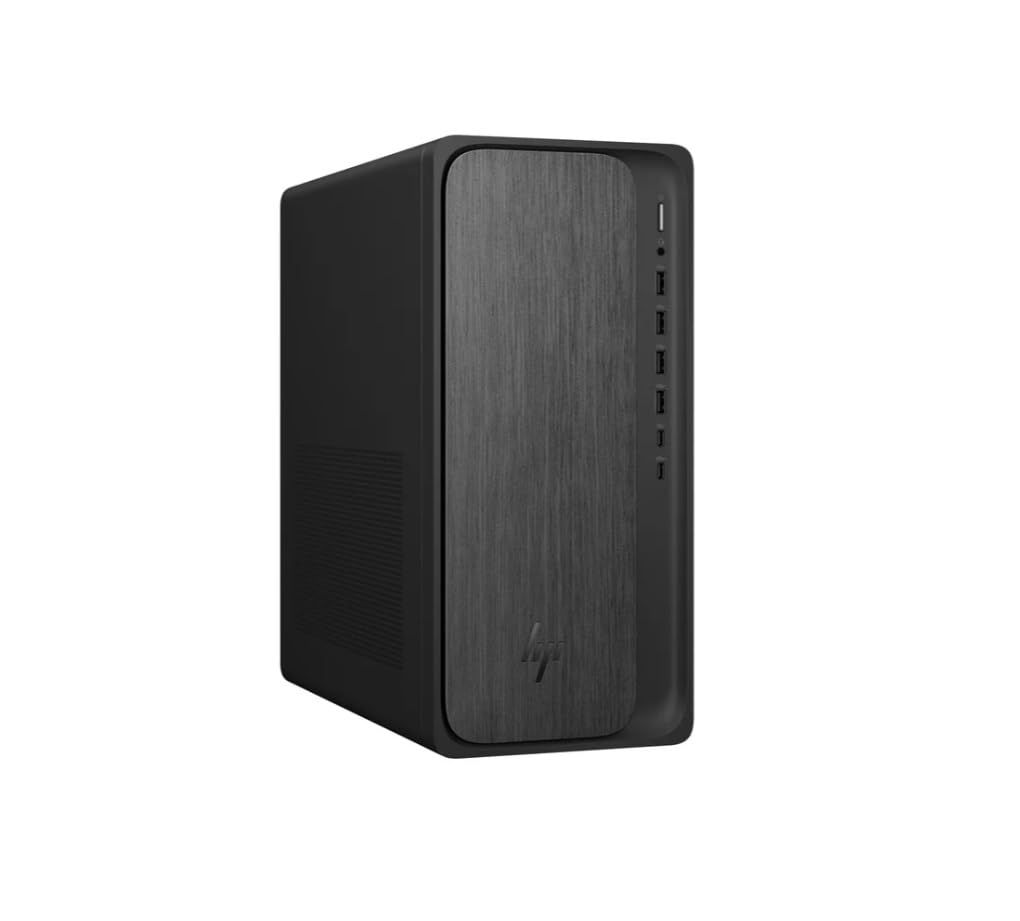
Gaba-dama view of the HP OmniDesk Desktop PC, showcasing its minimalist black design with a wood-inspired front panel.
1. Jagorar Saita
1.1 Cire akwatin da kuma sanya shi a farkon akwati
Carefully remove all components from the packaging. Ensure the desktop tower, wireless keyboard, and wireless mouse are present. Place the desktop on a stable, flat surface with adequate ventilation.
1.2 Haɗa Abubuwan Haɗi
Connect your monitor, keyboard, mouse, and power cable to the appropriate ports on the desktop.
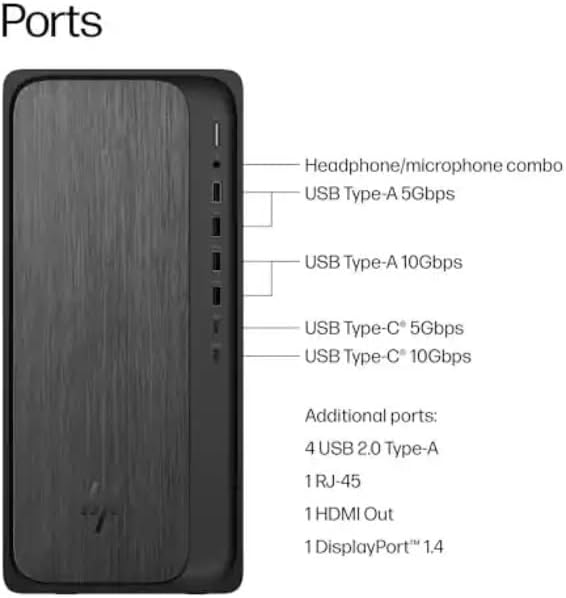
Diagram illustrating the various ports on the front and rear of the HP OmniDesk Desktop PC, including USB Type-A, USB Type-C, HDMI Out, RJ-45, and headphone/microphone combo.
- Haɗin Wuta: Connect the power cable to the power input on the rear of the desktop and then to a wall outlet.
- Haɗin Kulawa: Use an HDMI cable to connect your monitor to the HDMI Out port on the rear of the desktop. The system also supports DisplayPort 1.4.
- Allon madannai da linzamin kwamfuta: The included HP black wireless keyboard and mouse combo connect wirelessly. Insert the USB receiver into an available USB port on the desktop. Ensure batteries are installed in the keyboard and mouse.
1.3 Farko Boot da Windows 11 Saita
Press the power button on the front of the desktop. The system will boot into the Windows 11 Home setup process. Follow the on-screen instructions to configure your operating system, including language, region, network connection, and user account.
2. Umarnin Aiki
2.1 Power On/Off and Sleep Modes
- Kunna Wuta: Danna maɓallin wuta a gaban tebur.
- Rufe: Click the Start button, then Power, and select "Shut down".
- Sake farawa: Click the Start button, then Power, and select "Restart".
- Barci: Click the Start button, then Power, and select "Sleep". The system will enter a low-power state, allowing for quick resume.
2.2 Haɗawa da Cibiyoyin Sadarwa
- Wi-Fi: Click the network icon in the taskbar, select your Wi-Fi network, enter the password, and click "Connect". The system supports Wi-Fi 6 (802.11ax).
- Ethernet: Connect an Ethernet cable from your router or modem to the RJ-45 port on the rear of the desktop for a wired network connection.
2.3 Using Bluetooth Devices
To connect Bluetooth devices, go to Saituna > Bluetooth & na'urori. Ensure Bluetooth is turned on, then click "Add device" and follow the pairing instructions for your device. The system supports Bluetooth 5.4.
2.4 Utilizing the Copilot Key
The included keyboard features a dedicated Copilot key. Press this key to instantly access your AI Assistant for enhanced productivity and quick task management within Windows 11.
3. Kulawa
3.1 Tsabtace Desktop ɗinku
Regularly clean the exterior of your desktop with a soft, dry, lint-free cloth. For dust accumulation in vents, use compressed air. Ensure the system is powered off and unplugged before cleaning.
3.2 Sabunta software
Keep your Windows operating system and drivers updated to ensure optimal performance and security. Go to Saituna > Sabuntawar Windows don bincika da shigar da abubuwan sabuntawa.
3.3 Gudanar da Adana
The 1TB NVMe SSD provides fast storage. Regularly manage your files and uninstall unused applications to maintain free space and system performance.
3.4 Tunanin Muhalli
The HP OmniDesk PC is designed with recycled materials and is EPEAT Gold Climate+ Registered and ENERGY STAR certified. Ensure proper disposal of electronic waste according to local regulations.
4. Shirya matsala
4.1 Babu Ƙarfi
Alamar: The desktop does not power on when the power button is pressed.
Magani:
- Verify the power cable is securely connected to both the desktop and a working wall outlet.
- Gwada mashigar bango da wata na'ura don tabbatar da cewa tana da wutar lantarki.
- Ensure the power supply unit (PSU) switch (if present) is in the ON position.
4.2 Babu Nuni
Alamar: The desktop powers on, but nothing appears on the monitor.
Magani:
- Check that the monitor is powered on and the video cable (HDMI) is securely connected to both the desktop and the monitor.
- Tabbatar cewa an zaɓi madaidaicin tushen shigarwa akan duban ku.
- If possible, test with a different monitor or video cable.
4.3 System Not Booting (Advanced)
Alamar: The system powers on but fails to load the operating system, or displays error messages.
Magani:
- Attempt to access the BIOS/UEFI settings (usually by pressing F10 or Delete during startup) to check boot order or run diagnostics.
- If installing a new operating system like Linux, ensure any existing drive encryption is disabled and consider updating the BIOS first, as noted by some users.
- If the issue persists, contact HP Support.
4.4 Abubuwan Haɗuwa
Alamar: Unable to connect to Wi-Fi, Bluetooth, or wired network.
Magani:
- Wi-Fi/Bluetooth: Ensure wireless adapters are enabled in Windows settings. Restart your router/modem.
- Ethernet: Check cable connections. Verify router/modem status.
- Sabunta direbobin cibiyar sadarwa idan ya cancanta.
5. Bayanan fasaha
| Siffar | Daki-daki |
|---|---|
| Sunan Samfura | OmniDesk |
| Lambar Samfura | M02-0127c |
| Mai sarrafawa | AMD Ryzen 7 8700G (4.2GHz base, up to 5.1GHz max boost) with AMD Ryzen AI (16 NPU TOPS) |
| Tsarin Aiki | Microsoft Windows 11 Home (64-bit) |
| Ƙwaƙwalwar ajiya | 32 GB DDR5-5200 MT/s (Max 64 GB) |
| Adana | 1 TB PCIe Gen4 NVMe M.2 Solid State Drive |
| Zane-zane | AMD Radeon 780M Graphics (Integrated) |
| Haɗin mara waya | Wi-Fi 6 (2x2) 802.11ax, Bluetooth 5.4 |
| Haɗin Waya | Haɗe-haɗe 10/100/1000 GbE LAN |
| Tashoshin Jiragen Ruwa (Na Gaba) | Headphone/microphone combo, USB Type-A 5Gbps, USB Type-A 10Gbps, USB Type-C 5Gbps, USB Type-C 10Gbps |
| Tashoshin Jiragen Ruwa (Na Baya) | 4x USB 2.0 Type-A, 1x RJ-45, 1x HDMI Out, 1x DisplayPort 1.4 |
| Girma (L x W x H) | 12.40" x 6.10" x 13.27" (31.5 cm x 15.5 cm x 33.7 cm) |
| Nauyi | Fam 12.7 (5.76 kg) |
| Included Peripherals | HP black wireless keyboard and mouse combo |
6. Garanti Bayani
This HP OmniDesk Desktop PC M02-0127c comes with a Garanti mai iyaka na Shekara 1 from the date of purchase. This warranty covers defects in materials and workmanship under normal use. For specific terms and conditions, please refer to the warranty documentation included with your product or visit the official HP support website.
Da fatan za a riƙe shaidar siyan ku don da'awar garanti.
7. Tallafin Abokin Ciniki
For technical assistance, troubleshooting beyond this manual, or warranty service, please contact HP Customer Support.
- Taimako kan layi: Ziyarci Tallafin HP na hukuma website for drivers, manuals, and troubleshooting guides. goyon baya.hp.com
- Tallafin Waya: Refer to the contact information provided in your product documentation for regional phone support numbers.
When contacting support, please have your product model number (M02-0127c) and serial number ready.