
Gabatarwa
Thank you for choosing the Digitus DA-70919 USB-C 8K 12-Port Docking Station. This device is designed to expand the connectivity of your USB-C enabled laptop or computer, providing a comprehensive solution for video output, data transfer, network access, and power delivery. Please read this manual carefully to ensure proper installation and operation.
Samfurin Ƙarsheview
The Digitus DA-70919 docking station offers 12 essential ports to enhance your workspace. It supports high-resolution video output, fast data transfer, and efficient power delivery to your host device.

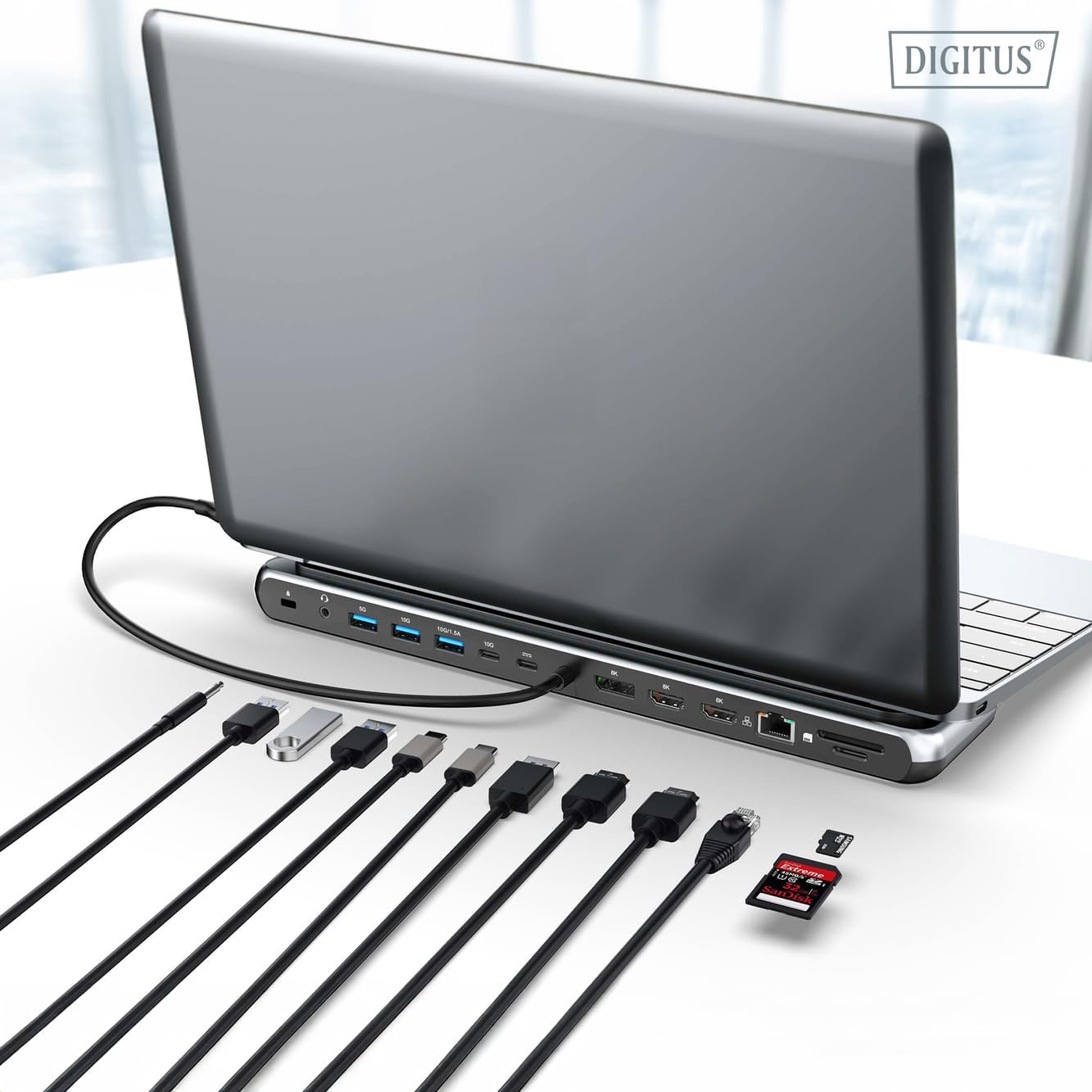
Hoto na 1: Detailed diagram of the Digitus DA-70919 docking station ports and their functions. This diagram labels each of the 12 ports on the docking station, including Audio Jack, USB-A, USB-C, USB-C PD, DisplayPort, HDMI, RJ45 Gigabit Ethernet, and SD/MicroSD card slots, along with anti-theft protection.

Hoto na 2: Gaba view of the Digitus DA-70919 docking station showing all accessible ports. A clear view of the docking station's front panel, displaying the various input and output ports including USB-A, USB-C, HDMI, DisplayPort, Ethernet, and card readers.
Mabuɗin fasali:
- Fitowar Bidiyo: 2x HDMI, 1x DisplayPort (DP) supporting up to 8K/30Hz for single display, or multi-display configurations.
- USB Data Ports: 2x USB-A 3.2 Gen 2 (10Gbps), 1x USB-A 3.2 Gen 1 (5Gbps), 1x USB-C 3.2 Gen 2 (10Gbps).
- Isar da Wuta (PD): USB-C PD 3.0 port for charging your host laptop (up to 85W output).
- Cibiyar sadarwa: Gigabit Ethernet (RJ45) for stable wired internet connection.
- Masu Karatun Kati: SD and MicroSD card slots with 104 MBps transfer speed.
- Audio: 3.5mm audio jack for headphones or speakers.
Saita Umarnin
Follow these steps to set up your Digitus DA-70919 docking station:
- Check Host USB-C Port Compatibility: Ensure your laptop's USB-C port supports DisplayPort Alternate Mode (DP Alt Mode) for video output and Power Delivery for charging. Without DP Alt Mode, video output will not function.

Hoto na 3: Guide to USB-C port compatibility for DisplayPort Alternate Mode. This graphic explains which types of USB-C ports on your laptop support the full functionality of the docking station, specifically highlighting the requirement for DisplayPort Alternate Mode (DP Alt Mode) for video output.
- Haɗa zuwa Na'urar Mai watsa shiri: Connect the integrated USB-C cable from the docking station to the USB-C port on your laptop.
- Haɗa Adaftar Wuta (Zaɓi ne amma ana ba da shawarar): If you wish to charge your laptop via the docking station or power high-demand peripherals, connect a USB-C Power Delivery adapter (not included, up to 100W recommended) to the USB-C PD input port on the docking station.
- Haɗa Nunin Waje: Haɗa na'urorin saka idanu zuwa ga HDMI da/ko DisplayPort a tashar tashar jiragen ruwa ta amfani da kebul masu dacewa.
- Abubuwan Haɗawa: Plug in your USB devices (keyboard, mouse, external drives), Ethernet cable, SD/MicroSD cards, and audio devices to the corresponding ports on the docking station.
- Shigar Direba: In most cases, the docking station is plug-and-play and does not require additional drivers. If prompted, allow your operating system to install any necessary drivers automatically.
Umarnin Aiki
Hanyoyin Nuni
Tashar docking tana goyan bayan saitunan nuni daban-daban:
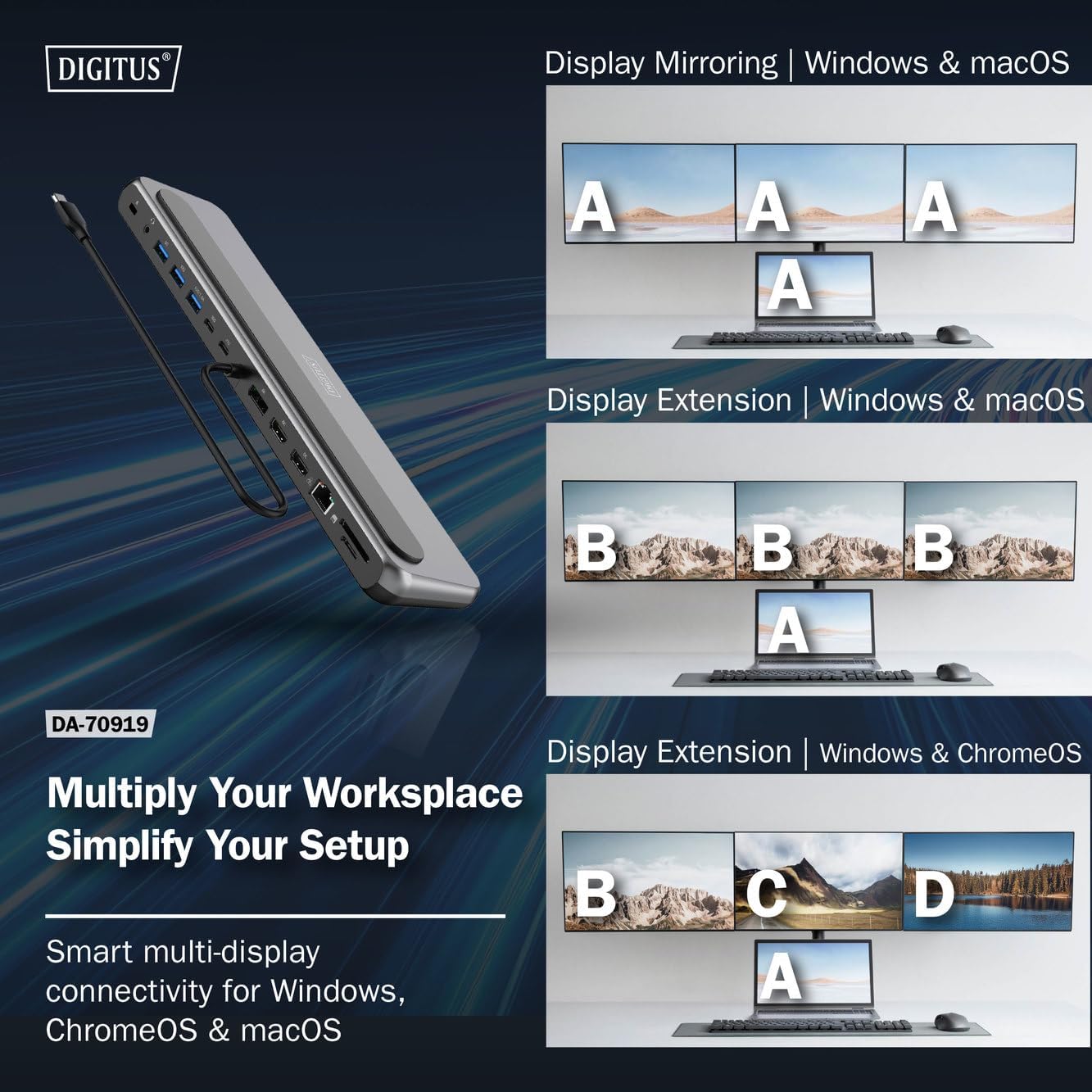
Hoto na 4: Diagram showing display mirroring and extension modes for Windows, macOS, and ChromeOS. This image illustrates the various display configurations supported by the docking station, including mirroring your screen or extending it across multiple external monitors on Windows, macOS, and ChromeOS.
- Yanayin Mirror: Yana kwafi allon kwamfutar tafi-da-gidanka zuwa allon waje.
- Extend Mode (Windows/ChromeOS): Extends your desktop across multiple external monitors, allowing for a multi-tasking environment. Supports dual monitors (2x 4K/60Hz) and triple monitors (1x 4K/60Hz + 2x 4K/30Hz) in MST (Multi Stream Transport) mode.
- Extend Mode (macOS): macOS typically supports extended desktop to one external monitor, with other external monitors mirroring each other.
To configure display settings, access your operating system's display settings (e.g., Windows Display Settings, macOS System Preferences > Displays).
Canja wurin bayanai
Utilize the USB-A and USB-C data ports for connecting external storage devices, keyboards, mice, and other USB peripherals. The USB 3.2 Gen 2 ports offer speeds up to 10Gbps, while the USB 3.2 Gen 1 port offers speeds up to 5Gbps.
Isar da Wuta
When a compatible USB-C PD power adapter is connected to the docking station's PD input port, the docking station can deliver up to 85W of power to charge your connected laptop. This allows you to power your laptop and peripherals through a single USB-C connection.
Hoto na 5: Illustration of the docking station's fast charging capability via USB-C Power Delivery. This image demonstrates the Power Delivery function, showing a 100W input to the docking station and an 85W output to charge the connected laptop.
Haɗin Yanar Gizo
Connect an Ethernet cable to the RJ45 port for a stable and high-speed wired network connection (10/100/1000 Mbps Gigabit Ethernet).
Masu Karatun Kati
Insert SD or MicroSD cards into the dedicated slots for quick access to photos, videos, and other files. The card readers support transfer speeds up to 104 MBps.
Fitar Audio
Connect your headphones or speakers to the 3.5mm audio jack for audio output.
Kulawa
- Tsaftacewa: Use a soft, dry cloth to clean the surface of the docking station. Avoid using liquid cleaners or solvents.
- Ajiya: Ajiye tashar jiragen ruwa a wuri mai sanyi da bushewa, nesa da hasken rana kai tsaye da kuma yanayin zafi mai tsanani.
- Gudanarwa: Avoid dropping or subjecting the device to strong impacts. Do not attempt to disassemble the docking station.
Shirya matsala
Idan kun ci karo da matsaloli tare da tashar docking ɗinku, da fatan za a duba waɗannan mafita na gama gari:
- Babu Fitar Nuni:
- Ensure your laptop's USB-C port supports DisplayPort Alternate Mode.
- Check all video cables (HDMI/DP) are securely connected to both the docking station and the monitor.
- Tabbatar cewa an kunna na'urar duba allo kuma an saita ta zuwa ga tushen shigarwar da ta dace.
- Gwada haɗa na'urar saka idanu ɗaya a lokaci guda don gano matsalar.
- Sabunta direbobin zane-zane na kwamfutar tafi-da-gidanka.
- Babu isar da wutar lantarki zuwa kwamfutar tafi-da-gidanka:
- Ensure a compatible USB-C PD power adapter (up to 100W) is connected to the docking station's PD input port.
- Verify that your laptop's USB-C port supports Power Delivery.
- Duba adaftar wutar lantarki da kebul don ganin ko akwai lalacewa.
- Ba a Gane Na'urorin USB:
- Sake haɗa na'urar USB zuwa wata tashar jiragen ruwa daban a tashar jiragen ruwa.
- Ensure the docking station is properly connected to the host laptop.
- If using a high-power USB device, ensure the docking station is connected to an external power adapter.
- Matsalolin Haɗin Ethernet:
- Duba haɗin kebul na Ethernet zuwa tashar docking da kuma na'urar sadarwa/modem ɗinka.
- Tabbatar da saitunan cibiyar sadarwa akan kwamfutar tafi-da-gidanka.
- Sake kunna na'urar sadarwa/modem da kwamfutar tafi-da-gidanka.
- Card Reader Not Working:
- Ensure the SD/MicroSD card is inserted correctly and fully.
- Test the card with another device to confirm it is not damaged.
Ƙayyadaddun bayanai
| Siffar | Ƙayyadaddun bayanai |
|---|---|
| Samfura | DA-70919 |
| Haɗin Mai watsa shiri | USB-C (kebul mai haɗaka) |
| Fitowar Bidiyo | 2x HDMI, 1x DisplayPort (DP) |
| Max. Single Display Resolution | 8K (7680x4320) @ 30Hz |
| Max. Dual Display Resolution (MST) | 2x 4K (3840x2160) @ 60Hz |
| Max. Triple Display Resolution (MST) | 1x 4K@60Hz + 2x 4K@30Hz |
| USB-A Data Ports | 2x USB 3.2 Gen 2 (10Gbps), 1x USB 3.2 Gen 1 (5Gbps) |
| USB-C Data Port | 1 x USB 3.2 Gen 2 (10Gbps) |
| Power Delivery (PD) Input | USB-C PD 3.0 (up to 100W) |
| Power Delivery (PD) Output to Host | Har zuwa 85W |
| Ethernet | RJ45 Gigabit (10/100/1000 Mbps) |
| Masu Karatun Kati | SD, MicroSD (104 MBps) |
| Audio | 1 x 3.5mm Audio Jack |
| Daidaituwa | Windows, macOS, ChromeOS |
| Yanayin Aiki | 0°C zuwa 45°C (32°F zuwa 113°F) |
| Ajiya Zazzabi | -10°C zuwa 70°C (14°F zuwa 158°F) |
Garanti da Taimako
The Digitus DA-70919 USB-C 8K 12-Port Docking Station comes with a Garanti na shekaru 2 daga ranar siye. Wannan garantin yana rufe lahani na masana'anta kuma yana tabbatar da cewa samfurin yana aiki kamar yadda aka bayyana a ƙarƙashin amfani na yau da kullun.
For technical support, warranty claims, or further assistance, please contact your retailer or visit the official Digitus website for contact information. Please have your product model number (DA-70919) and proof of purchase ready when seeking support.