
Gabatarwa
Thank you for choosing JVC HAS59WA Wireless Headphones. These headphones are designed to provide pleasant sound quality and extended battery life in a comfortable, foldable design. This manual provides essential information for setting up, operating, maintaining, and troubleshooting your headphones to ensure optimal performance.

Gaba view of JVC HAS59WA Wireless Headphones in Retro Blue.
Saita
1. Cajin Farko
Before first use, fully charge your JVC HAS59WA headphones. A full charge takes approximately 2 hours and provides up to 50 hours of playback time.
- Connect the provided USB charging cable to the charging port on the headphones.
- Haɗa dayan ƙarshen kebul na USB zuwa adaftar wutar USB (ba a haɗa ba) ko tashar USB ta kwamfuta.
- The charging indicator light will illuminate during charging and turn off once fully charged.

Close-up of the charging port and other connections on the JVC HAS59WA headphones.
2. Haɗa Bluetooth
The headphones support Bluetooth 5.3 for stable wireless connection and multipoint connectivity for seamless switching between two devices.
- Kunna Wuta: Danna ka riƙe maɓallin wuta a kan belun kunne har sai hasken alamar ya yi haske shuɗi da ja, yana nuna yanayin haɗawa.
- Kunna Bluetooth: A kan na'urarka (wayar hannu, kwamfutar hannu, kwamfutar tafi-da-gidanka), kunna Bluetooth.
- Zaɓi Na'ura: Bincika 'JVC HAS59WA' in the list of available Bluetooth devices and select it to pair.
- Tabbatarwa: Once paired, the indicator light will flash blue slowly, and you may hear an audible confirmation.
- Haɗin Multipoint: To connect a second device, disable Bluetooth on the first device temporarily, put the headphones back into pairing mode, and connect to the second device. Then, re-enable Bluetooth on the first device. The headphones will maintain connection with both.
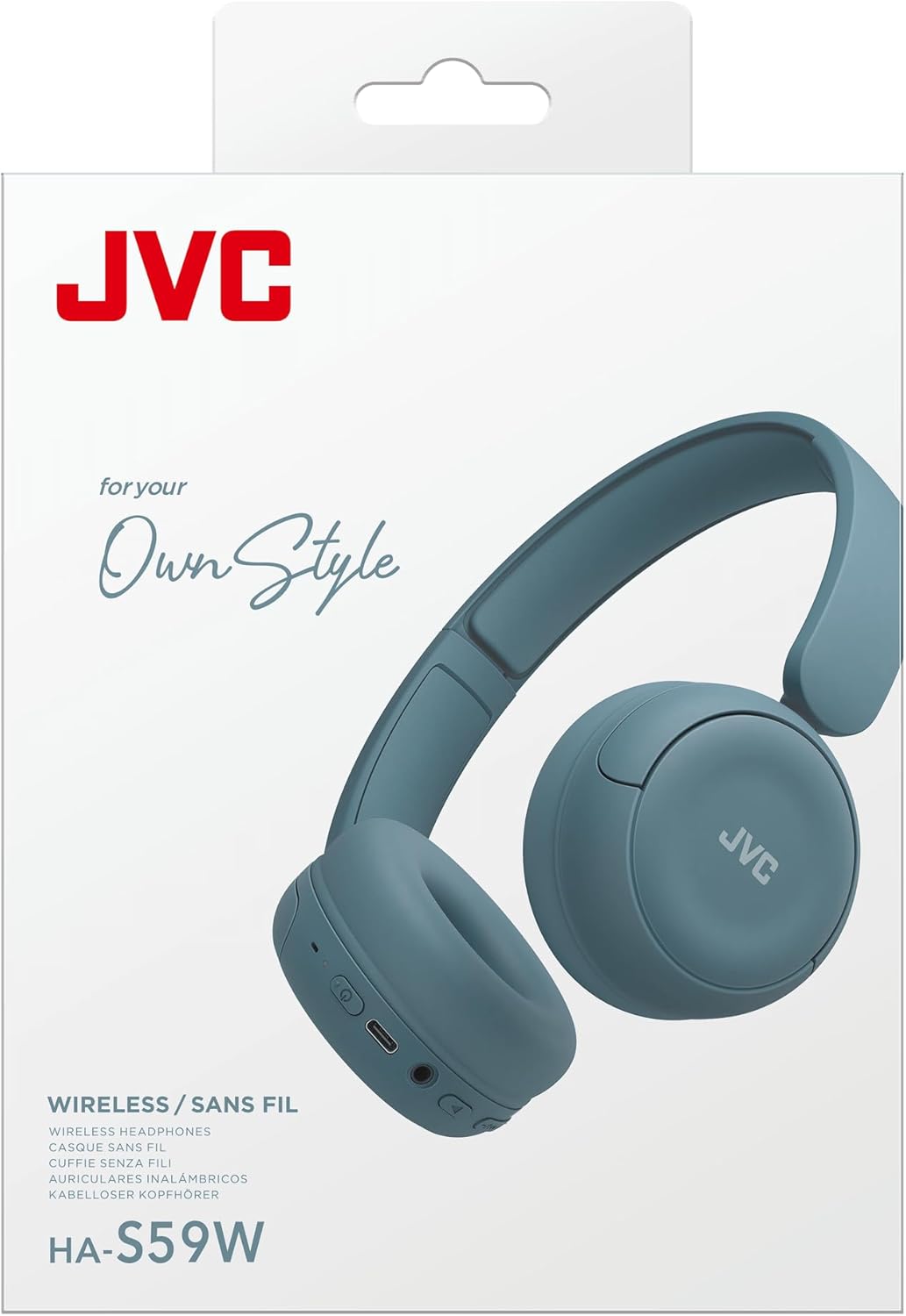
Diagram illustrating multipoint connection feature, connecting to a phone and a laptop simultaneously.
3. App Equalizer (EQ) Setup
Customize your audio experience using the JVC Headphones app.
- Download the 'JVC Headphones' app from your device's app store.
- Ensure your headphones are connected via Bluetooth to your device.
- Open the app and follow the on-screen instructions to connect to your HAS59WA headphones.
- Use the app's equalizer to fine-tune the audio to your preferred sound profile.

Screenshot of the JVC Headphones app interface showing equalizer settings.
Umarnin Aiki
1. Basic Controls
The headphones feature intuitive touch controls for managing audio playback and calls.
- Kunnawa/Kashewa: Danna kuma ka riƙe maɓallin wuta.
- Kunna/Dakata: Danna maɓallin aiki da yawa sau ɗaya.
- Ƙarar Ƙarƙashin Ƙaƙwalwar Ƙaƙwalwa: Yi amfani da maɓallan ƙarar da aka keɓe.
- Next / Previous Track: Double-tap or triple-tap the multi-function button (refer to specific model instructions for exact sequence).
- Amsa/Ƙarshen Kira: Single tap the multi-function button during an incoming call.
- Karɓar Kira: Latsa ka riƙe maɓallin ayyuka da yawa yayin kira mai shigowa.

Gede view of JVC HAS59WA Wireless Headphones, showing control buttons and ports.
2. Haɗin Waya
For situations where wireless connection is not preferred or battery is low, you can use the included 3.5mm audio cable.
- Plug one end of the 3.5mm audio cable into the headphone's audio jack.
- Plug the other end into your audio source's 3.5mm jack.
- Wayoyin kunne za su canza ta atomatik zuwa yanayin waya.

Image illustrating wired connection support, app EQ, and multipoint connection.
3. Kiran da Ba a Amfani da Hannu Ba
The built-in microphone allows for clear, hands-free calls when connected via Bluetooth.
- Ensure your headphones are paired with your phone.
- Use the multi-function button to answer or end calls as described in the 'Basic Controls' section.
Kulawa
1. Tsaftacewa
Don kula da yanayin da tsaftar belun kunne:
- Wipe the ear cushions and headband with a soft, dry cloth.
- Don datti mai taurin kai, dampa cikin zane da ruwa da kuma maganin sabulu mai laushi, sannan a goge bushe nan da nan.
- A guji amfani da sinadarai masu ƙarfi, masu narkewa, ko masu tsaftace muhalli.
- Kar a nutsar da belun kunne cikin ruwa.
2. Adana
The flat-foldable design allows for convenient storage and portability.
- Fold the earcups flat to reduce the headphone's profile.
- Ajiye a wuri mai sanyi, busasshiyar nesa da hasken rana kai tsaye da matsanancin zafi.
- Avoid placing heavy objects on the headphones during storage.

Diagram illustrating the foldable design and comfort features.
Shirya matsala
| Matsala | Dalili mai yiwuwa | Magani |
|---|---|---|
| belun kunne ba sa kunnawa. | Ƙananan baturi. | Charge the headphones fully (approx. 2 hours). |
| Ba za a iya haɗa ta Bluetooth ba. | Ba a cikin yanayin haɗin kai ba; A kashe na'urar Bluetooth; na'urori da aka haɗa da yawa. | Ensure headphones are in pairing mode (flashing blue/red). Turn device Bluetooth off/on. Forget previous pairings on your device and try again. |
| Babu sauti ko rashin ingancin sauti. | Volume too low; incorrect audio source; EQ settings. | Increase volume on headphones and device. Ensure correct audio output is selected on your device. Adjust EQ settings via the JVC Headphones app. |
| Intermittent Bluetooth connection. | Nisa daga na'urar; tsangwama; ƙarancin baturi. | Reduce distance between headphones and device. Avoid areas with strong Wi-Fi or other wireless interference. Charge headphones. |
| Makirifo baya aiki yayin kira. | Incorrect audio input selected on device; headphones not fully connected. | Ensure 'JVC HAS59WA' is selected as the audio input/output device on your phone/computer. Re-pair headphones. |
Ƙayyadaddun bayanai
| Siffar | Daki-daki |
|---|---|
| Alamar | JVC |
| Lambar Samfura | HAS59WA |
| Wurin Kunne | A kunne |
| Fasahar Haɗuwa | Bluetooth, Wireless |
| Sigar Bluetooth | 5.3 |
| Ƙarin Halaye | Multipoint Pairing, Built-in Mic, App EQ |
| Rayuwar Baturi | Har zuwa Awanni 50 |
| Lokacin Cajin Baturi | 2 Awanni |
| Jackphone na kunne | Jack na 3.5 mm (don haɗin waya) |
| Nau'in sarrafawa | Sarrafa Ƙara, Taɓawa |
| Nau'in Direba Audio | Direba mai ƙarfi (30mm) |
| Yawan Mitar | 20 Hz - 20,000 Hz |
| Nauyi | 3.2 oz |
| Kayan abu | Fabric, Silicone |
| Abubuwan da aka haɗa | Headband, Cable, User Manual |
Bayanin Garanti
The JVC HAS59WA Wireless Headphones come with a Garanti na ƙera Shekara 1. This warranty covers defects in materials and workmanship under normal use. Please retain your proof of purchase for warranty claims. For specific terms and conditions, refer to the warranty card included in your product packaging or visit the official JVC website.
Taimako
For further assistance, product registration, or to explore other JVC products, please visit the official JVC website ko tuntuɓi goyon bayan abokin ciniki.
- Official JVC Store: Visit the JVC Store on Amazon
- Sabis na Abokin Ciniki: Refer to your product packaging for regional contact information or visit the JVC global support page.
Bidiyon Samfur na hukuma
Official product video demonstrating the features and design of the JVC HAS59WA On-Ear Wireless Headphones.