Samfurin Ƙarsheview
The FIDECO MS02 is a versatile 3-bay hard drive docking station designed for efficient data management. It supports M.2 PCIe NVMe SSDs (M-Key or M+B Key) and 2.5-inch/3.5-inch SATA HDDs/SSDs, allowing simultaneous connection of two NVMe SSDs and one SATA drive. Key features include flexible offline cloning, high-speed data transfer via USB 3.2 Gen 2, and an integrated foldable cooling fan for optimal heat dissipation.
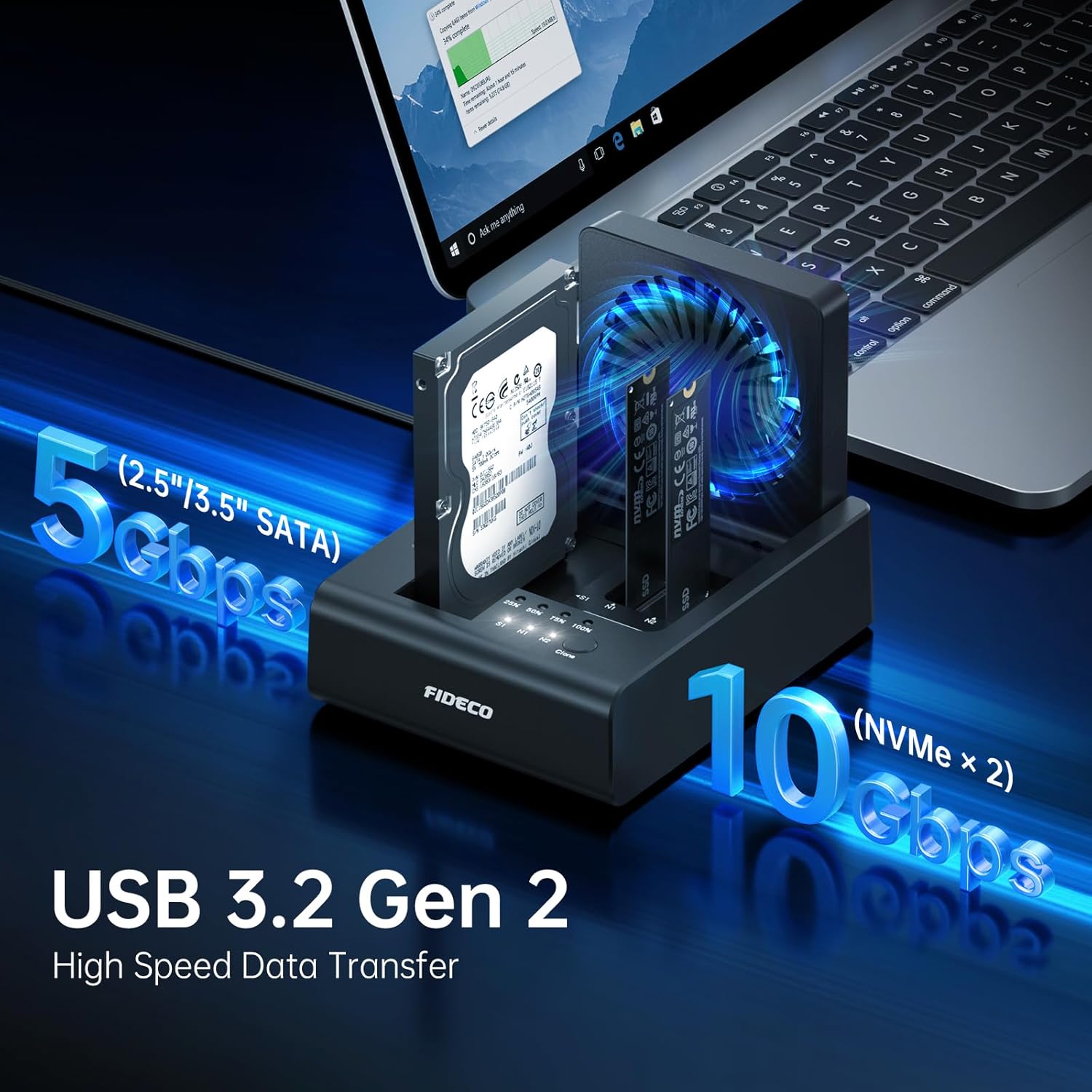
Image: FIDECO MS02 3-Bay Hard Drive Docking Station with M.2 NVMe SSD and 2.5/3.5 inch SATA HDD.
Abubuwan Kunshin
Tabbatar cewa duk abubuwa suna cikin kunshin ku:
- 1x FIDECO MS02 NVMe Cloner Duplicator
- 1x USB-C to USB-C Cable with USB-A Adapter
- 1 x Adaftar Wuta
- 1 x Manual mai amfani

Image: The FIDECO MS02 package contents, including the docking station, USB cables, power adapter, and user manual.
Jagorar Saita
Connecting Drives
The FIDECO MS02 supports tool-free installation for various drive types. Ensure the device is powered off before inserting or removing drives.
- For M.2 NVMe SSDs: Gently insert the M.2 NVMe SSD (M-Key or M+B Key) into the designated NVMe slots (N1, N2) until it clicks into place.
- For 2.5"/3.5" SATA HDDs/SSDs: Insert the SATA drive into the dedicated SATA slot (S1).

Image: The FIDECO MS02 supports various M.2 NVMe SSD sizes and both 2.5-inch and 3.5-inch SATA HDD/SSD.
Ƙarfi da Haɗuwa
- Connect the provided power adapter to the DC 12V port on the docking station and plug it into a power outlet.
- If connecting to a computer for data transfer, use the supplied USB-C to USB-C cable (with USB-A adapter) to connect the docking station to your computer's USB-C or USB-A port.
- Kunna na'urar ta amfani da maɓallin wuta.

Image: Rear panel of the FIDECO MS02, detailing connection ports and controls.
Umarnin Aiki
Data Transfer Mode (Connected to PC)
When connected to a computer, the FIDECO MS02 functions as a multi-bay hard drive reader, allowing you to access data on all inserted drives simultaneously.
- Ensure the docking station is connected to your computer and powered on.
- Your computer should automatically detect the drives. For new HDDs/SSDs, refer to the "Hard Drive Initialization" section.
- Enjoy high-speed data transfer: up to 10Gbps for NVMe SSDs and 5Gbps for SATA drives.

Image: The FIDECO MS02 facilitating high-speed data transfer for both SATA and NVMe drives when connected to a computer.
Video: This video demonstrates the data transfer capabilities of the FIDECO 3-Bay Hard Drive Dock, showing how to connect and access drives for efficient file gudanarwa.
Ayyukan Cloning Offline
The FIDECO MS02 supports flexible offline cloning without needing a computer. You can clone from NVMe to NVMe, or from SATA to NVMe.
- Prepare Drives: Insert the source drive (N1 for NVMe, S1 for SATA) and the target drive (N2 for NVMe) into their respective slots.
- Muhimmiyar Bayani: The target hard drive capacity must be equal to or larger than the source hard drive capacity.
- Select Clone Direction: Use the clone conversion switch to select the desired cloning direction (e.g., S1 to N2, N1 to N2).
- Fara Kwafi: Press and hold the "Clone" button for 3-5 seconds until all 4 blue clone lights illuminate. The 25% clone light will then flash blue, indicating the start of the cloning process.
- Kula da Ci gaban: The blue LED indicators (25%, 50%, 75%, 100%) will light up sequentially to show cloning progress.
- Kammala: All four blue lights will remain solid when cloning is complete.

Image: Offline cloning process from an NVMe source to an NVMe target drive.

Image: Offline cloning process from a SATA source to an NVMe target drive.

Image: Step 2 of offline cloning, showing the clone conversion switch.
Video: This video demonstrates the flexible offline cloning feature of the FIDECO 3-Bay Hard Drive Dock, detailing the process without a computer connection.
Kulawa
Aiki Fan sanyaya
The FIDECO MS02 is equipped with a foldable cooling fan to prevent overheating during prolonged operation, especially during cloning or heavy data transfer. Ensure the fan is unobstructed for optimal performance.

Image: The foldable cooling fan of the FIDECO MS02 ensures ultimate heat dissipation for prolonged drive lifespan.
Shirya matsala
- New HDD/SSD Not Recognized: For new hard drives or SSDs, they need to be initialized before they can be recognized by your computer. Refer to the "Hard Drive Initialization" video for detailed steps.
- Offline Clone Failure: If all 4 blue clone lights are flashing after attempting an offline clone, it indicates a failure. Double-check that the target hard drive capacity is equal to or larger than the source hard drive capacity.
Video: This video provides a step-by-step guide on how to initialize a hard drive under both Windows and Mac OS, a necessary step for new drives to be recognized by your computer.
Ƙayyadaddun bayanai
| Siffar | Daki-daki |
|---|---|
| Alamar | FIDECO |
| Lambar Samfura | MS02 |
| Na'urori masu jituwa | M.2 PCIe NVMe SSD (M-Key or M+B Key), 2.5"/3.5" SATA HDD/SSD |
| Matsakaicin Yawan Na'urori masu Tallafi | 3 (2 NVMe, 1 SATA) |
| Yawan Canja wurin Bayanai | 10 Gigabits Per Second (NVMe), 5 Gigabits Per Second (SATA) |
| Interirƙirar Abun Taɗi | USB 3.0 Type C |
| Platform Hardware | Linux, Mac OS, Windows |
| Launi | Baki |
| Kayan abu | Acrylonitrile Butadiene Styrene (ABS) |
| Nauyin Abu | 1.26 fam |
| Girman Kunshin | 9.37 x 5.67 x 2.2 inci |

Image: Maximum supported capacities for M.2 NVMe SSDs (8TB) and SATA HDD/SSDs (24TB).
Garanti da Taimako
For firmware updates, technical assistance, or any other questions, please contact FIDECO support:
Imel: support@fideco.cn
FIDECO is committed to providing reliable products and customer service.