
Gabatarwa
Welcome to the HP OmniDesk M03 AI Desktop PC. This manual provides essential information for setting up, operating, maintaining, and troubleshooting your new computer. The HP OmniDesk M03 is designed for performance and efficiency, featuring an Intel Core Ultra 7 265 processor with dedicated AI cores, 16GB DDR5 RAM, and a 2TB NVMe SSD, running on Windows 11 Home.
Me ke cikin Akwatin
Tabbatar cewa duk abubuwan da aka gyara suna nan a cikin marufi:
- HP OmniDesk Desktop PC
- Allon madannai mara waya
- Mouse
- Jagora Saitin Sauri
- Wutar Wuta

Image: The HP OmniDesk M03 desktop PC, wireless keyboard, mouse, and power cable, illustrating the contents of the product box.
Saita
1. Haɗa Abubuwan Haɗawa
Before powering on your PC, connect your monitor, keyboard, and mouse.
- Saka idanu: Connect your monitor to the PC using an HDMI or DisplayPort cable. The ports are located on the rear of the PC.
- Allon madannai da linzamin kwamfuta: The included keyboard and mouse are wireless. Insert batteries (if not pre-installed) and connect their USB receiver to an available USB port on the PC.
- Ƙarfi: Connect the power cable to the PC's power input on the rear and then to a wall outlet.
- Cibiyar sadarwa (Na zaɓi): For a wired internet connection, connect an Ethernet cable from your router to the RJ45 port on the rear of the PC.

Image: Rear panel of the HP OmniDesk M03, highlighting the DisplayPort, HDMI, USB, and Ethernet ports for connecting external devices.

Hoto: Gefe view of the HP OmniDesk M03 AI Desktop PC, showing its compact tower design.
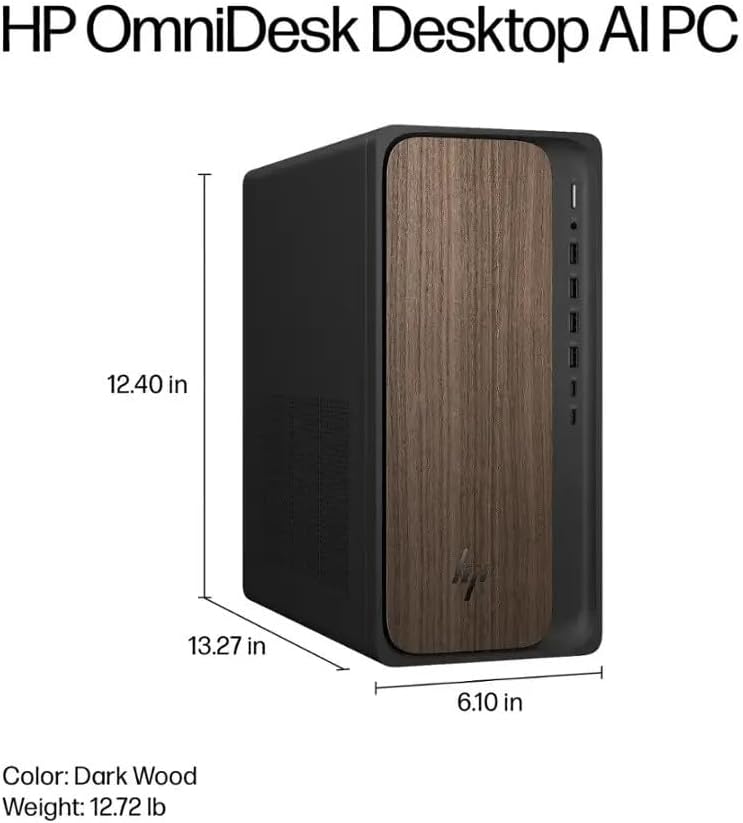
Image: Diagram illustrating the location and type of front and rear ports on the HP OmniDesk M03, including USB-A, USB-C, HDMI, DisplayPort, and audio jacks.
2. Kunnawa da Saitin Farko
Once all peripherals are connected:
- Latsa maɓallin wuta da ke gaban PC ɗin.
- Follow the on-screen instructions to complete the Windows 11 Home initial setup, including language selection, network connection (if not wired), account creation, and privacy settings.

Hoto: Gaba view of the HP OmniDesk M03, showing the power button at the top right and various USB ports below it.
Aiki da PC ɗinka
Windows 11 Gida
Your HP OmniDesk M03 comes pre-installed with Windows 11 Home. Familiarize yourself with the operating system's interface, Start menu, and settings. Microsoft provides extensive online resources for Windows 11 usage.
Siffofin AI
The Intel Core Ultra 7 265 processor includes dedicated AI cores and Intel AI Boost, enhancing performance for AI-driven applications and features within Windows 11, such as AI Copilot. These features can assist with tasks, content creation, and system optimization.
Haɗuwa
- Wi-Fi 6 (802.11ax): Connect to wireless networks for internet access. Manage Wi-Fi settings through the Windows 11 network settings.
- Bluetooth 5.4: Pair wireless devices such as headphones, speakers, or additional input devices. Access Bluetooth settings via the Windows 11 settings menu.
- Ethernet: For a stable, high-speed wired connection, ensure an Ethernet cable is connected to the RJ45 port.
Kulawa
Cleaning Your PC
- Na waje: Yi amfani da laushi mai laushi mara laushi dampened with water or a mild cleaning solution to wipe down the exterior. Avoid harsh chemicals.
- Zaɓuɓɓuka: Periodically clean dust from the ventilation grilles using compressed air to ensure proper airflow and prevent overheating.
- Tashoshi: Ka kiyaye tashoshin jiragen ruwa daga ƙura da tarkace.
Sabunta software
Regularly update Windows 11 and device drivers to ensure optimal performance, security, and compatibility. Access Windows Update through the Settings menu.
Ajiyayyen Data
It is recommended to regularly back up your important data to an external drive or cloud storage to prevent data loss.
Shirya matsala
Wannan sashe yana magance batutuwan gama gari da zaku iya fuskanta.
- Babu Ƙarfi:
- Tabbatar cewa kebul ɗin wutar lantarki yana da haɗin kai da PC da kuma wurin fitar da wutar lantarki a bango.
- Tabbatar da cewa mashigar bango tana aiki ta hanyar haɗa wata na'ura.
- Babu Nuni:
- Check that the monitor is powered on and correctly connected to the PC via HDMI or DisplayPort.
- Tabbatar cewa an zaɓi madaidaicin tushen shigarwa akan duban ku.
- Babu Haɗin Intanet:
- For Wi-Fi, check if the Wi-Fi adapter is enabled and if you are connected to the correct network with the right password.
- Don haɗin waya, tabbatar da cewa kebul na Ethernet yana da haɗin da ya dace kuma na'urar sadarwa ta na'urarka tana aiki.
- Allon madannai/Mouse Baya Amsa:
- Check battery levels for wireless devices.
- Ensure the USB receiver is plugged into a functional USB port.
- Gwada sake kunna PC.
Don ƙarin matsaloli masu rikitarwa, duba tallafin HP website ko tuntuɓar sabis na abokin ciniki.
Ƙayyadaddun bayanai
Detailed technical specifications for the HP OmniDesk M03 AI Desktop PC:
| Bangaren | Ƙayyadaddun bayanai |
| Mai sarrafawa | Intel Core Ultra 7 265 (20-Core, up to 5.3 GHz, Intel AI Boost) |
| Tsarin Aiki | Windows 11 Gida (64-bit) |
| Ƙwaƙwalwar ajiya (RAM) | 16GB DDR5 5600 MHz |
| Adana | 2TB PCIe NVMe M.2 SSD |
| Zane-zane | Hadakar Intel Graphics |
| Fitowar Bidiyo | 1x HDMI 2.1, 1x DisplayPort 1.4a |
| Tashoshin USB (Gaba) | 2x USB-A 5Gbps, 2x USB-A 10Gbps, 1x USB-C 5Gbps, 1x USB-C 10Gbps |
| USB Ports (Baya) | 4 x USB 2.0 Type-A |
| Audio Ports | 1x Headphone/Microphone Combo, 1x Line Input, 1x Line Output |
| Cibiyar sadarwa | Wi-Fi 6 (802.11ax), Bluetooth 5.4, Gigabit Ethernet (RJ45) |
| Girma (H x W x D) | 13.3" x 6.1" x 12.4" (33.8 cm x 15.5 cm x 31.5 cm) |
| Nauyi | 11.77 lb (5.34 kg) |

Image: Diagram showing the height (13.27 inches), width (6.10 inches), and depth (12.40 inches) of the HP OmniDesk M03 desktop PC.
Garanti da Taimako
Bayanin Garanti
Your HP OmniDesk M03 AI Desktop PC comes with a Garanti mai iyaka na kwanaki 90. This warranty covers defects in materials and workmanship under normal use. For detailed terms and conditions, please refer to the warranty documentation included with your product or visit the official HP support website.
Tallafin Abokin Ciniki
For technical assistance, troubleshooting, or warranty claims, please contact HP Customer Support:
- Taimako kan layi: Ziyarci jami'in HP Support Website for drivers, manuals, and troubleshooting guides.
- Tallafin Waya: Refer to the Quick Setup Guide or HP's webshafin don lambobin sadarwar yanki.
When contacting support, please have your product model (M03) and serial number ready.