
1. Gabatarwa
This manual provides essential instructions for the safe and efficient operation of your TATTMUSE A28U Portable Thermal Printer. Please read this manual thoroughly before using the device and retain it for future reference. The TATTMUSE A28U is a compact, inkless thermal printer designed for portability and convenience, supporting various paper sizes including A4, A5, and B5.
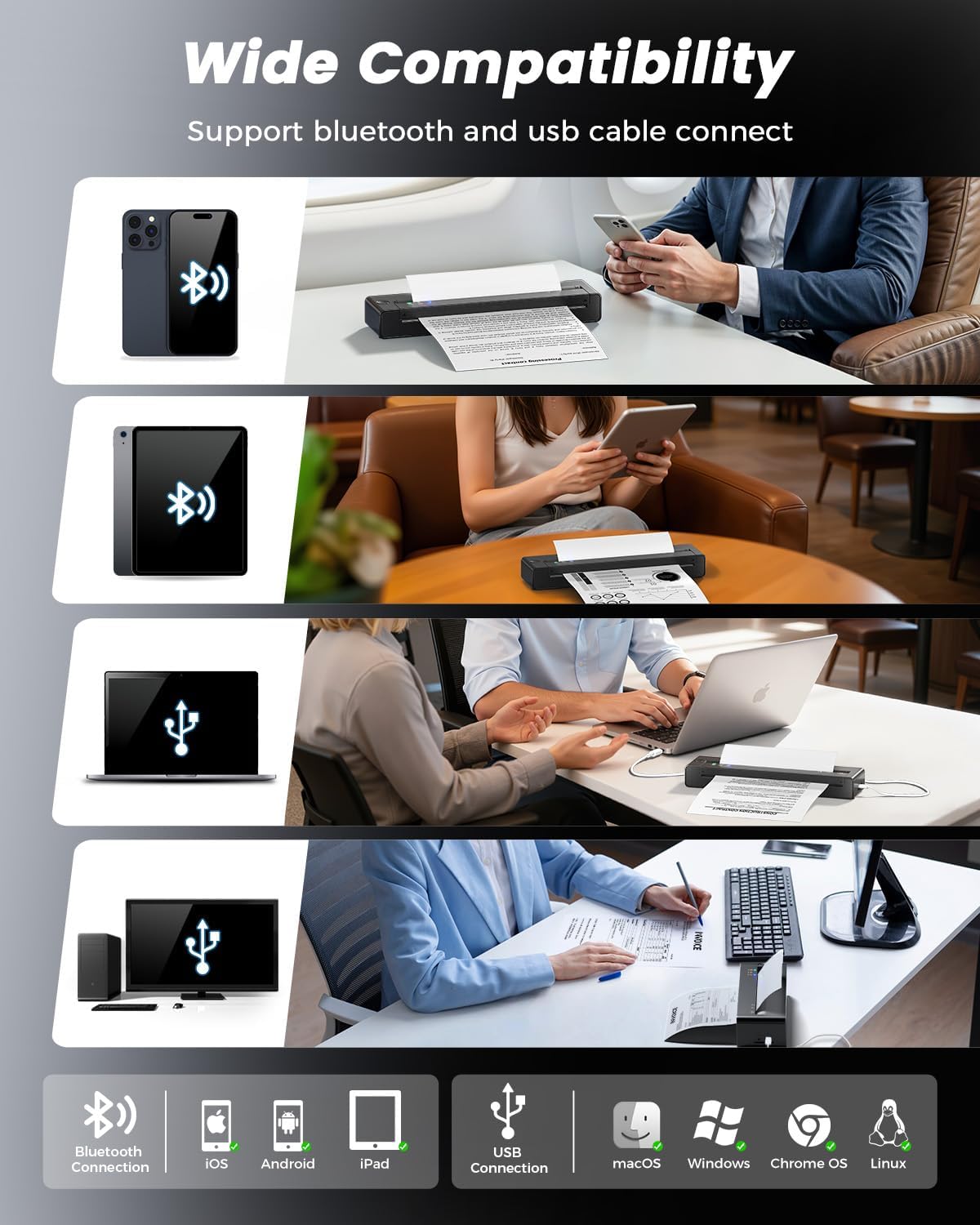
The printer utilizes advanced thermal direct technology, eliminating the need for ink cartridges, toner, or ribbons. It features an upgraded print head with dual-zone heat control for consistent print quality and a jam reversal function for reliable paper handling. Connectivity options include Bluetooth and USB, making it compatible with iOS, Android, tablets, and laptops.
2. Abin da ke cikin Akwatin
Verify that all items are present in the packaging before proceeding with setup.
- 1 x TATTMUSE A28U Portable Printer
- 10 x A4 Size Thermal Papers
- 1 x Manhajar mai amfani
- 1 x Kebul na USB-C

3. Saita
3.1 Kunnawa da Caji
To power on the printer, press and hold the power button until the indicator lights illuminate. For initial use, ensure the printer is fully charged using the provided USB-C cable. The printer features cool charging technology to extend battery lifespan.


3.2 Loading Takarda
The TATTMUSE A28U printer supports thermal paper only. It is compatible with single sheets and continuous roll thermal paper in various sizes (A4, A5, B5, Letter). To load paper, gently insert the paper into the paper slot until the printer automatically feeds it into position. Ensure the paper is centered for optimal printing.


Video: Instructions on how to correctly load roll thermal paper into the printer for the first time, including removing the initial adhesive section.
3.3 App and Driver Installation
For mobile devices (iOS/Android), download the "SoPrint" app from your device's app store. For computers (Windows/macOS/Chrome OS/Linux), drivers can be found on the official TATTMUSE website (refer to the included Quick Start Guide for the specific URL).


3.4 Haɗuwa
The printer supports both Bluetooth and USB connectivity.
- Haɗin Bluetooth: After installing the "SoPrint" app, enable Bluetooth on your mobile device. Open the app and follow the on-screen instructions to pair with the A28U printer.
- Haɗin USB: Connect the printer to your computer using the provided USB-C cable. Ensure the appropriate drivers are installed for your operating system. The printer should then appear as an available printing device.

4. Umarnin Aiki
4.1 Printing from the Mobile App
- Tabbatar cewa firintar tana kunne kuma an haɗa ta ta Bluetooth zuwa wayar hannu.
- Open the "SoPrint" app.
- Select the document or image you wish to print. The app supports various file types including Word, TXT, PDF, Excel, JPG, and PPT.
- Adjust print settings (e.g., paper size, density) within the app if necessary.
- Tap the print button to initiate printing.

4.2 Bugawa daga Kwamfuta
- Ensure the printer is powered on and connected via USB to your computer, or paired via Bluetooth if supported by your computer's operating system.
- Bude takardar ko file kana son bugawa a kwamfutarka.
- Go to the print option (usually File > Buga).
- Select "TATTMUSE A28U" from the list of available printers.
- Adjust print settings as needed (e.g., paper size, orientation).
- Click "Print" to send the job to the printer.
Video: A general user operation guide for a portable thermal printer, demonstrating basic printing steps.
5. Kulawa
5.1 Tsabtace Shugaban Buga
To maintain optimal print quality, regularly clean the print head. Turn off the printer and allow it to cool. Gently wipe the print head with a soft, lint-free cloth lightly dampened with isopropyl alcohol. Do not use abrasive materials or harsh chemicals.
5.2 Kula da baturi
To prolong battery life, avoid fully discharging the printer frequently. Store the printer in a cool, dry place when not in use for extended periods. Charge the printer regularly, even if not in active use, to prevent deep discharge.
6. Shirya matsala
6.1 Takarda Jam
If a paper jam occurs, the TATTMUSE A28U features an automatic jam reversal function. Double-tap the designated area on the printer (refer to the Quick Start Guide for exact location) to activate this function, which will automatically reverse stuck paper. Avoid manually pulling out jammed paper, as this can damage the printer mechanism.

6.2 Ingancin Bugawa mara kyau
- Tabbatar kana amfani takarda thermal. This printer does not support regular copy paper.
- Clean the print head as described in the Maintenance section.
- Check the paper for any damage or wrinkles before loading.
- Ensure the paper is loaded correctly and centered.
6.3 Abubuwan Haɗuwa
- Bluetooth: Ensure Bluetooth is enabled on your device and the printer is within range. Restart both the printer and your device. Try unpairing and re-pairing the printer in your device's Bluetooth settings.
- USB: Verify the USB-C cable is securely connected to both the printer and the computer. Ensure the correct drivers are installed on your computer. Try a different USB port or cable.
7. Ƙayyadaddun bayanai
| Siffar | Ƙayyadaddun bayanai |
|---|---|
| Alamar | TATTMUSE |
| Sunan Samfura | A28 ku |
| Fasahar Haɗuwa | Bluetooth, USB |
| Fasahar Bugawa | Thermal |
| Fitar da firinta | Monochrome |
| Maxo Buga Da sauri Buga | 15 ppm |
| Nauyin Abu | 841 Grams |
| Girman samfur (D x W x H) | 10.6D x 34.8W x 7.9H santimita |
| Nau'in Mai Gudanarwa | Android, iOS |
| Buga Mai jarida | Takarda thermal |
| Ƙaddamarwa | 203 x 203 dpi |
| Matsakaicin Girman Takarda Tallafi | Letter (8.5 x 11 inches) / A4 / A5 / B5 |
| Maximum Sheet Capacity | 50 |
| Ƙarfin baturi | 1500 mAh |
| Buga mai gefe biyu | A'a |
8. Garanti da Tallafawa
8.1 Garanti na Samfur
The TATTMUSE A28U Portable Thermal Printer comes with a 1-year product warranty from the date of purchase. This warranty covers manufacturing defects and malfunctions under normal use. It does not cover damage caused by misuse, accidents, unauthorized modifications, or use of non-approved consumables.
8.2 Tallafin Abokin Ciniki
For technical assistance, troubleshooting, or warranty claims, please contact TATTMUSE customer support through the official website or the contact information provided in your purchase documentation. Please have your model number (A28U) and proof of purchase ready when contacting support.