PowerA Advantage Wireless Controller for Nintendo Switch 2 - Mario & Yoshi
Model: NSGP0569-01V
Gabatarwa
This manual provides comprehensive instructions for the PowerA Advantage Wireless Controller, designed for use with the Nintendo Switch family of devices. It covers setup, operation, maintenance, and troubleshooting to ensure optimal performance and longevity of your controller.
Mabuɗin Siffofin
Hall Effect Modules: Equipped with contact-free magnetic sensors in the thumbsticks to prevent stick drift, offering smoother control, enhanced precision, and increased longevity.
Advanced Gaming Buttons: Two mappable buttons can be programmed on the fly during gameplay without needing to access system settings.
Intuitive Motion Controls: Experience fluid and responsive motion controls for aiming, steering, flying, and other in-game actions.
Maballin C: Provides quick access to GameChat features.
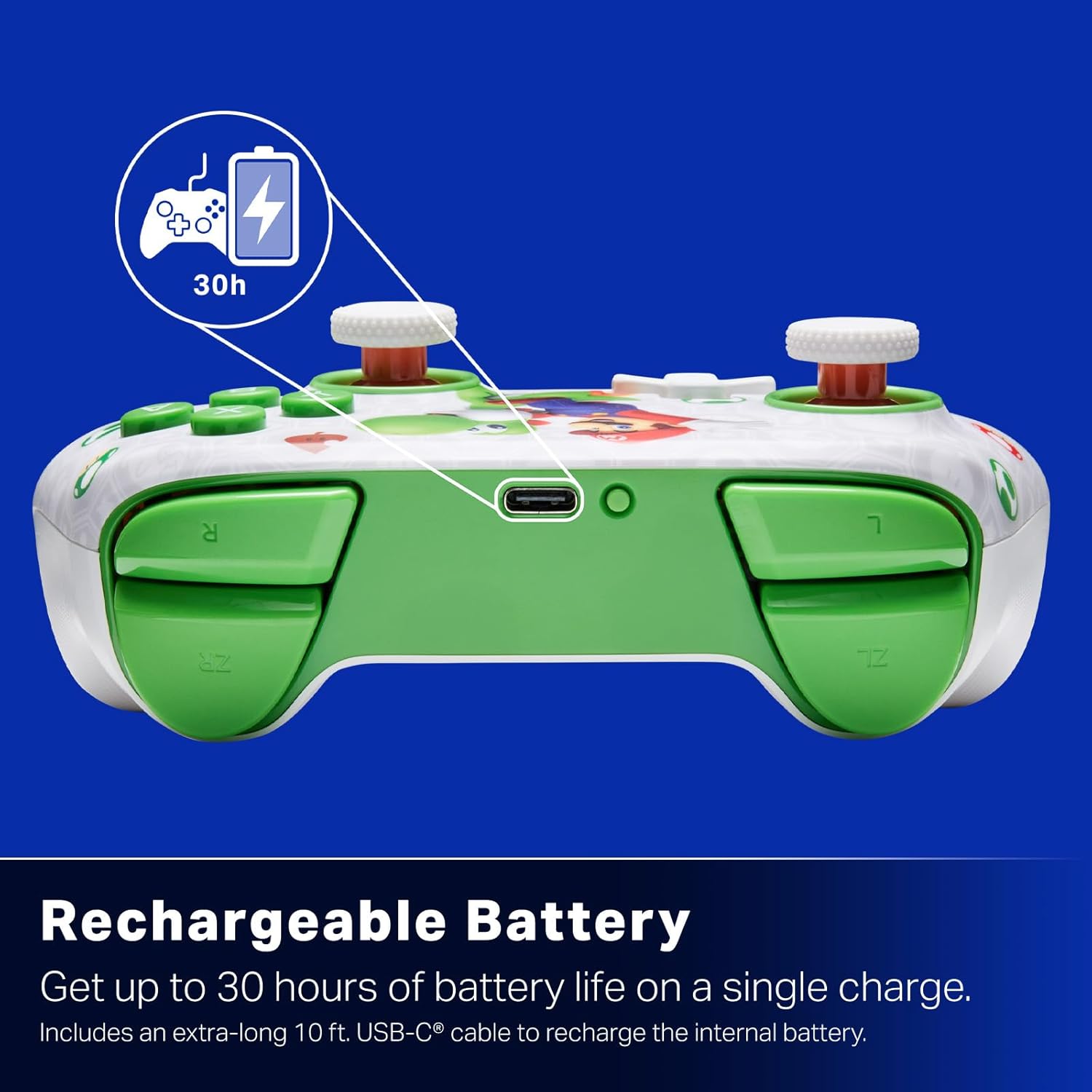
Baturi Mai Caji: Offers up to 30 hours of gameplay on a single charge. Includes a 10 ft. (3m) USB-C cable for recharging.
Tsarin Ergonomic: Crafted for comfort during extended gaming sessions, utilizing cutting-edge ergonomics and high-quality materials.
Nintendo Family Compatibility: Compatible with Nintendo Switch 2, Nintendo Switch, Nintendo Switch – OLED Model, and Nintendo Switch Lite.
An Ba da Lasisi a hukumance: PowerA products undergo rigorous testing by Nintendo to ensure compatibility and quality.
Saita Umarnin
1. Cajin Farko
Before first use, fully charge your PowerA Advantage Wireless Controller. Connect the included 10 ft. (3m) USB-C cable to the controller's USB-C port and the other end to a powered USB port on your Nintendo Switch dock or a USB wall adapter.
Figure 1: Controller connected via USB-C for charging, highlighting the rechargeable battery feature.
2. Haɗa tare da Nintendo Switch
Tabbatar cewa na'urar wasan bidiyo ta Nintendo Switch tana kunne kuma an sabunta ta zuwa sabuwar manhajar tsarin.
Daga cikin HOME Menu, zaɓi Masu sarrafawa, sannan Canja Riko/Oda.
On the PowerA Advantage Wireless Controller, press and hold the Maballin SYNC located on the top edge of the controller for at least three seconds. The player indicator LEDs on the bottom of the controller will begin to flash.
Once the controller successfully pairs, the player indicator LED(s) corresponding to the controller number will remain lit.
Danna maɓallin A Button to confirm and exit the pairing screen.
For subsequent uses, simply press the HOME button on the controller to wake it up and automatically reconnect to your Switch console.
Umarnin Aiki
Abubuwan Gudanarwa na asali
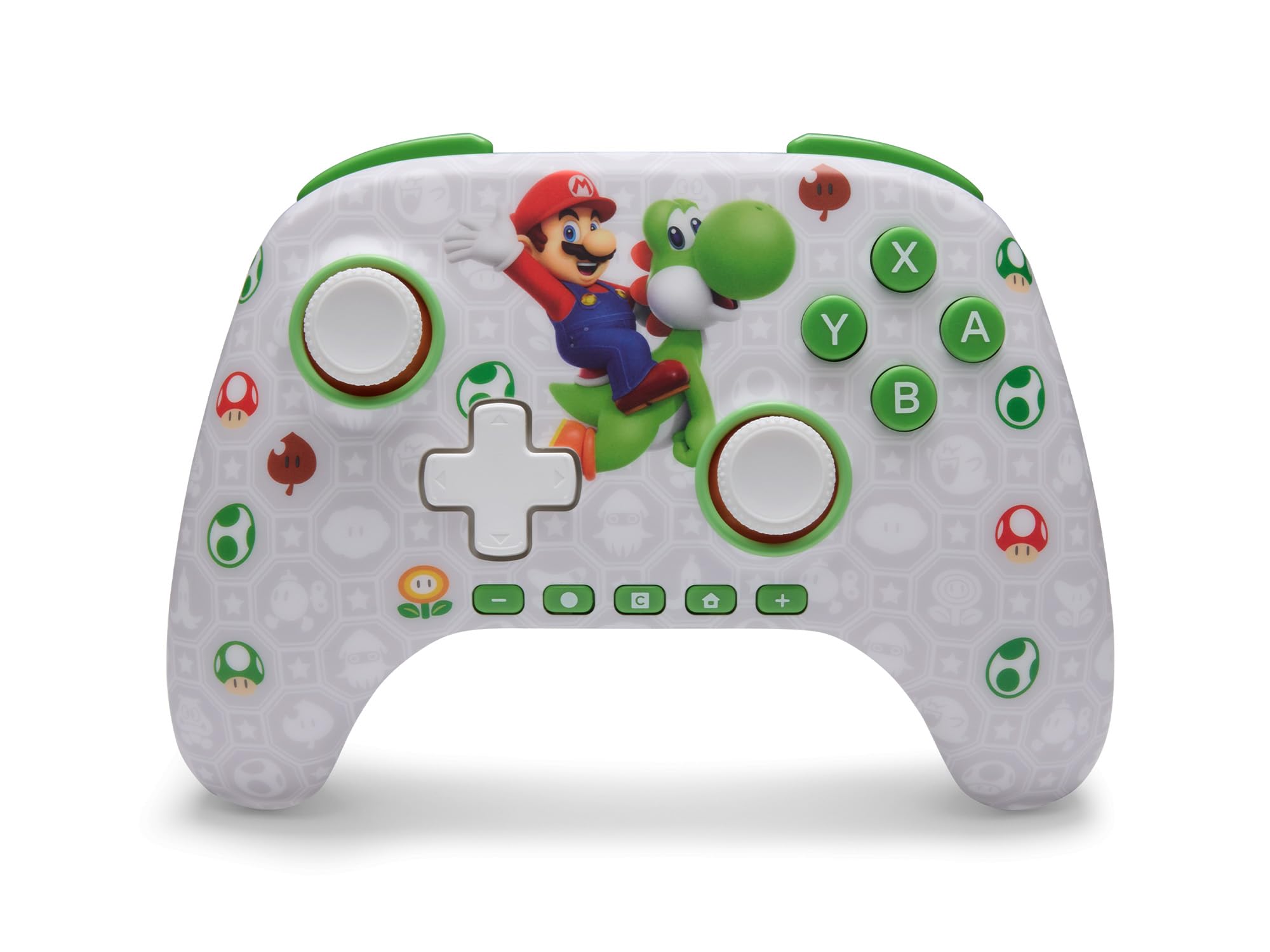
PowerA Advantage Wireless Controller features standard Nintendo Switch button layouts, including A, B, X, Y buttons, L/R and ZL/ZR shoulder buttons, a D-pad, and dual analog sticks. Familiarize yourself with these controls for general gameplay.
Hoto 2: Gaba view of the PowerA Advantage Wireless Controller, highlighting the Mario and Yoshi design and button layout.
Advanced Gaming Buttons (AGB)
The controller includes two mappable Advanced Gaming Buttons (AGR and AGL) on the back. These buttons can be assigned to replicate any other button on the controller for quick access during gameplay.
Danna maɓallin Program Button (PRGM) on the back of the controller. The Program LED will flash.
Danna maɓallin Advanced Gaming Button (AGR or AGL) you wish to map. The Program LED will flash rapidly.
Danna maɓallin maballin you want to assign to the Advanced Gaming Button (e.g., A, B, X, Y, L, R, ZL, ZR, D-pad directions). The Program LED will stop flashing, indicating successful mapping.
To clear a mapped button, repeat steps 1-2, then press the Maballin Shirin sake.
Figure 3: Advanced Gaming Buttons (AGB) on the back of the controller, with an illustration of mappable functions.
Gudanar da Motsi
The controller supports motion controls, allowing for intuitive interaction in compatible games. These controls are automatically enabled when supported by the game.
Figure 4: Controller demonstrating motion control capabilities through tilting.
C Button (GameChat)
The dedicated C Button provides quick access to GameChat features in supported titles, enhancing your multiplayer experience.
Figure 5: The 'C' button, used for GameChat features.
Kulawa
Tsaftacewa: Yi amfani da laushi, bushe bushe don tsaftace mai sarrafawa. Ka guji yin amfani da sinadarai masu tsauri ko kayan shafa.
Ajiya: Ajiye mai sarrafawa a wuri mai sanyi, busasshiyar nesa da hasken rana kai tsaye da matsanancin zafi.
Kulawar Baturi: Don tsawaita rayuwar baturi, kauce wa cikakken cajin mai sarrafawa akai-akai. Yi cajin shi akai-akai, ko da ba a cikin amfani akai-akai ba.
Kulawar Kebul: Handle the USB-C charging cable with care. Avoid bending or twisting it excessively.
Shirya matsala
Mai Kulawa Ba Ya Haɗawa/Haɗawa
Tabbatar da cikakken cajin mai sarrafawa.
Verify the Nintendo Switch console is updated to the latest system software.
Repeat the pairing process (see "Pairing with Nintendo Switch" in Setup Instructions).
If issues persist, try restarting both the controller and the Nintendo Switch console.
Stick Drift
PowerA Advantage Controller features Hall Effect modules designed to prevent stick drift. If you experience any unintended input, ensure the controller's firmware is up to date (check PowerA's official website don sabuntawa).
Recalibrate the joysticks through the Nintendo Switch system settings if necessary (System Settings > Controllers and Sensors > Calibrate Control Sticks).
Short Life Life
Ensure the controller is fully charged before each use.
Battery life can vary based on game usage and features enabled.
Use the provided USB-C cable for optimal charging.
Ƙayyadaddun bayanai
Siffar
Daki-daki
Lambar Samfura
NSGP0569-01V
Haɗuwa
Wireless (Bluetooth), USB-C (for charging)
Na'urori masu jituwa
Nintendo Switch 2, Nintendo Switch, Nintendo Switch – OLED Model, Nintendo Switch Lite
Rayuwar Baturi
Har zuwa awanni 30 (ya bambanta da amfani)
Tsawon Kebul
10 ft. (3m) USB-C
Girma
5.88 x 4.21 x 2.36 inci
Nauyi
0.66 fam
Siffofin Musamman
Hall Effect Thumbsticks, Mappable Advanced Gaming Buttons, Motion Controls, C Button
Garanti da Taimako
PowerA Advantage Wireless Controller comes with a Iyakar garantin mai shekara biyu. For detailed warranty information, product support, or to register your product, please visit the official PowerA websaiti a PowerA.com/Support.
Figure 6: Official Nintendo Licensed Product badge, ensuring quality and compatibility.
Ask a question about this manual
Ask about setup, troubleshooting, compatibility, parts, safety, or missing instructions. Manuals+ will review the question and use this page’s manual context to help answer it.