1. Gabatarwa
The Socket Communications Bluetooth Connection Kit provides a seamless, cable-free link between your Pocket PC or Windows notebook and a Bluetooth-enabled mobile phone. This kit enables wireless Internet access, email exchange, faxing, and access to your company network by using your phone as a modem. It also supports ActiveSync between your Pocket PC and notebook, and allows for easy dialing of contacts directly from your Windows CE device.
Babban fasali sun haɗa da:
- Fully integrated antenna design that maintains the compact size and look of your Pocket PC, reducing the risk of damage.
- Compatibility with standard Windows CE dial-up networking (DUN) software for initiating data calls.
- Support for various Bluetooth Profiles in Windows CE, including General Access, Service Discovery, Serial Port, Dial-up Networking, LAN (via PPP), Fax, Generic Object Exchange, Object Push, and File Canja wurin
- Energy-efficient design to minimize battery consumption of your Pocket PC.
- Integration with Socket's Dialer software for convenient contact dialing.
- Ability to print to Bluetooth-enabled printers with compatible software.
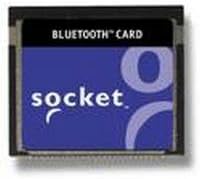
This image displays the Socket Communications Bluetooth Card, highlighting its compact form factor designed to fit seamlessly into compatible devices without protruding.
2. Jagorar Saita
Follow these steps to set up your Socket Communications Bluetooth Connection Kit:
2.1. Tsarin Bukatun
Ensure your device meets the following software requirements:
- Windows CE 3.0 for Pocket PC 2000
- Pocket PC 2002
- Handheld PC 2000
- Windows CE v2.11 computers and greater
2.2. Inserting the CompactFlash Card
Carefully insert the Socket Compact Card with Bluetooth Wireless Technology into the CompactFlash slot of your Pocket PC or Windows notebook. Ensure it is fully seated.
2.3. Running the Setup Wizard
Once the card is inserted, the "Get Connected! Setup wizard" should automatically launch. Follow the on-screen prompts to install the necessary drivers and software. If the wizard does not launch automatically, navigate to the card's directory and run the setup executable manually.
2.4. Compatible Mobile Phones
The following mobile phones have been tested and are compatible with the Kit for wireless Internet access and data communication:
- Ericsson: R520, T39, T68
- Motorola: 270C
- Nokia: 3650, 6210, 6310, 6310i, 7650, 8910, 8910i
- NTT DoCoMo: PALDIO 633S
- Sony: C413S
3. Umarnin Aiki
This section details how to use your Bluetooth Connection Kit for various functions.
3.1. Wireless Internet Access (Dial-up Networking)
To establish a wireless Internet connection using your mobile phone as a modem:
- Ensure your Bluetooth-enabled mobile phone is paired with your Pocket PC or notebook.
- Use the standard Windows CE dial-up networking (DUN) software on your device.
- Select your paired Bluetooth phone as the modem.
- Initiate the data call as you would with a traditional modem connection.
3.2. Using Socket's Dialer Software
The Socket Windows CE Dialer software allows you to make calls directly from your device:
- Open the Socket Dialer application on your Pocket PC.
- Browse your contacts.
- Simply tap on any contact, and your Windows CE device will instruct your Bluetooth-enabled phone to dial the number.
3.3. Supported Bluetooth Profiles
The kit supports the following Bluetooth profiles in Windows CE:
- General Access Profile (GAP)
- Aikace-aikacen Gano Sabis Profile (SDAP)
- Serial Port Profile (SPP)
- Dial-up Networking Profile (DUN)
- LAN Access Profile (LAP) via PPP
- Fax Profile (FAX)
- Generic Object Exchange Profile (GOEP)
- Object Push Profile (OPP)
- File Canja wurin Profile (FTP)
3.4. Printing to Bluetooth Printers
With the Bluetooth Connection Kit and compatible software like PrintPocketCE, you can print documents wirelessly to a Bluetooth-enabled printer.
4. Kulawa
To ensure the longevity and optimal performance of your Socket Communications Bluetooth Connection Kit, follow these general maintenance guidelines:
- Ka bushe: Avoid exposing the card to moisture or liquids. If it gets wet, power off your device immediately and allow the card to dry completely before reinserting.
- Tsaftace a hankali: Use a soft, dry, lint-free cloth to clean the exterior of the card. Do not use harsh chemicals, cleaning solvents, or strong detergents.
- Gudanar da Kulawa: The card is designed to be robust, but avoid dropping it or subjecting it to strong impacts. When inserting or removing, apply gentle, even pressure.
- Ajiya: When not in use, store the card in a cool, dry place, ideally in its original packaging or a protective case to prevent dust and physical damage.
- Sabunta software: Periodically check the Socket Mobile website for any available software or driver updates for your Bluetooth Connection Kit to ensure compatibility and performance improvements.
5. Shirya matsala
If you encounter issues with your Bluetooth Connection Kit, refer to the following common troubleshooting steps:
5.1. Matsalolin haɗi
If the device does not connect or frequently disconnects:
- Ensure both the Bluetooth card and the paired phone are powered on and within range.
- Verify that Bluetooth is enabled on both devices.
- Try resetting your Pocket PC or notebook. Some users have reported that resetting the device resolves connection issues.
- Re-pair the Bluetooth connection between your Pocket PC/notebook and your mobile phone.
- Check for any obstructions or interference between the devices.
5.2. Software or Driver Problems
If the card is not recognized or functions incorrectly:
- Ensure the "Get Connected! Setup wizard" was run successfully and all drivers are installed.
- Verify that your operating system (Windows CE version) is compatible with the kit.
- Reinstall the Socket software and drivers.
- Check the device manager on your Pocket PC/notebook for any error indicators related to the Bluetooth adapter.
5.3. Slow Data Speeds
While the kit provides wireless convenience, data speeds may vary:
- Ensure you have a strong signal from your mobile phone provider.
- Minimize other background applications or network activity on your device.
- Confirm that your mobile phone's data plan supports the desired speeds.
Don ƙarin cikakkun bayanai game da matsala, da fatan za a koma ga hukuma Littafin Mai Amfani (PDF).
6. Ƙayyadaddun bayanai
| Siffar | Daki-daki |
|---|---|
| Girman samfur | 2.18 x 13 x 1.69 inci |
| Nauyin Abu | 7.2 oz |
| ASIN | B00005RZP2 |
| Lambar Samfurin Abu | BL4508-309 |
| Kwanan Wata Farko Akwai | Oktoba 29, 2001 |
| Mai ƙira | Socket Communications, Inc. |
| Alamar | Socket Mobile |
| Interirƙirar Abun Taɗi | Bluetooth |
| Data Link Protocol | Bluetooth |
| UPC | 758497045089 |
7. Garanti da Tallafawa
For information regarding product warranty, please refer to the documentation included with your purchase or visit the official Socket Mobile website. Socket Mobile provides customer support for their products.
Jagoran Mai Amfani: A comprehensive user manual in PDF format is available for download. It contains detailed instructions, diagrams, and advanced troubleshooting tips.
Download the User Manual here: Socket Communications Bluetooth Connection Kit User Manual (PDF)
For further assistance, please contact Socket Mobile customer support through their official channels.


