1. Samfurin Ya Ƙareview
The D-Link DIR-655 Xtreme N Gigabit Router is an IEEE 802.11n (draft) compliant device designed to deliver faster speeds and extended range compared to IEEE 802.11g, while maintaining backward compatibility with IEEE 802.11g and IEEE 802.11b devices. This router enables high-speed internet access for multiple computers, game consoles, and media players when connected to a cable or DSL modem. It facilitates the creation of a secure wireless network for sharing photos, files, music, videos, printers, and network storage.
2. Jagorar Saita
Follow these steps to set up your D-Link DIR-655 Xtreme N Wireless Router:
2.1. Cire kaya da Sanyawa
- A hankali cire duk abubuwa daga marufi.
- Place the router in a central location in your home or office for optimal wireless coverage. Avoid placing it near large metal objects, concrete walls, or devices that emit radio frequency interference (e.g., microwave ovens, cordless phones).
- Ensure proper ventilation around the router.
2.2. Hadin kayan masarufi
- Haɗa Eriyas: Attach the three external antennas to the connectors on the back of the router. Ensure they are securely tightened.
- Haɗa zuwa Modem:
- Power off your cable or DSL modem.
- Connect one end of an Ethernet cable to the Internet (WAN) port on the back of the DIR-655 router.
- Connect the other end of this Ethernet cable to the Ethernet port on your cable or DSL modem.
- Kunna modem ɗin ku kuma jira fitilun mai nuna alama su daidaita (yawanci yana nuna haɗin intanet mai aiki).
- Haɗa Ikon: Plug the power adapter into the power port (12V===2A) on the back of the router, then plug the other end into a wall outlet or power strip. The power LED on the front of the router should illuminate.
- Connect Devices (Optional Wired): For wired connections, connect Ethernet cables from your computers or other network devices to any of the four LAN ports (1-4) on the back of the router.
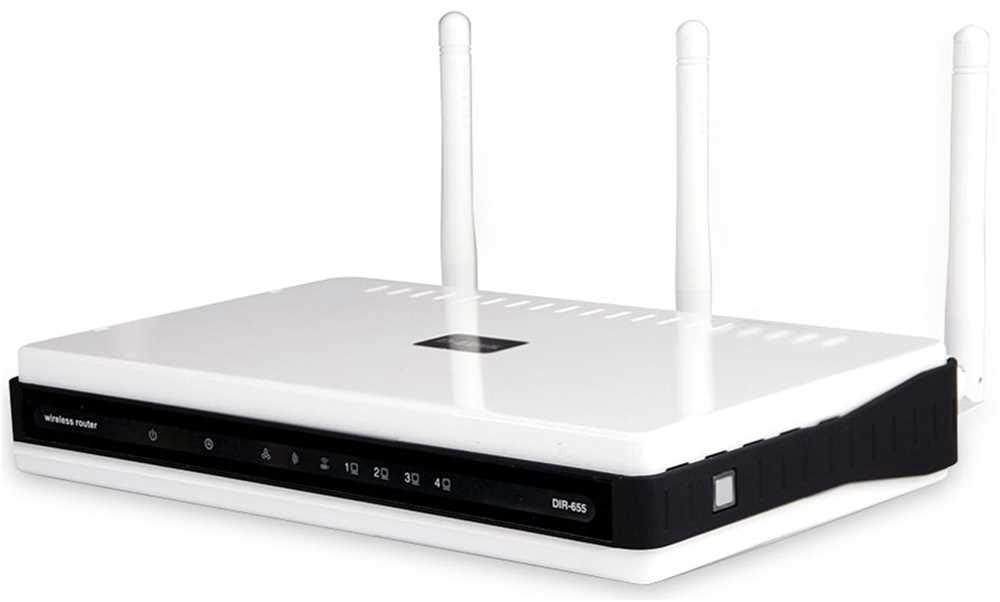
Hoto 1: Na baya view of the D-Link DIR-655 router, highlighting the LAN, Internet, USB, Reset, and Power ports, along with the three external antennas.

Hoto 2: Gaba view of the D-Link DIR-655 router, displaying the D-Link logo and various status indicator lights.
2.3. Initial Configuration (Wireless)
To connect wirelessly and configure your router:
- Nemo Sunan Cibiyar Sadarwa (SSID): Look for the Wi-Fi network name (SSID) printed on a label on the bottom or back of your router.
- Haɗa zuwa Wi-Fi: On your computer or mobile device, search for available Wi-Fi networks and select the SSID of your D-Link DIR-655.
- Shigar da kalmar wucewa: Enter the Wi-Fi password (also known as the network key or passphrase) found on the same label as the SSID.
- Shiga Interface: Bude a web browser da rubuta
http://dlinkrouter.localor192.168.0.1(default IP address) into the address bar. - Shiga: Shigar da tsoho sunan mai amfani (yawanci
admin) and password (often blank oradmin). Refer to your router's label for default login credentials. - Gudun Mayen Saita: Follow the on-screen instructions of the D-Link setup wizard to configure your internet connection and personalize your Wi-Fi network name and password.
3. Umarnin Aiki
The D-Link DIR-655 is designed for high-performance wireless networking:
- Wireless N Technology: Utilizes IEEE 802.11n (draft) for enhanced speed and range, ideal for streaming HD video, online gaming, and large file canja wuri.
- Gigabit Ethernet Ports: Four LAN ports provide 10x faster wired connections than standard Ethernet, ensuring high-speed data transfer for connected devices.
- Tallafin Dual-Band: The router supports dual-band operation, allowing for flexible network configurations and reduced interference.
- Eriya da yawa: Three external antennas help to optimize wireless signal strength and coverage throughout your home or office.
- USB SharePort: The USB port allows you to connect a USB storage device or printer and share it across your network.
4. Kulawa
To ensure optimal performance and longevity of your router:
- Sabunta Firmware: Bincika tallafin D-Link akai-akai webshafin don sabunta firmware. Ana ɗaukaka firmware na iya haɓaka aiki, ƙara sabbin abubuwa, da gyara raunin tsaro.
- Tsaftace Jiki: Keep the router clean and free from dust. Use a soft, dry cloth to wipe the exterior. Ensure ventilation holes are not blocked.
- Sake farawa lokaci-lokaci: Restarting your router every few weeks can help clear its memory and resolve minor network issues, improving overall performance.
- Amintaccen Wuri: Ensure the router is placed in a secure location where it won't be easily knocked over or exposed to extreme temperatures or moisture.
5. Shirya matsala
If you encounter issues with your D-Link DIR-655 router, try these common troubleshooting steps:
- Babu Haɗin Intanet:
- Check all cable connections (power, Ethernet to modem, Ethernet to devices).
- Sake kunna modem ɗin ku, sannan na'ura mai ba da hanya tsakanin hanyoyin sadarwa, sannan na'urorin haɗin ku.
- Tabbatar cewa haɗin yanar gizon ku (ISP) yana aiki.
- Slow Wireless Gudun:
- Tabbatar cewa na'urorinka suna cikin mafi kyawun kewayon na'urar sadarwa.
- Rage tsangwama daga wasu na'urorin lantarki.
- Consider changing your Wi-Fi channel in the router settings to avoid congestion.
- Sabunta direbobin mara waya na na'urarka.
- Ba za a iya isa ga saitunan na'ura mai ba da hanya ba:
- Tabbatar cewa an haɗa na'urarka zuwa cibiyar sadarwar mai ba da hanya tsakanin hanyoyin sadarwa (mai waya ko mara waya).
- Try using the default IP address
192.168.0.1orhttp://dlinkrouter.local. - Share cache na burauzan ku da kukis, ko gwada wani burauza na daban.
- If you forgot your password, perform a factory reset (see below).
- Sake saiti: To restore the router to its factory default settings, locate the "Reset" button on the back of the router. With the router powered on, use a paperclip or similar pointed object to press and hold the reset button for about 10 seconds. Release the button and wait for the router to restart. Lura: This will erase all custom settings, including your Wi-Fi name and password.
6. Ƙayyadaddun bayanai
| Siffar | Daki-daki |
|---|---|
| Sunan Samfura | BA-655 |
| Nau'in Mara waya | 802.11n |
| Alamar | D-Link |
| Lambar Samfurin Abu | DIR-655/E |
| Tsarin Aiki | ZyNOS |
| Nauyin Abu | 2.65 oz (75 Grams) |
| Girman samfur | 47.44 x 77.95 x 12.6 inci |
| Voltage | 110 Volts |
| Siffa ta Musamman | WPS |
| Ajin Mitar Maɗaukaki | Dual-Band |
| Tsarin Sadarwa mara waya | 802.11n |
| Na'urori masu jituwa | Gaming Console, Printer |
| Shawarwari Amfani | Kasuwanci, Wasa, Gida |
| Fasahar Haɗuwa | Ethernet |
| Nau'in Antenna | Kafaffen |
7. Garanti da Tallafawa
For detailed warranty information and technical support, please refer to the official D-Link website or the documentation included with your product. You can also visit the D-Link support portal for FAQs, firmware downloads, and contact options.
Taimako kan layi: www.dlink.com/support


