Gabatarwa
The TASCAM MiNiSTUDIO Personal US-32 is a desktop online broadcast studio designed for podcasters, gamers, and online broadcasters. It features a professional-quality audio interface and real-time effects to enhance your audio productions.
This manual provides instructions for setting up, operating, and maintaining your US-32 MiniStudio, along with troubleshooting tips and product specifications.
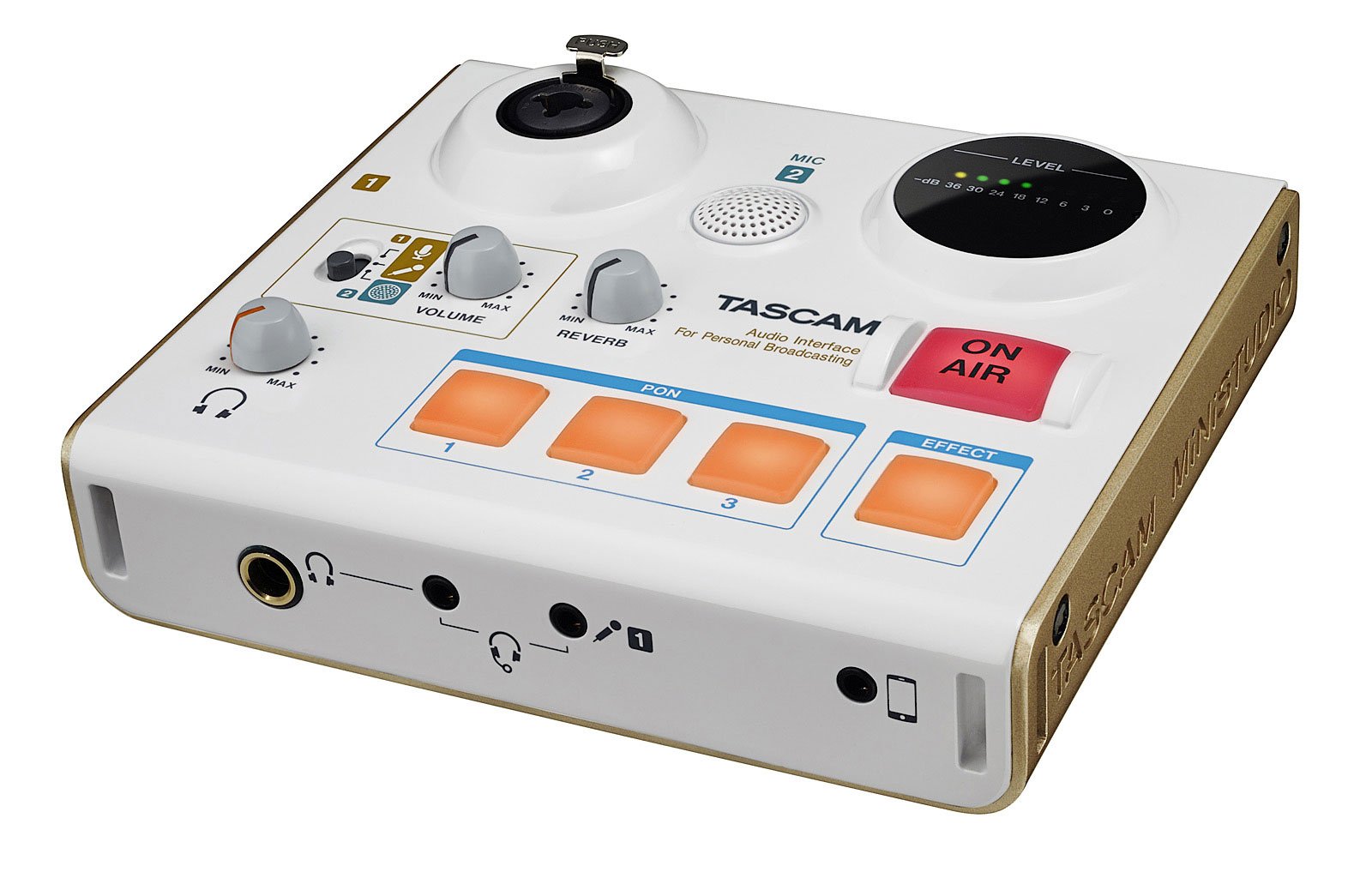
Hoto na 1: The Tascam US-32 MiniStudio USB Podcasting Broadcast Audio Interface. This image provides a general overview na na'urar.
Saita
Abubuwan Kunshin
Tabbatar cewa duk abubuwan da aka gyara suna nan:
- Tascam US-32 MiniStudio Unit
- Kebul na USB
- Jagorar mai amfani (wannan takaddar)
Haɗa Na'urar
The US-32 MiniStudio connects to your computer via a USB 2.0 cable. It can be powered by the USB bus or an optional 5V DC adapter for tablet use.
- Connect the USB cable from the US-32 MiniStudio to an available USB port on your computer.
- If using with a tablet or requiring external power, connect a 5V DC power adapter (not included) to the "DC IN 5V" port.
- Ensure the POWER switch on the rear panel is in the "ON" position.

Hoto na 2: Rear panel connections of the Tascam US-32 MiniStudio. This image displays the power switch, USB 2.0 port for computer connection, and the DC IN 5V port for external power, typically used with tablets.
Shigar da Software
Before using the US-32 MiniStudio, install the necessary drivers and control software from the official Tascam website. The device supports ASIO/WDM for Windows and Core Audio for Mac.
- Visit the official Tascam support website.
- Locate the drivers and control software for the US-32 MiniStudio.
- Download and run the installer, following the on-screen instructions.
- Sake kunna kwamfutarka idan an sa.
Umarnin Aiki
Microphone Input Options
The US-32 MiniStudio offers versatile microphone input options:
- XLR/TRS Input Jack: For professional microphones, with switchable +48V phantom power for condenser microphones.
- Built-in Condenser Mic: For convenient, immediate use without external microphones.
- 4-pole Mini-jack: For connecting earphone/microphone headsets.
Ensure appropriate input gain is set using the dedicated knob to achieve optimal audio levels without distortion.
PON Sound Effect Buttons
The three assignable PON buttons allow for instant playback of sound effects. The unit comes with pre-loaded effects like bell, buzzer, and applause. You can also customize these buttons with your own .wav or .mp3 audio files using the control software.
- Open the US-32 MiniStudio control software on your computer.
- Navigate to the PON button assignment section.
- Double-click on a button in the software interface to select an audio file (.wav or .mp3) from your computer.
- Once assigned, press the physical PON button on the unit to trigger the sound effect during your broadcast.
Real-time Voice Effects
The US-32 MiniStudio includes real-time voice effects accessible via the control software. These effects can modify your voice with pitch shifts, echo, shortwave radio effects, and studio-quality reverb.
- Access voice effects through the control software.
- Adjust parameters such as pitch, echo depth, and reverb type.
- The "ducking" effect can automatically lower background music when you speak.

Hoto na 3: Front panel of the Tascam US-32 MiniStudio. This image highlights the various control knobs for input levels, the three assignable PON sound effect buttons, and the prominent ON AIR button for broadcast control.
"ON AIR" Function
The "ON AIR" button integrates your voice and effects with other audio sources from your computer, such as music or video playback. Pressing this button activates the broadcast mix.
- Ensure all audio sources (microphone, computer audio, effects) are properly configured in the control software.
- Press the "ON AIR" button to begin broadcasting your mixed audio.
Sauraron Audio
The US-32 MiniStudio provides two headphone outputs for monitoring: a 1/4" output and a 1/8" output (marked "headset"). Both outputs share a single volume control.

Hoto na 4: Tascam US-32 MiniStudio in a typical usage scenario. The device is connected to a laptop, and headphones are plugged in, demonstrating its application in a broadcasting or podcasting setup.
Kulawa
To ensure the longevity and optimal performance of your Tascam US-32 MiniStudio, follow these maintenance guidelines:
- Tsaftacewa: Yi amfani da kyalle mai laushi da busasshe don tsaftace wajen na'urar. A guji masu tsaftace kayan gogewa, masu narkewa, ko kakin zuma.
- Ajiya: Ajiye rukunin a wuri mai sanyi, busasshiyar nesa da hasken rana kai tsaye, matsananciyar zafi, da zafi mai yawa.
- Gudanarwa: Yi amfani da na'urar da kulawa. Guji jefar da shi ko sanya shi ga tasiri mai ƙarfi.
- Samun iska: Tabbatar da cewa an samar da isasshen iska a kusa da na'urar domin hana zafi sosai. Kar a toshe duk wata hanyar iska.
- Kashe Wuta: Always power off the unit and disconnect it from the power source when not in use for extended periods or during electrical storms.
Shirya matsala
If you encounter issues with your US-32 MiniStudio, refer to the following common problems and solutions:
No Sound or Low Audio Output
- Duba Haɗin kai: Ensure all cables (USB, microphone, headphones) are securely connected.
- Matakan girma: Verify that the input gain knobs on the US-32 and the master volume control are turned up. Check software volume settings on your computer.
- Tushen fatalwa: If using a condenser microphone, ensure +48V phantom power is enabled for the XLR input.
- Nau'in Makaruho: Some high-end dynamic microphones may require an external preamp for optimal gain, as the built-in preamps might not provide sufficient amplification for all models.
- Saitunan software: Confirm that the US-32 MiniStudio is selected as the default audio input/output device in your computer's sound settings and your broadcasting software.
Background Noise or Hum
- Madadin ƙasa: Try connecting the computer and US-32 to the same power outlet or using a ground loop isolator.
- Ingancin Cable: Use high-quality, shielded cables for microphones and other connections.
- Ganin Staging: Ensure input gain is set appropriately. Too high gain can ampsautin hayaniya.
- Muhalli: Minimize electrical interference from other devices (e.g., fluorescent lights, power adapters).
PON Buttons or Effects Not Working
- Software Running: The PON buttons and voice effects require the Tascam control software to be running in the background.
- Ayyuka: Verify that sound files are correctly assigned to the PON buttons within the software.
- Default Audio Device: Ensure the US-32 is set as the default audio device, as some effects may route through it.
Device Not Recognized by Computer
- Haɗin USB: Try a different USB port or USB cable.
- Direbobi: Reinstall the latest drivers from the Tascam website.
- Ƙarfi: Ensure the unit is powered on. If using external power, verify the adapter is working.
- Sake farawa: Restart your computer and the US-32 MiniStudio.
Ƙayyadaddun bayanai
| Siffar | Ƙayyadaddun bayanai |
|---|---|
| Lambar Samfura | US-32 |
| Nauyin Abu | 13.4 oz |
| Girman samfur | 5.11 x 5.9 x 1.57 inci |
| Interirƙirar Abun Taɗi | USB |
| Fasahar Haɗuwa | USB |
| Yawan Tashoshi | 4 |
| Na'urori masu jituwa | Kwamfuta ta sirri |
| Software mai goyan baya | ASIO/WDM (for Windows), Core Audio (for Mac) |
| Tsarin Aiki | Windows (and Mac via Core Audio) |
| Voltage | 48 Volts (for phantom power) |
| Baturi | Ana buƙatar batir 6 AA |
| Kwanan Wata Farko Akwai | Mayu 6, 2016 |
Note: While specifications mention "6 AA batteries required," the primary power source for the US-32 is typically USB bus power or an optional 5V DC adapter. Please refer to the official Tascam documentation for definitive power requirements.
Garanti da Taimako
For warranty information, technical support, or service inquiries, please contact Tascam customer support directly or visit their official website. Ajiye shaidar siyan ku don da'awar garanti.
Tascam Official Website: https://tascam.com/us/