1. Gabatarwa da Ƙarsheview
This manual provides essential information for the proper installation, operation, and maintenance of your COMTEC HDR360G 360-degree drive recorder. Please read this manual thoroughly before using the product to ensure safe and effective operation.

Image 1.1: The COMTEC HDR360G 360-Degree Drive Recorder unit.
2. Mabuɗin Siffofin
2.1. 360-Degree All-Direction Recording
The HDR360G records 360 degrees in all directions: front, back, left, and right. This ensures comprehensive coverage, capturing not only frontal accidents but also rear-end collisions, aggressive driving incidents, and close calls from the sides and rear.
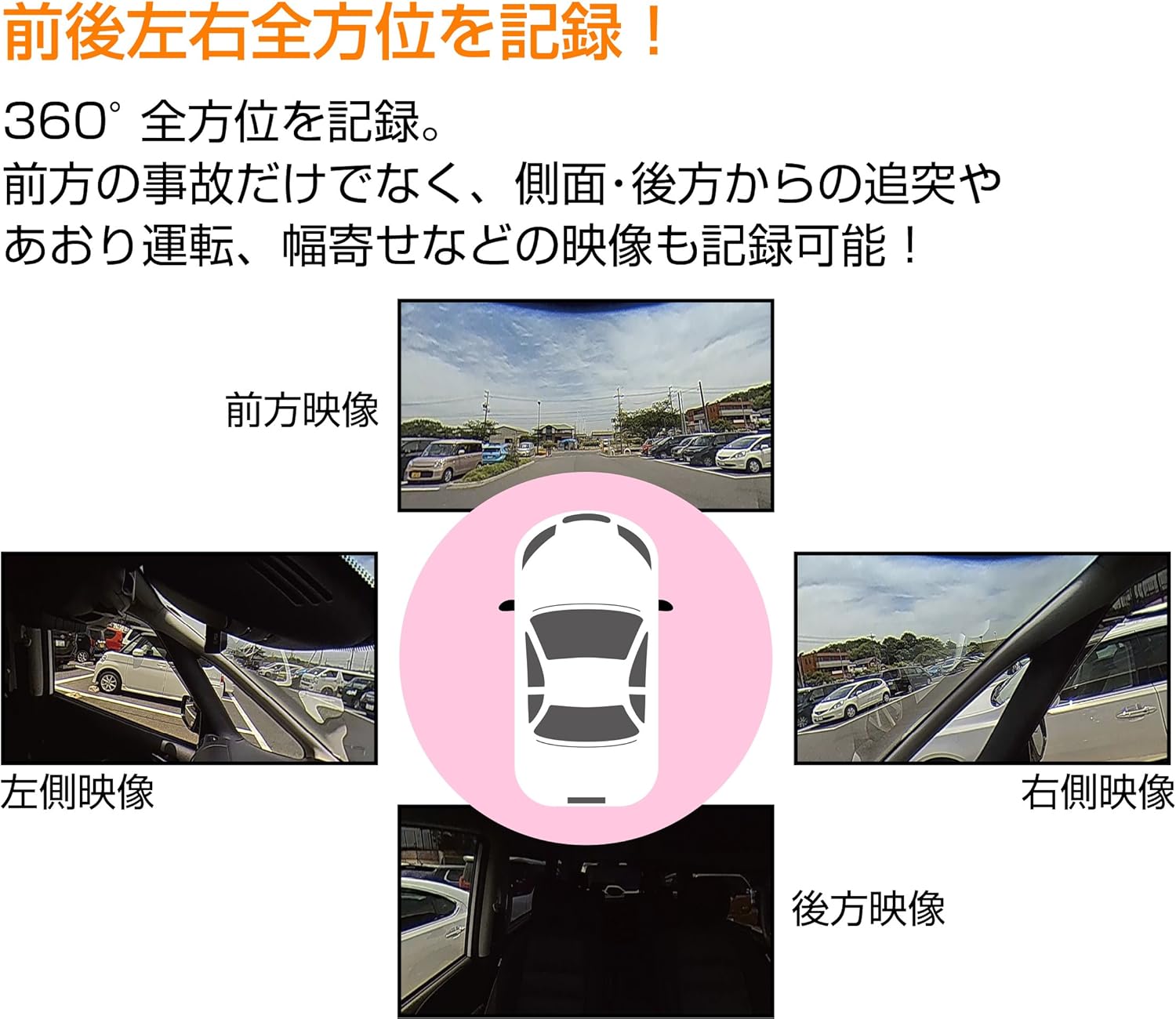
Image 2.1: Visual representation of the 360-degree recording area, covering front, left, right, and rear perspectives around the vehicle.
2.2. Wide Vertical Field of View (240°)
The device features a vertical field of view of 240 degrees, exceeding 180 degrees. This wide vertical angle ensures that traffic lights, which were often difficult to capture with conventional 360-degree drive recorders, are now clearly recorded.

Image 2.2: Diagram illustrating the 240-degree vertical field of view, highlighting its ability to capture objects high above the vehicle.
2.3. Two-Split Recording Display
The HDR360G supports a two-split recording function that displays 360-degree footage side-by-side on the device's LCD. This allows for easy checking of front, side, and rear footage directly on the unit without the need for dedicated viewya software.

Image 2.3: The dashcam's screen displaying footage in a two-split format, showing both front and side views lokaci guda.
2.4. Parking Surveillance Function
When equipped with the optional parking surveillance direct wiring cord (HDROP-14), the device continues 360-degree recording for up to 12 hours even with the engine off. It detects impacts and records footage before and after the event, protecting your vehicle while parked.
2.5. Discreet Installation
The product is designed for direct fixation to the front windshield, allowing for a discreet and clean installation that does not obstruct the driver's view.
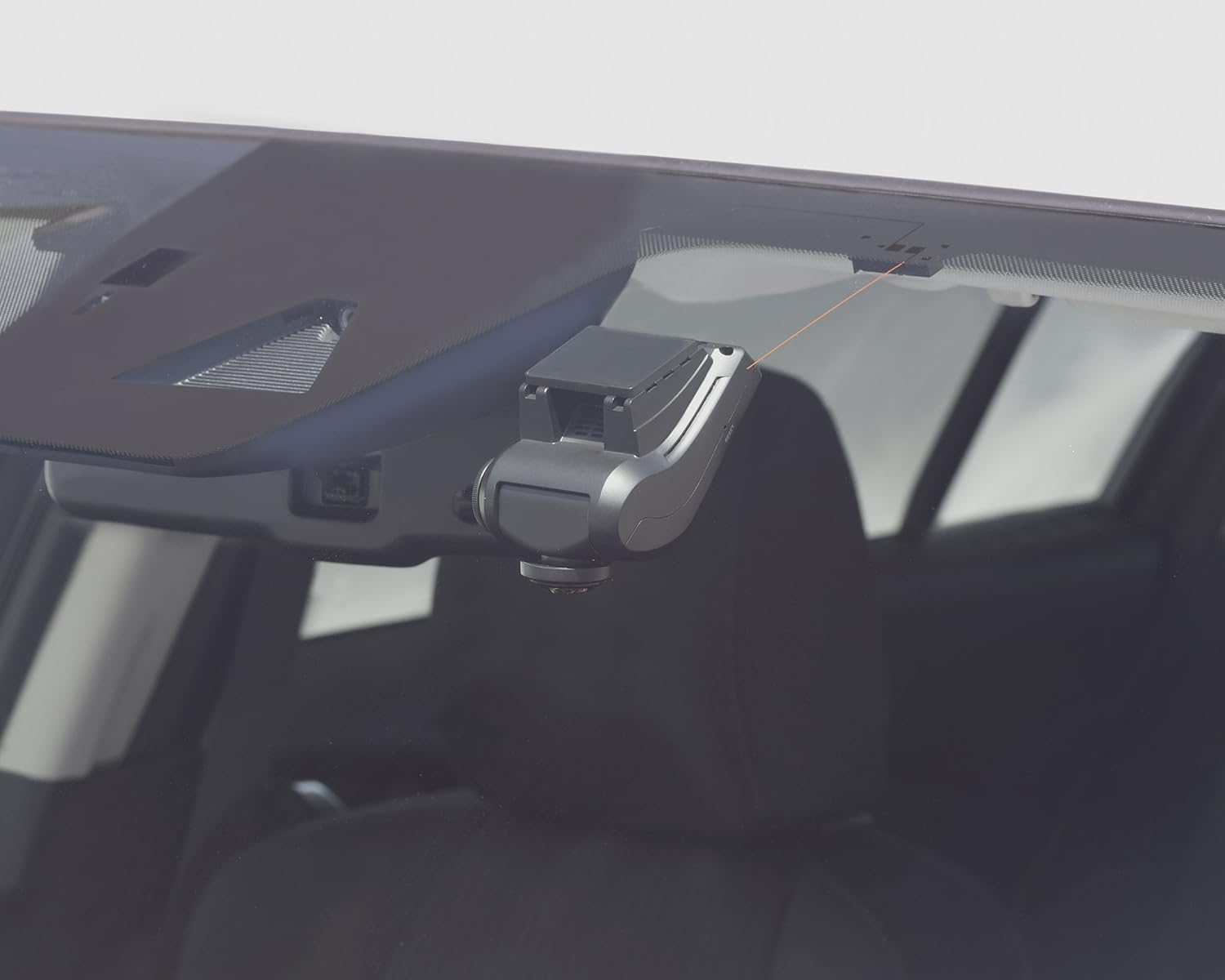
Image 2.4: The COMTEC HDR360G dashcam installed on a car's front windshield, showing its compact and unobtrusive placement.
2.6. WDR (Wide Dynamic Range)
The WDR function performs image correction to reduce whiteout and black crush, making the recording strong against backlighting conditions. This feature cannot be turned off.
2.7. LED Traffic Light Compatibility
The HDR360G records reliably even with different power frequencies used in Eastern and Western Japan, ensuring consistent performance with LED traffic lights nationwide.
2.8. Ingantattun Hangen Dare
Equipped with a large 1/2.5-inch image sensor, the device records clearer images than previous models. This larger sensor also significantly improves brightness during night recordings.
2.9. Three Recording Functions
- Constant Recording: Records footage continuously from engine ON to engine OFF. Recording duration varies based on settings and microSDHC card capacity. Older files are automatically overwritten when the card is full.
- Impact Recording: When the built-in G-sensor detects an impact, the device automatically saves the footage as impact recording data. This data is protected from being overwritten by constant recording.
- Rikodin da hannu: Pressing a dedicated switch allows you to record footage at any desired moment. This footage is also saved as manual recording data and protected from overwriting.
2.10. Safety Functions for Recorded Footage
- Aikin Ajiyayyen: In case of power loss due to an accident, the built-in supercapacitor prevents file corruption and protects the recorded footage.
- SD Card Check Function: The device checks the microSDHC card at startup. If the card is damaged, an abnormality is displayed on the LCD, preventing missed recordings due to faulty storage.
2.11. Ayyukan GPS
Equipped with GPS, the HDR360G records your vehicle's driving speed and location information along with the video data. Date and time information is automatically corrected by GPS, eliminating the need for manual settings.
2.12. Dedicated Viewda Software
The included microSDHC card contains dedicated viewer software. This software allows you to review recorded data on your computer, including video, audio, and G-sensor information. With GPS, you can also display your vehicle's driving trajectory on Google Maps and check driving speed. Recorded data can be converted to video or still images and saved to your computer. Footage recorded with round settings can be viewed in three patterns (Round, 16:9, Panorama) using the viewya software.
3. Saita
3.1. Abubuwan Kunshin
Kafin shigarwa, tabbatar da duk abubuwan da aka haɗa:
- HDR360G Main Unit
- Hawan Dutsen
- Cigar Plug Power Cable (for 12V/24V vehicles)
- Dedicated microSDHC Card (16GB, Class 10)
- Jagorar mai amfani (wannan takaddar)
3.2. Wurin Shigarwa
Install the main unit directly onto the front windshield, ensuring it does not obstruct the driver's view or interfere with airbags. Choose a location that allows for a clear view of the road and easy access to controls.
3.3. Haɗin Wuta
Connect the cigar plug power cable to your vehicle's cigar lighter socket. Ensure the cable is routed safely and does not interfere with driving. For parking surveillance, the optional direct wiring cord (HDROP-14) is required and should be installed by a qualified technician.
3.4. microSDHC Card Insertion
Insert the dedicated microSDHC card into the card slot on the main unit. Ensure it is inserted correctly until it clicks into place.
4. Umarnin Aiki
4.1. Farawa na farko
Once connected to power and the engine is started, the device will automatically power on and begin constant recording. The LCD will display the current view and recording status.
4.2. Kewayawa Menu
Use the buttons on the device (MENU, OK, UP, DOWN) to navigate through settings and playback options. Refer to the on-screen prompts for specific functions.
4.3. Playback on Device
In the menu, select 'Playback' to review rubuce footage. You can switch between different recording modes (constant, impact, manual) and view the two-split display.
4.4. Manual Recording
Press the designated manual recording button to instantly save a segment of footage as manual recording data.
4.5. Parking Surveillance Activation
If the optional parking surveillance direct wiring cord is installed, the parking surveillance mode will activate automatically when the engine is turned off. The device will monitor for impacts and record accordingly.
5. Kulawa
5.1. microSDHC Card Management
Regularly format the microSDHC card to maintain optimal recording performance and prevent data corruption. Formatting can be done through the device's menu. It is recommended to format the card at least once a month.
5.2. Cleaning the Lens and Unit
Gently wipe the camera lens and the main unit with a soft, dry cloth. Avoid using abrasive cleaners or solvents, as they may damage the device.
5.3. Sabuntawar Firmware
Check the COMTEC official website periodically for firmware updates. Keeping your device's firmware up-to-date ensures the best performance and access to new features.
6. Shirya matsala
6.1. Device Does Not Power On
- Check if the power cable is securely connected to both the device and the vehicle's power source.
- Ensure the vehicle's power source (e.g., cigar lighter socket) is functioning correctly.
6.2. Recording Issues / SD Card Error
- If an SD card error message appears, try formatting the microSDHC card through the device's menu.
- If formatting does not resolve the issue, the microSDHC card may be damaged and require replacement. Use a Class 10 microSDHC card (8GB to 32GB recommended).
- Ensure the microSDHC card is inserted correctly.
6.3. GPS Not Receiving Signal
- Tabbatar cewa na'urar tana da bayyananne view of the sky, away from obstructions like metal tinting or other electronic devices that might interfere with the signal.
- It may take a few minutes for the GPS to acquire a signal after startup, especially in new locations.
6.4. Poor Image Quality at Night
- Ensure the windshield area in front of the camera lens is clean and free from dirt or smudges.
- While the device has enhanced night vision, extreme low-light conditions may still affect clarity.
7. Ƙayyadaddun bayanai
| Mai Saiti Kamara | 1/2.5 inch Sensor CMOS |
| Pixels masu inganci | Max 3.4 Million Pixels |
| Lens Angle (Horizontal) | 360° |
| Lens Angle (Vertical) | 240° |
| F-Value | 1.8 |
| Kayan Lens | Gilashin |
| Ƙarfi Voltage | DC12V/24V |
| Max Yawan Amfani | Normal: Under 400mA / Supercapacitor Charging: Under 900mA |
| Yanayin Aiki | -10 ° C zuwa 60 ° C |
| Matsakaicin Tsari | 29.1fps (LED signal compatible) |
| GPS | Ee |
| Mai rikodin rikodi | microSDHC card (8GB-32GB, Class 10 recommended) |
| G-Sensor | Yes (0.1G to 1.0G adjustable in 0.1G increments) |
| Girman LCD | 2.4 inci |
| Body Size (W x H x D) | 66mm x 110mm x 52mm |
| Nauyi | 146 g |
| Ƙimar Rikodi | 1856x1856 (Round setting) |
7.1. Approximate Recording Times (16GB microSDHC card)
- Round Setting: Approximately 90 minutes
- Two-Split Setting: Approximately 100 minutes
8. Garanti da Tallafawa
8.1. Garanti na samfur
The COMTEC HDR360G comes with a 3-shekara garanti samfurin from the date of purchase. This warranty covers manufacturing defects. Consumable parts are excluded from this warranty. Please retain your proof of purchase for warranty claims.
8.2. Noise Countermeasures
This product incorporates noise countermeasures to minimize interference with digital terrestrial broadcasting reception and car navigation GPS reception (according to COMTEC standards).
8.3. Bayanin Tuntuɓi
For technical support, warranty claims, or inquiries, please refer to the contact information provided on the official COMTEC webshafin ko takaddun da aka haɗa tare da siyan ku.


