Gabatarwa
This manual provides essential instructions for setting up, operating, maintaining, and troubleshooting your Microsoft Surface Pro 2017. The Surface Pro 2017 is a versatile 2-in-1 device designed to function as both a powerful laptop and a portable tablet, offering a seamless computing experience.
Please read this manual thoroughly to ensure proper use and to maximize the lifespan of your device. Keep this manual for future reference.
Me ke cikin Akwatin
Upon unboxing your Microsoft Surface Pro 2017, verify that all components are present:
- Microsoft Surface Pro 2017 device
- Adaftar wutar AC
Note: Additional accessories such as the Surface Pen, Type Cover, or Surface Dial are sold separately and may not be included with your device.
Saita
1. Kunnawa da Caji na Farko
- Haɗa Adaftar Wuta: Plug the AC power adapter into a wall outlet and then connect the magnetic charging connector to the charging port on your Surface Pro. The LED indicator on the connector will illuminate when charging.
- Kunna Wuta: Press and hold the power button located on the top edge of the device for a few seconds until the Microsoft logo appears on the screen.
2. Saitin Windows
Follow the on-screen prompts to complete the initial Windows setup. This process typically includes:
- Zabar yankinku da yarenku.
- Haɗa zuwa cibiyar sadarwar Wi-Fi.
- Karɓar yarjejeniyar lasisi.
- Creating or signing in with a Microsoft account.
- Setting up security features like Windows Hello (facial recognition) or a PIN.
3. Haɗa zuwa Wi-Fi
- During Windows setup, you will be prompted to connect to a network. Select your desired Wi-Fi network from the list and enter the password if required.
- If you need to connect later, go to Fara > Saituna > Network & Intanet > Wi-Fi. Turn Wi-Fi on, select your network, and click Haɗa.
Umarnin Aiki
Basic Device Orientation and Controls
The Surface Pro 2017 features a 12.3-inch PixelSense display with multi-touch support. Key physical controls include:
- Maɓallin Wuta: Located on the top edge, used to turn the device on/off, sleep, or wake.
- Maɓallan ƙara: Yana nan a gefe, ana amfani da shi don daidaita ƙarar sauti.
- Kickstan: Integrated on the back, allows for multiple viewkusurwoyi.
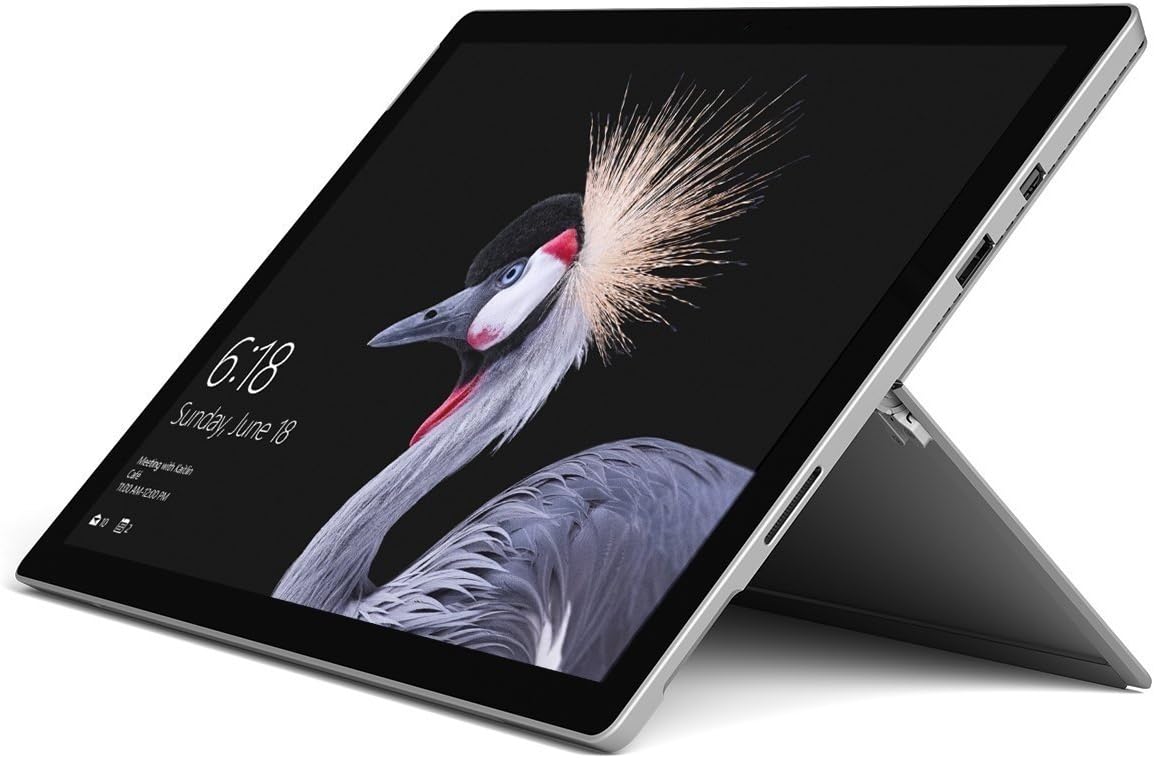
Image: Microsoft Surface Pro 2017 in laptop mode with its kickstand extended, showcasing the device's display.
Amfani da Kickstand
The integrated kickstand allows you to position your Surface Pro at various angles for comfortable viewing, typing, or drawing. Gently pull the kickstand out from the back of the device until it reaches your desired angle.
Gudanar da Wuta
- Yanayin Barci: Briefly press the power button to put the Surface Pro into sleep mode. Press it again to wake the device.
- Rufe: Je zuwa Fara > Ƙarfi > Rufewa.
- Sake farawa: Je zuwa Fara > Ƙarfi > Sake kunnawa.
Abubuwan Haɗawa
The Surface Pro 2017 includes various ports for connecting external devices:
- USB 3.0 Port: For connecting USB drives, keyboards, mice, and other compatible accessories.
- Mini DisplayPort: For connecting to external monitors or projectors.
- Mai karanta katin microSD: Don fadada ajiya ko canja wuri files daga katin ƙwaƙwalwar ajiya.
- Surface Connect Port: For power and connecting to Surface Dock accessories.
- Jackphone 3.5mm: Don fitar da sauti.
Bluetooth: To connect Bluetooth devices (e.g., headphones, mice), go to Fara > Saituna > Na'urori > Bluetooth da sauran na'urori. Ensure Bluetooth is turned on, then select "Add Bluetooth or other device" and follow the pairing instructions.

Hoto: Side profile of the Microsoft Surface Pro 2017, highlighting the various ports available for connectivity.
Kulawa
Cleaning Your Surface Pro
- Allon: Yi amfani da laushi mai laushi mara laushi dampened with water or an approved screen cleaner. Avoid harsh chemicals or abrasive materials.
- Jiki: Wipe the exterior with a soft, dry cloth. Do not allow liquids to enter openings.
- Tashoshi: Keep ports free of dust and debris. Use compressed air carefully if needed, holding the can upright.
Kula da baturi
- Guji matsanancin zafi, saboda zai iya lalata rayuwar baturi.
- For optimal battery health, avoid consistently discharging the battery completely or keeping it at 100% charge for extended periods.
- Use only the official Microsoft AC power adapter or a compatible charger.
Sabunta software
Regularly update your Windows operating system and device drivers to ensure optimal performance, security, and compatibility. Go to Fara > Saituna > Sabuntawa & Tsaro > Sabunta Windows don duba da shigar da sabuntawa.
Shirya matsala
This section addresses common issues you might encounter with your Surface Pro 2017.
Device Will Not Turn On
- Tabbatar cewa na'urar tana da caji. Haɗa adaftar wutar lantarki kuma jira 'yan mintuna kafin ƙoƙarin kunna.
- Yi kashewa ta maɓalli biyu: Danna maɓallin ƙarawa da maɓallin kunnawa a lokaci guda na akalla daƙiƙa 15, sannan ka saki duka biyun. Jira na daƙiƙa 10, sannan ka sake danna maɓallin kunnawa don kunna Surface.
Screen Not Responding to Touch
- Sake kunna na'urar.
- Tabbatar cewa allon yana da tsabta kuma ba shi da tarkace.
- Check for available Windows updates, as driver updates can resolve touch issues.
Matsalolin Haɗin Wi-Fi
- Ensure Wi-Fi is enabled in Saituna > Network & Intanet > Wi-Fi.
- Restart your Surface Pro and your Wi-Fi router.
- Forget the network and reconnect: Go to Saituna > Network & Intanet > Wi-Fi, click on your network, then Manta. Reconnect and enter the password.
Ƙayyadaddun bayanai
| Siffar | Ƙayyadaddun bayanai |
|---|---|
| Sunan Samfura | Surface Pro 2017 |
| Lambar Samfurin Abu | 7Y30 |
| Girman allo | Inci 12.3 |
| Tsarin allo | 2736 x 1824 pixels |
| Mai sarrafawa | Intel Core m3-7Y30 (1 GHz Intel_Mobile_CPU) |
| RAM | 4 GB DDR4 SDRAM |
| Adana | 128 GB SSD |
| Katin Zane | Integrated (Intel) |
| Tsarin Aiki | Windows |
| Nau'in Mara waya | 802.11abg |
| Nauyin Abu | 1.89 fam |
| Girman samfur | 11.5 x 7.9 x 0.3 inci |
| Launi | Azurfa |
Garanti da Taimako
For detailed warranty information, please refer to the warranty card included with your purchase or visit the official Microsoft support website. Warranty terms and conditions may vary based on region and retailer.
For technical support, driver downloads, and additional resources, please visit the official Microsoft Support website: support.microsoft.com/surface