1. Gabatarwa
This manual provides instructions for the safe and efficient use of your KOAMTAC KDC280CJPH 2D Imager Data Collector. Please read this manual thoroughly before operating the device and keep it for future reference.
The KDC280CJPH is a compact and powerful 2D barcode scanner and data collector, designed for various applications requiring efficient data capture. It features Bluetooth v4.1 BLE connectivity, supporting both SPP and HID profiles, and is compatible with iOS devices.
2. Bayanin Tsaro
- Kada a bijirar da na'urar zuwa matsanancin zafi, hasken rana kai tsaye, ko zafi mai zafi.
- Avoid dropping the device or subjecting it to severe impacts, although it is rated for 1.5m drops.
- Kada ka yi ƙoƙarin wargaza ko gyara na'urar. Wannan zai ɓata garantin.
- Yi amfani da igiyoyin caji da aka amince da su kawai da adafta.
- Keep the device away from water and other liquids. The IP65 rating provides protection against dust and splashes, but not immersion.
- A zubar da batura da na'urar bisa ga ƙa'idodin gida.
3. Abubuwan Kunshin
Tabbatar cewa duk abubuwa suna nan a cikin kunshin ku:
- KDC280CJPH 2D Imager Data Collector
- Communication Dongle (KBLED41)
- Single Charging Base
- Wuya madauri
- Pairing Sheet
- Charging Cable (Micro USB)
- Communication Cable (Micro USB)
- AC Adafta
Optional accessories (sold separately): 4-slot charging base, finger trigger glove, ring scanner, custom front panel colors/logo printing.
4. Na'ura Ta Kareview
The KDC280CJPH is designed for ergonomic handling and ease of use. Below are key components and their functions.

Figure 1: KDC280CJPH Device Front View. This image shows the front of the KDC280CJPH data collector, highlighting its display screen and control buttons. The screen displays menu options such as "KDC Mode", "Data Display", "Barcode Settings", and "Code Options". Below the screen, there are three circular buttons: a central selection button and two directional buttons. The device also features "KOAMTAC" branding and a "BLE" indicator.
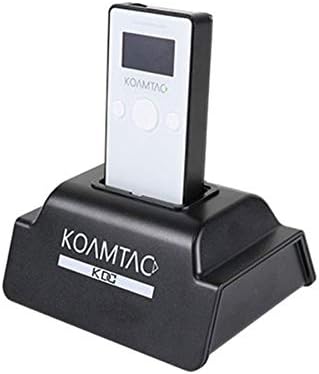
Figure 2: KDC280CJPH in Charging Base. This image displays the KDC280CJPH data collector securely docked in its black charging base. The device is white with a black screen, showing the "KOAMTAC" logo. The charging base also features the "KOAMTAC KDC" logo on its front.
Mabuɗin Abubuwan:
- Allon Nuni: Shows operational status, menu options, and scanned data.
- Maballin Duba: Yana fara duban lambar barcode.
- Maɓallan kewayawa: Ana amfani dashi don kewayawa menu da zaɓi.
- Micro USB Port: For charging and wired data communication.
- Imager Window: The area through which barcodes are scanned.
5. Saita
5.1 Cajin Na'urar
- Connect the charging cable to the Micro USB port on the KDC280CJPH.
- Connect the other end of the charging cable to the AC adapter, then plug the AC adapter into a power outlet. Alternatively, connect the charging cable to a computer's USB port.
- The device will begin charging. A full charge typically takes approximately 3-4 hours.
For convenience, you can also place the KDC280CJPH into the single charging base (included) or the optional 4-slot charging base for charging.
5.2 Ƙarfin Farko Kunna
Press and hold the power button (usually located on the side or top) for a few seconds until the display screen illuminates.
5.3 Using the Communication Dongle
The KDC280CJPH can be used with the included communication dongle (KBLED41) for easy pairing with a host device.
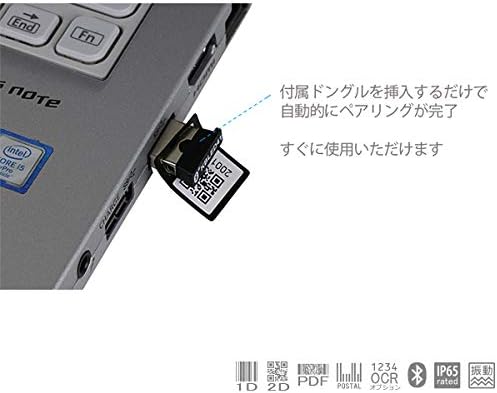
Figure 3: Communication Dongle in Use. This image illustrates the communication dongle (KBLED41) being inserted into a USB port of a laptop. The dongle has a QR code printed on it, indicating its pairing function. The accompanying text states that inserting the dongle automatically completes pairing, making the device ready for immediate use.
- Insert the KBLED41 communication dongle into an available USB port on your computer or host device.
- The KDC280CJPH will automatically detect and pair with the dongle, establishing a connection.
- Once paired, the device is ready for data transmission.
6. Aiki
6.1 Haɗin Bluetooth
The KDC280CJPH supports Bluetooth v4.1+EDR with SPP (Serial Port Profile) and HID (Human Interface Device) profiles, allowing connection to various devices including iOS.
- Ensure Bluetooth is enabled on your host device (smartphone, tablet, computer).
- On the KDC280CJPH, navigate to the Bluetooth pairing menu using the navigation buttons.
- Select the desired Bluetooth profile (SPP or HID) if prompted.
- On your host device, search for available Bluetooth devices and select "KDC280CJPH" from the list.
- Follow any on-screen prompts to complete the pairing process. You may need to enter a PIN, which is usually "0000" or "1234".
- Once paired, the KDC280CJPH will indicate a successful connection on its display.
Note: Your connecting device must be Bluetooth v4.1 BLE compatible to connect with the KDC280CJPH.
6.2 Duba Lambar Barcode
The KDC280CJPH can read a wide array of 1D and 2D barcodes, OCR fonts, and postal codes.
- Don Duba: Point the imager window at the barcode and press the scan button. A successful scan will typically be indicated by a beep and/or a green LED light.
- Mafi kyawun Nisan Bincike: The reading distance for Code39 is 4-246mm. Adjust the distance for other barcode types as needed.
- Alamomin Taimako:
- 1D: EAN, UPC, Code 11, Code 39, Code 93, Code 128, Codabar/NW-7, Interleaved 2 of 5, GS1-128(EAN 128), GS1 DataBar(RSS), IATA, Industrial 2 of 5, ISBN-ISSN-ISMN, Matix 2 of 5, MSI/Plessy, S-Code, Telepen, Tri-Optic, UK/Plessy.
- 2D: Aztec Code, Aztec Runes, Codablock F, Composite Codes, Data Matrix, Maxi Code, Chinese Sensible, Micro PDF, PDF417, QR Code, Micro QR Code.
- OCR: OCR-A, OCR-B (ISBN codes).
- Lambobin gidan waya: Various international postal codes.
6.3 Data Collection and Storage
The device has 8MB of user data area, capable of storing over 400,000 UPC codes. Scanned data can be stored internally and then transferred to a host device.
- Yanayin Store: Data is saved to the device's internal memory.
- Yanayin Canja wurin: Data is immediately transmitted to the connected host device.
- Lokaciamping: The built-in Quartz RTC provides timestamps for collected data.
6.4 KTSync Software and SDK
KOAMTAC provides free software and SDKs to enhance the functionality of your KDC280CJPH.
- KTSync Software: Available for download, KTSync allows for KDC device settings configuration, data synchronization, and matching functions.
- SDKs: Software Development Kits are available for Android, iOS, and Windows platforms, enabling custom application development and integration with the KDC280CJPH.
7. Kulawa
7.1 Tsaftacewa
- Goge na'urar da taushi, damp zane. Kada a yi amfani da masu tsabtace abrasive ko sauran ƙarfi.
- Ensure the imager window is clean and free of dust or smudges for optimal scanning performance.
7.2 Kula da baturi
- Don tsawaita rayuwar baturi, kauce wa cikar cajin baturin akai-akai.
- Idan na'urar tana ajiyewa na tsawon lokaci, to a caja batirin zuwa kusan kashi 50% sannan a adana shi a wuri mai sanyi da bushewa.
7.3 Yanayin Ajiya
Store the device within the specified temperature range of -20℃ to 60℃ and humidity of 5% to 95% (non-condensing).
8. Shirya matsala
| Matsala | Dalili mai yiwuwa | Magani |
|---|---|---|
| Na'urar baya kunnawa. | Baturi ya ƙare. | Charge the device using the provided charging cable and AC adapter. |
| Ba za a iya haɗi ta Bluetooth ba. | Bluetooth is not enabled on host device; host device is not BLE v4.1 compatible; device is out of range. | Ensure Bluetooth is on. Verify host device compatibility. Move KDC280CJPH closer to the host device. Re-attempt pairing. |
| Barcodes are not scanning. | Barcode is damaged or poorly printed; imager window is dirty; incorrect scanning distance. | Try scanning a different barcode. Clean the imager window. Adjust the distance between the device and the barcode. |
| Data is not transmitting to host. | Device is in store mode; connection is lost; incorrect application settings. | Switch the device to transfer mode. Re-establish Bluetooth connection. Check KTSync or custom application settings. |
9. Ƙayyadaddun bayanai
| Siffar | Daki-daki |
|---|---|
| Lambar Samfura | KDC280CJPH |
| Tsarin Aiki | Dedicated OS |
| CPU | ARM7, 32-bit |
| Ƙwaƙwalwar ajiya | RAM: 64KB, Flash ROM: 256KB (Data Area), 8MB (User Data Area, stores over 400,000 UPC codes) |
| Nau'in Scanner | 2D Imager, 640x480 CMOS, 100fps |
| Nisa Karatu | 4-246mm (Code39) |
| Agogon ainihin lokaci | Quartz RTC for timestamp |
| Interface | Micro USB |
| Sadarwa ta Bluetooth | Bluetooth v4.1+EDR, SPP/HID |
| Girma (W x L x H) | 40 x 82 x 18 mm |
| Nauyi | 57.5g ku |
| Baturi | Lithium-Ion (650mAh) |
| Yanayin Aiki | -20 ℃ zuwa 50 ℃ |
| Ajiya Zazzabi | -20 ℃ zuwa 60 ℃ |
| Danshi | 5% zuwa 95% (ba mai tauri) |
| Dust/Splash Protection | IP65 mai yarda |
| Sauke ƙayyadaddun bayanai | 1.5m drop resistance |
| Yarda da Ka'ida | UL 60950-1; EN/IEC 60950-1; EN/IEC 60825-1, EMI/RFI; R&TTE, FCC, KC, TELEC, RoHS |
| Matsayin Tsaro | IEC 62471: 2006 |
10. Garanti & Tallafi
10.1 Bayanin Garanti
The KOAMTAC KDC280CJPH comes with a Garanti na shekaru 1 from the date of purchase. This warranty covers manufacturing defects but excludes damage caused by misuse, accidents, unauthorized modifications, or normal wear and tear. Cables are not covered under this warranty.
Da fatan za a riƙe shaidar siyan ku don da'awar garanti.
10.2 Tallafin Fasaha
For technical assistance, troubleshooting, or inquiries regarding your KDC280CJPH, please refer to the official KOAMTAC website ko tuntuɓi goyon bayan abokin ciniki.
Additional resources, including the KTSync software and SDKs for various platforms (Android, iOS, Windows), are available for download from the KOAMTAC support portal.


