Gabatarwa
This manual provides detailed instructions for the installation, operation, and maintenance of your NOVOSTELLA Smart LED Light Bulbs. These bulbs offer advanced features including tunable white light (2700K-6500K), full RGB color spectrum, and smart control capabilities via Wi-Fi, compatible with voice assistants like Alexa and Google Home.

Image: The NOVOSTELLA Smart LED Light Bulbs, shown in their retail packaging, highlighting the 3-pack and smart features.
Siffofin Samfur
- 1300LM RGBCW Output: Combines RGB colors with Warm White (2700K) and Daylight White (6500K) for versatile lighting.
- Voice/App/Group Control: Seamlessly control bulbs individually or in groups using the dedicated app or voice commands via compatible smart assistants.
- Ayyukan Mai ƙidayar lokaci: Schedule lights to turn on/off at specific times, supporting daily routines and energy saving.
- Ayyukan ƙwaƙwalwa: Retains last settings for quick access and convenience.
- Faɗin Aikace-aikacen: Suitable for general illumination and creating ambient lighting for various occasions.
- Saita Sauƙi: Direct Wi-Fi connection, no additional hub required.
- Ingantaccen Makamashi: 13W LED equivalent to a 120W incandescent bulb.
Abubuwan Kunshin
The NOVOSTELLA Smart LED Light Bulb package typically includes:
- 3 x NOVOSTELLA 13W Smart LED Light Bulbs (A19 E26)
- 1 x Manual mai amfani (wannan takarda)
Saita Umarnin
Follow these steps to set up your NOVOSTELLA Smart LED Light Bulbs:
- Sanya kwan fitila: Screw the smart LED bulb into a standard E26 light socket. Ensure the power is off before installation.
- Kunna Wuta: Turn on the power switch to the light fixture. The bulb should begin to flash rapidly, indicating it's in pairing mode. If it does not flash, turn the bulb off and on three times consecutively (on-off-on-off-on) to reset it.
- Sauke App: Download the "Smart Life" app from your smartphone's app store (available for Android and iOS).
- Yi rijista/Shigo: Buɗe manhajar Smart Life ka yi rijista don sabon asusu ko kuma ka shiga idan kana da ɗaya.
- Ƙara Na'ura: In the app, tap the "+" icon in the top right corner to add a new device. Select "Lighting" then "Light Source (Wi-Fi)".
- Haɗa zuwa Wi-Fi: Confirm the bulb is flashing rapidly. Enter your 2.4GHz Wi-Fi network name and password. The bulb does not support 5GHz Wi-Fi networks.
- Haɗin kai: The app will begin searching for the device. Once found, the bulb will stop flashing and appear in your device list. You can rename the bulb for easier identification.

Image: Visual representation of the easy setup process for the smart bulb, emphasizing no hub is required.

Image: An infographic illustrating the various smart features of the bulb, including group control, time setting, scene options, Wi-Fi connectivity, 16 million colors, and voice control.
Umarnin Aiki
Brightness and Color Adjustment
Within the Smart Life app, select the bulb you wish to control. You can adjust the brightness from 1% to 100%. For color adjustment, navigate to the color wheel to select from 16 million colors, or choose from preset white temperatures ranging from 2700K (warm white) to 6500K (daylight white).

Image: A visual comparison demonstrating the brightness of a 13W LED bulb, equivalent to a 120W incandescent bulb, and showing warm to cool white light options.
Ikon murya
The bulbs are compatible with Amazon Alexa and Google Assistant. To enable voice control, link your Smart Life account within the Alexa or Google Home app. Once linked, you can use commands such as:
- "Alexa, turn on [Bulb Name]"
- "Hey Google, dim [Bulb Name] to 50%"
- "Alexa, set [Bulb Name] to blue"

Image: An illustration of users controlling smart lights using voice commands through Amazon Alexa and Google Assistant devices in a kitchen setting.
Ayyukan Mai ƙidayar lokaci da Jadawali
Set schedules for your bulbs to automatically turn on or off at specific times. This feature is useful for daily routines, security, or simulating occupancy when away. Access the "Schedule" or "Timer" option within the app for each bulb or group.
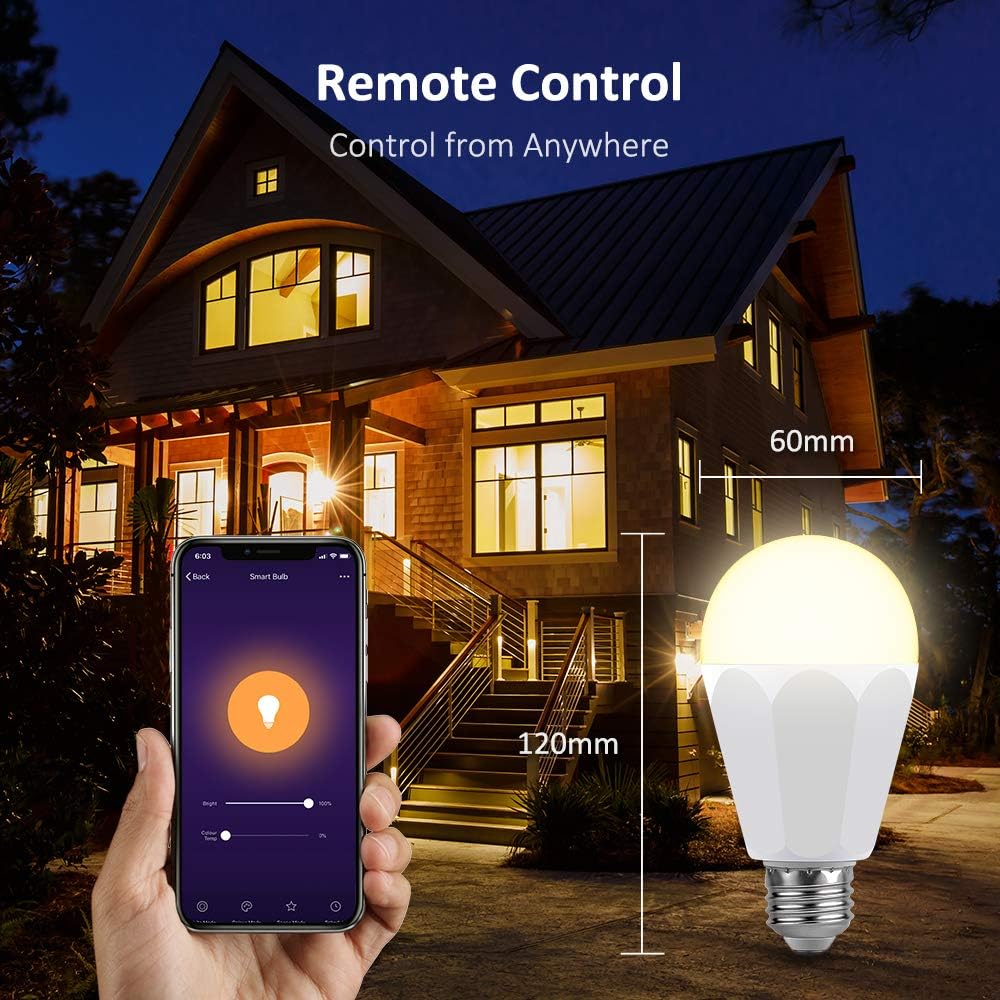
Image: A smartphone screen displaying the scheduling interface for smart bulbs, alongside an illustration of group control applied to multiple bulbs in a house.
Sarrafa rukuni
To control multiple bulbs simultaneously, create groups within the Smart Life app. This allows you to manage all lights in a room or area with a single command or tap.
Zaɓuɓɓukan Scene
The app provides various preset scenes (e.g., Night, Read, Meeting, Leisure) and allows for custom scene creation. These scenes adjust color and brightness to suit different moods or activities.
Image: A smartphone screen showing eight different scene options for smart lighting, such as Night, Read, and Leisure, with corresponding colored light bulbs.
Ikon nesa
As long as your smart bulb is connected to Wi-Fi and your smartphone has internet access, you can control your lights from anywhere in the world.

Image: A hand holding a smartphone displaying the Smart Life app, controlling a smart bulb remotely with a house illuminated by the bulb in the background, demonstrating remote control functionality.
Kulawa
NOVOSTELLA Smart LED Light Bulbs are designed for long-term, maintenance-free operation. To ensure optimal performance and longevity:
- Tsaftacewa: Disconnect power before cleaning. Wipe the bulb with a soft, dry cloth. Do not use liquid cleaners or abrasive materials.
- Muhalli: Use the bulbs in dry, indoor environments. Avoid exposure to water or high humidity.
- Juyin wutar lantarki: While designed to be robust, extreme power fluctuations can affect electronic devices. Consider a surge protector if your area experiences frequent power issues.
- Sabunta Firmware: Periodically check the Smart Life app for firmware updates for your bulbs to ensure the latest features and stability improvements.
Shirya matsala
| Matsala | Dalili mai yiwuwa | Magani |
|---|---|---|
| Bulb not pairing/flashing. | Not in pairing mode; incorrect reset procedure. | Turn the bulb off and on three times consecutively (on-off-on-off-on) until it flashes rapidly. |
| Ba za a iya haɗi zuwa Wi-Fi ba. | Incorrect Wi-Fi band (5GHz); wrong password; weak signal. | Ensure you are connecting to a 2.4GHz Wi-Fi network. Double-check your Wi-Fi password. Move the bulb closer to the router. |
| Kwalba ba ta cikin manhajar ba. | Asarar haɗin Wi-Fi; iko kutage. | Check your Wi-Fi router and internet connection. Power cycle the bulb (turn off and on at the switch). |
| Ikon murya baya aiki. | Smart Life account not linked; incorrect device name. | Ensure your Smart Life account is correctly linked in the Alexa/Google Home app. Use the exact device name configured in the Smart Life app. |
Ƙayyadaddun bayanai
- Alamar: NOVOSTELLA
- Sunan Samfura: 13W Smart Light Bulb (HM-LB09-RGBCW-US-3)
- Nau'in Haske: LED
- Watatage: 13 Watts
- Daidaitaccen Wuta: 120 Watts
- Haske: 1300 Lumen
- Zazzabi Launi: 2700K-6500K (Tunable White) + RGB
- Girman Siffar Bulb: A19
- Tushen Bulb: E26
- Voltage: 100-240V (AC)
- Mitar: 50/60 Hertz
- Fasahar Haɗuwa: Wi-Fi (2.4GHz kawai)
- Hanyar sarrafawa: App, Voice Control (Alexa, Google Home)
- Matsakaicin Rayuwa: 25,000 Awanni
- Amfani na cikin gida/Waje: Cikin gida
- Abu: Copper
- Ƙaƙwalwar Ƙarƙashin Ƙarƙashin Ƙaƙwalwa 270 Digiri
Bayanin Tsaro
- Do not use with standard dimmers. Only dim via the app or voice control.
- Not suitable for totally enclosed luminaires.
- Hadarin girgiza wutar lantarki. Kar a buɗe ko gyara kwan fitila.
- Ensure power is off before installation or removal.
- Wannan na'urar ba a yi nufin amfani da ita tare da fitowar gaggawa ba.
Garanti da Taimako
NOVOSTELLA products are designed for quality and reliability. For warranty information or technical support, please refer to the contact details provided on the product packaging or visit the official NOVOSTELLA website. Ajiye rasidin siyan ku azaman shaidar siyan don da'awar garanti.
For further assistance, you may also refer to the NOVOSTELLA Brand Store on Amazon: NOVOSTELLA Store.


