1. Gabatarwa
The Logitech MX Keys Mini is a minimalist wireless illuminated keyboard designed for a fluid, precise typing experience across multiple devices and operating systems. Its compact form factor enhances ergonomic comfort and portability, making it ideal for various work environments. This manual provides essential information for setting up, operating, maintaining, and troubleshooting your MX Keys Mini keyboard.

Image: The Logitech MX Keys Mini Wireless Illuminated Keyboard in Rose color, showcasinƙirarsa mai ƙanƙanta da kuma tsarin maɓalli.
2. Abin da ke cikin Akwatin
Upon unboxing your Logitech MX Keys Mini, you should find the following items:
- Logitech MX Keyboard Mini Keyboard
- USB-C Cajin Cable
- Muhimmin Takardun Bayani

Image: The Logitech MX Keys Mini keyboard and its USB-C charging cable neatly packaged within the product box.
3. Saita
- Cajin Farko: Connect the keyboard to a power source using the provided USB-C charging cable. The charging port is located on the top edge of the keyboard. A full charge can last up to 10 days with backlighting on, or up to 5 months with backlighting off.
- Kunnawa/Kashewa: Locate the power switch on the top right edge of the keyboard and slide it to the 'On' position.
- Haɗin kai:
- Bluetooth: Turn on Bluetooth on your computer or device. On the MX Keys Mini, press and hold one of the Easy-Switch keys (1, 2, or 3) until the LED light on the key starts blinking rapidly. Select 'MX Keys Mini' from your device's Bluetooth list to pair.
- Logi Bolt Mai karɓar USB: If your device supports it, you can use a Logi Bolt USB Receiver (not included) for a stable wireless connection. Insert the receiver into a USB port on your computer. The keyboard will automatically connect.
- Install Logi Options+ App: For full customization and advanced features, download and install the Logi Options+ app from the Logitech website. This app allows you to customize keys, adjust backlighting, and manage Smart Actions.
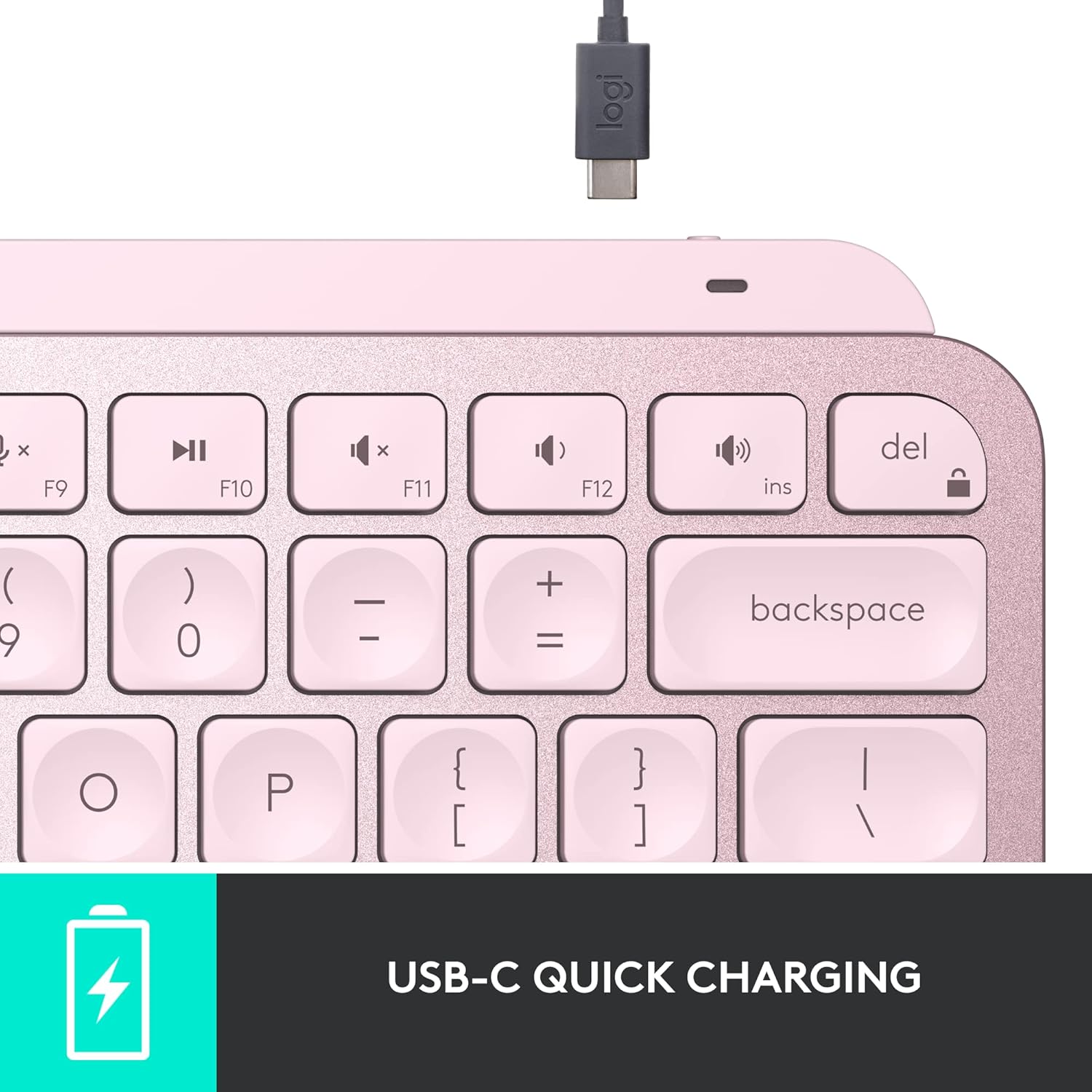
Hoto: cikakken bayani view of the USB-C charging port on the keyboard's top edge.
4. Aiki
4.1. Kwarewar Rubutu
The MX Keys Mini features Perfect Stroke keys with a minimalist form factor, designed for effortless precision. The keys are shaped for your fingertips, providing a fluid and responsive typing experience. Its compact size contributes to an ergonomic setup, reducing strain during extended use.

Hoto: Kusanci view highlighting the concave design of the Perfect Stroke keys.

Image: A user actively typing on the MX Keys Mini, illustrating its comfortable and compact nature.
4.2. Smart Illumination
The keyboard's backlit keys automatically light up when your hands approach and adjust their brightness to suit changing lighting conditions. This smart illumination feature conserves battery life while ensuring visibility in various environments.

Image: The keyboard's keys are illuminated, demonstrating the smart backlighting feature in a low-light setting.
4.3. Smart Keys & Customization
The MX Keys Mini includes dedicated Smart Keys for functions like voice-to-text dictation, mic mute/unmute, and emoji access. Through the Logi Options+ app, you can customize these keys and create Smart Actions to automate repetitive tasks with a single keystroke, streamlining your workflow.
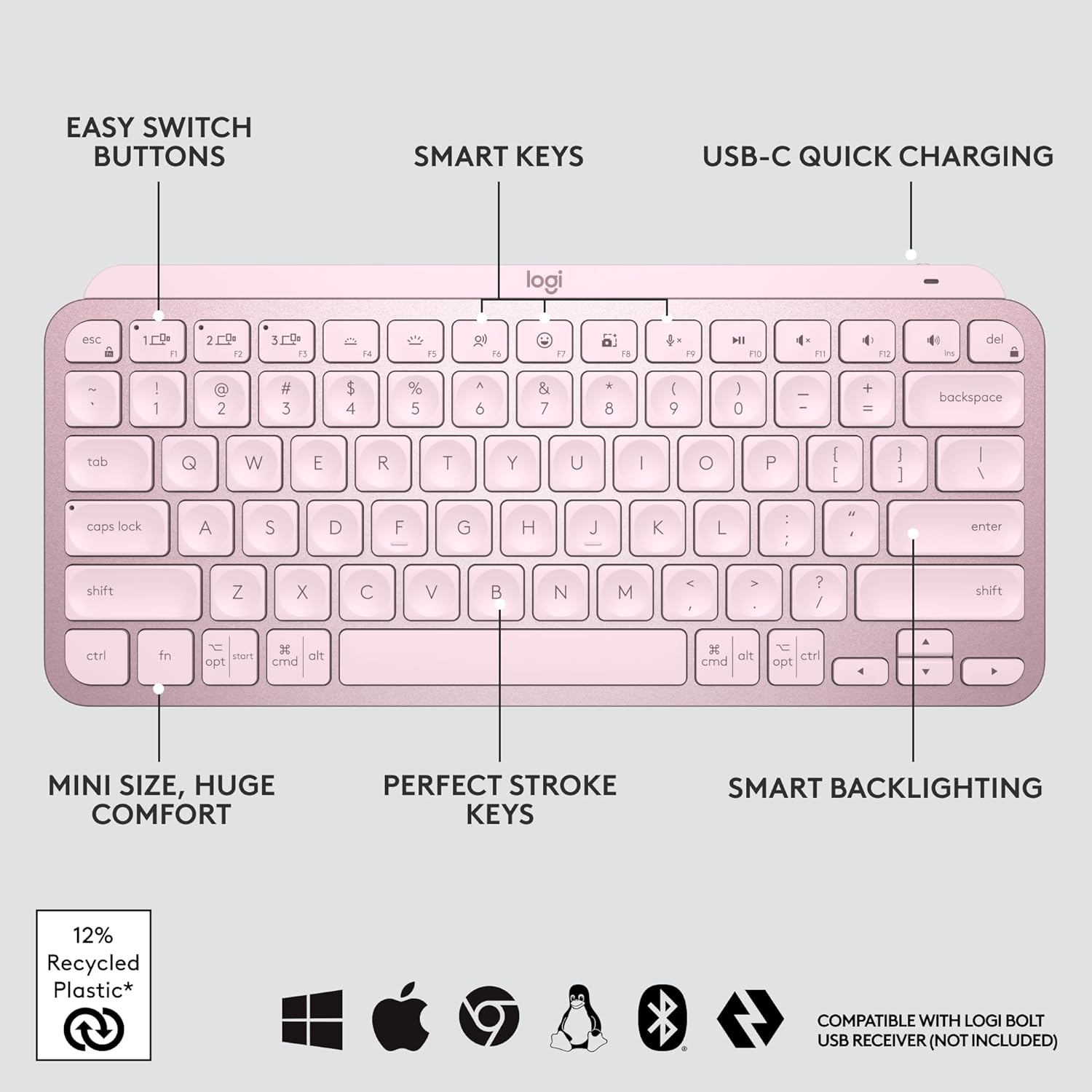
Hoto: An overview of the keyboard's main features, including customizable Smart Keys and Easy Switch buttons.
4.4. Multi-Device, Multi-OS
Pair your MX Keys Mini with up to three devices using Bluetooth Low Energy and switch between them seamlessly with the Easy-Switch buttons. The keyboard is compatible with a wide range of operating systems, including Apple macOS, iOS, Windows, Linux, and Android. For enhanced productivity, you can use Logitech Flow to type across multiple computers or laptops in one fluid workflow when paired with compatible MX mice like the MX Master 3 or MX Anywhere 3.

Image: The keyboard connected to three different devices, highlighting its multi-device capability.

Image: A visual representation of the Flow feature, enabling cross-computer control.

Image: Icons indicating broad operating system compatibility for the keyboard.
5. Kulawa
To ensure the longevity and optimal performance of your Logitech MX Keys Mini keyboard, follow these maintenance guidelines:
- Tsaftacewa: Regularly clean the keycaps and keyboard surface with a soft, lint-free cloth. For deeper cleaning, use a slightly damp cloth with mild soap, ensuring no liquid enters the keyboard.
- Kulawar Baturi: Recharge the keyboard using the provided USB-C cable when the battery indicator shows low power. Avoid fully draining the battery frequently to prolong its lifespan.
- Ajiya: When not in use for extended periods, turn off the keyboard to conserve battery. Store it in a cool, dry place away from direct sunlight and extreme temperatures.
- Nauyin Muhalli: The plastic parts in the MX Keys Mini include certified post-consumer recycled plastic (Rose: 12%). The product is designed with smart battery efficiency and responsible packaging.

Image: Visual representation of the keyboard's sustainable design aspects.
6. Shirya matsala
If you encounter issues with your MX Keys Mini, refer to the following common troubleshooting steps:
- Keyboard Not Connecting:
- Ensure the keyboard is powered on and fully charged.
- Verify Bluetooth is enabled on your device and the keyboard is in pairing mode (blinking LED on Easy-Switch key).
- If using macOS with FileVault enabled, you might need to use a Logi Bolt USB Receiver to enter your password at startup or reboot, as Bluetooth connectivity can be interrupted.
- Try re-pairing the keyboard with your device.
- Hasken Baya Ba Ya Aiki:
- Check the battery level; backlighting may be disabled when the battery is low.
- Ensure the smart illumination feature is enabled in the Logi Options+ app.
- Maɓallan Ba Amsa:
- Clean the affected keys to remove any debris.
- Ensure the keyboard is connected to the correct device via the Easy-Switch buttons.
- Logi Options+ App Issues:
- Tabbatar cewa an sabunta app ɗin zuwa sabon sigar.
- Sake kunna kwamfutarka da kuma madannai.
7. Ƙayyadaddun bayanai
| Siffar | Daki-daki |
|---|---|
| Alamar | Logitech |
| Jerin | Logitech MX Keys Mini |
| Lambar Samfura | 920-010474 |
| Platform Hardware | Windows, macOS, Chrome OS, Linux, iOS, iPadOS, Android |
| Daidaituwar Tsarin Aiki | Windows 10, 11 or later; Linux; Chrome OS; macOS; iPadOS; Android |
| Nauyin Abu | Fam 1.12 (kimanin 508 g) |
| Girman Samfura (LxWxH) | 11.65 x 5.19 x 0.82 inci (kimanin. 29.6 x 13.2 x 2.1 cm) |
| Launi | Rose |
| Tushen wutar lantarki | Ana Karfin Batir |
| Baturi | 1 Lithium Polymer baturi (an haɗa) |
| Fasahar Haɗuwa | Bluetooth |
| Bayanin Allon madannai | Membrane |
| Siffofin Musamman | Backlit, Rechargeable |
| Taimakon Launi na Allon Baya | Launi Guda Daya |
8. Garanti da Tallafawa
For detailed warranty information, please refer to the 'Important Information Document' included in your product packaging. You can also visit the official Logitech support website for additional assistance, FAQs, and software downloads.
Tallafin Logitech Website: www.logitech.com/support


