Gabatarwa
This manual provides detailed instructions for the setup, operation, maintenance, and troubleshooting of your Samsung LS27AM501NWXXL 27-inch FHD Smart Monitor. Please read this manual thoroughly before using your monitor to ensure proper and safe operation. This monitor combines OTT media services, mobile connectivity, and remote PC capabilities.
Muhimman Bayanan Tsaro
Koyaushe bi ƙa'idodin aminci na asali lokacin amfani da wannan samfur don rage haɗarin gobara, girgizar lantarki, da rauni ga mutane. Ajiye wannan littafin don tunani na gaba.
- Kada a bijirar da na'urar zuwa ruwan sama ko danshi.
- Kar a bude mai duba casing. Koma duk hidima ga ƙwararrun ma'aikatan sabis.
- Tabbatar da samun iska mai kyau. Kar a toshe buɗewar samun iska.
- Yi amfani da igiyar wutar lantarki da adaftar da aka kawo tare da na'urar duba.
- A wanke na'urar hangen nesa da kyalle mai laushi da busasshe. A guji amfani da masu tsaftace ruwa.
Abubuwan Kunshin
Tabbatar cewa duk abubuwa suna cikin akwatin samfurin ku:
- 1 Unit Monitor
- 1 Wayar Wuta
- 1 Kebul na HDMI
- 1 Ikon Nesa
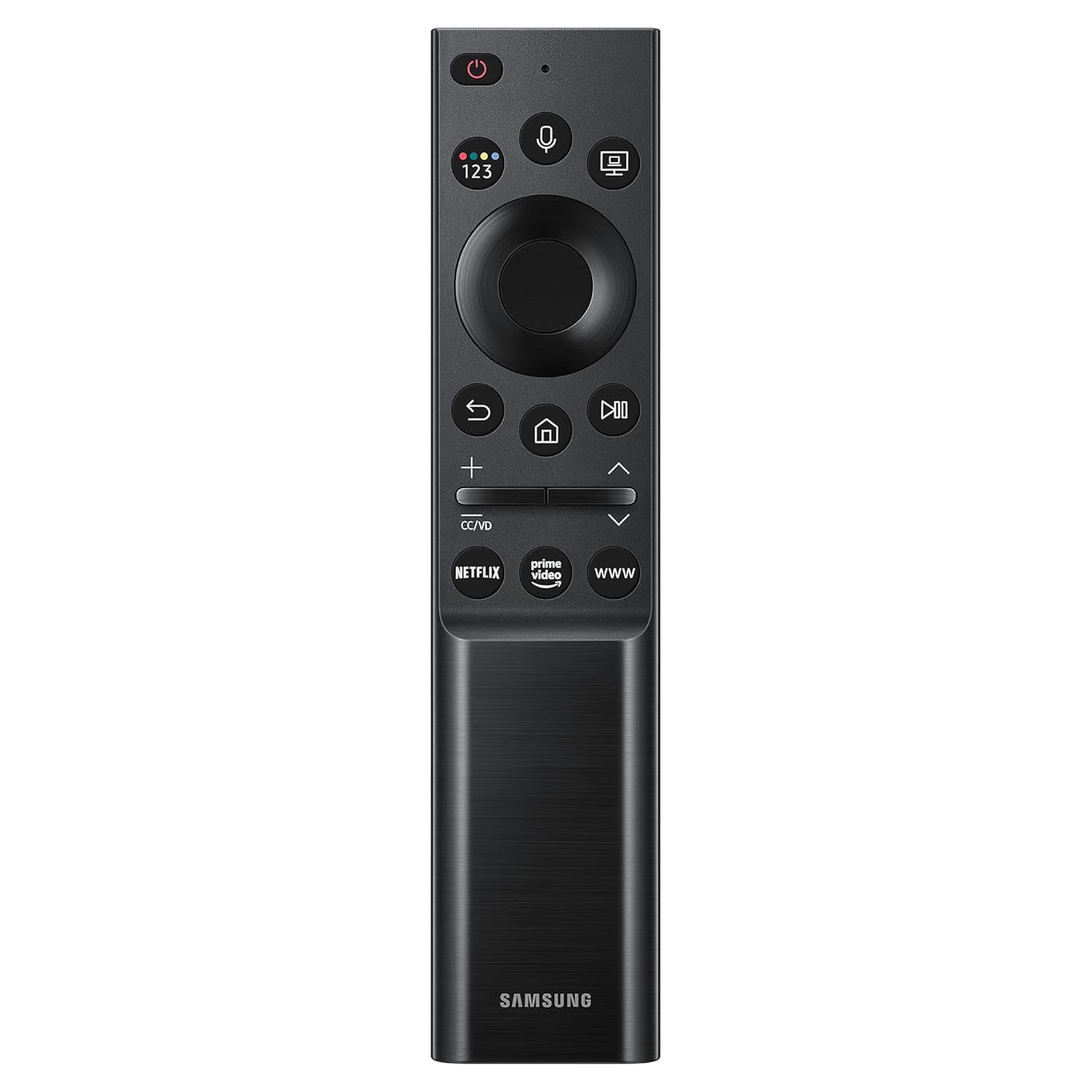
Image: The included remote control for the Samsung Smart Monitor, featuring dedicated buttons for streaming services and navigation.
Saita
1. Haɗa Tsaya
Carefully attach the stand base to the stand neck, then secure the assembled stand to the back of the monitor. Ensure all screws are tightened securely.

Image: The monitor's slim metal stand and 3-sided borderless design, illustrating its aesthetic and compact form factor.
2. Haɗin igiyoyi
Connect the power cable to the monitor and a wall outlet. Use the supplied HDMI cable to connect your computer or other devices to the monitor's HDMI ports.

Hoto: cikakken bayani view of the monitor's rear panel, highlighting the HDMI IN 1 (ARC), HDMI IN 2, USB 1, and USB 2 ports for various connections.
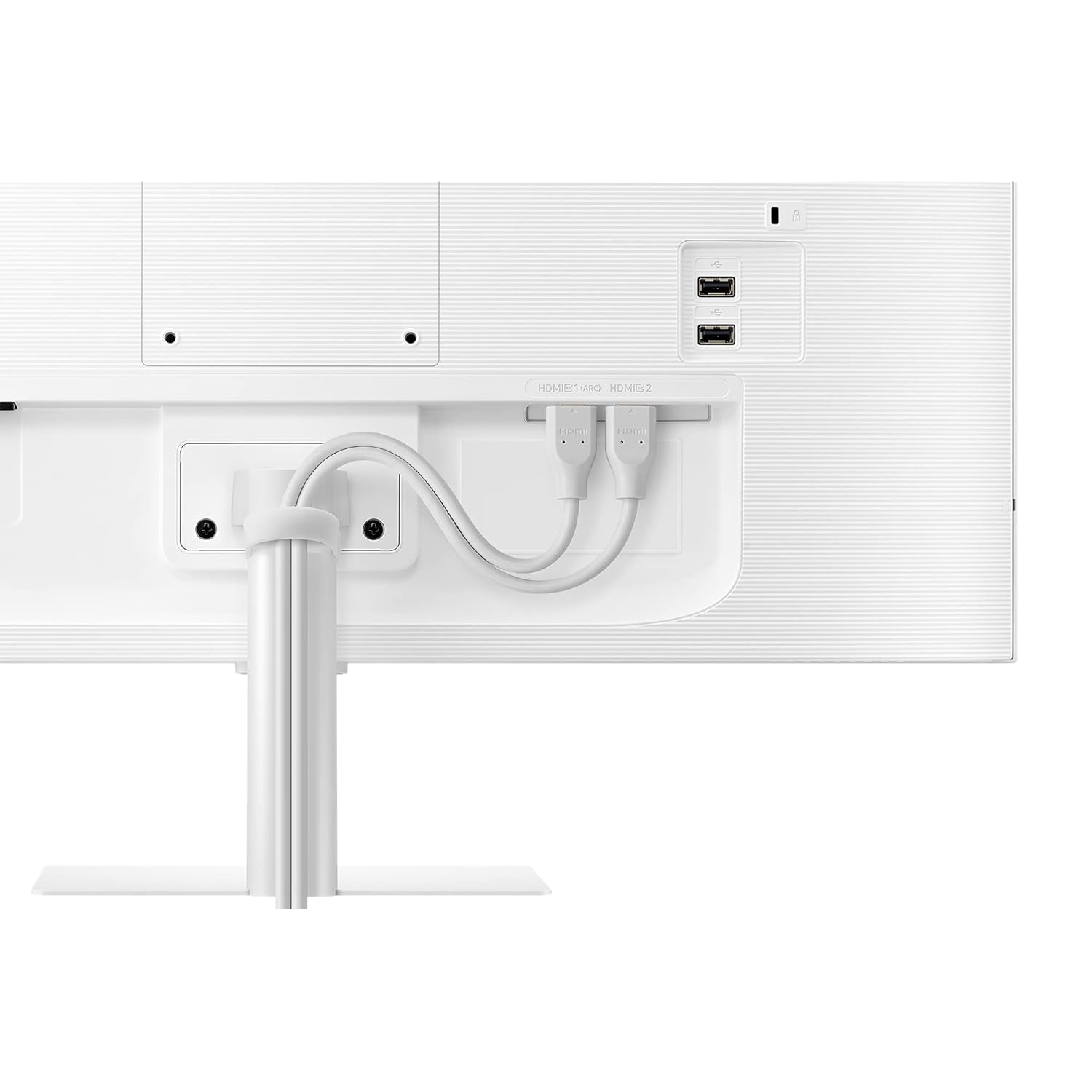
Image: The rear of the monitor with HDMI cables neatly routed through the stand, demonstrating proper cable management for a clean setup.
3. Ƙarfin Farko Kunna
Press the power button on the monitor or the remote control to turn on the monitor. Follow the on-screen instructions for initial setup, including network connection and smart features configuration.
Umarnin Aiki
Siffofin Smart Hub
Your Samsung Smart Monitor integrates a Smart Hub, allowing direct access to various entertainment applications without needing a separate PC. Use the remote control to navigate the Smart Hub.
- Ayyukan Yawo: Access pre-installed apps like Netflix, YouTube, Prime Video, and Apple TV.
- Samun Nisa: Connect to your office PC remotely or access Microsoft 365 applications directly from the monitor.

Image: A hand holding the monitor's remote control, pointing towards the screen displaying various streaming application icons such as Netflix, Prime Video, and YouTube.

Image: The monitor screen showing Microsoft 365 applications, illustrating the "PC on Screen" and remote access capabilities for productivity.
Haɗin wayar hannu
The monitor supports wireless DeX, allowing you to use your compatible mobile device as a full PC experience. You can also mirror your mobile screen to the monitor.
- Wireless DeX: Connect your Samsung Galaxy phone wirelessly to the monitor to use mobile productivity apps in a desktop environment.
- Madubin allo: Cast content from your smartphone or tablet directly to the monitor.

Image: A user working at a desk with the Samsung Smart Monitor, demonstrating the Wireless DeX feature connecting a smartphone to the monitor for a desktop-like experience.
Hotunan Daidaitawa
The monitor features Adaptive Picture technology, which automatically adjusts screen brightness based on ambient light conditions for optimal viewcikin ta'aziyya.

Image: The monitor displaying a scenic image with an on-screen brightness adjustment bar, illustrating the Adaptive Picture feature that automatically optimizes display brightness.
Wasan Gabaɗaya View
For an enhanced gaming experience, activate Ultrawide Game View to adjust the screen aspect ratio to 21:9, revealing more of the game environment.

Image: The monitor displaying a football game in a 21:9 aspect ratio, demonstrating the Ultrawide Game View feature for an expanded field of vision.
Sauya Madogararsa ta atomatik
The monitor can automatically detect and switch to a newly connected device, eliminating the need for manual input selection.

Image: A diagram illustrating the Auto Source Switch feature, where the Samsung M5 monitor automatically detects and displays content from a connected laptop, unlike conventional monitors that show "No Signal."
Mataimakin Murya
Utilize built-in voice assistants like Bixby or SmartThings for hands-free control of your monitor and connected smart home devices.

Image: A woman speaking into the remote control, demonstrating the voice assistant feature (Bixby, SmartThings) for controlling the monitor.
Kulawa
- Share Allon: A hankali shafa allon tare da laushi, yadi mara laushi. Don alamun taurin kai, dampen zane tare da ruwa ko ƙayyadaddun tsaftacewa na allo. Kada a fesa ruwa kai tsaye akan allon.
- Tsaftace Casing: Yi amfani da busasshiyar kyalle mai laushi don goge abin dubawa casing. Kauce wa masu goge goge ko kaushi.
- Samun iska: Tabbatar cewa ba'a toshe buɗewar samun iska akan na'urar duba don hana zafi fiye da kima.
- Gudanar da Wuta: Cire na'urar saka idanu daga fitilun wutar lantarki yayin guguwar walƙiya ko lokacin da ba za a yi amfani da shi ba na tsawon lokaci.
Shirya matsala
Babu Ƙarfi
- Duba ko kebul ɗin wutar lantarki yana da haɗin da aka haɗa da na'urar saka idanu da kuma wurin fitar da wutar lantarki.
- Tabbatar da cewa tashar wutar lantarki tana aiki ta hanyar toshe a wata na'ura.
- Ensure the power button on the monitor or remote control has been pressed.
Babu Sigina / Allon Mara Rufi
- Confirm that the HDMI cable is properly connected to both the monitor and the source device (PC, laptop, etc.).
- Select the correct input source using the monitor's remote control or OSD menu.
- Tabbatar cewa na'urar tushen tana kunne kuma tana fitar da sigina.
Picture Issues (Distorted, Flickering, Incorrect Colors)
- Check the HDMI cable for damage or loose connections. Try a different cable if available.
- Adjust the display resolution and refresh rate on your source device to match the monitor's specifications.
- Perform a factory reset of the monitor settings through the OSD menu.
Ikon nesa baya Aiki
- Ensure there are no obstructions between the remote control and the monitor.
- Sauya batura a cikin ramut.
Ƙayyadaddun bayanai
| Siffar | Daki-daki |
|---|---|
| Alamar | Samsung |
| Lambar Samfura | LS27AM501NWXXL |
| Girman allo | 27 Inci (68.6 cm) |
| Ƙaddamarwa | 1920 x 1080 (FHD 1080p) |
| Halayen Rabo | 16:9 |
| Nau'in panel | VA |
| Taimakon HDR | HDR 10 |
| Haɗuwa | 2 x HDMI, 2 x USB |
| Launi | Fari |
| Girma (LxWxH) | 19.4 x 61.6 x 45.5 cm |
| Nauyin Abu | 5 kg |
| Halayen Wayayye | Smart Hub (Netflix, YouTube, Prime Video, Apple TV), Wireless DeX, Remote Access, Adaptive Picture, Ultrawide Game View, Voice Assistant (Bixby, SmartThings), Auto Source Switch |

Image: The front view of the Samsung Smart Monitor, illustrating its physical dimensions: 615.5 mm width, 455.4 mm height, and 193.5 mm depth with the stand.
Garanti da Taimako
Wannan samfurin ya zo tare da a Garanti na Shekara 3 from the manufacturer, Samsung.
For technical support, service, or warranty claims, please contact Samsung customer service:
- Samsung India Pvt Ltd: 180040 7267864, 1800 5 7267864
- Refer to the official Samsung webshafin yanar gizo don samun bayanai na tallafi da cikakkun bayanai na tuntuɓar.


