1. Gabatarwa
This manual provides detailed instructions for the installation, operation, and maintenance of your Tbest 9-inch Android Car GPS Navigation Multimedia Player. Please read this manual thoroughly before using the product to ensure proper function and safety.
2. Bayanin Tsaro
- Koyaushe a yi amfani da na'urar da kyau kuma bisa ga dokokin zirga-zirga na gida.
- Do not attempt to install or service the device if you are not qualified. Improper installation can lead to damage or injury.
- Guji fallasa na'urar zuwa matsanancin zafi, hasken rana kai tsaye na tsawon lokaci, ko danshi mai yawa.
- Tabbatar cewa an haɗa duk wayoyi daidai don hana gajerun kewayawa ko haɗarin lantarki.
3. Abubuwan Kunshin
Tabbatar cewa duk abubuwan da aka jera a ƙasa suna cikin kunshin ku:
- 1 x Navigator Unit (9-inch Android Multimedia Player)
- 10 x Various Connection Cables
- 4 x Camera Units
- 1 x Eriya GPS
- 1 x Manhajar mai amfani
- 2 x Braaramin cketsaura
- 1 x Hole Punch
- 2 x Buffer Rings
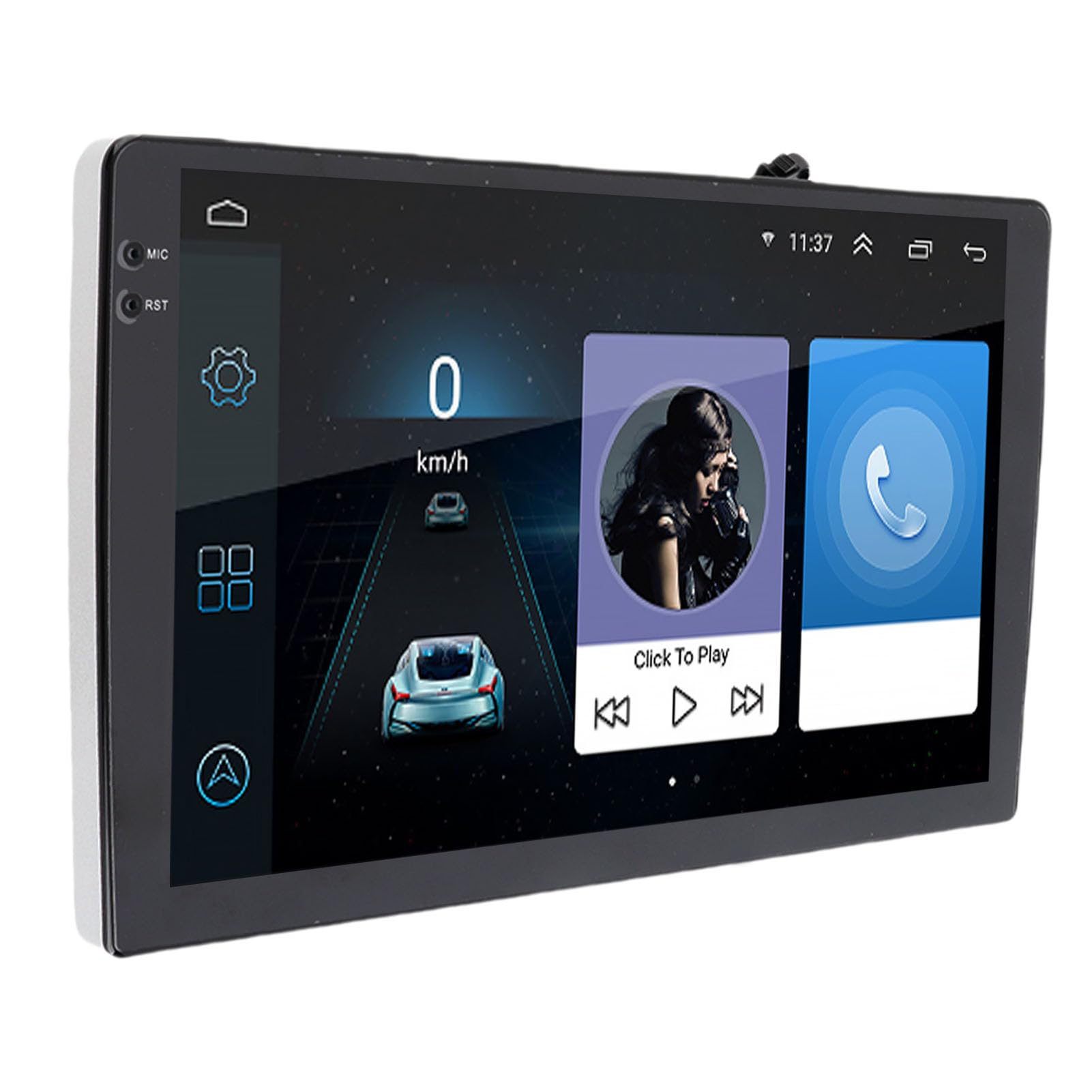
Image: The Tbest 9-inch Android Car GPS Navigation Multimedia Player unit shown with all accompanying cables, cameras, GPS antenna, mounting brackets, and other accessories.
4. Saita da Shigarwa
4.1 Gabaɗaya Jagoran Shigarwa
The Tbest multimedia player is designed for universal fit in various car models. Due to variations in vehicle dashboards, professional installation is recommended. Ensure the mounting location allows for clear visibility and safe operation.
4.2 Haɗin Waya
Carefully connect all necessary cables. Refer to your vehicle's wiring diagram and the provided cable labels for correct connections. Key connections include:
- Wutar Lantarki: Connect to the vehicle's power supply (ACC, B+, Ground).
- Kebul na magana: Connect to your car's speaker system.
- RCA Terminals: For reverse input, video input, and audio output.
- Tashoshin USB: For external devices or media.
- Antenna GPS: Connect the GPS antenna and place it in a location with a clear view na sama don mafi kyawun liyafar sigina.
- Haɗin Kyamara: Connect the four camera units to the designated camera inputs for panoramic view ayyuka.

Hoto: cikakken bayani view of the Tbest multimedia player's rear connections and the array of cables provided for power, audio, video, and peripheral devices.
5. Umarnin Aiki
5.1 Kunnawa / Kashewa
The unit will typically power on automatically when the vehicle's ignition is turned on. To manually power off, press and hold the power button (if available) or turn off the vehicle's ignition.
5.2 Allon taɓawa
The device features a 9-inch capacitive touch screen. Navigate through menus, select applications, and control functions by tapping, swiping, and pinching gestures similar to a smartphone or tablet.
5.3 GPS Kewayawa
The unit has built-in GPS reception. You can download navigation applications and maps directly from the Application Store for offline use. Ensure the GPS antenna is properly installed for accurate positioning.
5.4 Ayyukan Bluetooth
The device includes Bluetooth 4.0 for hands-free calling and music streaming (A2DP).
- Haɗin kai: Go to the Bluetooth settings on the device, enable Bluetooth, and search for available devices. Select your phone from the list and confirm the pairing code.
- Kiran hannu mara hannu: Once paired, you can make and receive calls directly through the multimedia player. The phone book can be automatically loaded.
- Kiɗa na Bluetooth: Stream audio from your paired phone to the car's speakers.
5.5 Sake kunnawa da yawa
The player supports various audio formats including MP3, FLAC, APE, WMA, WAV, AAC, AMR. Video playback is also supported. You can play media from USB drives or via Bluetooth streaming.
5.6 Panoramic Camera and Recorder
The integrated 360-degree panoramic camera system provides a comprehensive view around your vehicle, aiding in safe parking. The system also supports recording, allowing you to retain video evidence if needed. Playback functionality is available directly on the unit.
5.7 Sarrafar Tuƙi
The unit supports steering wheel control functions, allowing you to manage audio and other features without taking your hands off the wheel. Configuration may be required in the settings menu.
5.8 Mobile Internet (Mirror Link)
The device supports screen mirroring for both iOS (one-way projection) and Android phones (two-way connection). This allows you to display your phone's screen on the multimedia player.
5.9 Rediyo
Access FM, AM, and RDS radio bands. Use the touch screen interface to scan for stations and save presets.

Image: The Tbest multimedia player's 9-inch screen showing a typical user interface with navigation on the left and media playback controls on the right.
6. Kulawa
6.1 Tsabtace Allon
Yi amfani da laushi mai laushi mara laushi don goge allon a hankali. Don masu taurin kai, dampen the cloth with water or a screen-cleaning solution designed for electronics. Avoid harsh chemicals or abrasive materials.
6.2 Sabunta software
Periodically check for software updates to ensure optimal performance and access to new features. Updates can usually be performed via a Wi-Fi connection or USB. Follow the on-screen prompts for any available updates.
7. Shirya matsala
If you encounter issues with your Tbest multimedia player, refer to the following common problems and solutions:
| Matsala | Dalili mai yiwuwa | Magani |
|---|---|---|
| Babu Ƙarfi | Incorrect wiring, blown fuse, vehicle power issue. | Check power cable connections, inspect vehicle fuses, ensure ignition is on. |
| Babu siginar GPS | GPS antenna not connected, antenna obstructed, poor satellite reception. | Ensure GPS antenna is securely connected and placed with a clear view of the sky. Move to an open area. |
| Bluetooth Ba Haɗawa | Bluetooth off on device/phone, incorrect pairing, interference. | Ensure Bluetooth is enabled on both devices. Delete previous pairings and re-pair. Restart both devices. |
| Allon taɓawa baya amsawa | Software glitch, screen damage. | Restart the unit. If issue persists, contact support. |
| Kamara View Ba Nunawa ba | Camera cables loose, camera malfunction. | Check all camera connections. Ensure the vehicle is in reverse (if applicable for rear camera). |
Idan matsalar ta ci gaba bayan ƙoƙarin waɗannan mafita, tuntuɓi tallafin abokin ciniki.
8. Ƙayyadaddun bayanai
| Siffar | Ƙayyadaddun bayanai |
|---|---|
| Girman allo | 9 inci |
| Tsarin Aiki | Android |
| Tsarin allo | 1024 x 600 |
| Kewayawa GPS | Support (Offline maps via app store) |
| Sigar Bluetooth | 4.0 (A2DP, Hands-free, Phone Book) |
| Makadan Rediyo | FM, AM, RDS |
| Ƙarfi AmpChip mai girma | Saukewa: TDA7388 |
| Camera Host Chip | For HiSilicon 3520DV300 |
| kusurwar kyamara | 181 digiri |
| Pixel na Kamara | 1MP (Resolution: 1280 x 720P) |
| Aikin Voltage | Saukewa: DC9V-24V |
| Aiki Yanzu | 500mA (DC12V) |
| Yanayin Aiki | 35°C - 75°C (Host), -25°C - 90°C (Camera) |
| Haɗuwa | USB, Wi-Fi |
| Tsarin Sauti masu goyan baya | MP3, FLAC, APE, WMA, WAV, AAC, AMR, etc. |
| Fitowar Bidiyo | CVBS, VGA |
| Na'urar kariya daga ruwa (Kyamara) | IP67 |
| Girman samfur | 9 x 9 x 9 inci |
| Nauyin Abu | 3.38 fam |
9. Garanti da Tallafawa
Your Tbest multimedia player comes with a standard manufacturer's warranty. Please refer to the warranty card included in your package for specific terms and conditions. For technical support, troubleshooting assistance, or warranty claims, please contact your retailer or the Tbest customer service department.
Bayanin hulda: (Please refer to your purchase documentation or the official Tbest website for current contact details.)


