1. Introduction to Sphero RVR+
The Sphero RVR+ is an advanced programmable robot designed for learning and exploration in coding, robotics, and artificial intelligence. It is fully assembled and ready for immediate use, offering a versatile platform for both beginners and advanced programmers. RVR+ features a robust design, a suite of programmable sensors, and expandability options for third-party hardware integration.

2. Saita da Amfani na Farko
2.1 Unboxing da Farko dubawa
Upon opening the package, ensure all components are present. The Sphero RVR+ comes fully assembled. The package typically includes the RVR+ robot, a removable cover plate, a rechargeable battery, a micro USB charger, a battery key, and color cards.

2.2 Shigar da Baturi da Caji
- Locate the battery compartment on the RVR+ robot.
- Insert the rechargeable battery into the compartment. Ensure it clicks securely into place.
- Connect the micro USB charger to the battery port.
- Plug the charger into a power source. The battery indicator light will show charging status.
- Allow the battery to fully charge before first use. A full charge ensures optimal performance.

2.3 Haɗin App
The Sphero RVR+ is controlled and programmed via the Sphero Edu app. This app is available on iOS, Android, Windows, macOS, ChromeOS, and web browsers. No account or installation is needed for web hanyar bincike.
- Download and install the Sphero Edu app on your device, or navigate to the web-based version.
- Ensure your RVR+ is powered on and within Bluetooth range of your device.
- Open the Sphero Edu app and follow the on-screen prompts to connect to your RVR+.
3. Operating Your RVR+
3.1 Driving and Basic Control
Once connected to the Sphero Edu app, you can use the drive interface to manually control your RVR+. This allows for immediate interaction and familiarization with the robot's movement capabilities.

3.2 Programming Fundamentals
The Sphero Edu app supports various programming levels:
- Block Coding: Ideal for beginners, allowing users to drag and drop visual blocks to create programs.
- JavaScript and Python: For more advanced users, enabling text-based coding.
The Sphero AI Assistant, 'Explain My Program', can assist in understanding code logic.

3.3 Utilizing Sensors
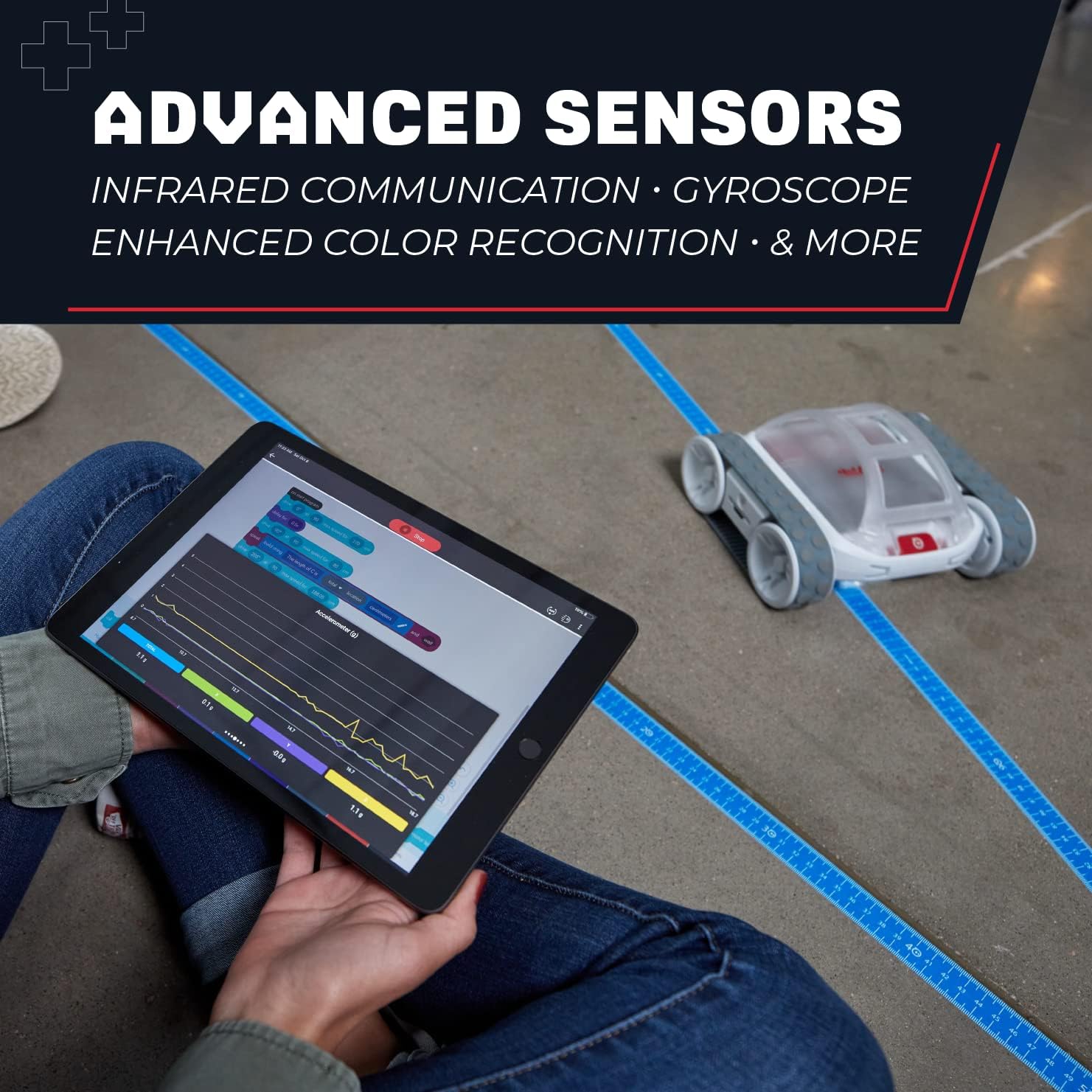
RVR+ is equipped with multiple sensors to gather real-time data and interact with its environment:
- Sensor Launi: Detects and reacts to different colors.
- Sensor Haske: Measures ambient light levels.
- Sensor Infrared: For communication and obstacle detection.
- Gyroscope and Accelerometer: Provides data on orientation and movement.
These sensors enable RVR+ to react to its surroundings, bridging coding with systems thinking.
3.4 Advanced Expansion
RVR+ supports integration with third-party hardware through its Public SDK. This allows for advanced projects using platforms like Raspberry Pi and micro:bit, expanding its capabilities beyond its core features.

4. Kulawa
4.1 Kula da baturi
- Always use the provided charger for the rechargeable battery.
- Guji cikar cajin baturin akai-akai don tsawaita rayuwar sa.
- Store the RVR+ and its battery in a cool, dry place when not in use.
4.2 Tsaftacewa
To clean your RVR+, use a soft, dry cloth. Avoid using harsh chemicals or abrasive materials, as these can damage the robot's surface or internal components. Ensure no moisture enters the electronic components.
5. Shirya matsala
If you encounter issues with your Sphero RVR+, consider the following common troubleshooting steps:
- Abubuwan Haɗuwa: Ensure RVR+ is powered on and fully charged. Verify Bluetooth is enabled on your device and that the Sphero Edu app has necessary permissions. Try restarting both the RVR+ and your device.
- Matsalolin Cajin: Check that the charging cable is securely connected to both the battery and the power source. Ensure the power source is active.
- Halin da Ba A zata: If RVR+ is not responding as expected to commands or programs, check your code for errors. Ensure the robot's sensors are clean and unobstructed. A factory reset (refer to Sphero support resources for instructions) may resolve persistent software issues.
For more detailed troubleshooting guides, please visit the official Sphero support website.
6. Ƙayyadaddun bayanai
| Siffar | Daki-daki |
|---|---|
| Girman samfur | 1.97 x 1.57 x 874.8 inci |
| Nauyin Abu | 3.5 fam |
| Lambar Samfurin Abu | 940-0601 |
| Shekarun Mai ƙira Ya Shawarar | 8 watanni - 8 shekaru |
| Baturi | 1 A battery required (rechargeable, included) |
| Mai ƙira | Sphero |
7. Garanti Bayani
For detailed warranty information regarding your Sphero RVR+, please refer to the documentation included with your product or visit the official Sphero website. Sharuɗɗa da garanti na iya bambanta ta yanki da kwanan watan siya.
8. Taimako da albarkatu
Sphero provides extensive resources to help you get the most out of your RVR+:
- Sphero Edu App: The primary interface for controlling and programming RVR+. Available on multiple platforms.
- Sphero Central: Explore lessons, activities, and educational resources for RVR+ and other Sphero products. Visit www.sphero.com don ƙarin bayani.
- Taimako kan layi: Access FAQs, troubleshooting guides, and contact customer support through the official Sphero website.


