1. Gabatarwa
This user manual provides comprehensive instructions for the installation, operation, and maintenance of the Axis Communications AXIS Q6225-LE PTZ Camera. Please read this manual thoroughly before using the product to ensure proper functionality and safety. This camera is designed for robust outdoor surveillance in challenging conditions.
2. Bayanin Tsaro
Observe the following safety precautions to prevent damage to the product or injury to personnel:
- Shigarwa: Installation must be performed by qualified personnel in accordance with all local and national electrical and building codes.
- Tushen wutan lantarki: Use only the specified power supply (60 watts) for this device. Ensure the power source is stable and meets the camera's requirements.
- Muhalli: The camera is designed for outdoor use. However, avoid exposing it to extreme conditions beyond its specified operating range.
- Tsaftacewa: Cire haɗin wuta kafin tsaftacewa. Yi amfani da laushi, bushe bushe. Kada a yi amfani da masu tsabtace ruwa ko iska.
- Canje-canje: Do not attempt to modify or disassemble the camera. This may void the warranty and pose safety risks.
3. Abubuwan Kunshin
Tabbatar cewa duk abubuwa suna nan a cikin kunshin:
- AXIS Q6225-LE PTZ Kamara
- Jagoran Shigarwa
- Hawa sashi da Hardware
- Network Cable Connector
- Documentation and Software CD (if applicable)
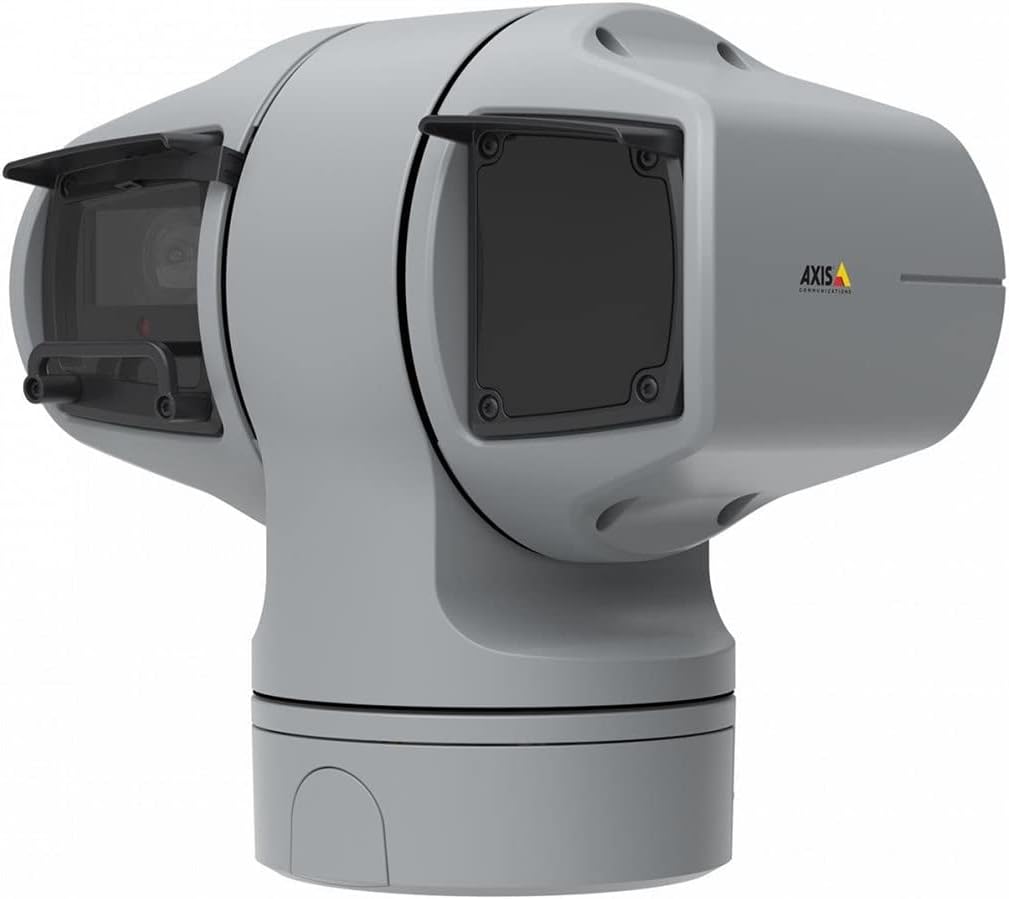
Hoto na 1: AXIS Q6225-LE PTZ Camera. This image displays the grey-colored PTZ camera unit, highlighting its robust housing and integrated lens system, designed for outdoor surveillance.
4. Saita da Shigarwa
4.1 Haɗa Kamara
The AXIS Q6225-LE is designed for wall mount installation. Ensure the mounting surface is strong enough to support the camera's weight and withstand environmental conditions.
- Zaɓi wurin hawa mai dacewa wanda ke samar da filin da ake so na view and is within reach of power and network connections.
- Use the provided mounting template to mark drill holes on the wall.
- Drill pilot holes and secure the mounting bracket using appropriate screws and anchors.
- Attach the camera to the mounting bracket, ensuring it is firmly locked in place.
4.2 Haɗin Wuta da Hanyar Sadarwa
Connect the camera to power and network as follows:
- Ƙarfi: Connect the power cable to a 60-watt power source. Ensure the connection is secure and weatherproof.
- Cibiyar sadarwa: Connect an Ethernet cable from your network switch or router to the camera's network port. The camera supports Wi-Fi for wireless communication. Refer to the network configuration section for wireless setup.
4.3 Kanfigareshan Farko
After physical installation and connection, access the camera's web interface for initial configuration:
- Bude a web browser on a computer connected to the same network as the camera.
- Enter the camera's IP address in the browser's address bar. If the IP address is unknown, use the AXIS IP Utility tool to discover it.
- Follow the on-screen prompts to set up a new password for the administrator account.
- Configure basic network settings, date/time, and video stream settings.
5. Aiki da Kamara
5.1 Sarrafa Pan, Tilt, da Zoom (PTZ)
The AXIS Q6225-LE camera features full PTZ capabilities, allowing remote adjustment of its viewing angle and zoom level. Control is typically performed via the camera's web interface or compatible video management software (VMS).
- Kwana: Rotate the camera horizontally to cover a wider area.
- Kwana: Adjust the camera vertically to view objects at different heights.
- Zuƙowa na gani: Use the optical zoom feature to magnify distant objects without loss of image quality.
5.2 Gano Motsi da Faɗakarwa
The camera supports motion-only alerts. Configure motion detection zones and sensitivity settings in the web interface to trigger recordings or notifications when movement is detected.
5.3 Infrared (IR) Illumination
Equipped with infrared light sources, the camera provides clear video surveillance in low-light or complete darkness. IR illumination activates automatically or can be manually controlled.
6. Kulawa
6.1 Tsaftacewa
Regular cleaning of the camera lens and housing is recommended to ensure optimal performance, especially in dusty or harsh environments.
- Gently wipe the lens with a soft, lint-free cloth. For stubborn dirt, use a lens cleaning solution specifically designed for optical surfaces.
- Tsaftace gidan kyamara da tallaamp zane. Kauce wa masu goge goge ko kaushi.
6.2 Sabunta Firmware
Periodically check the Axis Communications website for firmware updates. Keeping the camera's firmware up-to-date ensures access to the latest features, security enhancements, and bug fixes.
7. Shirya matsala
This section addresses common issues you might encounter with your AXIS Q6225-LE camera.
| Matsala | Dalili mai yiwuwa | Magani |
|---|---|---|
| Babu ciyarwar bidiyo | Power disconnected, network issue, incorrect IP address. | Check power connection. Verify network cable or Wi-Fi connection. Confirm camera's IP address. |
| Orarancin hoto | Dirty lens, improper focus, low light conditions. | Clean the lens. Adjust focus via web interface. Ensure adequate lighting or verify IR functionality. |
| PTZ controls unresponsive | Network latency, software glitch, motor issue. | Check network connection. Restart the camera. If problem persists, contact support. |
8. Ƙayyadaddun bayanai
| Siffar | Daki-daki |
|---|---|
| Lambar Samfura | 02316-002 |
| Alamar | Sadarwar Axis |
| Nau'in hawa | Dutsen bango |
| Launi | Fari |
| Kayan abu | Karfe |
| Watatage | 60 watts |
| Fasahar Haɗuwa | Mara waya, Wi-Fi |
| Amfanin Cikin Gida/Waje | Waje |
| Hanyar sarrafawa | Nisa |
| Fasahar Sensor Hoto | CMOS |
| Tsarin Ɗaukar Bidiyo | MPEG-4 |
| Nau'in Tushen Haske | Infrared |
| Nau'in Jijjiga | Motsi Kawai |
| Nau'in Zuƙowa | Zuƙowa na gani |
| Nauyin Abu | 0.01 Kilogram (0.352 oz) |
| Abubuwan da aka haɗa | Kamara/Na'urorin haɗi |
9. Garanti da Tallafawa
For warranty information and technical support, please refer to the official Axis Communications webshafin yanar gizo ko tuntuɓi dillalin da aka ba ku izini. Ajiye rasitin siyan ku a matsayin shaidar siyan.
Albarkatun Kan layi: www.axis.com


