Gabatarwa
Na gode da siyaasing the THOMSON Sound Bar B206. This sound bar is designed to enhance your audio experience for television, music, and gaming, featuring multiple connectivity options and two wireless microphones for karaoke. This manual provides essential information for safe and efficient use of your device. Please read it thoroughly before operation and retain it for future reference.
Bayanin Tsaro
- Kada a fallasa na'urar ga ruwan sama, danshi, ko yanayin zafi mai tsanani.
- Ensure proper ventilation around the sound bar to prevent overheating.
- Kar a bude casing; mayar da duk hidima ga ƙwararrun ma'aikata.
- Yi amfani da adaftar wutar da aka bayar kawai.
- Tsare na'urar daga filaye masu ƙarfi masu ƙarfi.
- Avoid placing heavy objects on the sound bar.
Abubuwan Kunshin
Tabbatar cewa duk abubuwan da aka jera a ƙasa suna cikin kunshin ku:
- THOMSON Sound Bar (B206) x 1
- M Control x 1
- Mara waya mara waya x 2
- Adaftar Wuta x 1
- Audio Cable x 1
- Coaxial Cable x 1
- Optical Fiber Cable x 1
- Wall Mounting Kit x 1 (includes padlocks, gel column, screws)
- Manual mai amfani x 1

Hoto 1: Haɗe da Na'urorin haɗi
This image displays the complete set of items provided with your THOMSON Sound Bar B206, including the sound bar unit, remote control, two wireless microphones, power adapter, user manual, audio cable, coaxial cable, optical fiber cable, and wall mounting kit components.
Samfurin Ƙarsheview
Sound Bar Components
The THOMSON Sound Bar B206 features a sleek design with integrated controls and various input ports for versatile connectivity.

Figure 2: Sound Bar, Microphones, and Remote
This image shows the main sound bar unit, two wireless microphones, and the remote control, providing a complete view of the primary components.
Internal Speaker Design
The sound bar is equipped with four large dual drive units, delivering a maximum output power of 200 Watts for HiFi sound quality, including dual bass and clear mid-range frequencies for a 3D surround sound effect.

Figure 3: Internal Speaker Structure
This diagram illustrates the internal construction of the sound bar's speakers, emphasizing the dual drive units responsible for audio output, alongside the Bluetooth connectivity symbol.
Rear Panel Connections and Remote Control
The rear panel provides various input options, while the remote control offers full command over the sound bar's functions.

Figure 4: Rear Panel Ports and Remote Control
This image details the connectivity options on the sound bar's rear panel, including the power switch, HDMI ARC, power input, subwoofer output, coaxial, optical, and AUX inputs. The accompanying remote control is also shown, indicating various function buttons.
Saita
1. Zaɓuɓɓukan Sanya
The THOMSON Sound Bar B206 can be placed on a desktop or mounted on a wall. A wall mounting kit is included for convenient installation.
- Wurin Ɗawainiya: Place the sound bar on a stable, flat surface in front of your TV.
- Hawan bango: Use the provided wall mounting kit (padlocks, gel column, screws) to securely attach the sound bar to a wall below your TV. Ensure the wall material can support the weight of the sound bar.
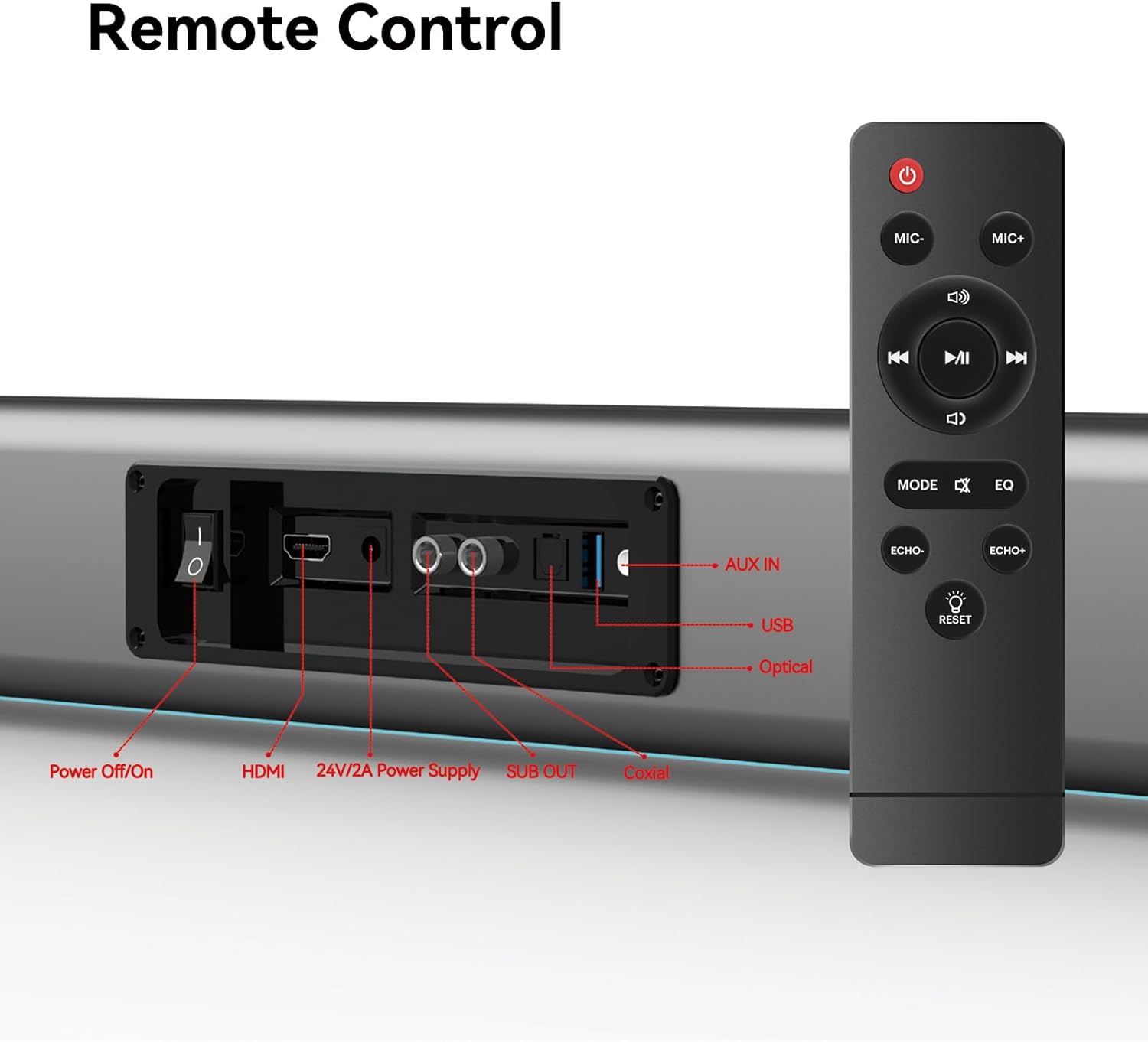
Figure 5: Placement Options (Wall Mount and Desktop)
This image illustrates the versatility of the sound bar's placement, showing it both mounted on a wall beneath a television and resting on a media console, highlighting the included wall mount kit for an elegant setup.
2. Haɗa zuwa Wuta
- Connect the power adapter to the "24V/2A Power Supply" port on the sound bar's rear panel.
- Toshe adaftan wutar cikin mashin bango.
3. Haɗin Sauti
Choose one of the following methods to connect the sound bar to your audio source (e.g., TV, smartphone, tablet, laptop):
- HDMI ARC:
Connect an HDMI cable (not included) from the HDMI ARC port on your TV to the HDMI port on the sound bar. Ensure your TV's HDMI ARC function is enabled in its settings.
- Na gani:
Connect the provided optical fiber cable from your TV's optical output to the "Optical" port on the sound bar. Select "Optical" as the input source on the sound bar.
- AUX (3.5mm Audio Jack):
Connect the provided audio cable from your device's headphone jack or audio output to the "AUX IN" port on the sound bar. Select "AUX" as the input source.
- Coaxial:
Connect the provided coaxial cable from your TV's coaxial output to the "Coaxial" port on the sound bar. Select "Coaxial" as the input source.
- USB:
Saka kebul na USB mai ɗauke da sauti files into the "USB" port. The sound bar will automatically switch to USB mode and begin playback.
- Bluetooth:
Refer to the "Bluetooth Pairing" section under Operating Instructions for detailed steps.
Umarnin Aiki
1. Kunnawa / Kashewa
Danna maɓallin Kashe Wuta/Kunnawa button on the sound bar's rear panel or the Ƙarfi maɓalli a kan na'urar sarrafawa ta nesa don kunna ko kashe na'urar.
2. Zaɓin Tushen shigarwa
Danna maɓallin MODE button on the remote control to cycle through available input sources: HDMI ARC, Optical, AUX, Coaxial, USB, and Bluetooth. The LED display on the sound bar will indicate the currently selected mode.
3. Sarrafa ƙara
Yi amfani da +ara + kuma --Ara - buttons on the remote control or the physical controls on the right side of the sound bar to adjust the volume. The sound bar supports 8 levels of bass and treble adjustment.
4. Hanyoyin EQ
The sound bar offers 5 Equalizer (EQ) modes to optimize audio for different content types. Press the EQ button on the remote control to switch between modes:
- Yanayin Fim: Enhances cinematic sound effects and dialogue.
- Yanayin Kiɗa: Yana inganta sauti don kunna kiɗa.
- Yanayin Labarai: Clarifies spoken dialogue for news and talk shows.
- Additional modes may be available for specific audio profiles.

Figure 6: EQ Modes
This image illustrates the three primary equalizer modes (News, Movie, Music) available on the sound bar, demonstrating how each mode is tailored for different audio experiences.
5. Haɗa Bluetooth
- Turn on the sound bar and select Bluetooth mode using the MODE button on the remote. The LED display will show "BT" and flash, indicating pairing mode.
- A kan na'urarka (wayar hannu, kwamfutar hannu, da sauransu), kunna Bluetooth kuma bincika samammun na'urori.
- Select "THOMSON B206" from the list. Once connected, the sound bar's LED display will stop flashing.
6. Wireless Microphones
The sound bar comes with two wireless microphones for karaoke or vocal use.
- Ensure the microphones have fresh batteries (AAA, not included).
- Turn on the microphones. They should automatically pair with the sound bar.
- Yi amfani da MIC+ da kuma MIC- buttons on the remote to adjust microphone volume.
- Yi amfani da ECHO+ kuma ECHO- buttons to adjust the echo effect.

Figure 7: Karaoke Functionality
This image depicts two individuals enjoying a karaoke session, utilizing the THOMSON sound bar and its wireless microphones connected to a large display, showcasing the product's entertainment capabilities.
Shirya matsala
| Matsala | Dalili mai yiwuwa | Magani |
|---|---|---|
| Babu iko | Ba a haɗa kebul na wutar lantarki ba; Wurin wutar lantarki ba ya aiki. | Ensure power cable is securely connected. Check if the power outlet is working. |
| Babu sauti | An zaɓi tushen shigar da ba daidai ba; Ƙaƙƙarfan ƙaranci sosai; Ba a haɗa igiyoyi da kyau ba. | Select the correct input source (HDMI, Optical, AUX, etc.). Increase volume. Check all audio cable connections. |
| Haɗin Bluetooth ya kasa | Sound bar not in pairing mode; Device too far; Bluetooth disabled on device. | Ensure sound bar is in Bluetooth mode and flashing. Move device closer. Enable Bluetooth on your device. |
| Makirufo ba sa aiki | Microphone batteries low/dead; Microphones not turned on. | Replace microphone batteries. Ensure microphones are switched on. |
| Volume jumps too much with one press | This can be a characteristic of the sound bar's volume control sensitivity. | Adjust volume carefully. Consider using the TV's volume control if connected via HDMI ARC, as it may offer finer adjustments. |
Ƙayyadaddun bayanai
| Siffar | Daki-daki |
|---|---|
| Sunan Samfura | THOMSON Sound Bar B206 |
| Nau'in Kakakin | Sauti |
| Matsakaicin Ƙarfin Fitar da Kakakin | 200 Watts |
| Kewaye Sauti Kanfigareshan | 2.0 |
| Fasahar Haɗuwa | Auxiliary, Bluetooth, Coaxial, HDMI ARC, Optical, USB |
| Fasahar Sadarwa mara waya | Bluetooth |
| Hanyar sarrafawa | Nisa |
| Girman samfur | 37"D x 3.35"W x 2.9"H |
| Nauyin Abu | 8.63 fam |
| Kayan abu | Filastik |
| Tushen wutar lantarki | Corded Electric |
| Siffa ta Musamman | Mara waya ta Microphones |
Kulawa
- Tsaftacewa: Use a soft, dry cloth to clean the surface of the sound bar. Do not use liquid cleaners or abrasive materials.
- Ajiya: When not in use for extended periods, store the sound bar in a cool, dry place, away from direct sunlight and extreme temperatures.
- Kulawar Makarufo: Remove batteries from the wireless microphones if they will not be used for a long time to prevent leakage.
Garanti da Taimako
THOMSON products are designed and manufactured to the highest quality standards. For warranty information and customer support, please refer to the warranty card included in your package or visit the official THOMSON website. Ajiye rasidin siyan ku azaman shaidar siyan.
Bayanan yarda
This device complies with relevant regulations for electronic equipment. Any changes or modifications not expressly approved by the manufacturer could void the user's authority to operate the equipment.


