1. Samfurin Ya Ƙareview
The TECLAST T40Air is a high-performance tablet designed for various tasks, from entertainment to productivity. It features a 10.4-inch display, 16GB RAM, 256GB ROM, and runs on Android 13, powered by an octa-core processor. Its lightweight design and robust battery ensure portability and extended usage.

Hoto 1.1: Gaba da baya view of the TECLAST T40Air Tablet, showcasing its sleek design and dual rear cameras.
Bidiyo 1.1: An gama aikin hukumaview of the TECLAST T40Air Android Tablet, highlighting its key features and design.
2. Saitin Farko
2.1 Unboxing and First Use
Carefully remove the tablet and all accessories from the packaging. Inspect the device for any physical damage. Before first use, it is recommended to fully charge the tablet.
2.2 Cajin kwamfutar hannu
Connect the provided USB-C cable to the tablet's charging port and the other end to the 18W PD fast charging adapter. Plug the adapter into a power outlet. The battery indicator on the screen will show the charging status. A full charge typically takes approximately 2-3 hours.
2.3 Kunnawa / Kashewa
- Don Kunnawa: Press and hold the Power button located on the side of the tablet until the TECLAST logo appears on the screen.
- Don Kashe: Press and hold the Power button until a power menu appears. Select 'Power off' and confirm.
- Don Sake farawa: From the power menu, select 'Restart'.
2.4 Kanfigareshan Farko
Upon first power-on, the tablet will guide you through the initial setup process:
- Zaɓin Harshe: Zabi yaren da kuka fi so.
- Haɗin Wi-Fi: Zaɓi hanyar sadarwar Wi-Fi ɗin ku kuma shigar da kalmar wucewa don haɗawa da intanit.
- Asusun Google: Sign in with your Google account or create a new one. This is essential for downloading apps from the Google Play Store and syncing data.
- Kwanan Wata & Lokaci: Saita daidai kwanan wata da lokaci, ko ƙyale cibiyar sadarwar ta saita ta ta atomatik.
- Tsaro: Set up a screen lock (PIN, pattern, password, or Face Unlock).
2.5 Shigar da Katin SIM (Na zaɓi)
The T40Air supports 4G LTE connectivity. To install a SIM card:
- Locate the SIM card tray on the side of the tablet.
- Yi amfani da kayan aikin fitarwa na SIM don buɗe tire.
- Place the Nano-SIM card(s) into the designated slots, ensuring correct orientation.
- A hankali tura tiren baya cikin kwamfutar hannu har sai ya danna wurin.

Image 2.1: The TECLAST T40Air Tablet highlighting its 4G LTE support and SIM card tray location.
3. Umarnin Aiki
3.1 Navigating Android 13
The TECLAST T40Air runs on Android 13, offering an intuitive user experience. Use touch gestures to navigate:
- Taɓa: Zaɓi abu.
- Doke shi gefe: Gungura ta cikin allo ko jerin.
- Matsa-don-zuƙowa: Zuƙowa ko rage hotuna da kuma web shafuka.
- Dogon latsawa: Samun dama ga menu na mahallin ko matsar da gumaka.
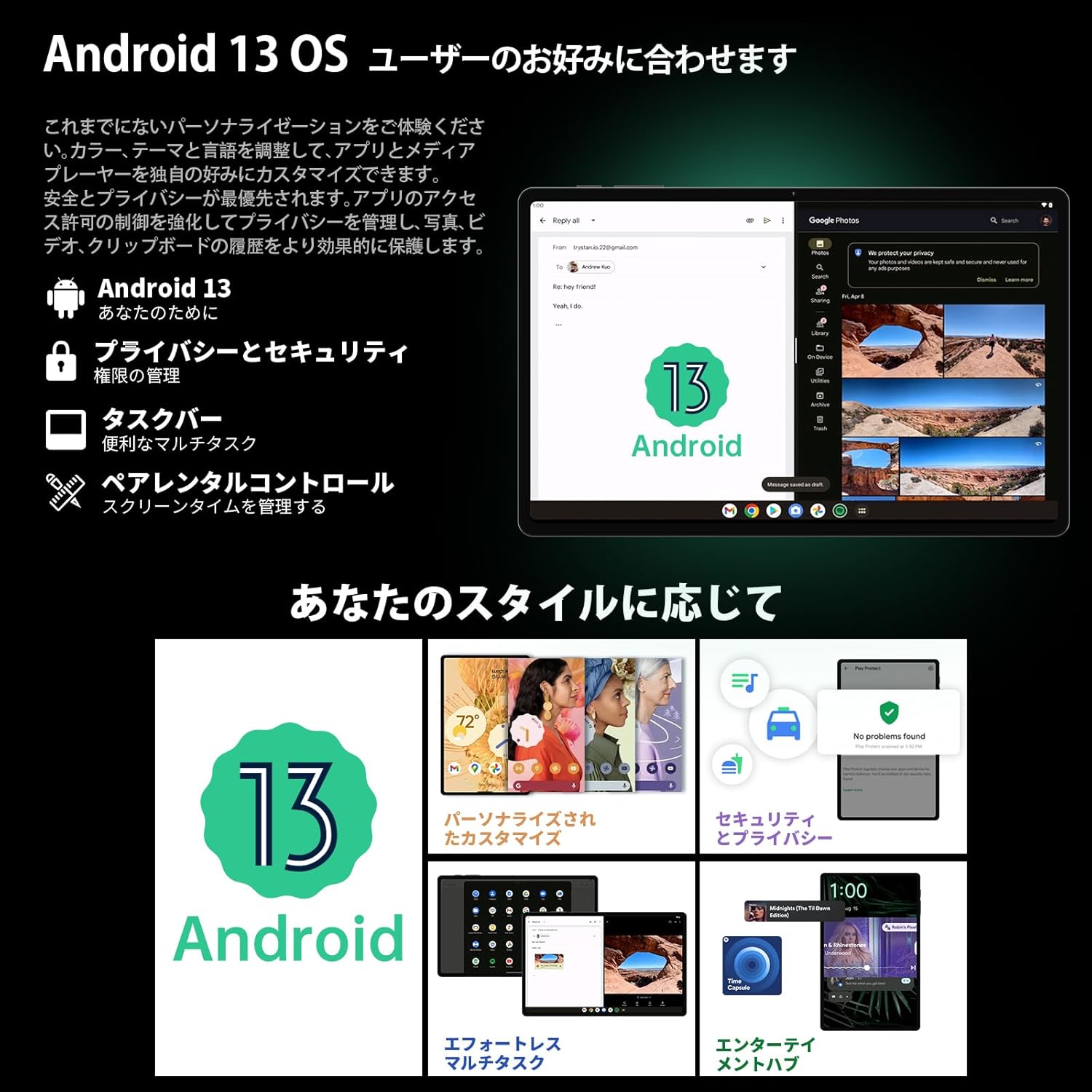
Image 3.1: The Android 13 interface on the TECLAST T40Air Tablet, showing personalization and security features.
3.2 Abubuwan Nuni
The 10.4-inch 2K FHD IPS display provides vibrant colors and sharp details. It features:
- TDDI Fully Laminated: Enhances touch responsiveness and visual clarity.
- Yanayin Kariyar Ido: Reduces blue light to prevent eye strain.
- Yanayin Karatu: Optimizes the screen for comfortable reading.
- Dark Mode & Dim Mode: Adjusts screen brightness and color for different lighting conditions.

Image 3.2: Visual representation of the TECLAST T40Air Tablet's display features, including eye protection and reading modes.
3.3 Amfanin Kamara
The tablet is equipped with a 13MP rear dual camera and an 8MP front camera.
- Daukar Hotuna: Bude aikace-aikacen kamara, tsara hotonku, kuma danna maɓallin rufewa.
- Bidiyo Bidiyo: Canja zuwa yanayin bidiyo a cikin manhajar Kyamara sannan ka danna maɓallin rikodi.
- Kamara ta Gaba: Use for video calls and selfies.

Image 3.3: The TECLAST T40Air Tablet showcasing its camera capabilities and 3.5mm headphone jack.
3.4 Audio and Connectivity
- SWEET 4 Speakers: Enjoy immersive audio with the tablet's quad-speaker system and Smart K Digital Ampmai sanyaya wuta.
- Jackphone 3.5mm: Connect your wired headphones for private listening.
- Wi-Fi: Supports 2.4GHz and 5GHz dual-band Wi-Fi (802.11ac) for stable and fast internet.
- Bluetooth 5.0: Connect wireless accessories like headphones, keyboards, and mice.
- VoLTE: Enables high-quality voice calls over 4G LTE networks.
3.5 Buɗe fuska
The tablet supports Face Unlock for convenient and secure access. Set it up in the Security settings. Ensure good lighting conditions for optimal performance.
4. Kulawa
4.1 Tsabtace kwamfutar hannu
Don tsaftace kwamfutar hannu, yi amfani da zane mai laushi, mara laushi. Don ƙuraje masu tauri, a ɗan shafa kaɗan.ampen the cloth with water or a screen cleaner. Avoid using harsh chemicals, abrasive materials, or excessive moisture.
4.2 Kula da baturi
- Guji fallasa kwamfutar hannu zuwa matsanancin yanayin zafi.
- Kada ka bari baturin ya zube gaba daya akai-akai.
- Use the original charger or a certified 18W PD charger for optimal charging.
4.3 Sabunta software
A riƙa duba da kuma shigar da sabbin manhajoji akai-akai domin tabbatar da cewa kwamfutar hannu tana da sabbin fasaloli, facin tsaro, da kuma inganta aiki. Je zuwa Saituna > Tsari > Sabunta tsarin.
4.4 Gudanar da Adana
The tablet comes with 256GB of internal storage, expandable via microSD card up to 1TB. Regularly manage your storage by:
- Share ba dole ba files da apps.
- Motsawa babba files zuwa katin microSD.
- Utilizing cloud storage services.

Image 4.1: The TECLAST T40Air Tablet highlighting its 16GB RAM, 256GB ROM, and support for microSD card expansion.
5. Shirya matsala
This section addresses common issues you might encounter with your TECLAST T40Air Tablet.
5.1 Na'urar Ba Ya Kunnawa
- Ensure the battery is sufficiently charged. Connect the charger and wait a few minutes before attempting to power on.
- Latsa ka riƙe maɓallin wuta na akalla daƙiƙa 10-15 don tilasta sake farawa.
5.2 Abubuwan Haɗin Wi-Fi
- Check if Wi-Fi is enabled in Saituna > Network & intanit > Wi-Fi.
- Tabbatar cewa kun shigar da kalmar sirri ta Wi-Fi daidai.
- Sake kunna Wi-Fi na'ura mai ba da hanya tsakanin hanyoyin sadarwa da kwamfutar hannu.
- Try connecting to a different Wi-Fi network to isolate the issue.
5.3 Sannun Ayyuka
- Rufe aikace-aikacen bango mara amfani.
- Clear cache data for apps that are running slowly (Saituna> Apps> [Sunan App]> Ajiye & cache> Share cache).
- Tabbatar kana da isasshen sararin ajiya kyauta.
- Sake kunna kwamfutar hannu.
5.4 Screen Not Responding
- Sake kunna kwamfutar hannu ta hanyar riƙe maɓallin Wuta.
- Tabbatar cewa allon yana da tsabta kuma ba shi da danshi ko tarkace.
5.5 Sake saitin masana'anta (Karshe Gidan Wuta)
If issues persist, you may consider performing a factory reset. Gargaɗi: Wannan zai shafe duk bayanan da ke kan kwamfutar hannu. Ajiye mahimman bayanai kafin a ci gaba.
Je zuwa Saituna > Tsari > Sake saitin zaɓuɓɓuka > Goge duk bayanai (sake saitin masana'anta) kuma bi umarnin kan allo.
6. Ƙayyadaddun bayanai
Below are the technical specifications for the TECLAST T40Air Tablet:
| Siffar | Ƙayyadaddun bayanai |
|---|---|
| Lambar Samfura | T40Air |
| Girman Nuni | Inci 10.4 |
| Tsarin allo | 1920 x 1080 pixels (2K FHD IPS) |
| RAM | 16 GB |
| Flash Memory Size (ROM) | 256 GB |
| Alamar Processor | Rockchip or Unisoc (Octa-core) |
| Tsarin Aiki | Android 13 |
| Nau'in Mara waya | 5 GHz Radio Frequency, 802.11a/b/g/n/ac |
| Bluetooth | Bluetooth 5.0 |
| Matsakaicin Rayuwar Baturi | Awa 5 (7200mAh) |
| Nauyin Abu | 1.01 fam (kimanin 460g) |
| Girman samfur | 9.6 x 6.1 x 0.3 inci |
| Siffa ta Musamman | Mai nauyi |
7. Garanti da Tallafawa
7.1 Garanti na Samfur
The TECLAST T40Air Tablet comes with a standard manufacturer's warranty. Please refer to the warranty card included in your product packaging for specific terms, conditions, and duration. Keep your proof of purchase for warranty claims.
7.2 Tallafin Abokin Ciniki
If you encounter any issues not covered in this manual or require further assistance, please contact TECLAST customer support. You can typically find contact information on the official TECLAST webrukunin yanar gizo ko ta tashoshin goyan bayan dillalan ku.
- Visit the official TECLAST webshafin don FAQs da albarkatun tallafi.
- Contact the seller or retailer for product-specific support and return policies.