1. Gabatarwa
This manual provides essential instructions for setting up, operating, maintaining, and troubleshooting your HP ProDesk 600 G3 Desktop PC. This system is equipped with an Intel i5-6th Gen processor, 16GB DDR4 RAM, a 256GB SSD, and comes with a 22-inch monitor, gaming keyboard, mouse, and built-in WiFi, running Windows 11.

Image 1.1: Complete HP ProDesk 600 G3 Desktop PC setup.
2. Abin da ke cikin Akwatin
Da fatan za a tabbatar da cewa duk waɗannan abubuwan suna cikin fakitin ku:
- HP ProDesk 600 G3 Desktop PC Tower
- 22-inch Monitor
- Makullin Wasan RGB
- RGB Gaming Mouse
- Masu magana
- Igiyar Wutar Lantarki (s)
- Built-in WiFi Adapter (pre-installed)

Image 2.1: Included RGB Gaming Keyboard, Mouse, and Speakers.
3. Jagorar Saita
3.1 Gano Tashoshin Jiragen Ruwa
Before connecting, familiarize yourself with the available ports on your desktop PC.

Image 3.1: Front and Rear Port Layout.
Tashar jiragen ruwa na gaba: Power Button, Universal Audio Jack, USB 2.0 Ports, USB 3.0 Ports.
Tashoshin Ruwa na baya: Display Port, Ethernet RJ-45 Port, USB 2.0 Ports, USB 3.0 Ports, Power Connection.
3.2 Haɗa Abubuwan Haɗi
- Saka idanu: Connect the 22-inch monitor to a Display Port on the rear of the PC using a compatible cable.
- Allon madannai da linzamin kwamfuta: Plug the USB cables of the gaming keyboard and mouse into any available USB ports (preferably USB 3.0 for better performance) on the front or rear of the PC.
- Masu magana: Connect the speakers to the Universal Audio Jack on the front of the PC.
- Ƙarfi: Connect the power cord to the power connection port on the rear of the PC, then plug the other end into a wall outlet. Connect the monitor's power cord similarly.
3.3 Ƙarfin Farko Kunna
Press the power button located on the front of the PC tower. The system will boot up, and Windows 11 will load. Follow any on-screen prompts for initial setup, such as language selection and user account creation.
3.4 Haɗa zuwa WiFi
Your HP ProDesk 600 G3 has built-in WiFi. To connect to a wireless network:
- Once Windows 11 has loaded, click on the network icon (usually a globe or WiFi symbol) in the taskbar.
- Zaɓi hanyar sadarwar WiFi da kuke so daga jerin hanyoyin sadarwar da ake da su.
- Enter the network security key (password) if prompted, then click 'Connect'.

Image 3.2: Wireless WiFi connectivity.
4. Umarnin Aiki
4.1 Basic Aiki
The HP ProDesk 600 G3 runs on Windows 11. Familiarize yourself with the operating system's interface, Start Menu, and basic navigation. For detailed information on Windows 11, refer to Microsoft's official documentation.
4.2 Dual Monitor Support
This system supports dual monitors, allowing for an expanded workspace. To set up a second monitor:
- Connect the second monitor to an available Display Port on the rear of the PC.
- Right-click on an empty area of your desktop and select 'Display settings'.
- Windows 11 should automatically detect the second monitor. You can then arrange the displays, choose their orientation, and select display modes (e.g., Extend, Duplicate) within the display settings.
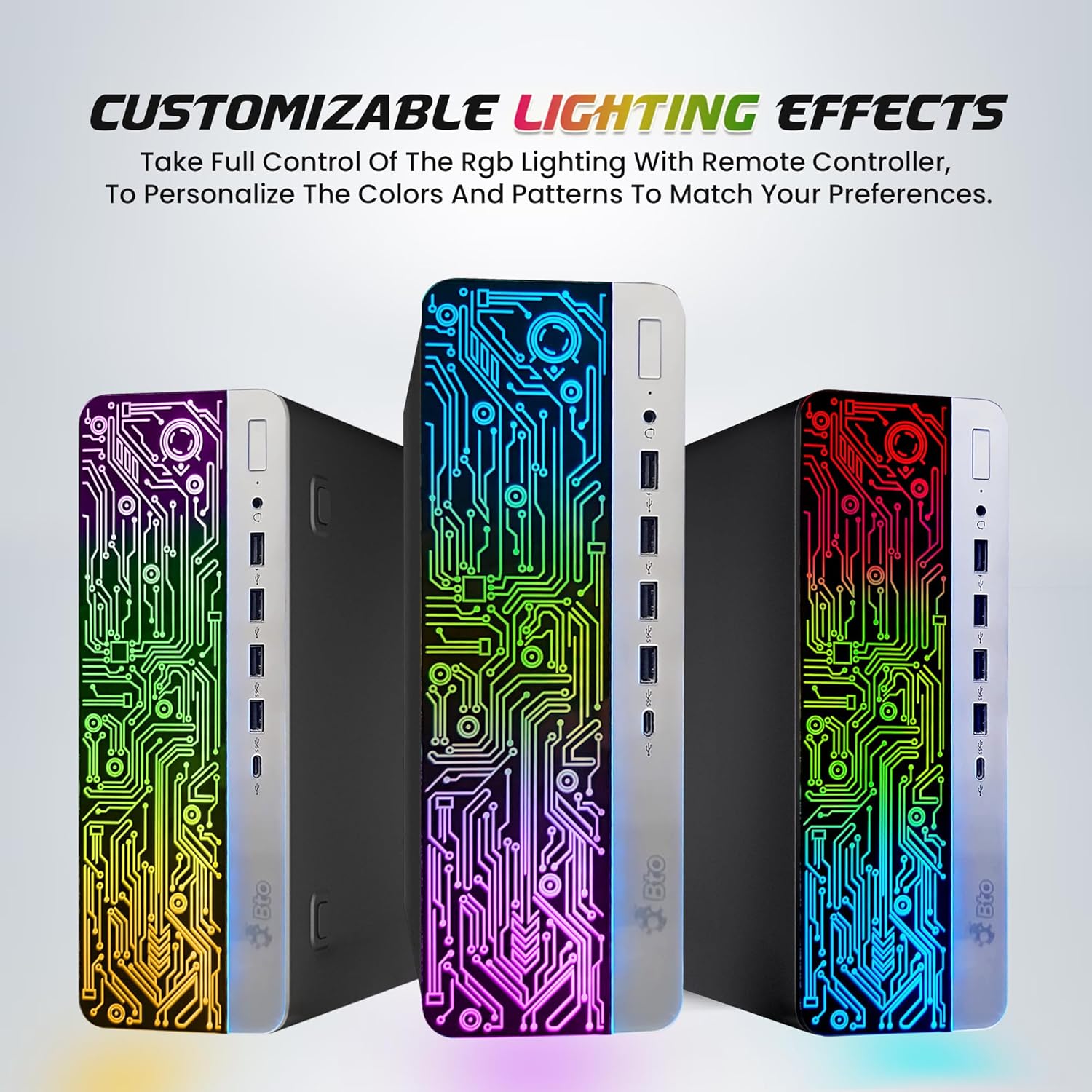
Image 4.1: Dual monitor setup for enhanced productivity.
Tasirin Haske guda 4.3 da za a iya keɓancewa
The HP ProDesk 600 G3 features customizable RGB lighting effects on the PC tower. Use the provided remote controller to adjust colors and patterns according to your preference.

Image 4.2: Customizable RGB lighting effects on the PC tower.
5. Kulawa
5.1 Tsaftacewa
- Always power off and unplug the PC before cleaning.
- Yi amfani da laushi mai laushi mara laushi dampened with water or a mild cleaning solution to wipe exterior surfaces. Avoid harsh chemicals.
- Use compressed air to clear dust from vents and ports periodically to ensure proper airflow and prevent overheating.
- Clean the monitor screen with a specialized screen cleaner and a microfiber cloth.
5.2 Sabunta software
Regularly update your Windows 11 operating system and drivers to ensure optimal performance, security, and compatibility. Windows Update typically handles this automatically, but you can manually check for updates via 'Settings > Windows Update'.
6. Shirya matsala
6.1 Babu Ƙarfi
- Ensure the power cord is securely connected to both the PC and a working electrical outlet.
- Bincika idan tashar wutar lantarki na aiki ta hanyar toshe a wata na'ura.
- Verify the power button on the PC tower is fully pressed.
6.2 No Display on Monitor
- Confirm the monitor's power cord is connected and the monitor is turned on.
- Ensure the video cable (Display Port) is securely connected to both the PC and the monitor.
- Try connecting the monitor to a different video port on the PC, if available.
- If using multiple monitors, ensure the correct input source is selected on the monitor.
6.3 Babu Haɗin Intanet
- Check if your router/modem is powered on and functioning correctly.
- Verify that the WiFi is enabled in Windows settings.
- Ensure you have entered the correct WiFi password.
- Restart your PC and your router/modem.
6.4 Keyboard/Mouse Not Responding
- Ensure the USB cables for the keyboard and mouse are securely plugged into the PC.
- Gwada haɗa su cikin tashoshin USB daban-daban.
- Sake kunna PC.
7. Ƙayyadaddun bayanai
| Bangaren | Ƙayyadaddun bayanai |
|---|---|
| Samfura | HP ProDesk 600 G3 Desktop RGB Computer |
| Mai sarrafawa | Intel Core i5-6500 6th Gen (3.2 GHz base, up to 3.60 GHz turbo) |
| RAM | 16GB DDR4 SDRAM |
| Adana | 256GB Solid State Drive (SSD) |
| Zane-zane | Intel HD Graphics 530 (An haɗa shi) |
| Tsarin Aiki | Windows 11 Pro |
| Saka idanu | 22-inch IPS Display (1920 x 1080 resolution) |
| Haɗuwa | Built-in WiFi (2.4G/5G), Ethernet RJ-45 |
| Tashoshi | USB 3.0, USB 2.0, Display Port, Universal Audio Jack |
| Girma (LxWxH) | 23.5 x 15.5 x 10 inci |
8. Garanti da Tallafawa
This product is a renewed item. For specific warranty details and support, please refer to the documentation provided by the seller or contact the seller directly through your purchase platform. Renewed products typically come with a limited warranty from the refurbisher or seller.