1. Samfurin Ya Ƙareview
The AEEZO Digital Picture Frame PF107 offers a modern way to display and share your cherished photos and videos. Featuring a 10.1-inch 1280x800 IPS touch screen, it provides clear visuals and intuitive navigation. With built-in Wi-Fi, you can easily share media directly from your smartphone using the AiMOR app. The frame includes 16GB of internal storage and supports auto-rotation for flexible display options.

Figure 1: AEEZO Digital Picture Frame PF107 in black, displaying a photo of a mother and child.
2. Jagorar Saita
2.1. Abubuwan Kunshin
Before beginning, ensure all components are present in the package:
- AEEZO Digital Picture Frame PF107
- Adaftar Wuta
- M Cire
- Goge Tufafi
- Jagorar mai amfani (wannan takaddar)
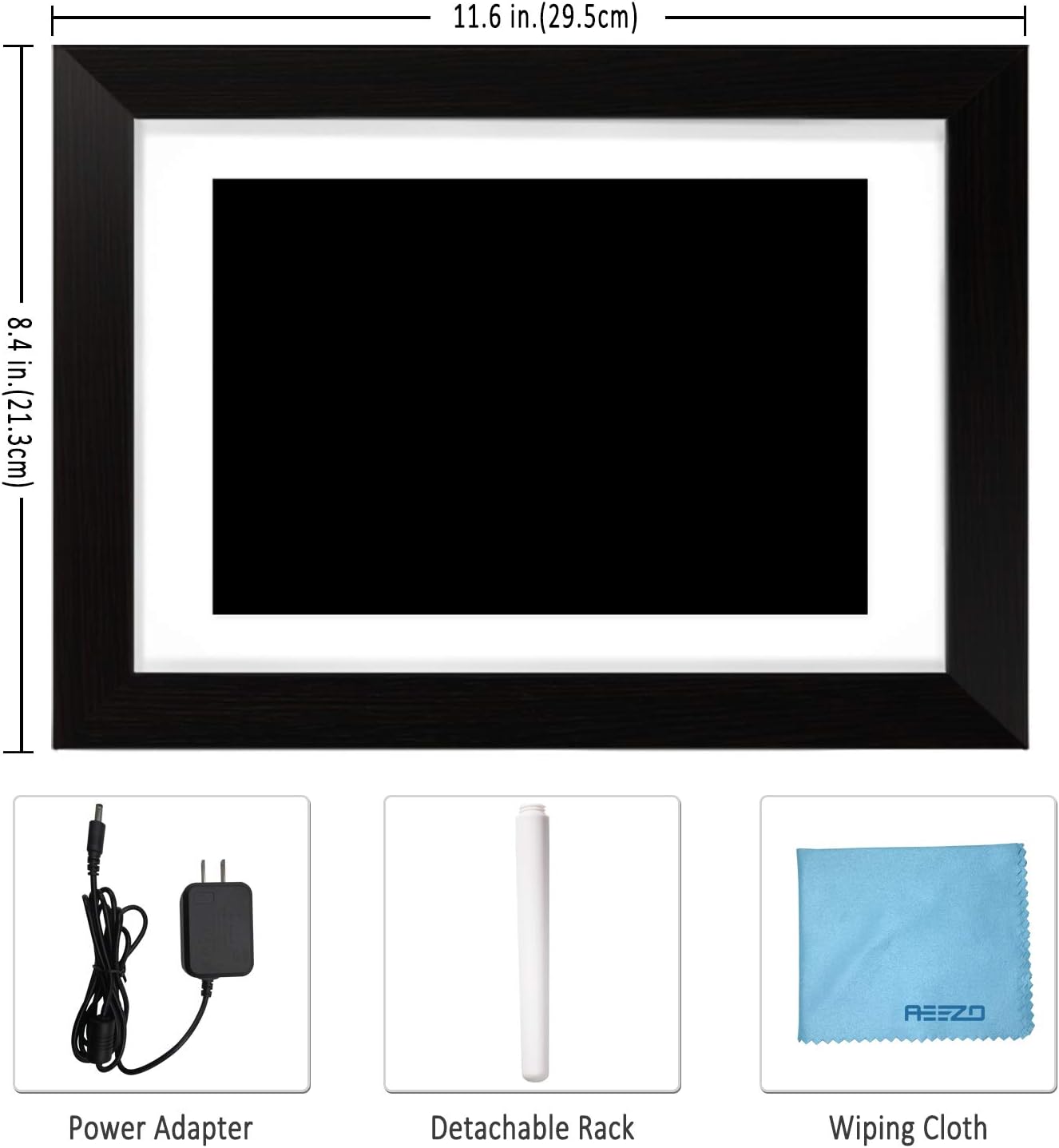
Figure 2: Included accessories: power adapter, detachable stand, and wiping cloth.
2.2. Haɗin Wuta
- Locate the power adapter.
- Connect the power adapter cable to the DC port on the back of the frame.
- Toshe adaftan cikin madaidaicin tashar lantarki.
- Firam ɗin zai kunna ta atomatik.
Video 1: Demonstrates connecting the power adapter to the digital picture frame and its flexible stand for horizontal and vertical display.
2.3. Initial Wi-Fi and App Setup
- Upon first power-on, follow the on-screen prompts to select your language and connect to a Wi-Fi network.
- Download the "AiMOR" app on your Android or iOS smartphone. Bincika "AiMOR" in the Google Play Store or Apple App Store.
- Open the AiMOR app and create an account.
- On the frame, navigate to the "Add Friend" or "My Frame" section to obtain a unique code.
- In the AiMOR app, enter this code to link your smartphone with the digital picture frame.

Figure 3: The AiMOR app facilitates easy photo and video sharing with the frame.
2.4. Stand and Mounting Options
The detachable stand allows for both horizontal (landscape) and vertical (portrait) orientation. Simply insert the stand into the appropriate slot on the back of the frame. The frame also features mounting holes for wall installation (screws not included).
3. Umarnin Aiki
3.1. Sharing Photos and Videos
Once your frame is connected to the AiMOR app, you can share photos and short videos (up to 15 seconds) directly from your smartphone. The frame supports unlimited photo uploads. You can also invite friends and family to share their moments by providing them with your frame's unique code.
- Via AiMOR App: Select photos/videos in the app and send them to your linked frame. Note that some advanced batch upload features may require a yearly subscription.
- Via USB/SD Card: Insert a USB drive or SD card into the designated slots on the frame to import media directly.

Figure 4: Family members sharing photos and videos to the frame via the AiMOR app.
3.2. Touch Screen Navigation and Settings
The 10.1-inch IPS touch screen allows for easy interaction with the frame's features:
- Doke shi gefe: Swipe left or right to navigate through photos and videos.
- Taɓa: A quick tap on a photo will reveal options for managing the media.
- Dogon Latsa: A longer press on a photo may bring up additional editing or deletion options.
Key settings accessible via the touch screen include:
- Daidaita Hoto: Rotate or zoom photos to fit the frame.
- Fill Frame/Automatic: Choose to fill the entire screen or automatically adjust the photo with a blurred background for non-standard aspect ratios.
- Gallery: Access all stored photos and videos.
- Jerin waƙa: Manage the order and selection of media in your slideshow.
- Saitunan Sauri: Adjust brightness, sleep mode, display order, and other preferences.

Figure 5: The auto-rotation feature automatically adjusts photos to fit the frame, filling backgrounds to avoid black bars.
3.3. Display Modes and Customization
Keɓance naku viewing experience with various display options:
- Tazarar Slideshow: Set the duration each photo is displayed.
- Transition Effects: Choose from different visual transitions between photos.
- Caption Display: Enable or disable captions for photos.
- Clock and Weather: Display current time and weather information on the screen.
- Yanayin Barci: Schedule the frame to automatically turn off and on at specific times to conserve energy.
Video 3: Demonstrates various display settings, including clock styles, music playback, and general frame controls.
4. Kulawa
4.1. Cleaning the Frame
Use the provided soft wiping cloth to gently clean the screen and frame. Avoid using abrasive cleaners or sprays directly on the screen.
4.2. Gudanar da Adanawa
The frame comes with 16GB of internal storage. For additional storage or to transfer large batches of photos, you can use a USB drive or SD card. Ensure proper ejection of external storage devices to prevent data corruption.
5. Shirya matsala
5.1. Frame Not Powering On
- Tabbatar cewa adaftar wutar lantarki tana da haɗin kai tsaye zuwa firam ɗin da kuma wurin fitar da wutar lantarki mai aiki.
- Tabbatar da cewa tashar wutar lantarki na aiki ta hanyar toshe a wata na'ura.
5.2. Abubuwan Haɗin Wi-Fi
- Check if your Wi-Fi network is active and within range.
- Restart the frame and your Wi-Fi router.
- Tabbatar kalmar sirri ta Wi-Fi da aka shigar daidai ne.
5.3. Photos Not Displaying Correctly
- Check the photo resolution and aspect ratio. Use the "Adjust Photo" or "Fill Frame" options.
- Ensure the photo files are in a supported format (e.g., JPEG, PNG).
- If using external storage, ensure the files ba su lalace ba.
5.4. App Connection Problems
- Ensure both your smartphone and the frame are connected to the internet.
- Verify that the AiMOR app is updated to the latest version.
- Re-link the frame with the app using the unique code if the connection is lost.
5.5. Sleep Mode Malfunction
- If the sleep timer is not functioning as expected (e.g., frame not waking up), double-check the time zone and sleep timer settings in the Quick Settings menu.
- If the issue persists, a factory reset may be necessary, but note this will erase all data.
5.6. Power Disconnection Warning
- If a "Never disconnect power when Frameo is running" message appears, it indicates an unexpected power interruption. This can occur due to power surges or accidental unplugging.
- Always use the power button on the device to turn the frame off before disconnecting power to prevent potential issues.
5.7. Software Issues
- If the frame displays messages like "Frameo has stopped working," try restarting the device.
- Ensure the frame's firmware is updated to the newest version via the settings menu.
6. Ƙayyadaddun bayanai
| Siffar | Daki-daki |
|---|---|
| Girman samfur | 11.46 x 8.3 x 0.99 inci |
| Nauyin Abu | 2.94 fam |
| Lambar Samfura | AEEZO Memory 01 Black (PF107) |
| Alamar | AEEZO |
| Launi | Baki |
| Ƙaddamarwa | 1280x800 IPS HD Display |
| Girman allo | Inci 10.1 |
| Ma'ajiyar Ciki | 16GB |
| Na'urori masu jituwa | Smartphone (Android & iOS via AiMOR App) |
| Haɗuwa | Wi-Fi, USB, SD Card |
7. Garanti da Tallafawa
The AEEZO Digital Picture Frame PF107 typically includes a 1-year free warranty. Please refer to the instruction on the Thank You Card included in your package to activate your warranty within 14 days of receiving the product.
For technical support or warranty claims, please contact AEEZO customer service through their official website ko dillalin da aka siyo samfurin.


