1. Gabatarwa
This instruction manual provides essential information for the safe and efficient use of your NIIMBOT D110M Bluetooth Label Maker. Please read this manual thoroughly before operating the device and retain it for future reference. The NIIMBOT D110M is a compact, wireless thermal label printer designed for various organizational tasks in home, office, and school environments.

Image 1.1: The NIIMBOT D110M Label Maker, a roll of blank labels, and three example labels showing a barcode, 'Biscuits', and 'Tools'.
2. Abubuwan Kunshin
Tabbatar cewa duk abubuwan da aka jera a ƙasa suna cikin kunshin ku. Idan wani abu ya ɓace ko ya lalace, tuntuɓi tallafin abokin ciniki.

Image 2.1: The complete package contents for the NIIMBOT D110M, neatly arranged.
- NIIMBOT D110M Label Maker
- Manual mai amfani
- Type-C Cajin caji
- Akwatin shiryawa
- Label Paper Roll (12x40mm)
3. Samfurin Ya Ƙareview da Features
The NIIMBOT D110M is designed for ease of use and portability, featuring advanced thermal printing technology.
Mabuɗin fasali:
- Haɗin Bluetooth: Seamless wireless connection to smartphones via the NIIMBOT app.
- Bugawar thermal: Utilizes BPA-Free Direct Thermal Technology, eliminating the need for ink or toner.
- Babban Tsari: 203 DPI for clear and crisp print quality.
- Zane Mai šaukuwa: Compact and lightweight, powered by a built-in 1500mAh rechargeable Lithium-Ion battery.
- Saurin Caji: Fully charged in approximately 2 hours via Type-C cable.
- Tsawon Rayuwar Baturi: Up to 5 hours of continuous printing on a full charge.
- Intelligent Identification: Built-in RFID chip automatically recognizes label types for simplified setup.
- Takamaimai masu ɗorewa: Compatible labels are waterproof, oil-proof, abrasion-resistant, and fade-resistant.

Image 3.1: Visual representation of the NIIMBOT D110M's key features, including text printing, scanning, inkless operation, portability, high-speed printing, and Bluetooth connectivity.

Image 3.2: Details on the D110M's upgraded battery performance, highlighting its 1500mAh capacity, charging time, and print speed.
4. Saita
4.1 Cajin Na'urar
Before first use, fully charge the label maker. Connect the provided Type-C charging cable to the device and a compatible USB power adapter. The indicator light will show charging status.
4.2 Installing Label Paper
- Open the label compartment cover.
- Insert the label roll with the printing surface facing upwards, ensuring the first label extends slightly out of the printing slot.
- Close the cover securely. The device's RFID chip will automatically detect the label type.
4.3 App Download and Bluetooth Connection
- Download the "NIIMBOT" app from your smartphone's app store (available for iOS and Android).
- Turn on the NIIMBOT D110M label maker by pressing the power button. The indicator light will illuminate.
- Kunna Bluetooth akan wayoyin ku.
- Open the NIIMBOT app and follow the on-screen instructions to connect to your D110M device. The device name typically appears as "D110_XXXX".
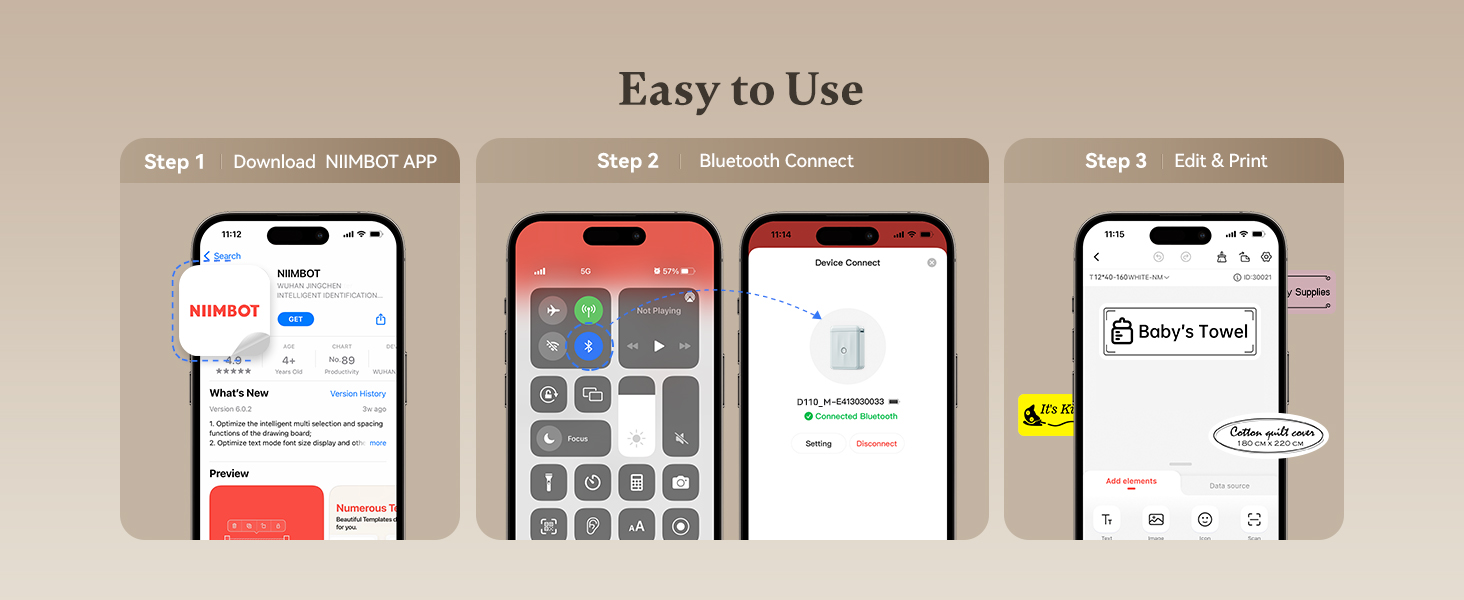
Image 4.1: A visual guide to the three-step setup process: downloading the app, connecting via Bluetooth, and then editing and printing labels.
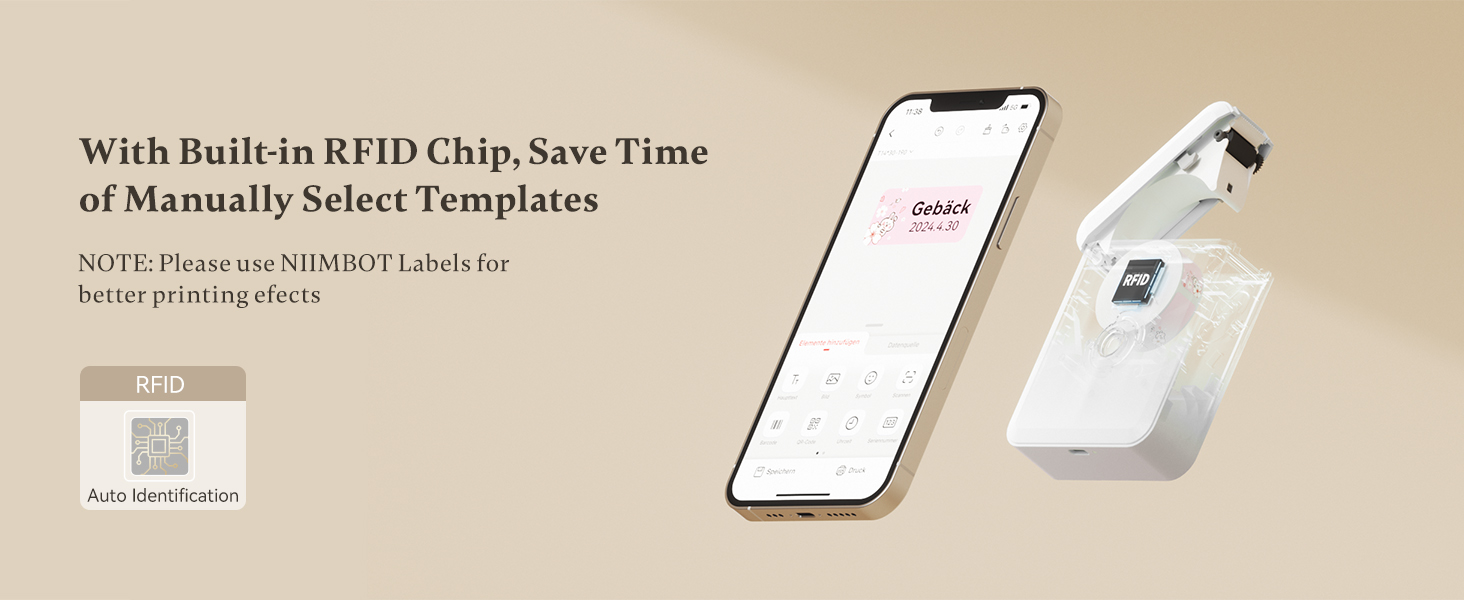
Image 4.2: The NIIMBOT app interface on a smartphone, demonstrating the automatic label identification feature via the built-in RFID chip.
5. Umarnin Aiki
5.1 Creating and Editing Labels
Once connected, use the NIIMBOT app to design your labels. The app offers various templates, fonts, symbols, and customization options.
- Select a template or start a new label design.
- Enter text, add icons, barcodes, or QR codes.
- Adjust font size, style, and alignment.
- Preview alamar ku kafin bugawa.

Image 5.1: The NIIMBOT app displaying options for personalizing labels, including different categories of icons and templates.
5.2 Lakabin Bugawa
After designing your label, tap the print button in the app. You can choose to print a single label or multiple copies (batch printing).
- Ensure the label maker has sufficient battery and label paper.
- Confirm the label design in the app.
- Tap "Print" and select the number of copies.
- The label will print rapidly from the device.

Image 5.2: Illustration of different printing modes available with the D110M, including real-time printing and reprinting previous labels.
5.3 Aikace-aikacen Lakabi
The NIIMBOT D110M is versatile for various labeling needs:
- Ƙungiyar Gida: Labeling storage bins, kitchen containers, spice jars, and personal items.
- Amfani da Ofishi: Tsara files, folders, cables, and office supplies.
- School Supplies: Naming school items, books, and craft materials.
- Kasuwanci: Creating price tags and product labels for small businesses.

Hoto 5.3: Examples of the D110M label maker's versatility across different categories like toys, kitchen, pricing, cosmetics, and personal items.

Image 5.4: Demonstrations of label durability, showcasing resistance to water, grease, abrasion, and fading.
6. Kulawa
6.1 Tsabtace Shugaban Buga
To ensure optimal print quality, regularly clean the print head. Use a cotton swab lightly dampened with isopropyl alcohol to gently wipe the print head surface. Allow it to dry completely before use.
6.2 Kula da baturi
To prolong battery life, avoid fully discharging the device frequently. Charge the device regularly, even if not in constant use. Store the device in a cool, dry place.
6.3 Ajiya Mai Lakabi
Store label rolls in a cool, dry place away from direct sunlight and heat to prevent degradation of the thermal material.
7. Shirya matsala
If you encounter issues with your NIIMBOT D110M, refer to the following common problems and solutions:
| Matsala | Dalili mai yiwuwa | Magani |
|---|---|---|
| Na'urar baya kunna | Ƙananan baturi | Charge the device using the Type-C cable. |
| Ba za a iya haɗi ta Bluetooth ba | Bluetooth off on phone; Device not discoverable; App issue | Ensure phone Bluetooth is on. Restart the label maker. Restart the NIIMBOT app. |
| Poor print quality / Faint print | Dirty print head; Incorrect label orientation; Low battery | Clean the print head. Ensure label paper is inserted correctly. Charge the device. |
| Alamun rashin ciyarwa daidai | Label roll improperly installed; Obstruction | Re-install the label roll, ensuring it's straight. Check for any debris in the paper path. |
| App does not recognize label type | Non-NIIMBOT labels; RFID chip issue | Ensure you are using genuine NIIMBOT labels. Restart the device and app. |
8. Ƙayyadaddun bayanai
Detailed technical specifications for the NIIMBOT D110M Label Maker:
- Samfura: D110M (Item model number: D110-M-New)
- Fasahar Bugawa: Thermal
- Ƙimar Buga: 203 DPI
- Saurin bugawa: 30 mm/s
- Haɗin kai: Bluetooth
- Na'urori masu jituwa: Wayoyin hannu (Android, iOS)
- Tushen wutar lantarki: 1500mAh Lithium-Ion Battery (rechargeable)
- Interface Cajin: Na USB-Type
- Girman samfur: 0.8 x 2.7 x 3.9 inci
- Nauyin Abu: 10.9 oz
- Launin Tawada: Monochrome (Black text only)
- Siffa ta Musamman: Portable, RFID Automatic Label Identification
9. Garanti da Tallafawa
9.1 Bayanin Garanti
The NIIMBOT D110M Label Maker comes with a Limited Warranty. Please refer to the warranty card included in your package or contact NIIMBOT customer service for specific terms and conditions.
9.2 Tallafin Abokin Ciniki
For further assistance, technical support, or inquiries regarding your product, please visit the official NIIMBOT webrukunin yanar gizon ko koma zuwa bayanan tuntuɓar da aka bayar a cikin marufin samfur naku.
Akwai sigar lantarki ta littafin jagorar mai amfani don saukewa: Littafin Mai Amfani (PDF)


